Delete Orders
Extension Installation
For Magento Marketplace Customers
-
Find the Composer name and version of the extension in the extension's composer.json file.
-
Login to your SSH and run:
- composer require mavenbird/module-delete-order
- Wait for Composer to finish updating your project dependencies and make sure there aren't any errors.
-
To verify that the extension installed properly, run the command:
- php bin/magento module:status Mavenbird_DeleteOrder
- By default, the extension is probably disabled.
- Enable the extension and clear static view files:
- php bin/magento module:enable Mavenbird_DeleteOrder --clear-static-content
- php bin/magento setup:upgrade
- For Magento version 2.0.x to 2.1.x - php bin/magento setup:static-content:deploy
- For Magento version 2.2.x & above - php bin/magento setup:static-content:deploy --f
- php bin/magento cache:flush
For Mavenbird Customers
- Extract the zip folder and upload our extension to the root of your Magento 2 directory via FTP.
- Login to your SSH and run below commands step by step:
- php bin/magento setup:upgrade
- For Magento version 2.0.x to 2.1.x - php bin/magento setup:static-content:deploy
- For Magento version 2.2.x & above - php bin/magento setup:static-content:deploy --force
- php bin/magento cache:flush
Simplify your Magento 2 store management with the ability to easily delete orders. Our Magento 2 Delete Order Extension enhances the efficiency of managing order data, allowing you to remove unwanted orders quickly and effortlessly.
- Easily delete single or multiple orders directly from the admin panel.
- Support for batch deletion of multiple orders at once.
- Ensure accuracy with confirmation prompts before deletion.
- Keep track of deleted orders with comprehensive logs for auditing purposes.
- Control access to delete order functionality with customizable user permissions.
- Delete selected invoices from the backend directly via the admin panel, streamlining invoice management.
- Remove unwanted shipments from the backend, helping you keep shipment data clean.
- Easily manage and delete unwanted credit memos directly from the backend.
Sales Order Grid Page
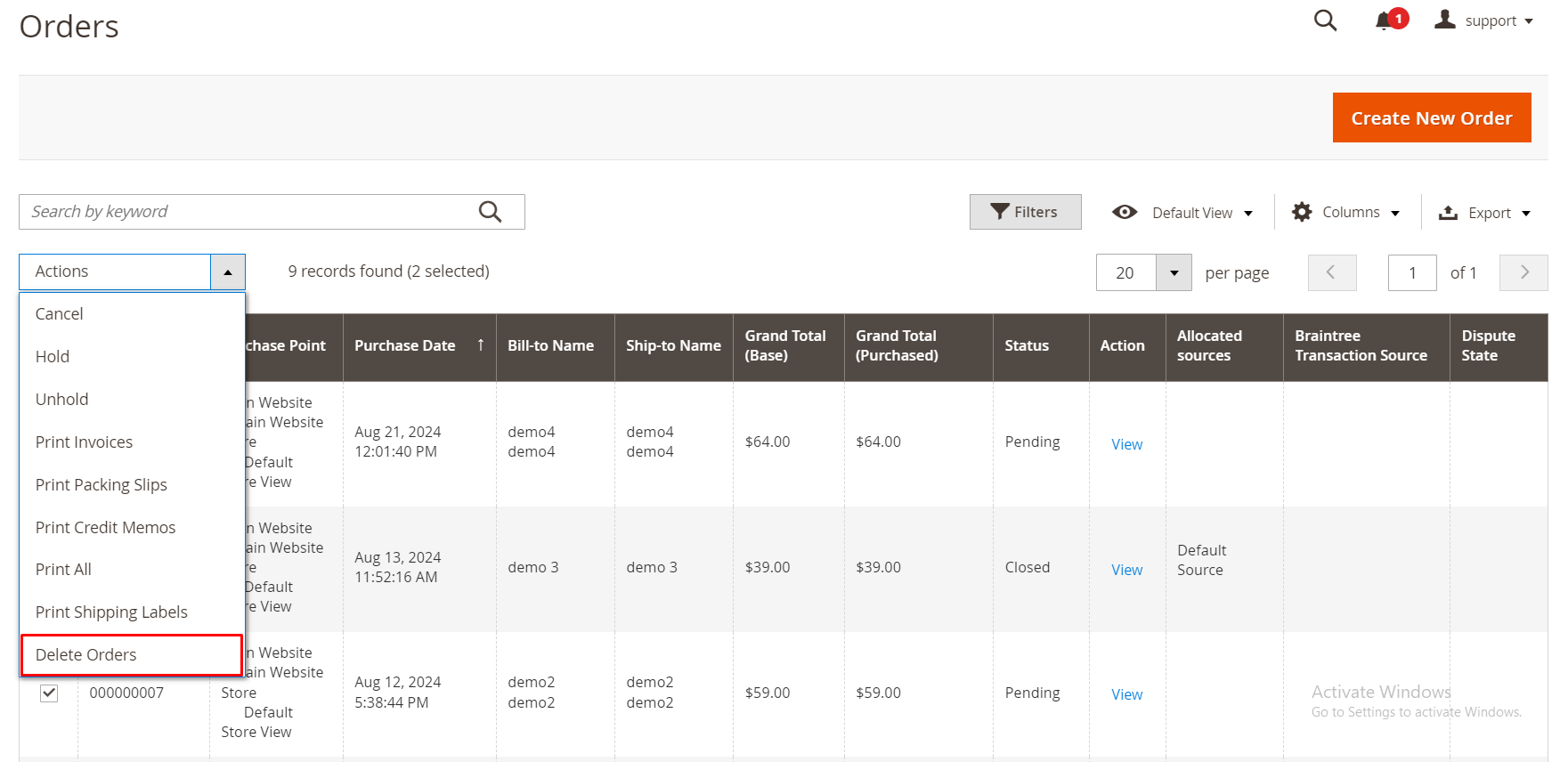
To delete orders in bulk, go to Sales -> Orders tab, select orders you want to delete and choose “Delete Orders” action from the Actions drop-down.
Sales Order View Page
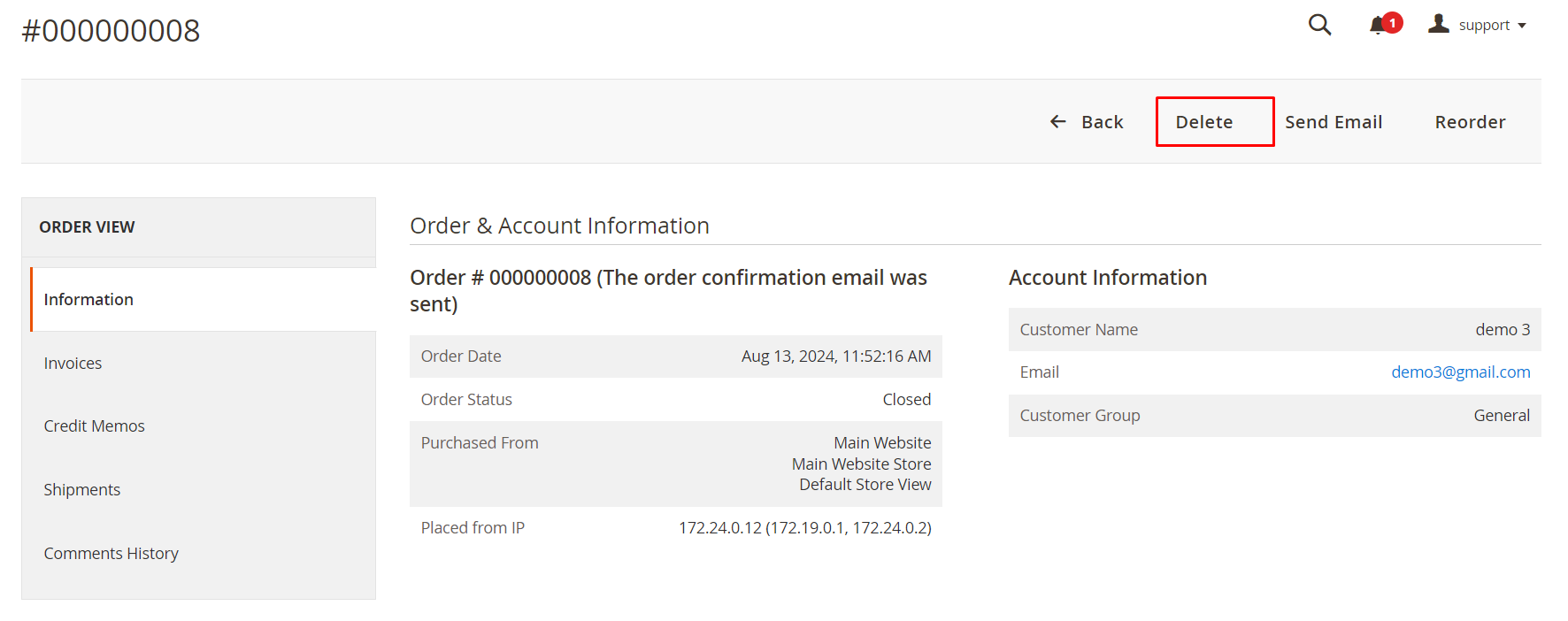
To manually delete a single order, from the order list page, click “View” to go to the order view page. Here you can find, “Delete” button with your specified text while configuration. Click to delete this particular order.
Delete Invoice
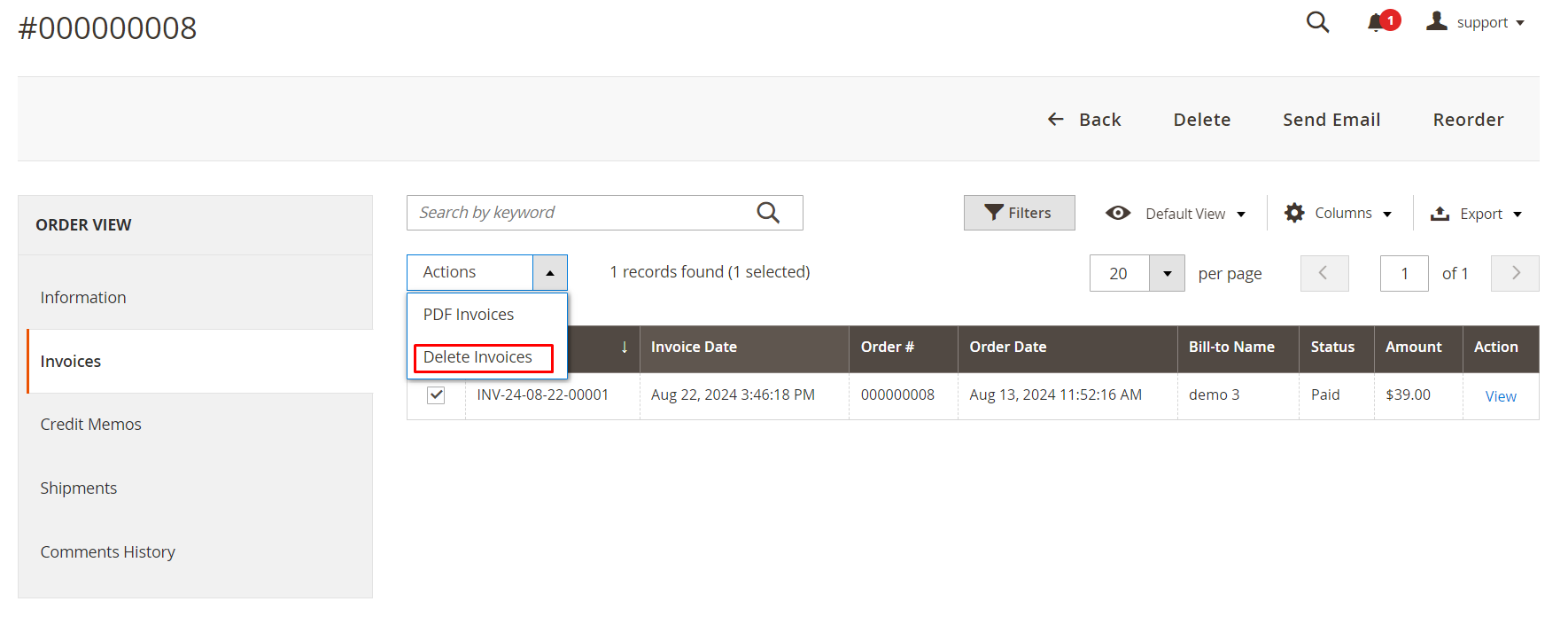
Go to Sales ⇒ Invoices and select Invoices you want to wipe out of the backend and then choose Delete Invoices in the Select Items box. After that, a popup appears and you click OK to confirm removing these selected Invoices.
After Invoices are deleted, order status turns back to Pending (if shipments have not been created) or Processing (if shipments have already been created). Credit memos are also removed. Invoices can be also recreated.
Delete Credit Memo
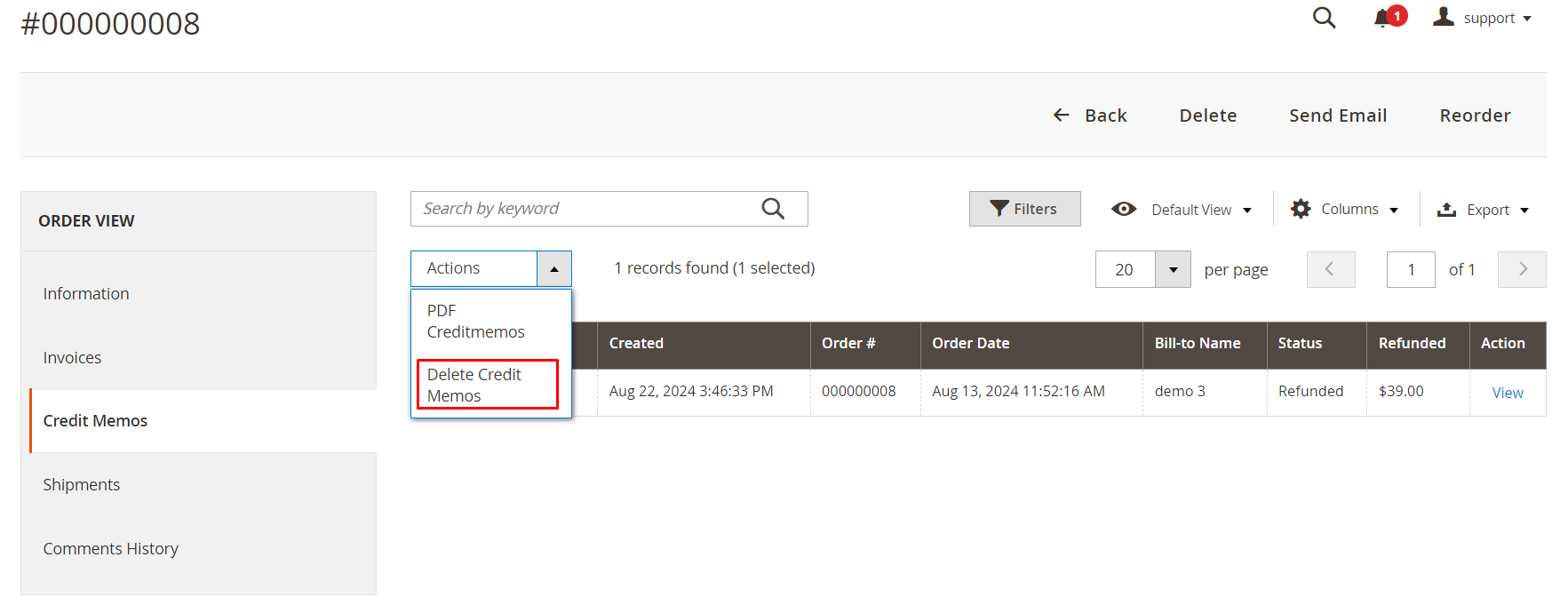
Go to Sales ⇒ Credit memos, select unwanted Credit memo(s), choose Delete Credit memos in the Select Items box, then click OK in the popup to completely exclude them from the backend. Under the Credit Memos tab in Order View Page of a particular order, click on Delete or select Delete Credit Memos in Actions dropdown box.
Delete Shipment
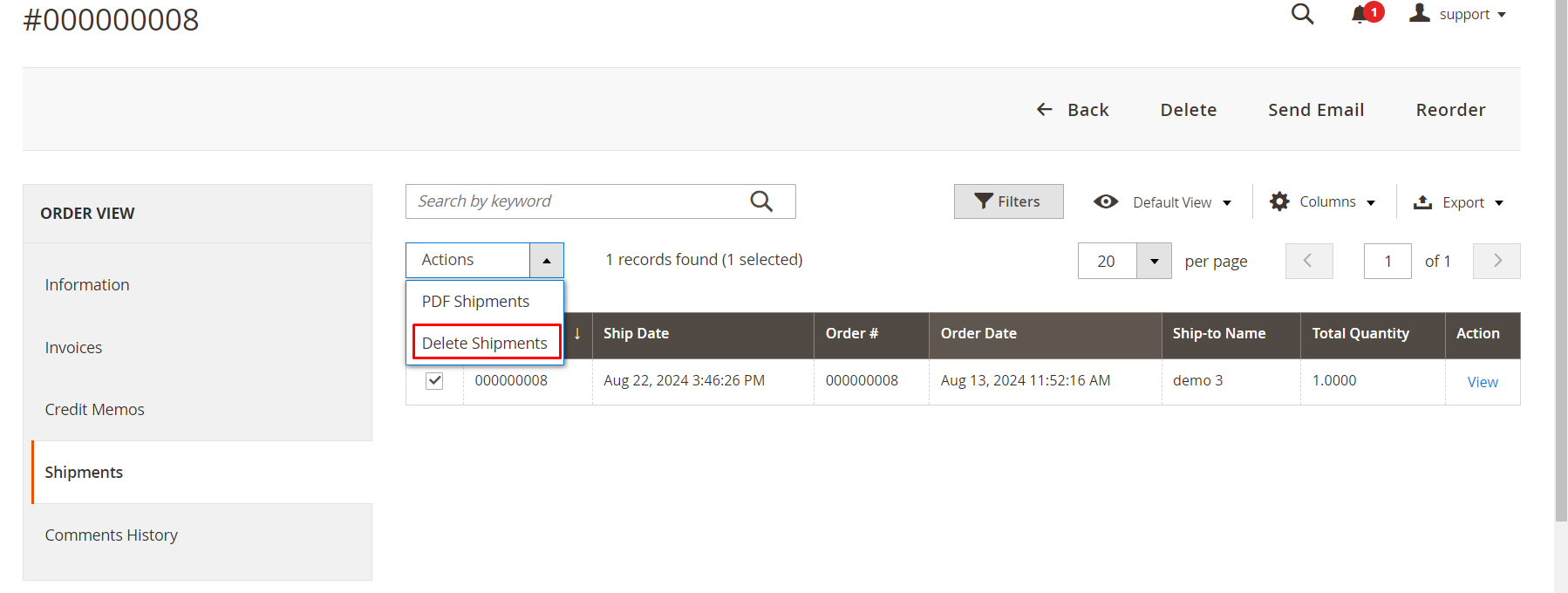
Similar to deleting orders and invoices, we can erase unneeded shipments by navigating to Sales ⇒ Shipments and select Shipments that you want to rub out. Then, you choose Delete Shipments in the Select Items box and press OK in the confirmation popup to finish the process. Similarly, you can delete shipment from Order View Page under Shipments tab by clicking on Delete button or choose Delete Invoices in Actions dropdown box.