SMS Notification
Extension Installation
For Magento Marketplace Customers
-
Find the Composer name and version of the extension in the extension's composer.json file.
-
Login to your SSH and run:
- composer require mavenbird/magento-2-sms-notification
- Wait for Composer to finish updating your project dependencies and make sure there aren't any errors.
-
To verify that the extension installed properly, run the command:
- php bin/magento module:status Mavenbird_SmsNotification
- By default, the extension is probably disabled.
- Enable the extension and clear static view files:
- php bin/magento module:enable Mavenbird_SmsNotification --clear-static-content
- php bin/magento setup:upgrade
- For Magento version 2.0.x to 2.1.x - php bin/magento setup:static-content:deploy
- For Magento version 2.2.x & above - php bin/magento setup:static-content:deploy --f
- php bin/magento cache:flush
For Mavenbird Customers
- Extract the zip folder and upload our extension to the root of your Magento 2 directory via FTP.
- Login to your SSH and run below commands step by step:
- php bin/magento setup:upgrade
- For Magento version 2.0.x to 2.1.x - php bin/magento setup:static-content:deploy
- For Magento version 2.2.x & above - php bin/magento setup:static-content:deploy --force
- php bin/magento cache:flush
SMS Notification – Configuration
The SMS Notification module allows the store to send SMS alerts to admin mobile numbers for specific events (e.g., new orders).
Path:
Admin → Mavenbird Extensions → SMS Notification → Configuration
Configuration Options
1. SMS Notification
Scope: Store View
Options:
Enable– Activates SMS notifications.Disable– Turns off SMS notifications.
When enabled:
- SMS alerts are triggered based on configured events.
2. Admin Mobile Number
Scope: Store View
Enter the admin mobile number(s) that should receive SMS notifications.
Format Rules:
- Include country code.
- Do NOT use
+symbol. - Enter numbers without spaces.
- Separate multiple numbers using a comma.
Example:
- 911122334455
Multiple numbers:
- 911122334455,919876543210
- Numbers must be valid and active.
- Incorrect format may prevent SMS delivery.
- Settings can be configured per Store View.
- Ensure SMS gateway or provider integration is properly configured in the module backend.

SMS Notification – API Settings
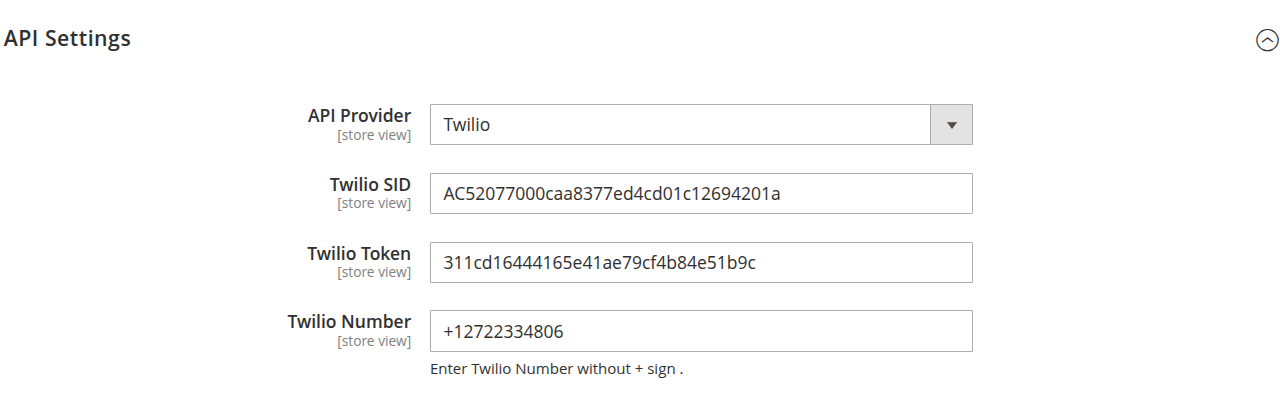
This section configures the SMS gateway provider credentials used to send SMS notifications.
Path:
Admin → Mavenbird Extensions → SMS Notification → API Settings
Configuration Options
1. API Provider
Scope: Store View
- Select the SMS gateway provider.
Example:
- Twilio
2. Twilio SID
- Your Twilio Account SID.
Example:
- ACxxxxxxxxxxxxxxxxxxxxxxxxxxxxxxxx
- You can find this in your Twilio dashboard under Account Information.
3. Twilio Token
- Your Twilio Auth Token.
Example:
- xxxxxxxxxxxxxxxxxxxxxxxxxxxxxxxx
- This is used for API authentication.
4. Twilio Number
- The Twilio phone number used to send SMS messages.
Format Rules:
- Enter number without
+symbol. - Include country code.
- No spaces.
Example:
- 12722334806
How It Works
- An event is triggered (e.g., new order).
- Magento sends request to Twilio API.
- Twilio sends SMS from configured Twilio number.
- Admin mobile number(s) receive notification.
- Ensure Twilio account is active.
- Verify the Twilio phone number is SMS-enabled.
- Credentials must be correct or SMS sending will fail.
- Keep SID and Token secure.
- Configuration applies per Store View if needed.
API SMS Testing
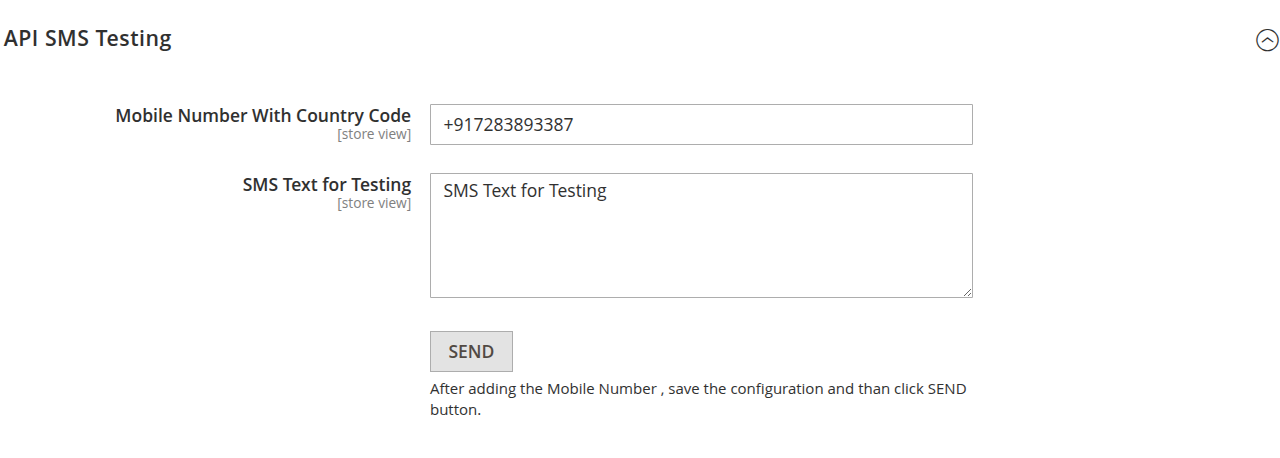
This section allows you to test the SMS gateway configuration directly from the admin panel.
Path:
Admin → Mavenbird Extensions → SMS Notification → API SMS Testing
Configuration Fields
1. Mobile Number With Country Code
Enter the recipient mobile number including country code.
Format Rules:
- Include country code.
- Use
+prefix (if required by module). - No spaces.
Example:
- +917283893387
2. SMS Text for Testing
Enter the message content you want to send for testing.
Example:
- This is a test SMS from Magento store.
How to Test
- Enter the mobile number.
- Enter the test message.
- Click Save Configuration.
- Click SEND button.
If API credentials are correct:
- SMS will be delivered to the provided number.
Expected Behavior
- System sends request to configured SMS provider (e.g., Twilio).
- If successful, SMS is received immediately.
- If failed, an error may be shown or logged in system logs.
Troubleshooting
If SMS is not received:
- Verify API Provider credentials (SID and Token).
- Confirm Twilio number is active and SMS-enabled.
- Check correct country code format.
- Review Magento logs:
- var/log/system.log
- var/log/exception.log
Recommendation
Always test SMS configuration after:
- Updating API credentials
- Changing Twilio number
- Switching API provider
- Moving from staging to production
Order Verification Settings
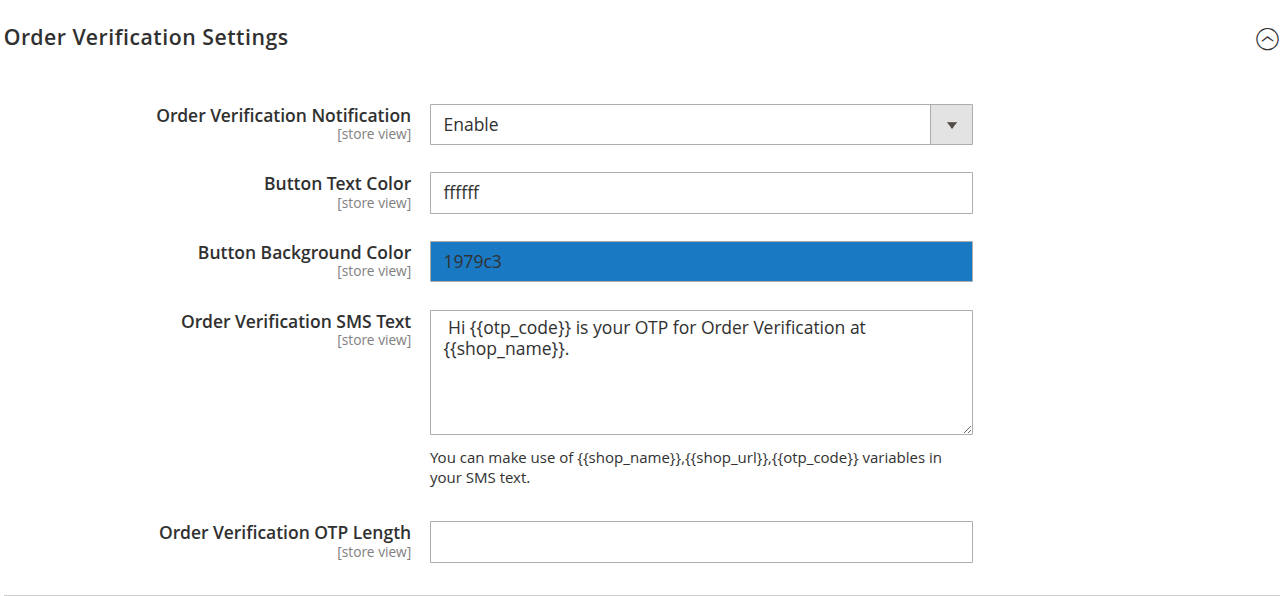
This section configures OTP-based order verification via SMS.
Path:
Admin → Mavenbird Extensions → SMS Notification → Order Verification Settings
Order Verification Notification
Scope: Store View
Options:
- Enable – Activates OTP verification during order placement.
- Disable – Orders are placed without OTP verification.
When enabled:
- Customer receives an OTP via SMS.
- Order is verified only after correct OTP entry.
Button Text Color
Scope: Store View
- Defines the text color of the OTP verification button.
Example:
- ffffff
- Enter hex color code without
#.
Button Background Color
Scope: Store View
- Defines the background color of the OTP verification button.
Example:
- 1979c3
- Enter hex color code without
#.
Order Verification SMS Text
Scope: Store View
- Defines the SMS template sent to customers.
Default example:
- Hi
{{otp_code}}is your OTP for Order Verification at{{shop_name}}.
Available variables:
{{otp_code}}→ Generated OTP code{{shop_name}}→ Store name{{shop_url}}→ Store URL
These variables are dynamically replaced when SMS is sent.
Order Verification OTP Length
Scope: Store View
- Defines the number of digits in the generated OTP.
Example:
- 4
- or
- 6
Only numeric values should be entered.
Order Verification Flow
- Customer places order.
- System generates OTP.
- SMS is sent to the customer mobile number.
- Customer enters OTP.
- If OTP matches:
- Order is confirmed.
- Order processing continues.
- If OTP fails:
- Order may remain pending or be blocked (depending on implementation).
- SMS API settings must be correctly configured.
- Customer must have a valid mobile number.
- OTP length impacts security level.
- Ensure SMS content complies with local telecom regulations.
Mobile Number Update Settings
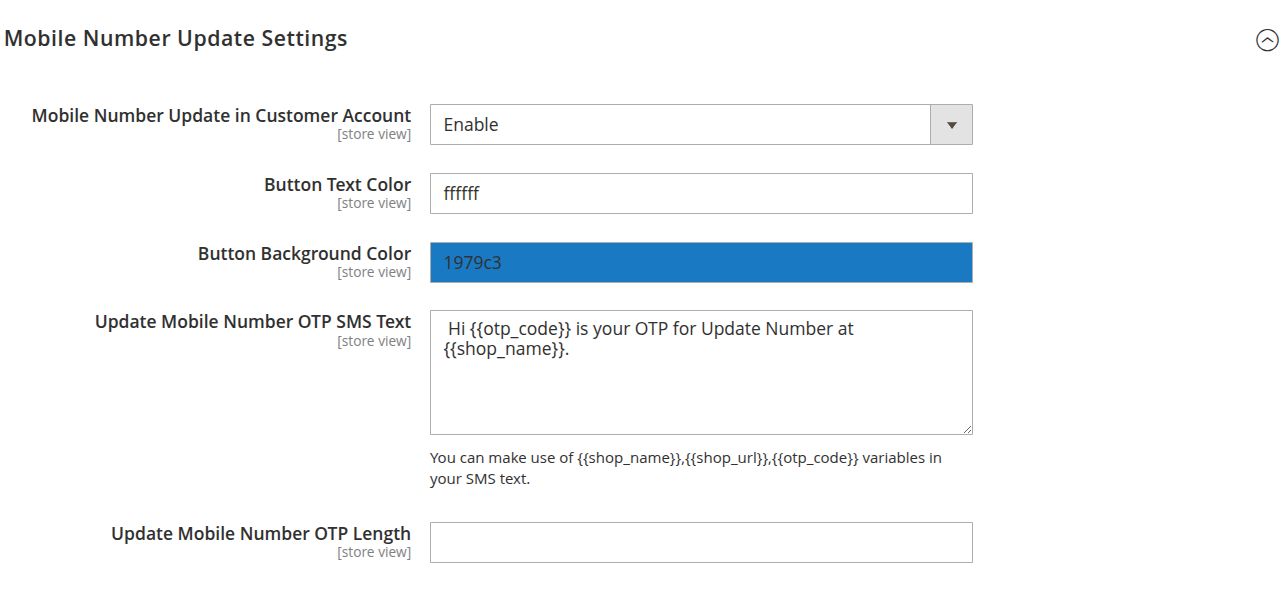
This section configures OTP verification when customers update their mobile number in their account.
Path:
Admin → Mavenbird Extensions → SMS Notification → Mobile Number Update Settings
Mobile Number Update in Customer Account
Scope: Store View
Options:
- Enable – Allows customers to update their mobile number with OTP verification.
- Disable – Customers cannot update mobile number via OTP process.
When enabled:
- OTP is sent to the entered mobile number.
- Update is completed only after successful OTP verification.
Button Text Color
Scope: Store View
Defines the text color of the OTP verification button.
Example:
- ffffff
- Enter hex color code without
#.
Button Background Color
Scope: Store View
Defines the background color of the OTP verification button.
Example:
- 1979c3
- Enter hex color code without
#.
Update Mobile Number OTP SMS Text
Scope: Store View
Defines the SMS template sent during mobile number update verification.
Default example:
Hi {{otp_code}} is your OTP for Update Number at {{shop_name}}.
Available variables:
{{otp_code}}→ Generated OTP code{{shop_name}}→ Store name{{shop_url}}→ Store URL
Variables are dynamically replaced when SMS is sent.
Update Mobile Number OTP Length
Scope: Store View
Defines the number of digits in the generated OTP.
Example:
- 4
- or
- 6
- Only numeric values should be entered.
Update Flow
- Customer edits mobile number in account.
- System generates OTP.
- OTP is sent to the entered mobile number.
- Customer enters OTP.
- If OTP matches:
- Mobile number is updated successfully.
- If OTP fails:
- Update is rejected.
- SMS API settings must be correctly configured.
- Ensure correct country code format.
- OTP length affects security strength.
- Applies per Store View if configured.
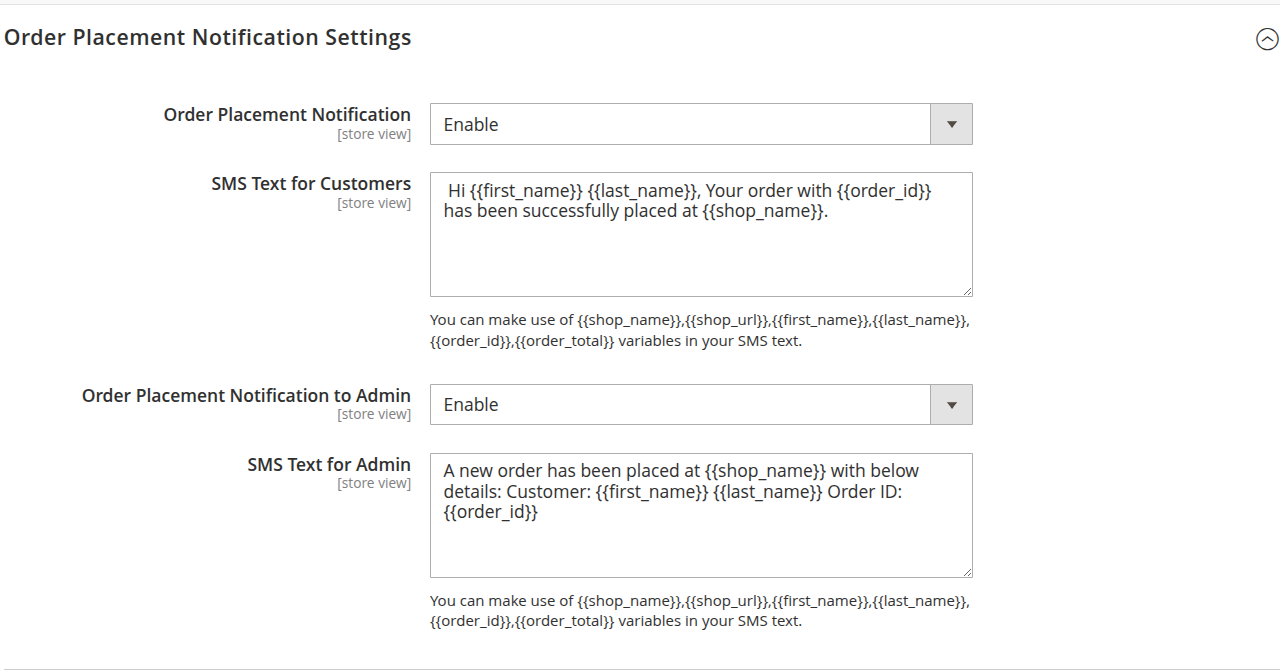
Order Placement Notification Settings
This section configures SMS notifications sent when an order is successfully placed.
Path:
Admin → Mavenbird Extensions → SMS Notification → Order Placement Notification Settings
Order Placement Notification
Scope: Store View
Options:
- Enable – Sends SMS notification to customer after order placement.
- Disable – No SMS sent to customer.
SMS Text for Customers
Scope: Store View
-
Defines the SMS template sent to customers.
-
Default example:
-
Hi
{{first_name}}{{last_name}}, Your order with{{order_id}}has been successfully placed at{{shop_name}}.
Available variables:
-
{{shop_name}}→ Store name -
{{shop_url}}→ Store URL -
{{first_name}}→ Customer first name -
{{last_name}}→ Customer last name -
{{order_id}}→ Order increment ID -
{{order_total}}→ Order grand total -
Variables are dynamically replaced when SMS is sent.
Order Placement Notification to Admin
Scope: Store View
Options:
- Enable – Sends SMS notification to admin when a new order is placed.
- Disable – No SMS sent to admin.
SMS Text for Admin
Scope: Store View
-
Defines the SMS template sent to admin.
-
Default example:
-
A new order has been placed at
{{shop_name}}with below details: Customer:{{first_name}}{{last_name}}Order ID:{{order_id}}
Available variables:
{{shop_name}}→ Store name{{shop_url}}→ Store URL{{first_name}}→ Customer first name{{last_name}}→ Customer last name{{order_id}}→ Order increment ID{{order_total}}→ Order grand total
Notification Flow
- Customer places an order successfully.
- If enabled:
- SMS is sent to customer.
- SMS is sent to admin (if enabled).
- Message content is generated using configured template variables.
- SMS API settings must be properly configured.
- Admin mobile number must be defined in SMS configuration.
- Ensure SMS templates comply with local telecom regulations.
- Settings apply per Store View if configured.
Order Invoice Notification Settings
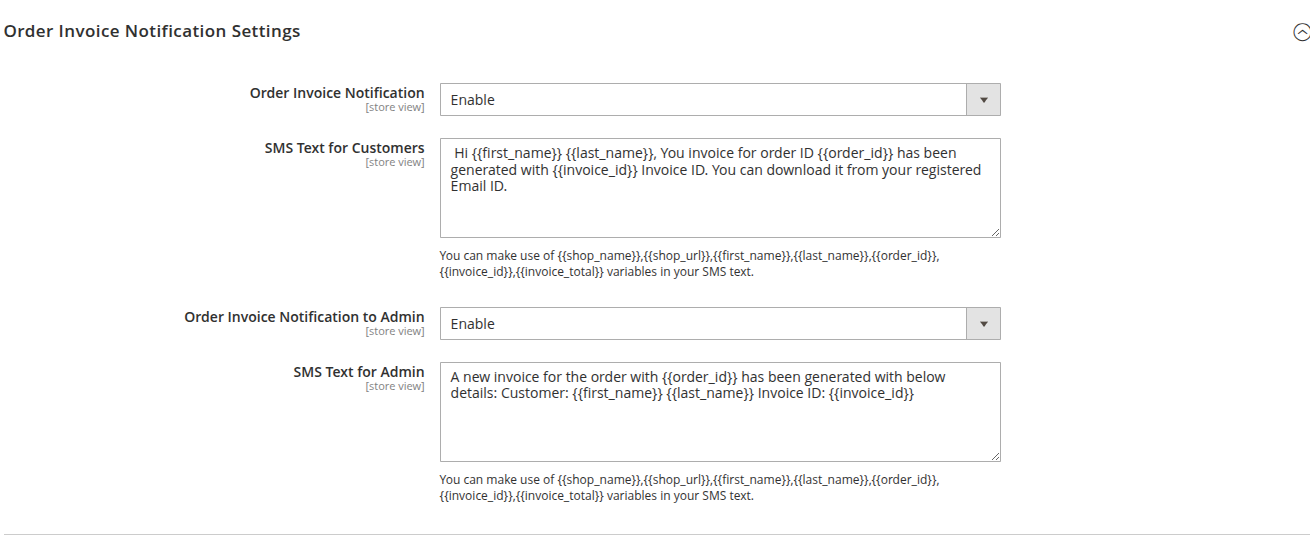
This section configures SMS notifications sent when an invoice is generated for an order.
Path:
Admin → Mavenbird Extensions → SMS Notification → Order Invoice Notification Settings
Order Invoice Notification
Scope: Store View
Options:
- Enable – Sends SMS notification to customer when an invoice is generated.
- Disable – No SMS sent to customer.
SMS Text for Customers
Scope: Store View
Defines the SMS template sent to customers.
Default example:
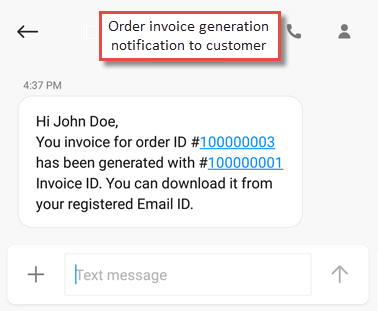
Hi {{first_name}} {{last_name}}, Your invoice for order ID {{order_id}} has been generated with {{invoice_id}} Invoice ID. You can download it from your registered Email ID.
Available variables:
{{shop_name}}→ Store name{{shop_url}}→ Store URL{{first_name}}→ Customer first name{{last_name}}→ Customer last name{{order_id}}→ Order increment ID{{invoice_id}}→ Invoice ID{{invoice_total}}→ Invoice grand total
Variables are dynamically replaced when SMS is sent.
Order Invoice Notification to Admin
Scope: Store View
Options:
- Enable – Sends SMS notification to admin when an invoice is generated.
- Disable – No SMS sent to admin.
SMS Text for Admin
Scope: Store View
Defines the SMS template sent to admin.
Default example:
A new invoice for the order with {{order_id}} has been generated with below details: Customer: {{first_name}} {{last_name}} Invoice ID: {{invoice_id}}
Available variables:
{{shop_name}}→ Store name{{shop_url}}→ Store URL{{first_name}}→ Customer first name{{last_name}}→ Customer last name{{order_id}}→ Order increment ID{{invoice_id}}→ Invoice ID{{invoice_total}}→ Invoice grand total
Notification Flow
- Invoice is generated for an order.
- If enabled:
- SMS is sent to customer.
- SMS is sent to admin (if enabled).
- Message content is generated using configured template variables.
- SMS API settings must be properly configured.
- Admin mobile number must be defined in SMS configuration.
- Ensure SMS templates comply with local telecom regulations.
- Settings apply per Store View if configured.
Order Cancellation Notification Settings
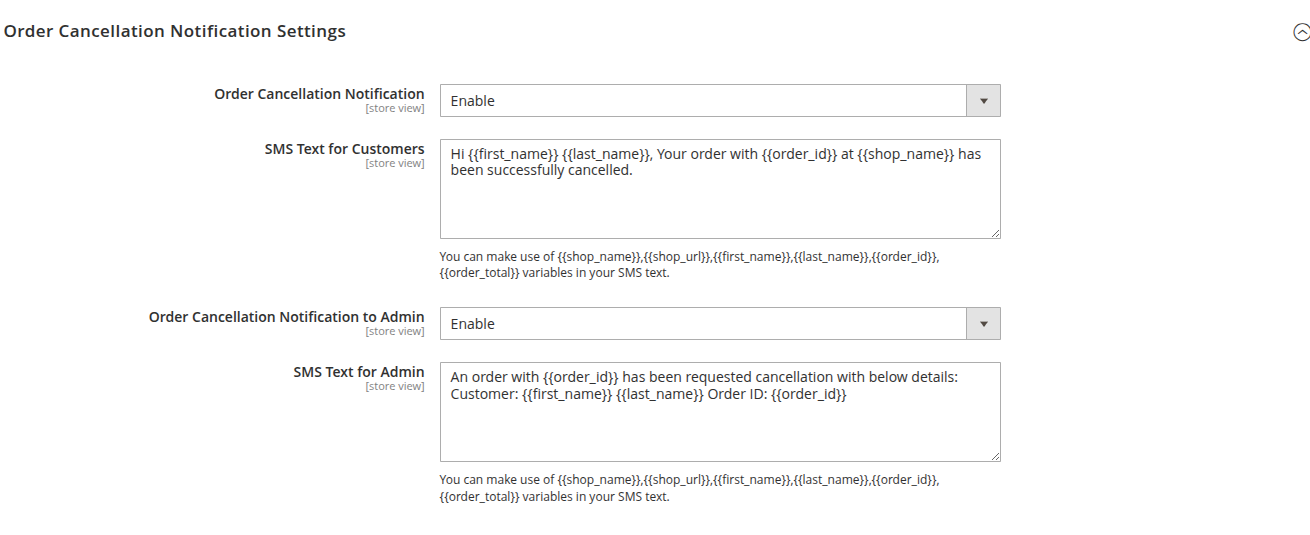
This section configures SMS notifications sent when an order is cancelled.
Path:
Admin → Mavenbird Extensions → SMS Notification → Order Cancellation Notification Settings
Order Cancellation Notification
Scope: Store View
Options:
- Enable – Sends SMS notification to customer when an order is cancelled.
- Disable – No SMS sent to customer.
SMS Text for Customers
Scope: Store View
Defines the SMS template sent to customers.
Default example:
Hi {{first_name}} {{last_name}}, Your order with {{order_id}} at {{shop_name}} has been successfully cancelled.
Available variables:
{{shop_name}}→ Store name{{shop_url}}→ Store URL{{first_name}}→ Customer first name{{last_name}}→ Customer last name{{order_id}}→ Order increment ID{{order_total}}→ Order grand total
Variables are dynamically replaced when SMS is sent.
Order Cancellation Notification to Admin
Scope: Store View
Options:
- Enable – Sends SMS notification to admin when an order is cancelled.
- Disable – No SMS sent to admin.
SMS Text for Admin
Scope: Store View
Defines the SMS template sent to admin.
Default example:
An order with {{order_id}} has been requested cancellation with below details:
Customer: {{first_name}} {{last_name}}
Order ID: {{order_id}}
Available variables:
{{shop_name}}→ Store name{{shop_url}}→ Store URL{{first_name}}→ Customer first name{{last_name}}→ Customer last name{{order_id}}→ Order increment ID{{order_total}}→ Order grand total
Notification Flow
- Order is cancelled.
- If enabled:
- SMS is sent to customer.
- SMS is sent to admin (if enabled).
- Message content is generated using configured template variables.
- SMS API settings must be properly configured.
- Admin mobile number must be defined in SMS configuration.
- Ensure SMS templates comply with local telecom regulations.
- Settings apply per Store View if configured.
Order Shipment Notification Settings
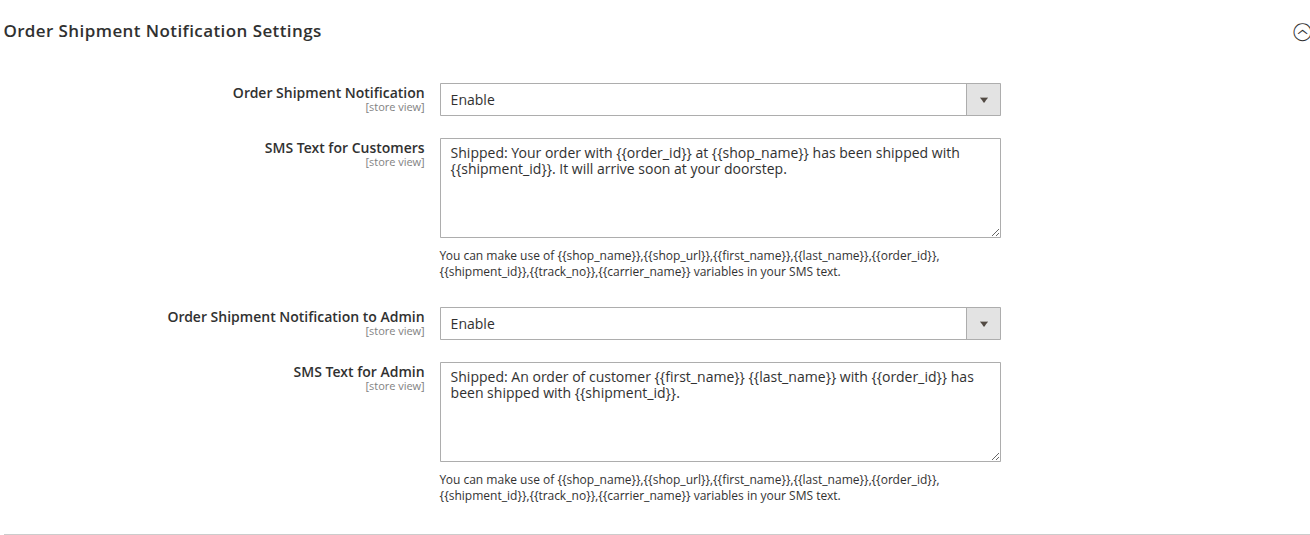
This section configures SMS notifications sent when an order is shipped.
Path:
Admin → Mavenbird Extensions → SMS Notification → Order Shipment Notification Settings
Order Shipment Notification
Scope: Store View
Options:
- Enable – Sends SMS notification to customer when an order is shipped.
- Disable – No SMS sent to customer.
SMS Text for Customers
Scope: Store View
Defines the SMS template sent to customers.
Default example:
Shipped: Your order with {{order_id}} at {{shop_name}} has been shipped with {{shipment_id}}. It will arrive soon at your doorstep.
Available variables:
{{shop_name}}→ Store name{{shop_url}}→ Store URL{{first_name}}→ Customer first name{{last_name}}→ Customer last name{{order_id}}→ Order increment ID{{shipment_id}}→ Shipment ID{{track_no}}→ Tracking number{{carrier_name}}→ Carrier name
Variables are dynamically replaced when SMS is sent.
Order Shipment Notification to Admin
Scope: Store View
Options:
- Enable – Sends SMS notification to admin when an order is shipped.
- Disable – No SMS sent to admin.
SMS Text for Admin
Scope: Store View
Defines the SMS template sent to admin.
Default example:
Shipped: An order of customer {{first_name}} {{last_name}} with {{order_id}} has been shipped with {{shipment_id}}.
Available variables:
{{shop_name}}→ Store name{{shop_url}}→ Store URL{{first_name}}→ Customer first name{{last_name}}→ Customer last name{{order_id}}→ Order increment ID{{shipment_id}}→ Shipment ID{{track_no}}→ Tracking number{{carrier_name}}→ Carrier name
Notification Flow
- Order is shipped.
- If enabled:
- SMS is sent to customer.
- SMS is sent to admin (if enabled).
- Message content is generated using configured template variables.
- SMS API settings must be properly configured.
- Admin mobile number must be defined in SMS configuration.
- Ensure SMS templates comply with local telecom regulations.
- Settings apply per Store View if configured.
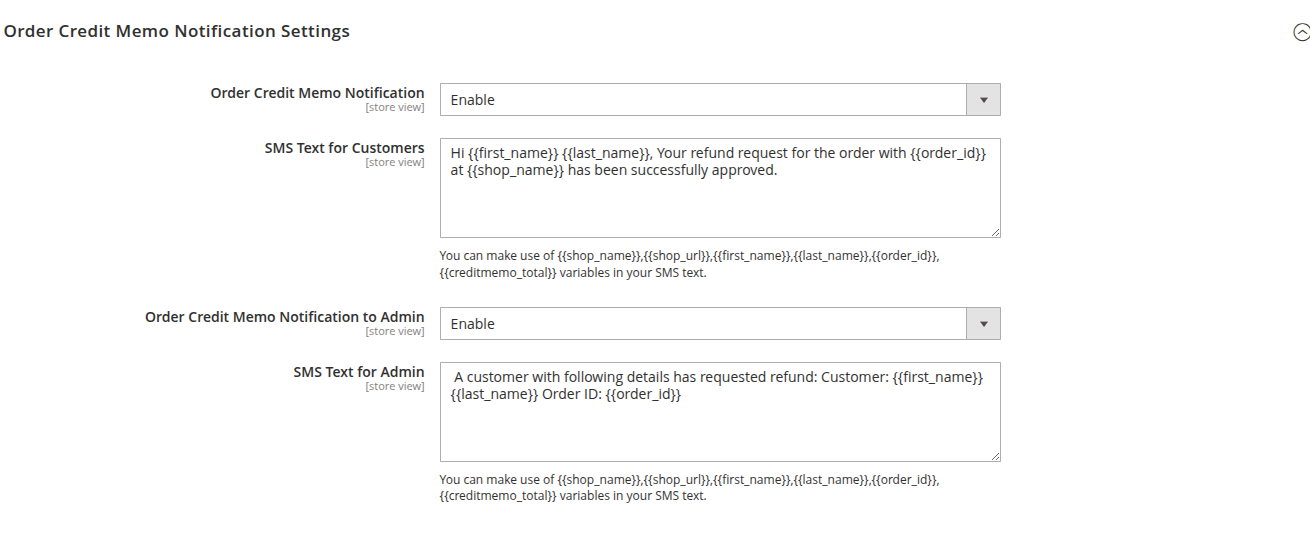
Order Credit Memo Notification Settings
This section configures SMS notifications sent when a credit memo (refund) is processed for an order.
Path:
Admin → Mavenbird Extensions → SMS Notification → Order Credit Memo Notification Settings
Order Credit Memo Notification
Scope: Store View
Options:
- Enable – Sends SMS notification to customer when a refund is approved.
- Disable – No SMS sent to customer.
SMS Text for Customers
Scope: Store View
Defines the SMS template sent to customers.
Default example:
Hi {{first_name}} {{last_name}}, Your refund request for the order with {{order_id}} at {{shop_name}} has been successfully approved.
Available variables:
{{shop_name}}→ Store name{{shop_url}}→ Store URL{{first_name}}→ Customer first name{{last_name}}→ Customer last name{{order_id}}→ Order increment ID{{creditmemo_total}}→ Credit memo total
Variables are dynamically replaced when SMS is sent.
Order Credit Memo Notification to Admin
Scope: Store View
Options:
- Enable – Sends SMS notification to admin when a refund is requested.
- Disable – No SMS sent to admin.
SMS Text for Admin
Scope: Store View
Defines the SMS template sent to admin.
Default example:
A customer with following details has requested refund:
Customer: {{first_name}} {{last_name}}
Order ID: {{order_id}}
Available variables:
{{shop_name}}→ Store name{{shop_url}}→ Store URL{{first_name}}→ Customer first name{{last_name}}→ Customer last name{{order_id}}→ Order increment ID{{creditmemo_total}}→ Credit memo total
Notification Flow
- Refund (credit memo) is processed for an order.
- If enabled:
- SMS is sent to customer.
- SMS is sent to admin (if enabled).
- Message content is generated using configured template variables.
- SMS API settings must be properly configured.
- Admin mobile number must be defined in SMS configuration.
- Ensure SMS templates comply with local telecom regulations.
- Settings apply per Store View if configured.
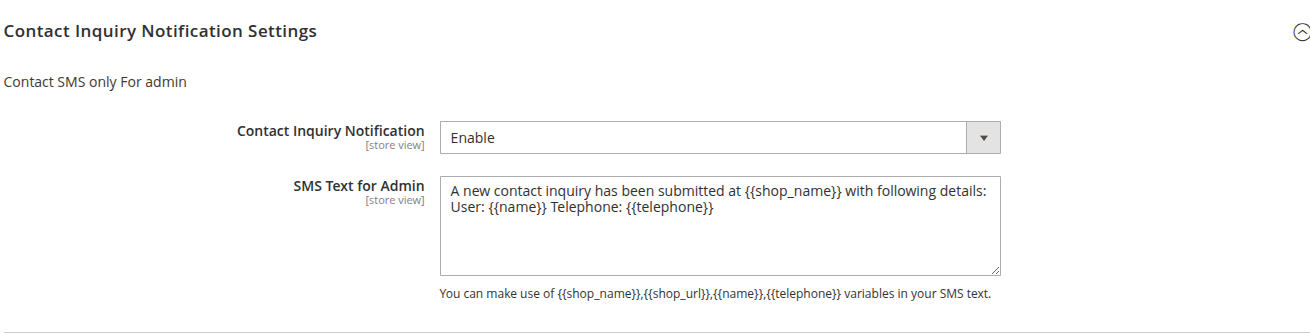
Contact Inquiry Notification Settings
This section configures SMS notifications sent to admin when a contact inquiry is submitted.
Note: Contact SMS is only sent to admin.
Path:
Admin → Mavenbird Extensions → SMS Notification → Contact Inquiry Notification Settings
Contact Inquiry Notification
Scope: Store View
Options:
- Enable – Sends SMS notification to admin when a contact inquiry is submitted.
- Disable – No SMS sent to admin.
SMS Text for Admin
Scope: Store View
Defines the SMS template sent to admin.
Default example:
A new contact inquiry has been submitted at {{shop_name}} with following details:
User: {{name}}
Telephone: {{telephone}}
Available variables:
{{shop_name}}→ Store name{{shop_url}}→ Store URL{{name}}→ User name{{telephone}}→ User telephone
Variables are dynamically replaced when SMS is sent.
Notification Flow
- Contact inquiry is submitted by a user.
- If enabled:
- SMS is sent to admin.
- Message content is generated using configured template variables.
- SMS API settings must be properly configured.
- Admin mobile number must be defined in SMS configuration.
- Ensure SMS templates comply with local telecom regulations.
- Settings apply per Store View if configured.
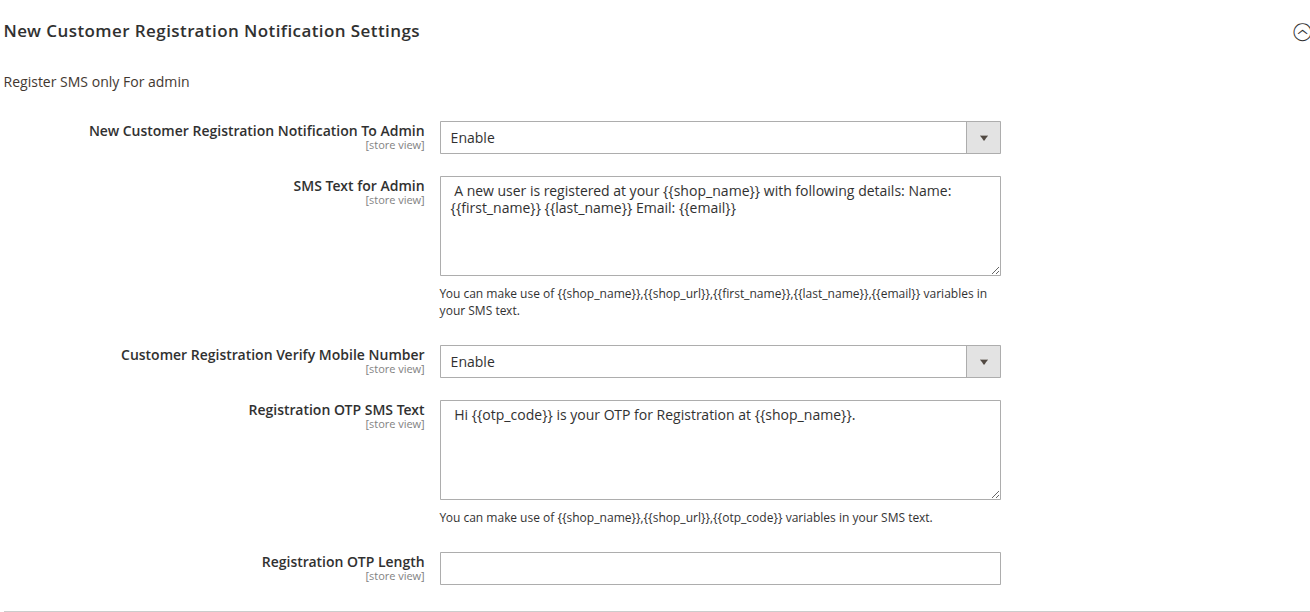
New Customer Registration Notification Settings
This section configures SMS notifications sent for new customer registrations.
Note: Registration SMS is only sent to admin.
Path:
Admin → Mavenbird Extensions → SMS Notification → New Customer Registration Notification Settings
New Customer Registration Notification To Admin
Scope: Store View
Options:
- Enable – Sends SMS notification to admin when a new customer registers.
- Disable – No SMS sent to admin.
SMS Text for Admin
Scope: Store View
Defines the SMS template sent to admin.
Default example:
A new user is registered at your {{shop_name}} with following details:
Name: {{first_name}} {{last_name}}
Email: {{email}}
Available variables:
{{shop_name}}→ Store name{{shop_url}}→ Store URL{{first_name}}→ Customer first name{{last_name}}→ Customer last name{{email}}→ Customer email
Variables are dynamically replaced when SMS is sent.
Customer Registration Verify Mobile Number
Scope: Store View
Options:
- Enable – Sends OTP SMS to customer for mobile number verification during registration.
- Disable – No OTP SMS sent.
Registration OTP SMS Text
Scope: Store View
Defines the SMS template sent to customer for OTP verification.
Default example:
Hi {{otp_code}} is your OTP for Registration at {{shop_name}}.
Available variables:
{{shop_name}}→ Store name{{shop_url}}→ Store URL{{otp_code}}→ Generated OTP code
Variables are dynamically replaced when SMS is sent.
Registration OTP Length
Scope: Store View
Defines the number of digits in the generated OTP for registration.
Notification Flow
- Customer registers on the store.
- If enabled:
- SMS is sent to admin with registration details.
- OTP SMS is sent to customer for mobile verification (if enabled).
- Message content is generated using configured template variables.
- SMS API settings must be properly configured.
- Admin mobile number must be defined in SMS configuration.
- Ensure SMS templates comply with local telecom regulations.
- Settings apply per Store View if configured.
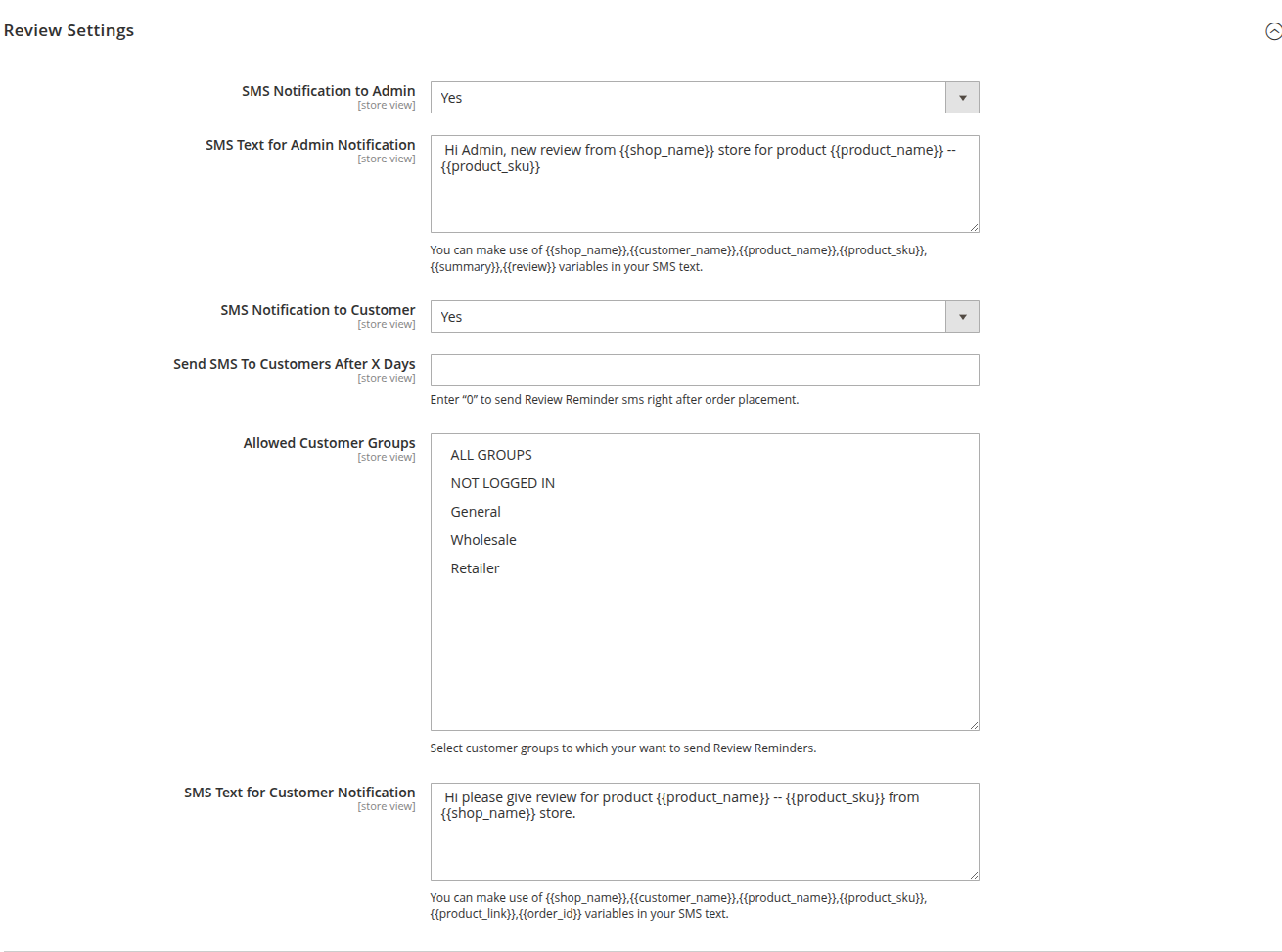
Review Settings
This section configures SMS notifications related to product reviews and review reminders.
Path:
Admin → Mavenbird Extensions → SMS Notification → Review Settings
SMS Notification to Admin
Scope: Store View
Options:
- Yes – Sends SMS notification to admin when a new review is submitted.
- No – No SMS sent to admin.
SMS Text for Admin Notification
Scope: Store View
Defines the SMS template sent to admin.
Default example:
Hi Admin, new review from {{shop_name}} store for product {{product_name}} -- {{product_sku}}
Available variables:
{{shop_name}}→ Store name{{customer_name}}→ Customer name{{product_name}}→ Product name{{product_sku}}→ Product SKU{{summary}}→ Review summary{{review}}→ Review content
Variables are dynamically replaced when SMS is sent.
SMS Notification to Customer
Scope: Store View
Options:
- Yes – Sends SMS notification to customer for review reminders.
- No – No SMS sent to customer.
Send SMS To Customers After X Days
Scope: Store View
Enter the number of days after order placement to send review reminder SMS.
Enter "0" to send Review Reminder SMS right after order placement.
Allowed Customer Groups
Scope: Store View
Select customer groups to which you want to send Review Reminders.
Options:
- ALL GROUPS
- NOT LOGGED IN
- General
- Wholesale
- Retailer
SMS Text for Customer Notification
Scope: Store View
Defines the SMS template sent to customers.
Default example:
Hi please give review for product **{{product_name}} -- {{product_sku}} from {{shop_name}} store.
Available variables:
{{shop_name}}→ Store name{{customer_name}}→ Customer name{{product_name}}→ Product name{{product_sku}}→ Product SKU{{product_link}}→ Product link{{order_id}}→ Order increment ID
Variables are dynamically replaced when SMS is sent.
Notification Flow
- Customer places an order.
- After X days (or immediately if set to 0), review reminder SMS is sent to eligible customer groups.
- If enabled, SMS notification is sent to admin when a new review is submitted.
- Message content is generated using configured template variables.
- SMS API settings must be properly configured.
- Admin mobile number must be defined in SMS configuration.
- Ensure SMS templates comply with local telecom regulations.
- Settings apply per Store View if configured.
Country Flag Settings
This section configures the display of country flags in the store.
Path:
Admin → Mavenbird Extensions → SMS Notification → Country Flag Settings
Enable
Scope: Store View
Options:
- Yes – Enables the display of country flags.
- No – Disables the display of country flags.
- This setting applies per Store View.
- When enabled, country flags may be shown in relevant areas of the store interface.

Frontend Messages
New Registration Notification to Admin

New Order Placement Notification to Customer

Order Invoice Generation Notification to Customers

Order Invoice Generation Notification to Admin
Order Shipment Notification to Customer

Order Shipment Notification to Admin

Refund Request Notification to Customer

Credit Memo Generation Notification to Admin

New Contact Inquiry Notification to Admin
