New Product
Extension Installation
For Magento Marketplace Customers
-
Find the Composer name and version of the extension in the extension's composer.json file.
-
Login to your SSH and run:
- composer require mavenbird/module-new-product
- Wait for Composer to finish updating your project dependencies and make sure there aren't any errors.
-
To verify that the extension installed properly, run the command:
- php bin/magento module:status Mavenbird_Newproduct
- By default, the extension is probably disabled.
- Enable the extension and clear static view files:
- php bin/magento module:enable Mavenbird_Newproduct --clear-static-content
- php bin/magento setup:upgrade
- For Magento version 2.0.x to 2.1.x - php bin/magento setup:static-content:deploy
- For Magento version 2.2.x & above - php bin/magento setup:static-content:deploy --f
- php bin/magento cache:flush
For Mavenbird Customers
- Extract the zip folder and upload our extension to the root of your Magento 2 directory via FTP.
- Login to your SSH and run below commands step by step:
- php bin/magento setup:upgrade
- For Magento version 2.0.x to 2.1.x - php bin/magento setup:static-content:deploy
- For Magento version 2.2.x & above - php bin/magento setup:static-content:deploy --force
- php bin/magento cache:flush
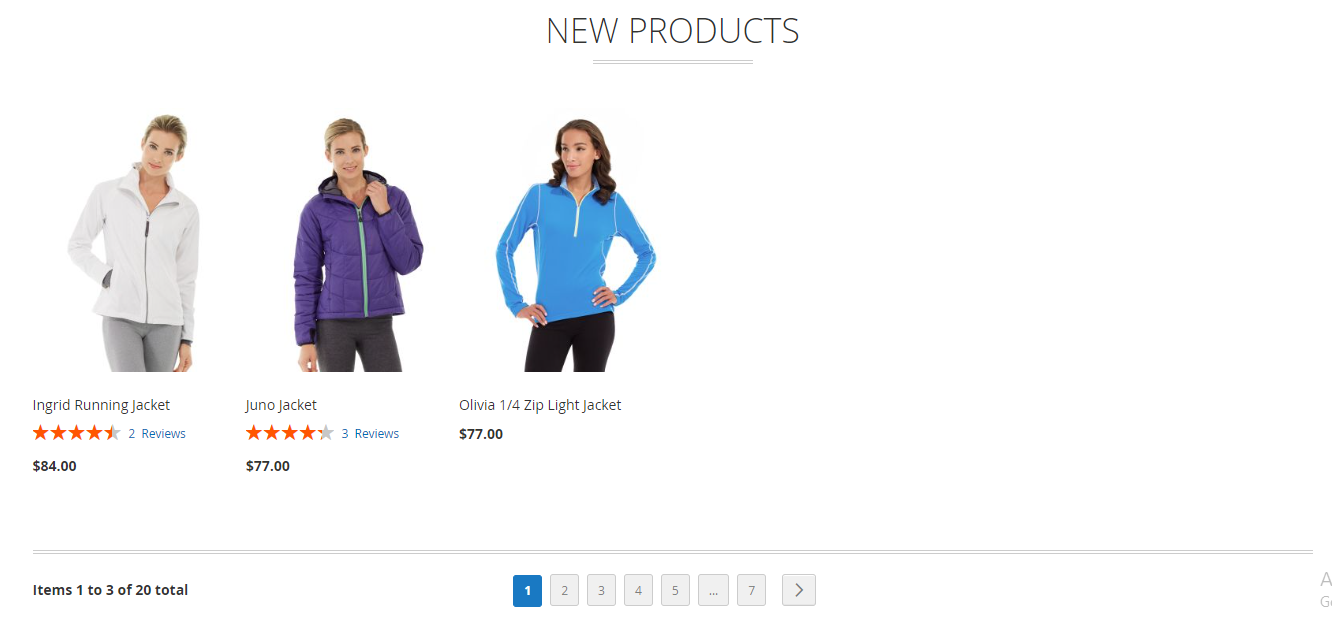
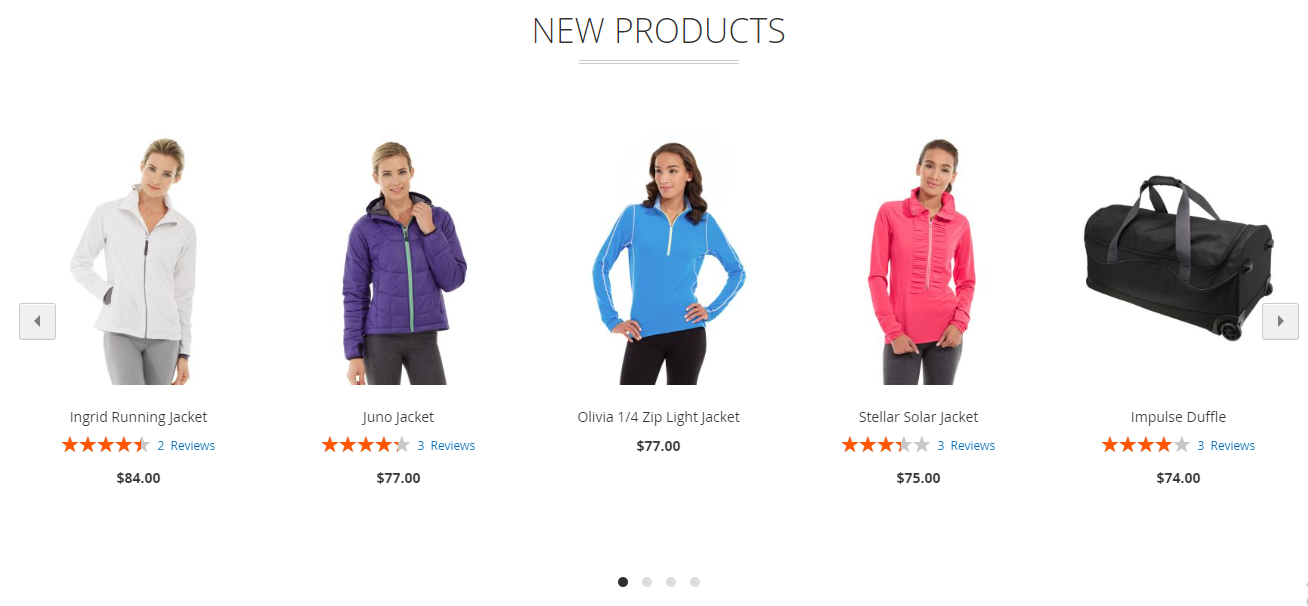
Enhance your Magento 2 store with the New Products Extension. This module offers advanced features to showcase new products effectively, with options for automatic or manual selection, sliders, and more.
- The extension is compatible with all types of products in Magento 2, including simple, configurable, grouped, and virtual products. This ensures that no matter what type of product you sell, you can feature new arrivals effortlessly.
- Choose between automatic and manual methods to display new products. You can either let the system automatically identify and display new products based on your configuration or manually select which products to feature, providing flexibility to suit your store’s needs.
- Simplify the setup process with an intuitive configuration interface. Easily adjust settings to customize the appearance and behavior of new products on your store without needing complex coding or extensive technical knowledge.
- Organize new products by categories for improved navigation and user experience. This feature allows you to filter and display new products specific to selected categories, helping customers find new arrivals in their areas of interest more efficiently.
- Display new products on any page of your Magento store using versatile code snippets or widgets. Whether you want to feature new products on the homepage, category pages, or any custom page, the extension provides the tools to do so with ease.
- Manage and configure new product displays across different store views from a single installation. This feature is ideal for businesses with multiple store views or websites, ensuring consistent and effective product showcasing across various markets.
Configuration
Stores → Configuration → MAVENBIRD EXTENSIONS→ New Product.
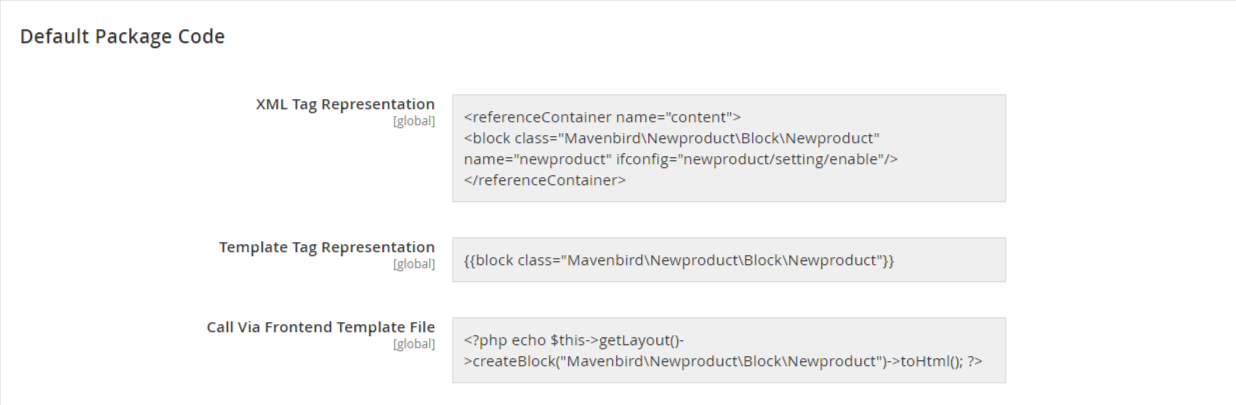
Navigate to the desired page or template where you want to showcase new products. This could be the homepage, a category page, or a custom page. Insert the code snippet or widget provided by the extension into the page layout or template.
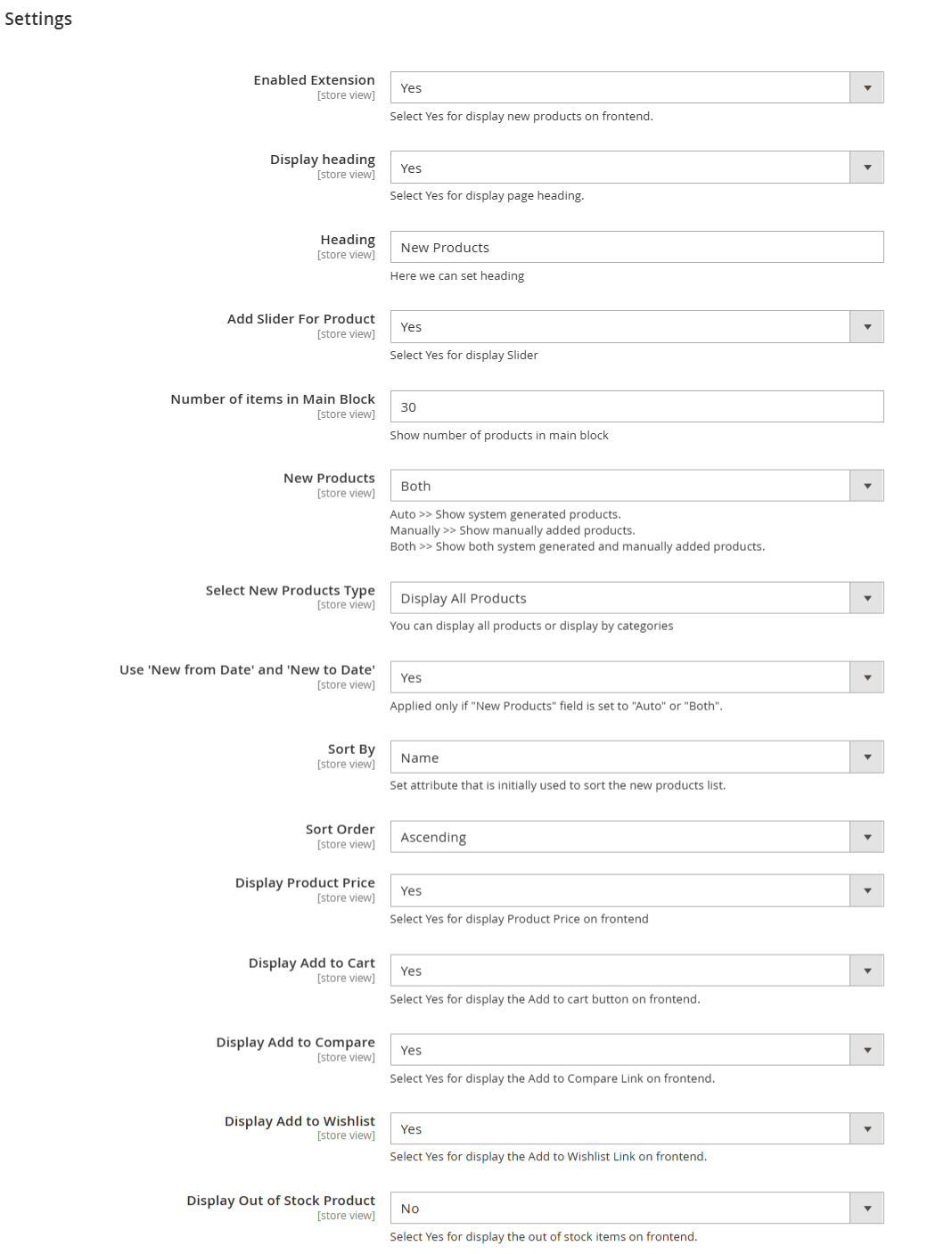
Enable Extension: This option allows you to enable or disable the display of new products on the frontend.
Display Heading: You can choose to show or hide the heading for the new products page.
Heading: This field allows you to set a custom heading for the new products section, with "New Products" as the default.
Add Slider For Product: This setting determines whether to display a slider for new products.
Number of Items Per Row in Main Block: Specifies how many products will be displayed per row in the main block (default is 3).
Number of Items in Main Block: Sets the total number of products to show in the main block (default is 30).
Products Per Page: Defines how many products will be displayed per page (default is 3).
New Products: This option allows you to select the source of new products: Auto (system-generated), Manually (user-added), or Both.
Select New Products Type: You can choose to display all products or filter by categories.
**Use 'New from Date' and 'New to Date':**This setting is applicable if the new products field is set to Auto or Both, allowing you to define a date range for new products.
**Sort By:**Determines the attribute used to sort the new products list (default is by Name).
Sort Order: Specifies the order of sorting (Ascending or Descending).
Display Product Price: Option to show or hide the product price on the frontend.
Display Short Description: Allows you to choose whether to display a short description of the products.
**Display Add to Cart:**This setting controls the visibility of the "Add to Cart" button on the frontend.
Display Add to Compare: Option to show the "Add to Compare" link for products.
**Display Add to Wishlist:**Determines whether the "Add to Wishlist" link is displayed.
**Display Out of Stock Product:**This setting allows you to show or hide out-of-stock products on the frontend.
Auto Load Next Page: Controls whether to enable auto-loading of the next page of products, depending on the Ajax infinite scroll extension.
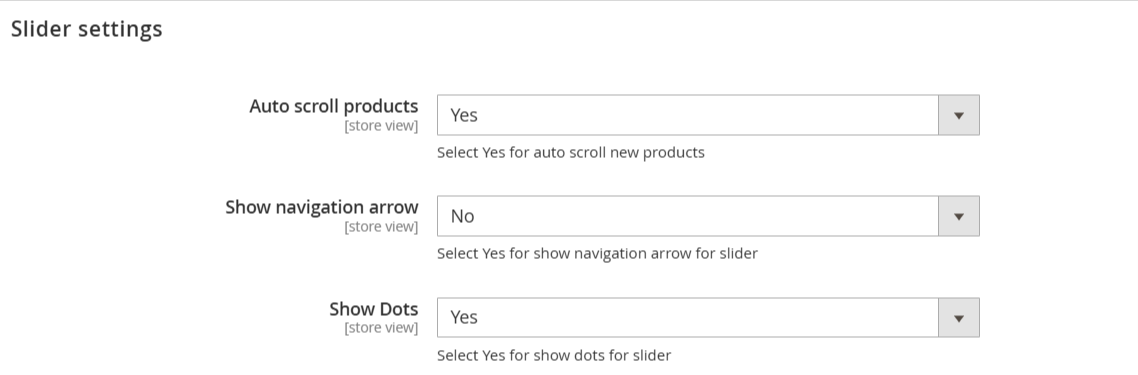
**Auto Scroll Products:**This setting allows you to enable or disable the automatic scrolling feature for new products in the slider.
**Show Navigation Arrow:**This option determines whether navigation arrows will be displayed on the slider for users to manually navigate through the products.
Add New Products Manually
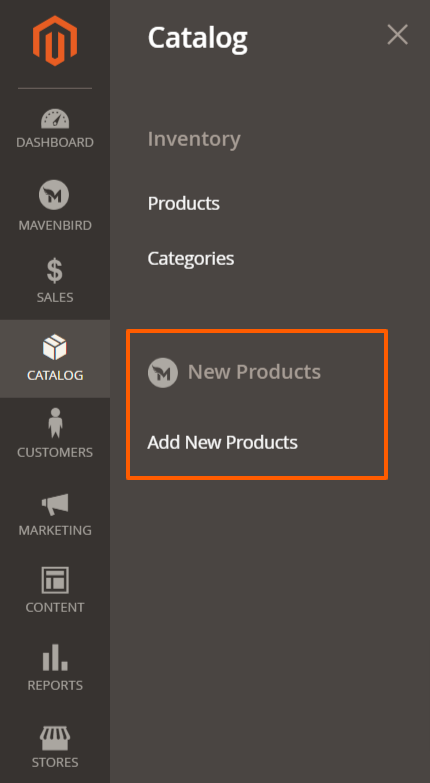
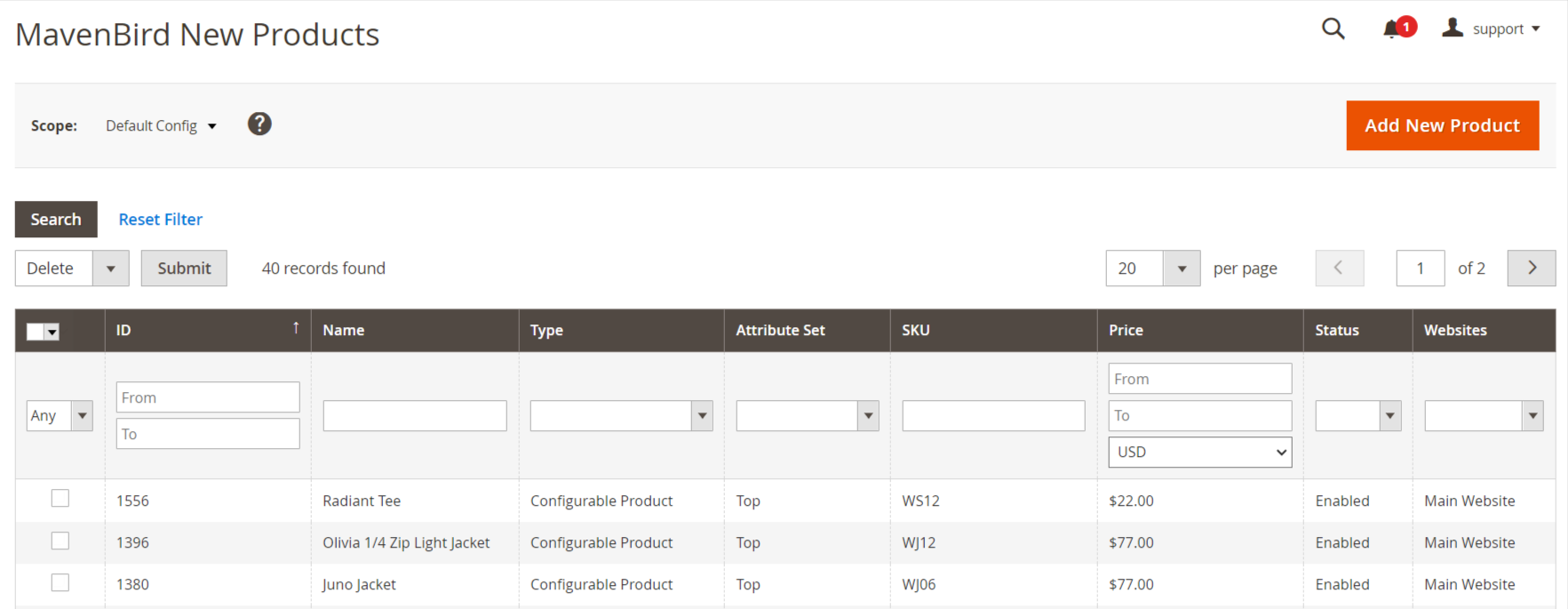
To manually add new products to be featured: Log in to Magento Admin Panel. Navigate to Catalog →New Product->Add New Product.
Find the Product: Search for the product you want to feature as new.
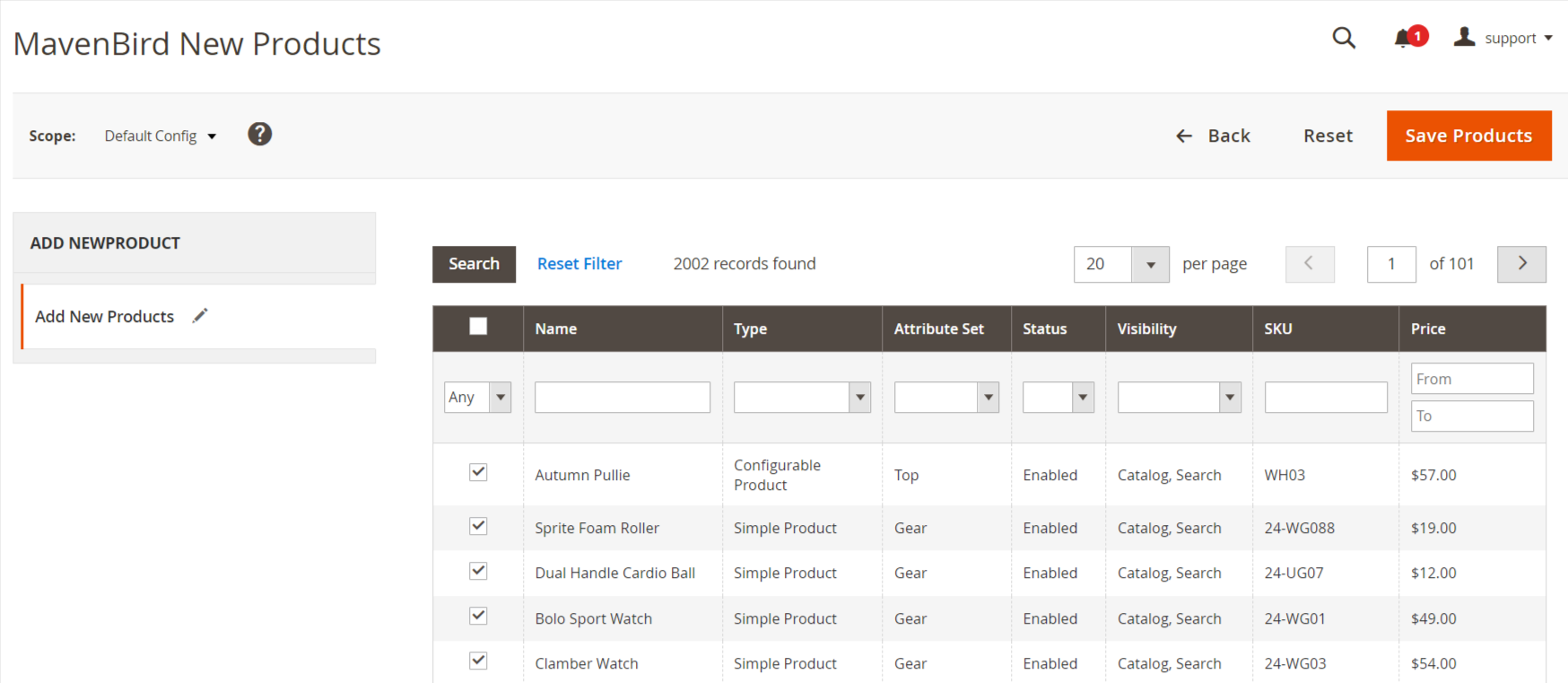
Click on new product and add your products. Save the products.
Frontend View