GDPR Pro
Extension Installation
For Magento Marketplace Customers
-
Find the Composer name and version of the extension in the extension's composer.json file.
-
Login to your SSH and run:
- composer require mavenbird/module-gdpr-pro
- Wait for Composer to finish updating your project dependencies and make sure there aren't any errors.
-
To verify that the extension installed properly, run the command:
- php bin/magento module:status Mavenbird_GdprPro
- By default, the extension is probably disabled.
- Enable the extension and clear static view files:
- php bin/magento module:enable Mavenbird_GdprPro --clear-static-content
- php bin/magento setup:upgrade
- For Magento version 2.0.x to 2.1.x - php bin/magento setup:static-content:deploy
- For Magento version 2.2.x & above - php bin/magento setup:static-content:deploy --f
- php bin/magento cache:flush
For Mavenbird Customers
- Extract the zip folder and upload our extension to the root of your Magento 2 directory via FTP.
- Login to your SSH and run below commands step by step:
- php bin/magento setup:upgrade
- For Magento version 2.0.x to 2.1.x - php bin/magento setup:static-content:deploy
- For Magento version 2.2.x & above - php bin/magento setup:static-content:deploy --force
- php bin/magento cache:flush
Comply with the new EU GDPR and other legislative specifications in your store. Documentation and management of privacy policy, add the registration and checkout pages consent checkbox, send requests for approval by email.
- Collect privacy policy consents
- Creating checkboxes with various consents
- Popup of Cookie Show Policy
- Track behavior consistent with privacy policy in the log actions
- Accept or refuse user account deletion requests
- Remove personal details automatically
General Configuration
To configure the extension, First of all, please go to Stores → Configuration → MAVENBIRD EXTENSIONS → GDPR Pro
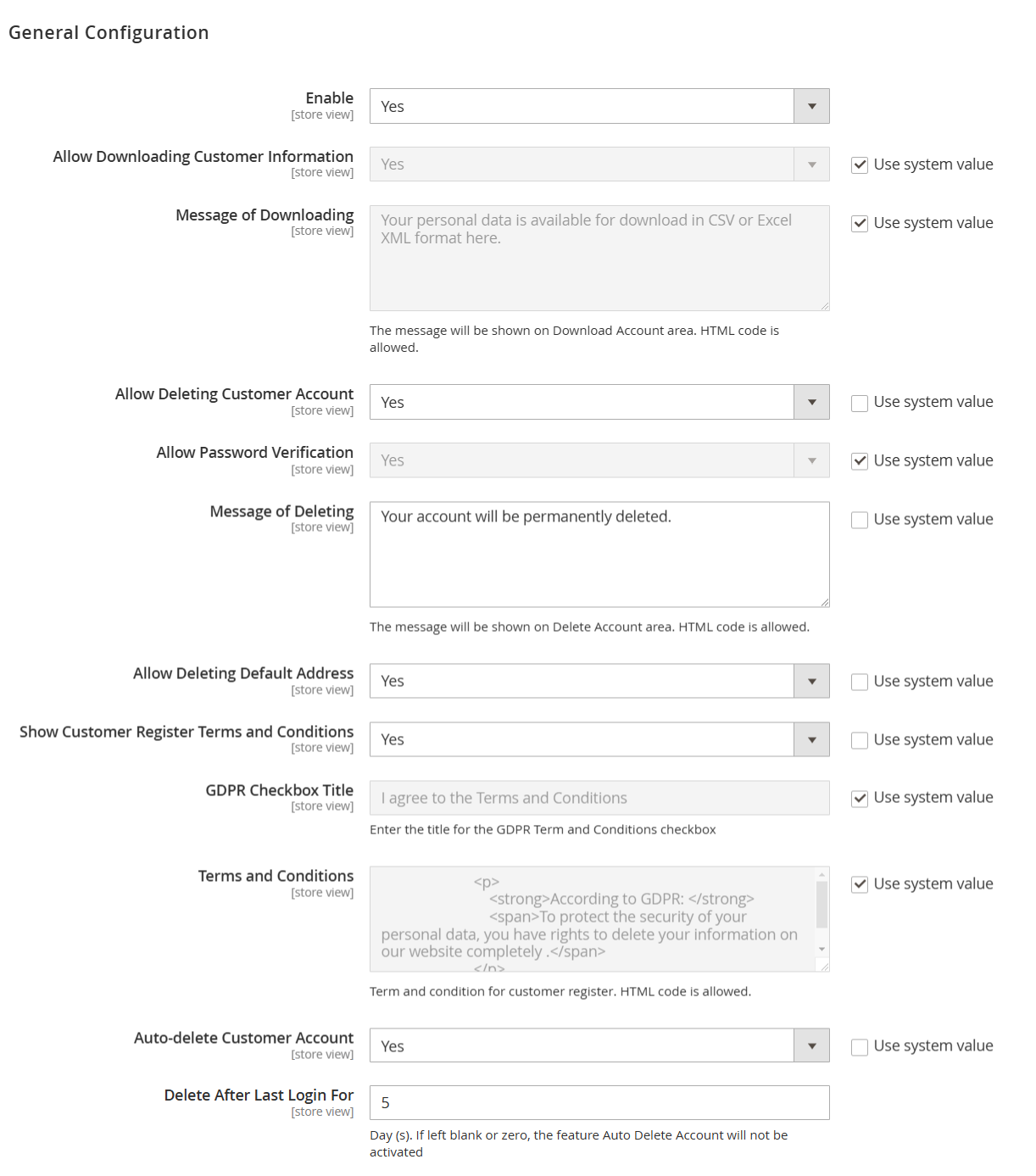
Enable: Toggle to enable or disable GDPR functionalities for customer accounts on the store.
Allow Downloading Customer Information: This option allows customers to download a copy of their personal data, such as in CSV or Excel XML format, from their accounts.
Message of Downloading: A customizable message displayed to customers in the "Download Account" area, informing them that they can download their personal data. HTML code is allowed for formatting.
Allow Deleting Customer Account: When enabled, customers can permanently delete their accounts.
Allow Password Verification: Ensures customers verify their password before deleting their account to prevent accidental deletion or unauthorised access.
Message of Deleting: A customizable message displayed to customers when they attempt to delete their accounts, warning them that the action is permanent. HTML formatting is allowed.
Allow Deleting Default Address: Allows customers to delete their default address from their account.
Show Customer Register Terms and Conditions: When enabled, customers must agree to terms and conditions while registering for an account.
GDPR Checkbox Title: The title displayed next to the checkbox where customers agree to the GDPR terms and conditions.
Terms and Conditions: This section allows administrators to define the GDPR-related terms and conditions. HTML code is allowed for customising the content.
Auto-delete Customer Account: Provides an option to automatically delete customer accounts after a certain period.
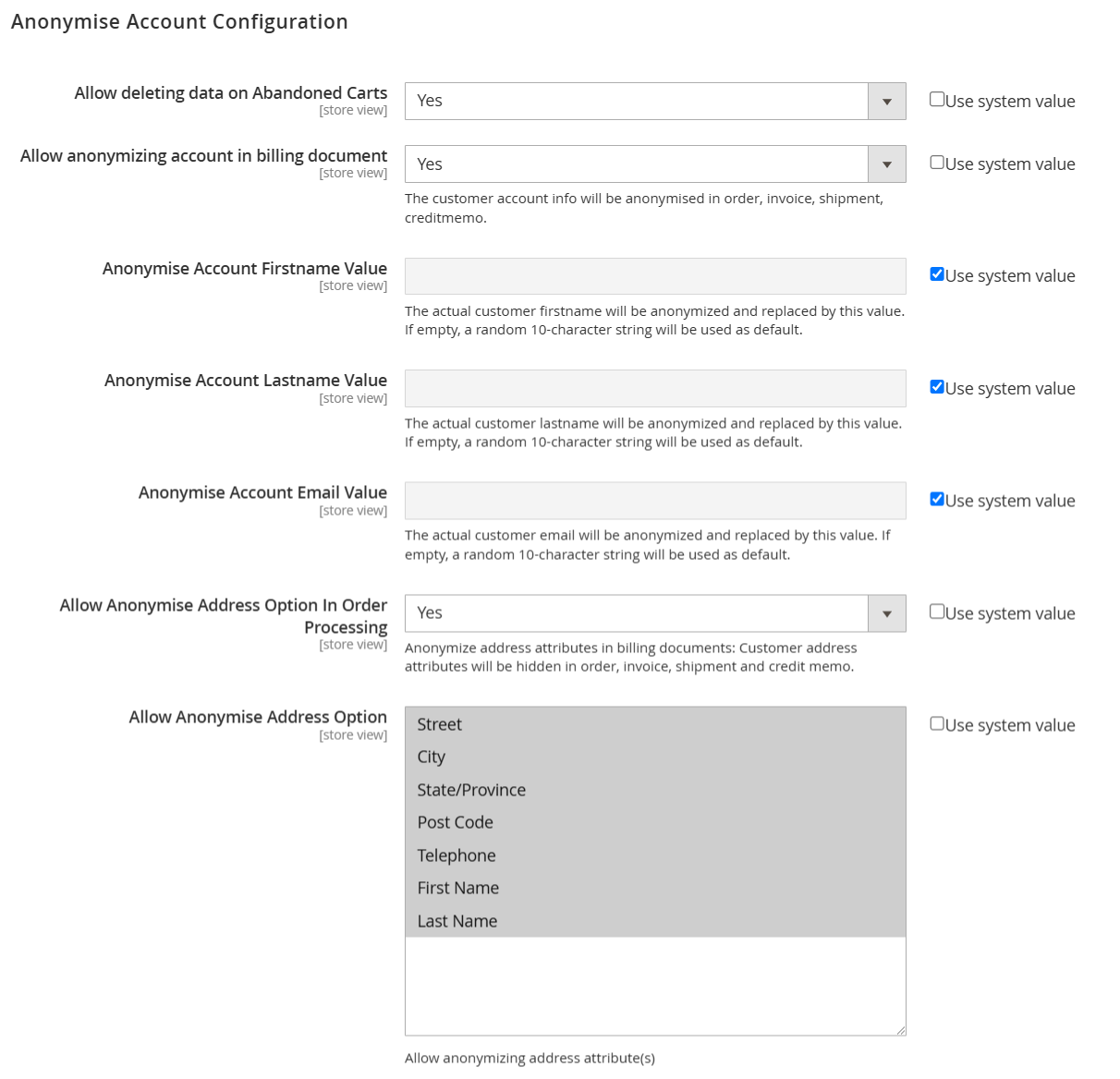
Allow deleting data on Abandoned Carts: Allows the deletion of customer data from abandoned carts.
Allow anonymizing account in billing document: Enables the anonymization of customer information in billing-related documents (order, invoice, shipment, credit memo).
Anonymise Account Firstname Value: Sets a replacement value for the customer's first name during anonymization.
Anonymise Account Lastname Value: Sets a replacement value for the customer's last name during anonymization.
Anonymise Account Email Value: Sets a replacement value for the customer's email address during anonymization.
Allow Anonymise Address Option In Order Processing: Allows the anonymization of address information during order processing.
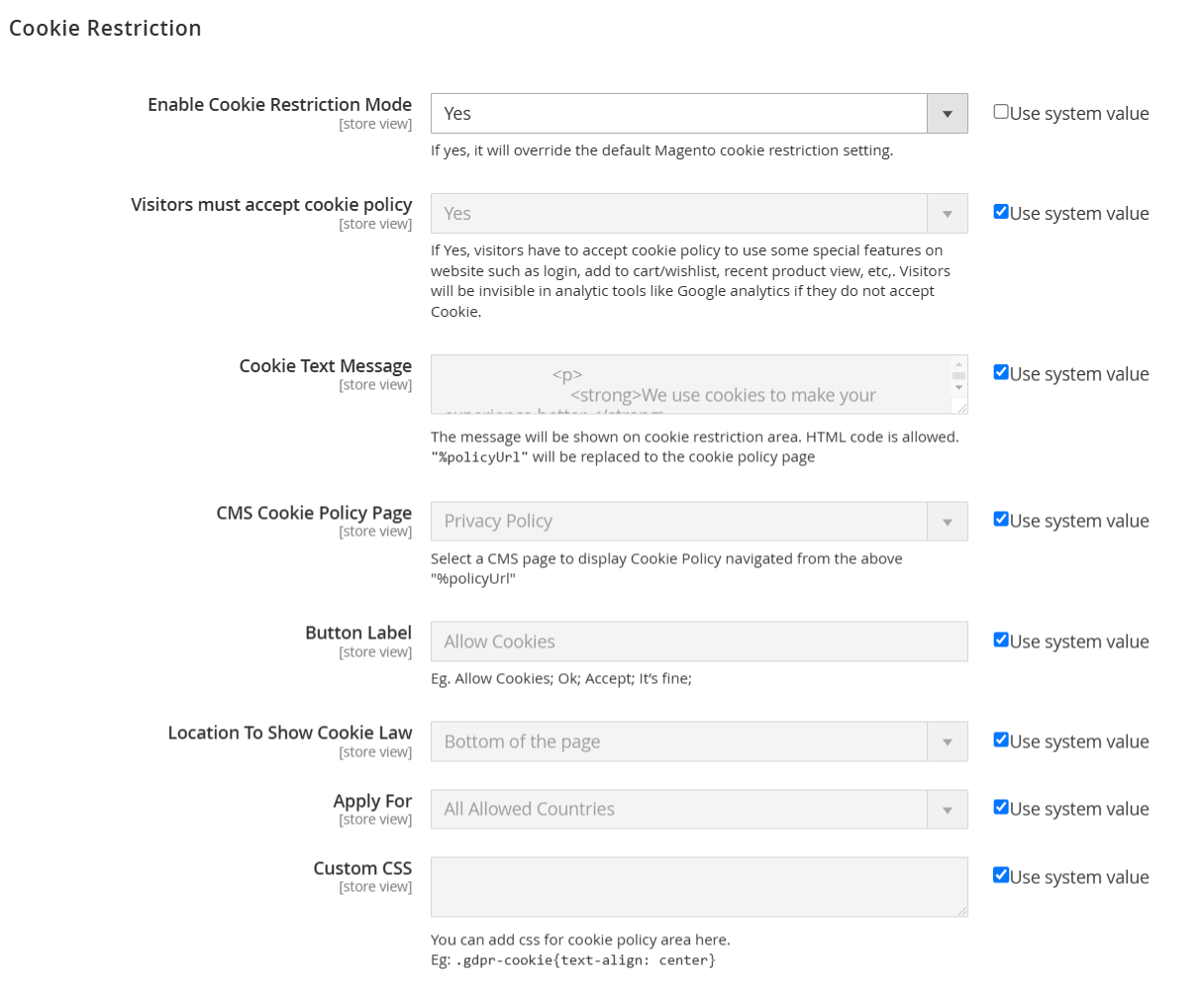
Enable Cookie Restriction Mode: A toggle to enable or disable cookie restriction, overriding the default Magento settings.
Visitors Must Accept Cookie Policy: This setting requires visitors to accept the cookie policy to access certain website features, such as adding items to the cart or viewing product details.
Cookie Text Message: A customizable message that informs users about cookie usage and requests their consent. HTML formatting is allowed for styling.
CMS Cookie Policy Page: An option to select a CMS page that contains the cookie policy, which users can navigate to for more information.
Button Label: Customizable text for the button that users will click to accept cookies (e.g., "Allow Cookies").
Location to Show Cookie Law: Specifies where on the page the cookie consent message will appear (e.g., bottom of the page).
Apply For: This setting allows you to specify the geographical regions for which the cookie policy applies (e.g., all allowed countries).
Custom CSS: An area to add custom CSS styles for the cookie policy message, allowing for further customization of its appearance.
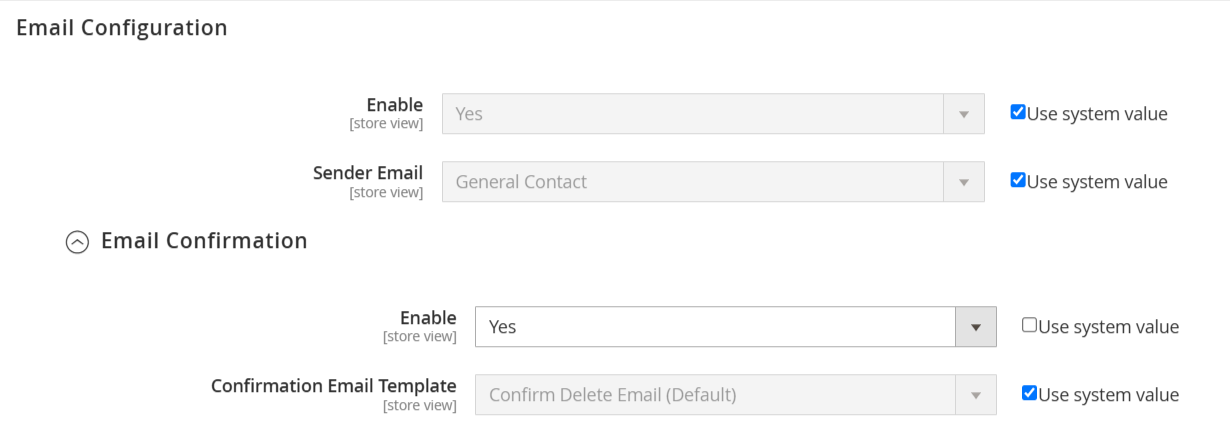
Enable: A toggle to activate or deactivate the email notifications related to GDPR compliance.
Sender Email: A field to specify the email address that will appear as the sender for GDPR-related communications (e.g., "General Contact").
Enable: A toggle to enable or disable email confirmation for actions related to user data deletion.
Confirmation Email Template: A dropdown to select the email template used for sending confirmation emails when a user requests account deletion (e.g., "Confirm Delete Email (Default)").
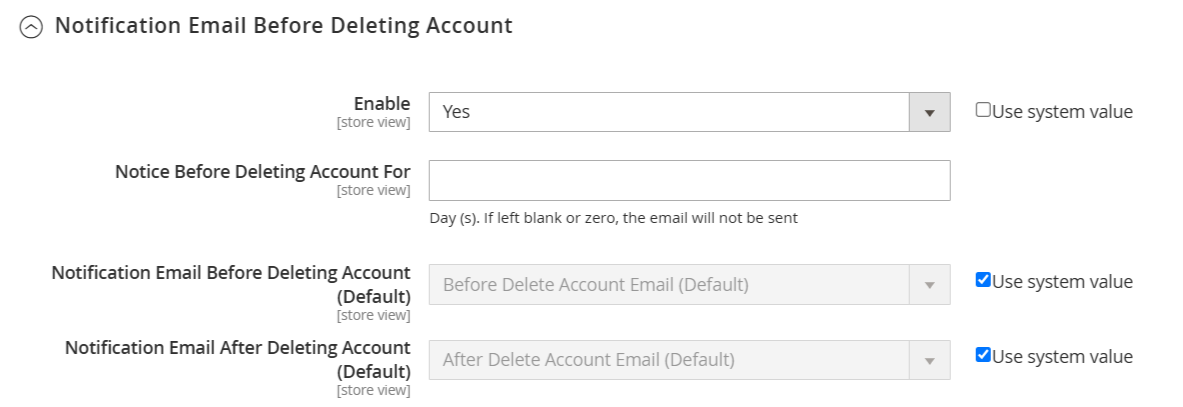
Enable: A toggle to activate or deactivate the notification email feature before a customer's account is deleted.
Notice Before Deleting Account For: A field to specify the number of days before the account deletion notice is sent. If left blank or set to zero, the email will not be sent.
Notification Email Before Deleting Account (Default): A dropdown to select the default email template that will be used for notifying customers before their account is deleted.
Notification Email After Deleting Account (Default): A dropdown to select the default email template that will be used for notifying customers after their account has been deleted.
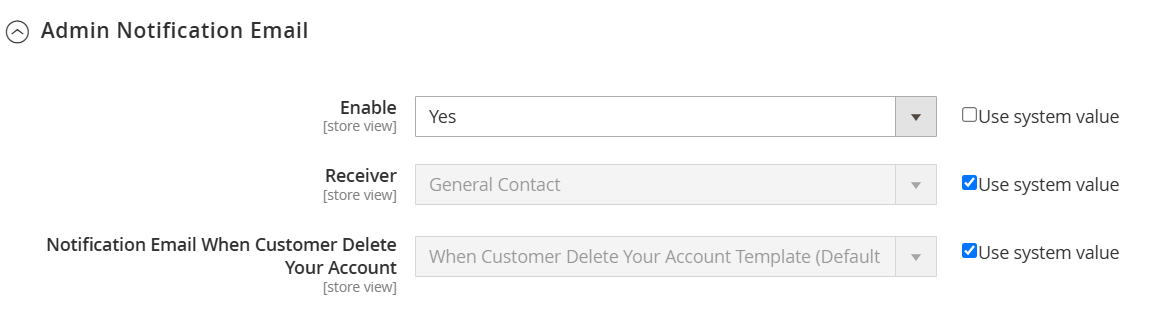
Enable: A toggle to activate or deactivate the admin notification feature regarding customer account deletions.
Receiver: A dropdown to specify the recipient of the admin notification emails (e.g., "General Contact").
Notification Email When Customer Delete Your Account: A dropdown to select the email template that will be used for notifying the admin when a customer deletes their account.
Personal Data Download Logs
Go to Store > GDPR Pro > Personal Data Download Log.
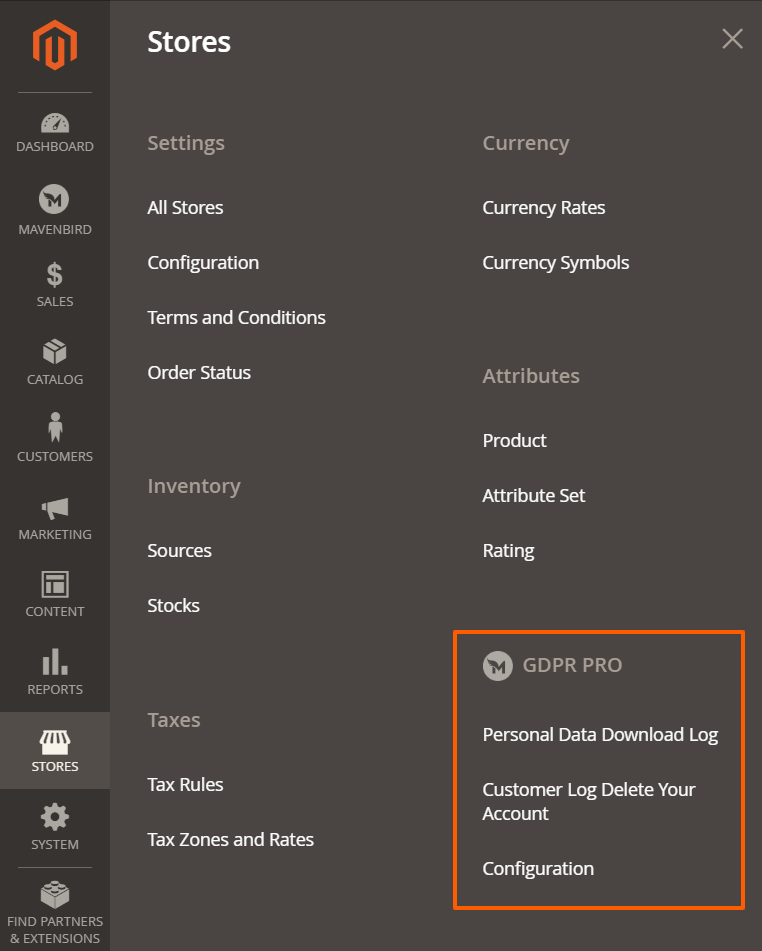
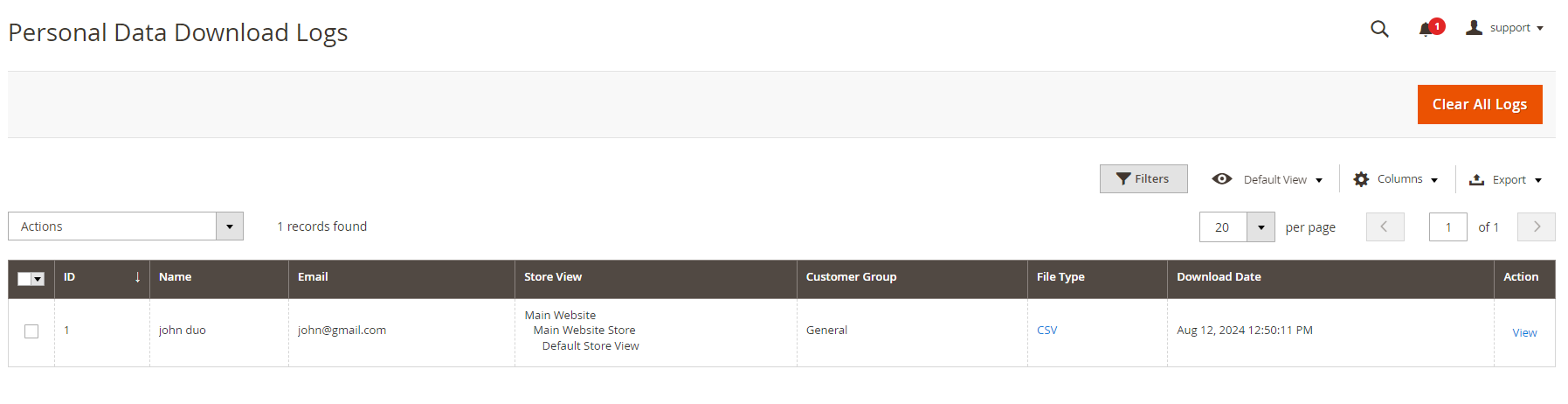
- This section shows logs for customer requests to download personal data, including customer ID, name, email, store views, customer group, file type (CSV), and the date the data was downloaded.
Customer Log Delete Your Account
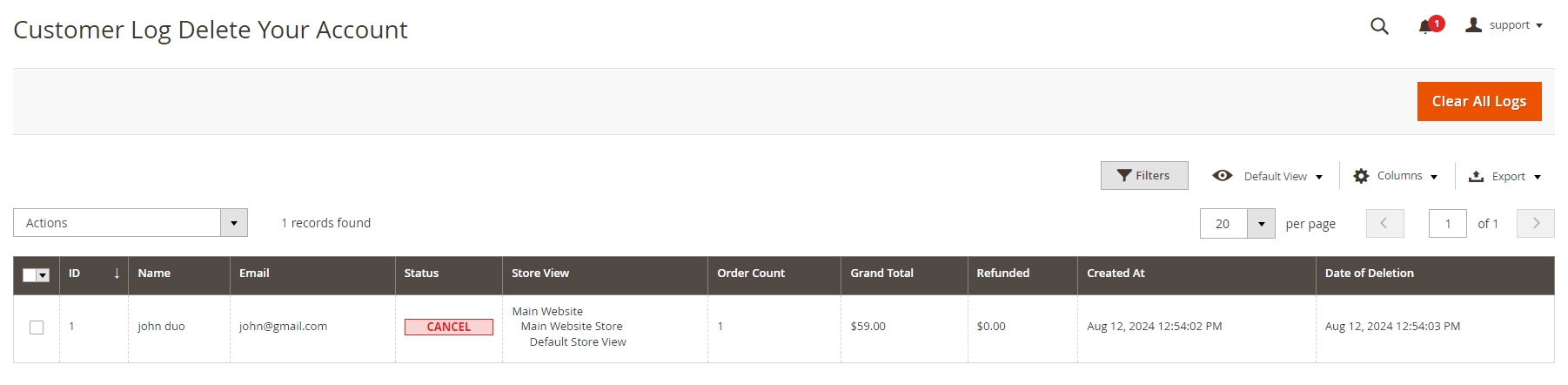
- This section displays a log of customer account deletion requests, detailing customer ID, name, email, status of the request, store views, order count, grand total, refund amount, creation time, and date of deletion.
Frontend View
Go to Frontend > My Account > Account Information.
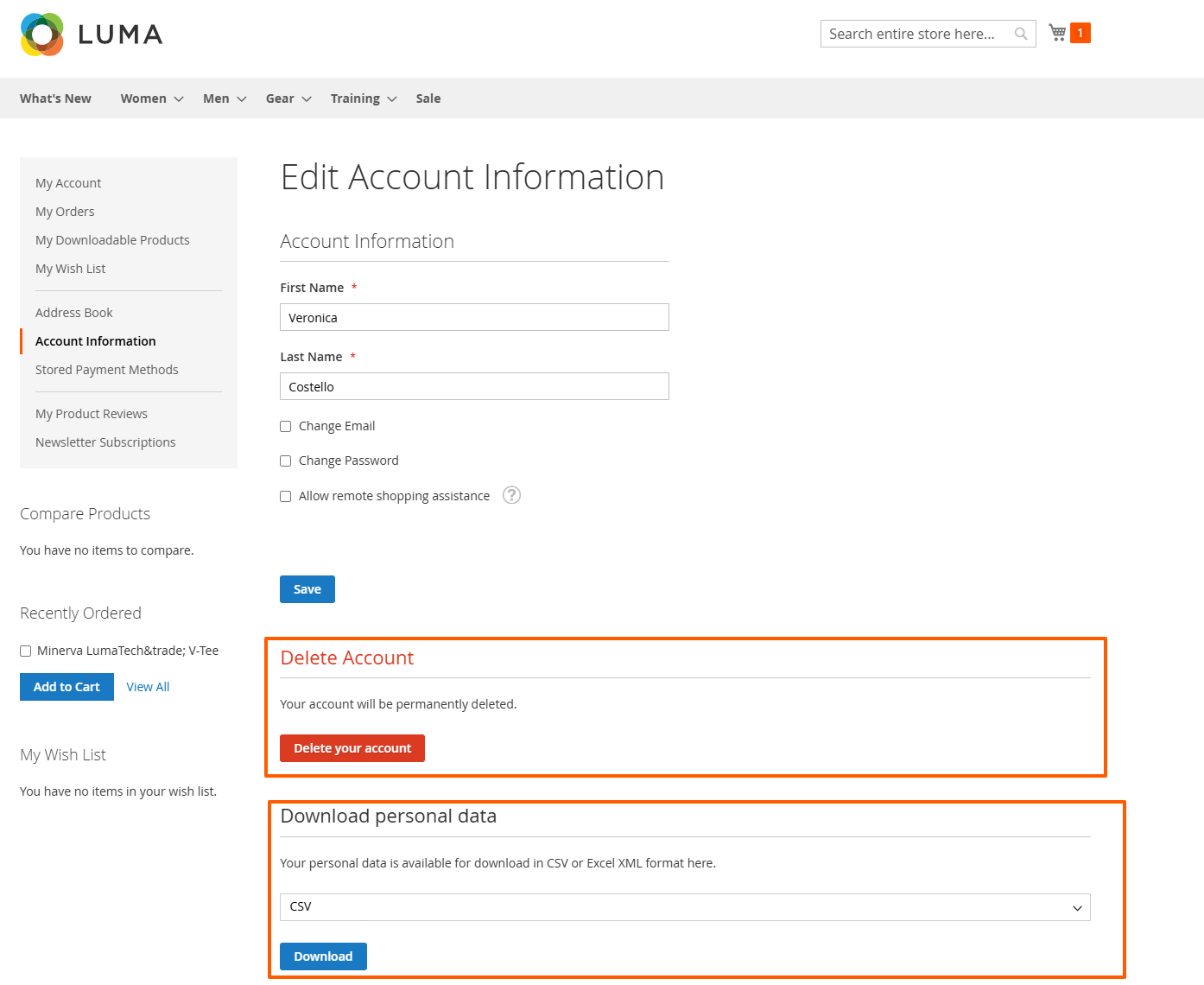
- On the frontend, go to account information. When you click the “Delete your account” button, your account will be deleted.
- Here, you can download the customer's personal data. When you click the “Download” button, the file will be downloaded.
Go to Frontend > My Account > Address Book.
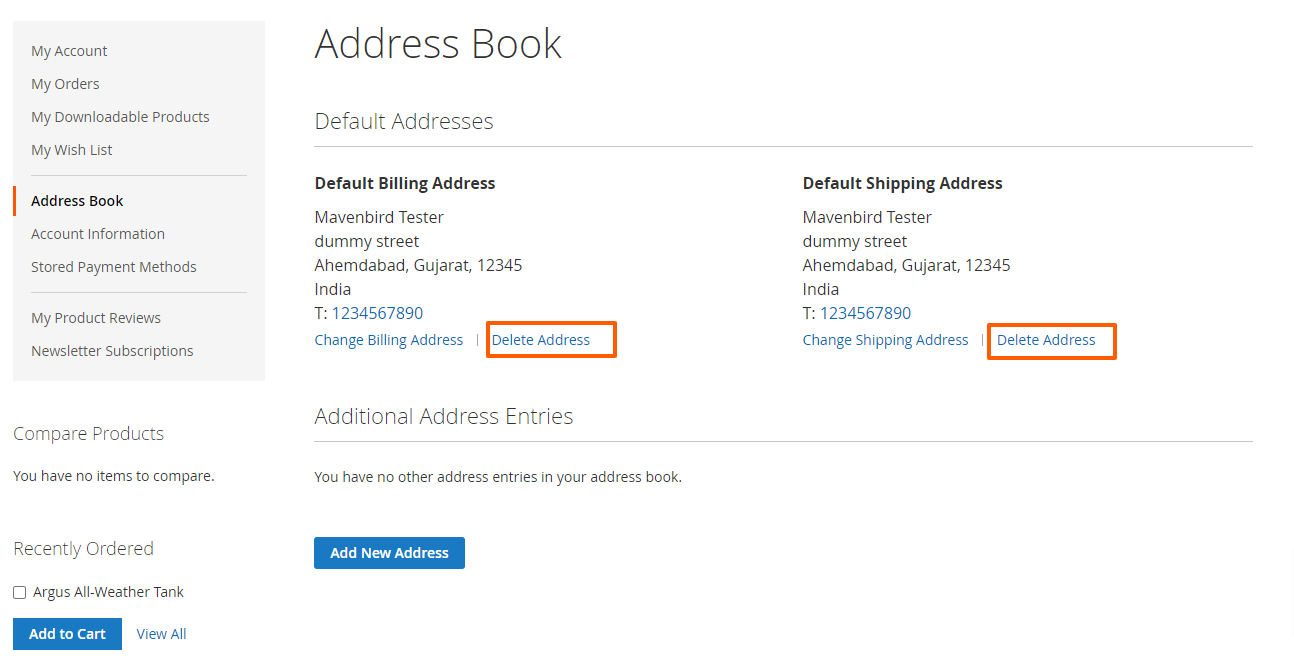
- On the frontend, go to address book. When you click the “Delete Address” button, your address will be deleted.
Go to Frontend > Create New Account.
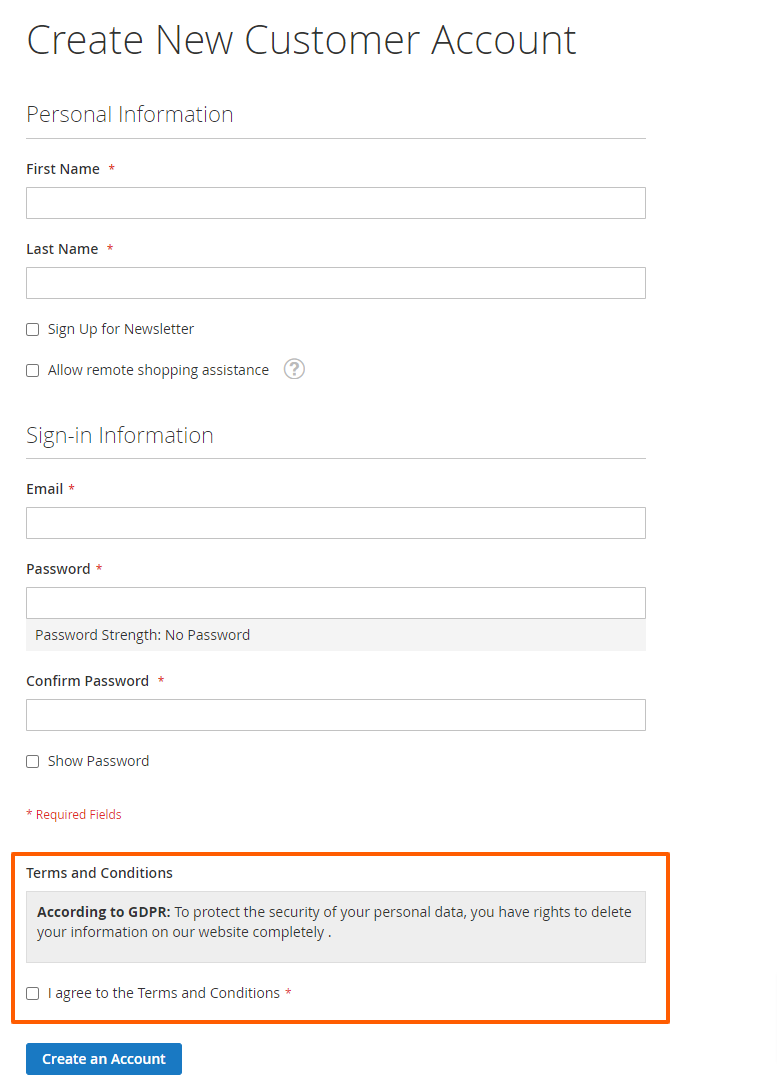
- Here show the Term and Condition when customers create a new account.