Faqs
Extension Installation
For Magento Marketplace Customers
-
Find the Composer name and version of the extension in the extension's composer.json file.
-
Login to your SSH and run:
- composer require mavenbird/module-faqs
- Wait for Composer to finish updating your project dependencies and make sure there aren't any errors.
-
To verify that the extension installed properly, run the command:
- php bin/magento module:status Mavenbird_Faqs
- By default, the extension is probably disabled.
- Enable the extension and clear static view files:
- php bin/magento module:enable Mavenbird_Faqs --clear-static-content
- php bin/magento setup:upgrade
- For Magento version 2.0.x to 2.1.x - php bin/magento setup:static-content:deploy
- For Magento version 2.2.x & above - php bin/magento setup:static-content:deploy --f
- php bin/magento cache:flush
For Mavenbird Customers
- Extract the zip folder and upload our extension to the root of your Magento 2 directory via FTP.
- Login to your SSH and run below commands step by step:
- php bin/magento setup:upgrade
- For Magento version 2.0.x to 2.1.x - php bin/magento setup:static-content:deploy
- For Magento version 2.2.x & above - php bin/magento setup:static-content:deploy --force
- php bin/magento cache:flush
Improve your Magento 2 store's user experience by providing clear and concise answers to common questions. The Mavenbird FAQs Extension makes it easy to manage frequently asked questions, enhancing customer support and reducing support queries.
- Effortlessly create, organize, and manage FAQs from the admin panel.
- Display FAQs on any page with customizable options for layout and design.
- Allow customers to search and filter through FAQs to find answers quickly.
- Optimized for mobile and desktop to ensure a seamless experience across devices.
- Improve your SEO with structured data for FAQs.
Configuration
Go to Your Site Backend →CONTENT → Mavenbird→ FAQS->Configuration.
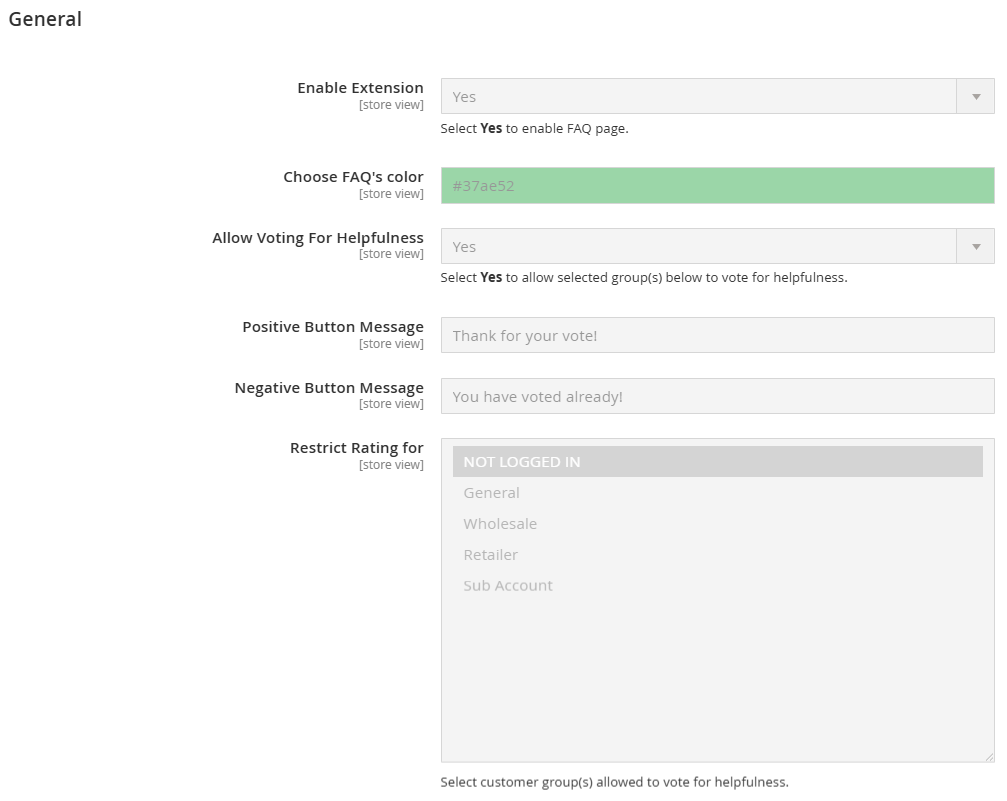
Enable Extension
Enable Extension: Choose Yes to enable this module.
Choose FAQ's colour: The colour that you choose in this section will stipulate the main colour of FAQ Page on the frontend.
Allow Voting For Helpfulness: Choose Yes so that customers can rate Positive or Negative for each answer.
Restrict Rating For: Stipulating the customer group can rate the answer quality.
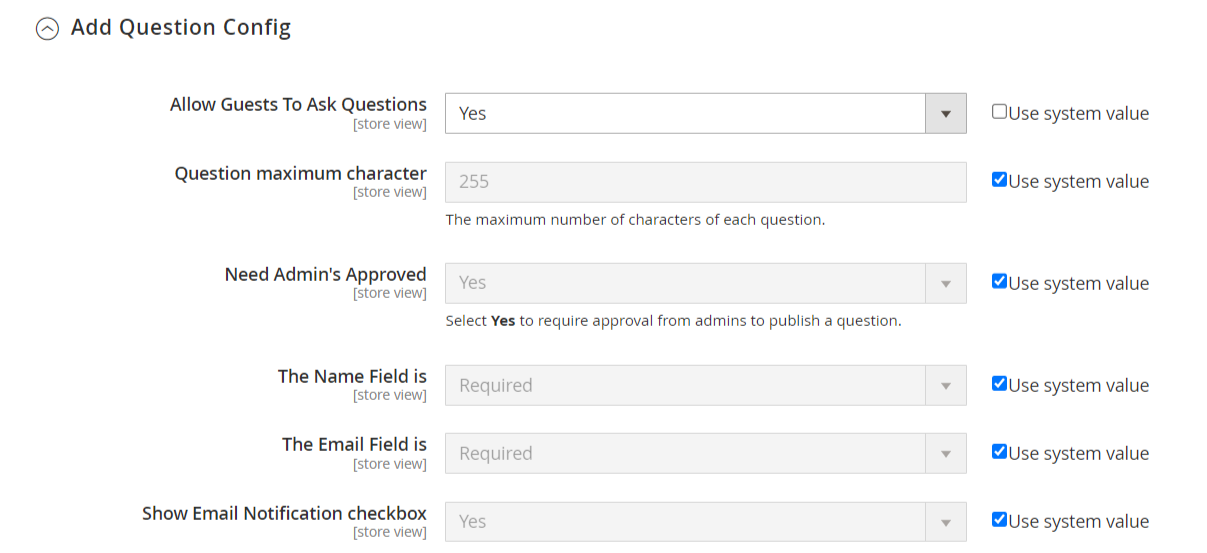
Allow Guests To Add Questions: There are 3 options to stipulate who can submit the question for admins.
Question maximum character: Limit the maximum character for a question. If you leave this field blank, the maximum character is 255.
Need Admin’s Approved: Any submitted question will not be displayed on the frontend, it will be changed to Manage Question. Choose Yes so that the question has the visibility is Need Approved when changing to the Manage Question. If you choose No, the visibility of the question is Hidden.
The Name Field is: The name field won't be displayed on the frontend.The name field will be displayed on the frontend but customers don't need to fill in.The name field will be displayed on the frontend and customers have to fill in this section so that the question is submitted.
The Email Field is: The email field won't be displayed on the frontend. The email name will be displayed on the frontend but customers don't need to fill in.The email field will be displayed on the frontend and customers must fill in this field so that the question is submitted.In case you choose No and Optional, the default name will be sent to the backend is [email protected].
Show Email Notification checkbox: Choose Yes so that the checkbox can receive the email when the answer is added and public. Customers need to tick on the new checkbox to allow receiving the email.
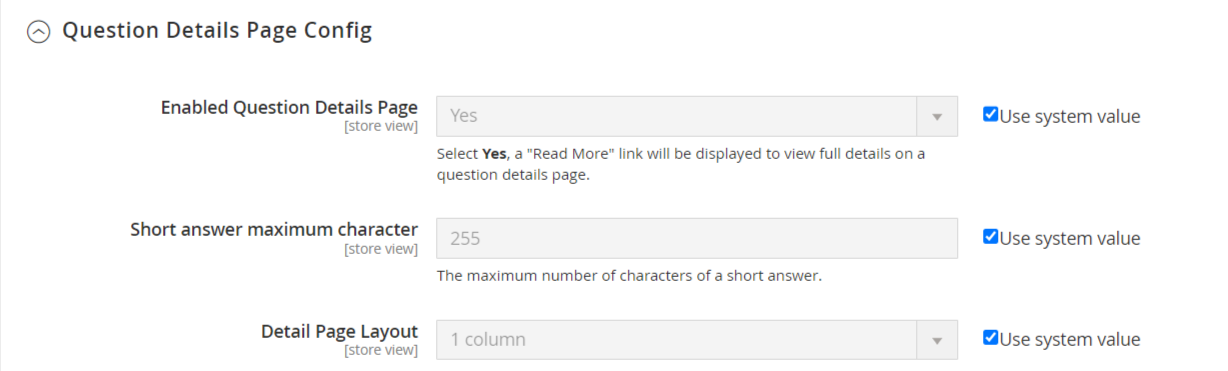
Enabled Question Details Page: This option allows you to enable or disable the detailed FAQ page. When enabled, a "Read More" link is displayed, providing users access to the full answer on a separate page.
Short Answer Maximum Character: Sets the maximum character limit for a short answer that can be shown. Once this limit is reached, the "Read More" option will appear for users to view the full details.
Detail Page Layout: Specifies the layout of the FAQ detail page, allowing you to choose between different layout options (e.g., 1 column, 2 columns).
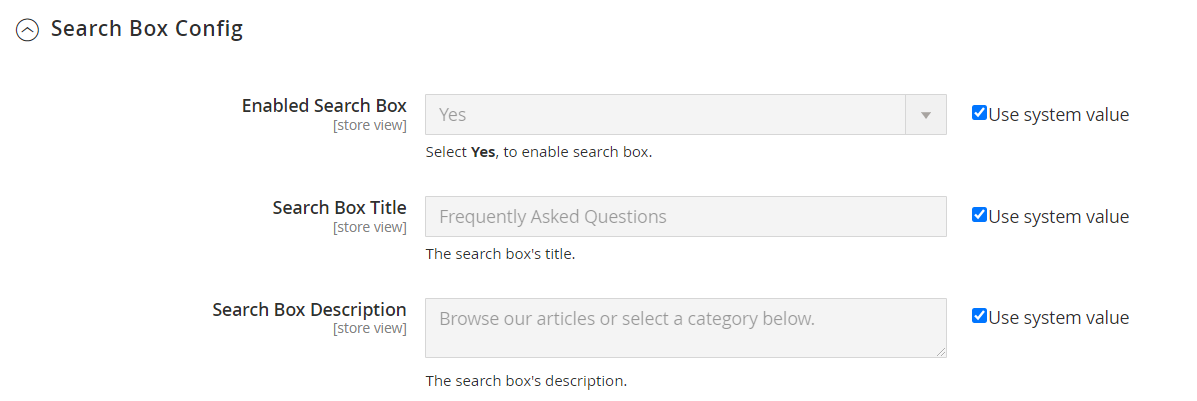
Enabled Search Box: This option allows you to enable or disable the search box for FAQs. When enabled, users can search for questions and answers within the FAQ section.
Search Box Title: Sets the title for the search box, for example, "Frequently Asked Questions," which will be displayed above the search field.
Search Box Description: This is a customizable description displayed below the title, guiding users to search for specific FAQs or browse articles/categories.
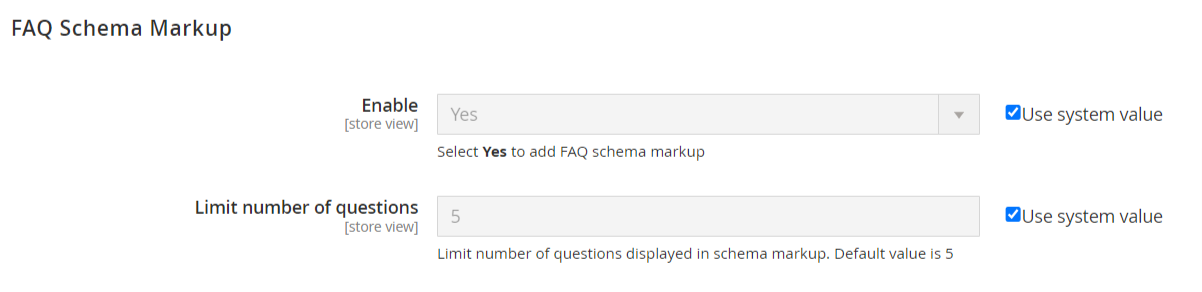
Enable: Enables the FAQ Schema Markup, allowing the FAQs to be optimized for search engines. When enabled, FAQs will appear in structured data format, potentially enhancing SEO performance.
Limit Number of Questions: Defines the maximum number of questions that will be included in the schema markup, with the default being set to 5.
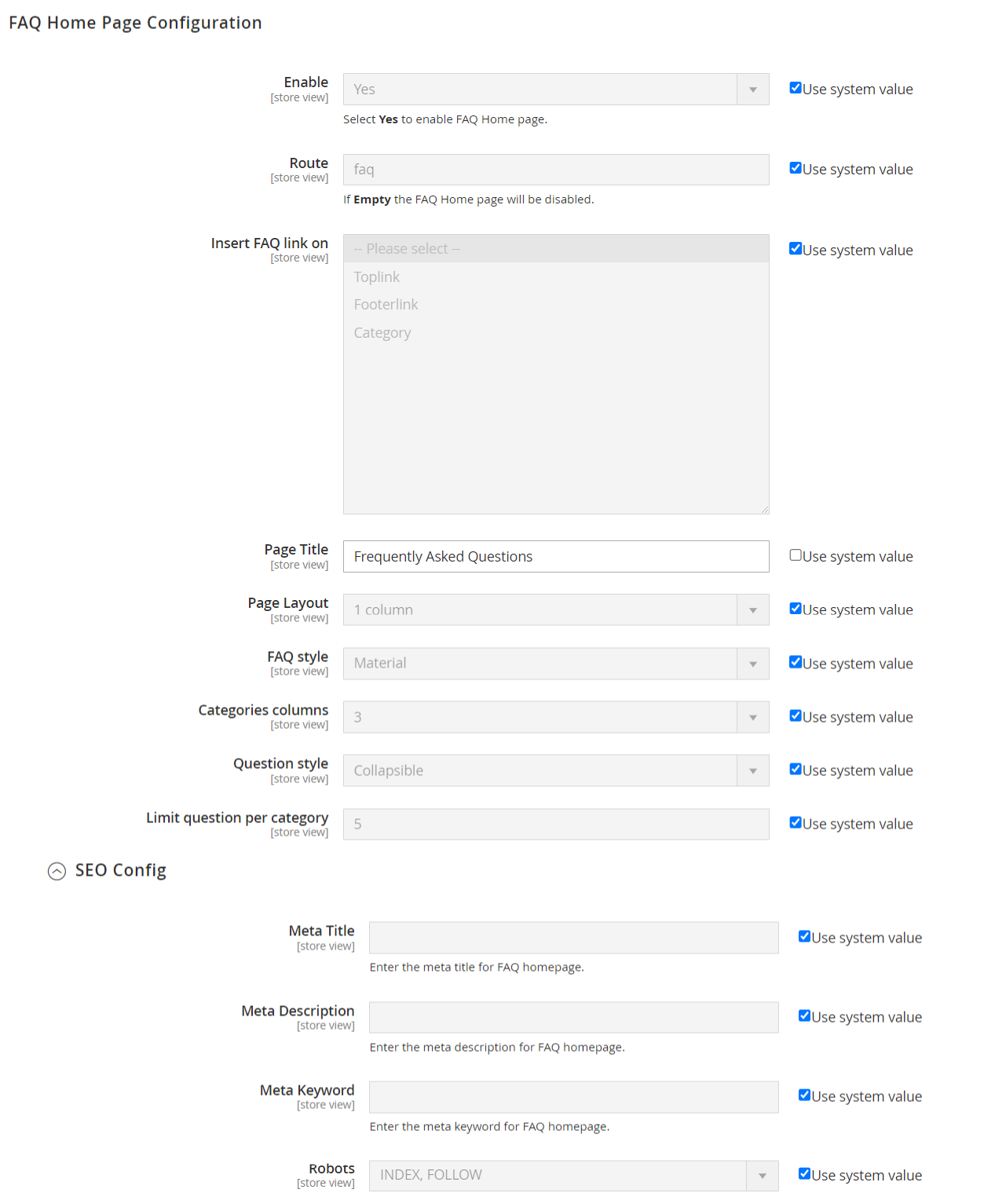
Enable: Activate the FAQ homepage by selecting "Yes."
Route: Define the URL path for the FAQ page (e.g., "faq").
Insert FAQ Link On: Choose where to display the FAQ link (Toplink, Footerlink, or Category).
Page Title: Set the title for the FAQ page (default: "Frequently Asked Questions").
Page Layout: Select the layout format (e.g., 1 column).
FAQ Style: Choose the design style for FAQs (e.g., Material).
Categories Columns: Specify the number of columns for categories (default: 3).
Question Style: Select how questions are displayed (e.g., Collapsible).
Limit Questions Per Category: Set a limit on the number of questions displayed per category (default: 5).
SEO Configuration:
Meta Title: Enter a custom title for SEO purposes.
Meta Description: Provide a brief description for search engines.
Meta Keyword: Add relevant keywords for better search visibility.
Robots: Control indexing behavior (default: INDEX, FOLLOW).
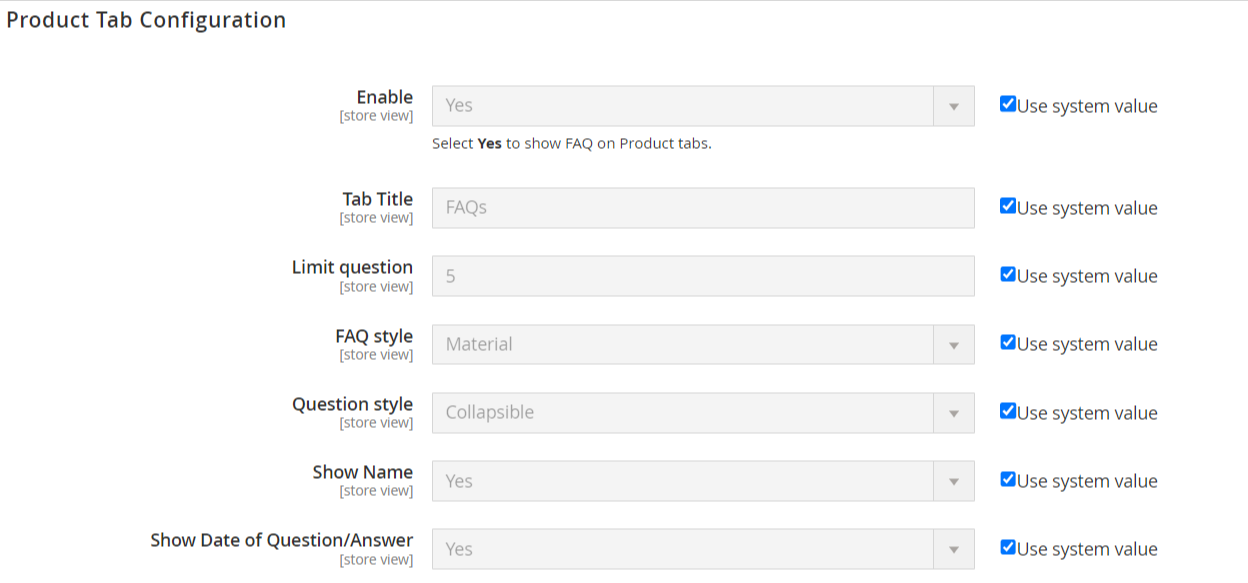
Enable: Show FAQs on product tabs by selecting "Yes."
Tab Title: Define the title for the FAQ tab (default: "FAQs").
Limit Questions: Set the maximum number of questions to display (default: 5).
FAQ Style & Question Style: Choose styles similar to the FAQ homepage settings.
Show Name & Date: Options to display the name and date of questions/answers.
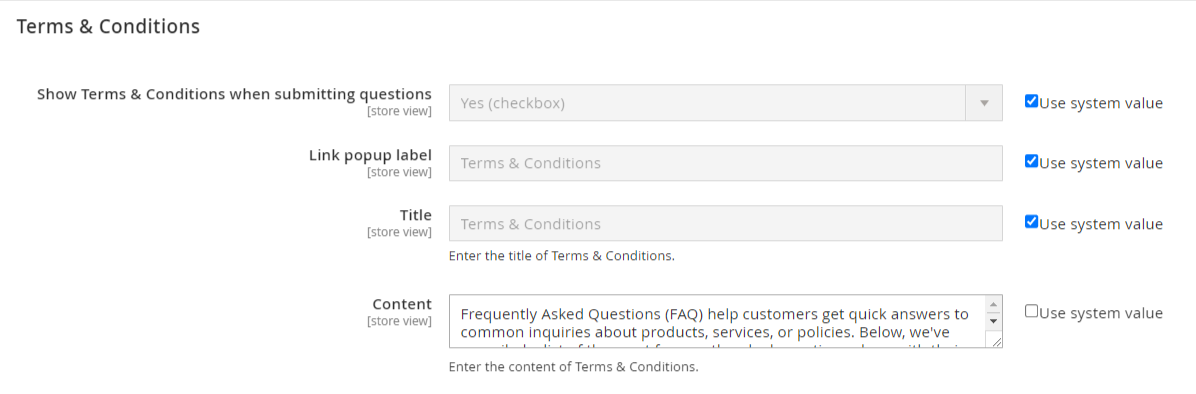
Show Terms & Conditions: Enable a checkbox for users to agree to terms when submitting questions.
Link Popup Label & Title: Customize the label and title for the terms popup.
Content: Enter the detailed content of the terms and conditions.
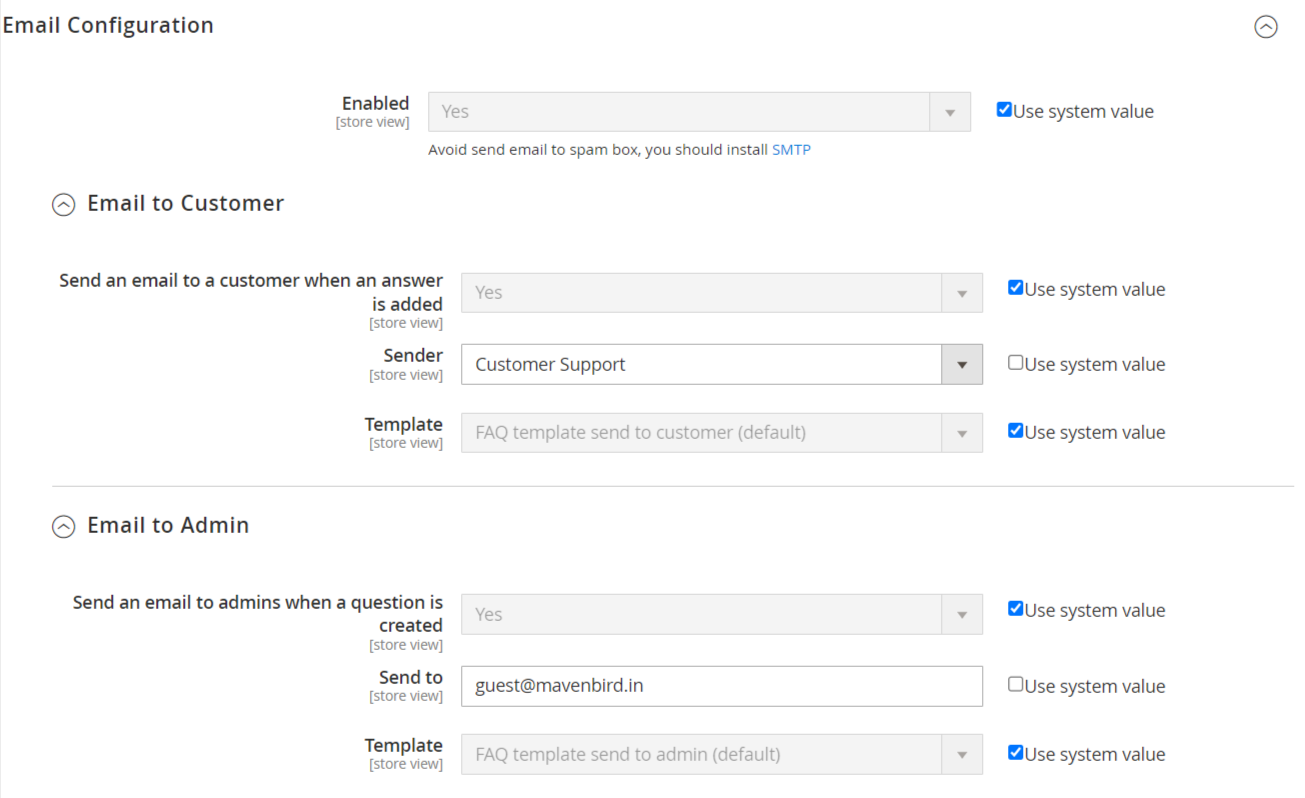
Email to Customer: Enable notifications for customers when answers are added.
Sender: Specify the sender's name (e.g., "Customer Support").
Template: Choose the email template for notifications.
Email to Admin: Enable notifications for admins when new questions are submitted.
Send To: Specify the admin email address.
Template: Select the email template for admin notifications.
Manage Articles
Go to Your Site Backend →CONTENT → FAQS -> Manage Articles.
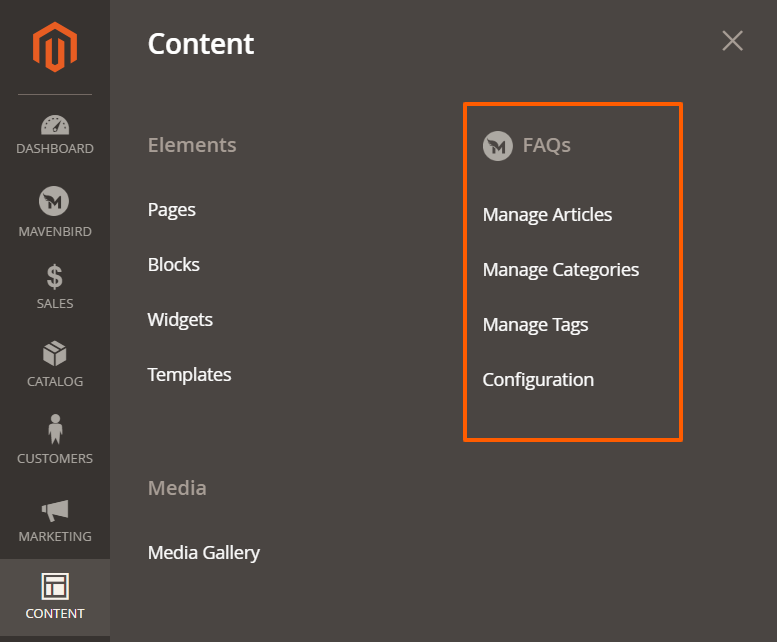
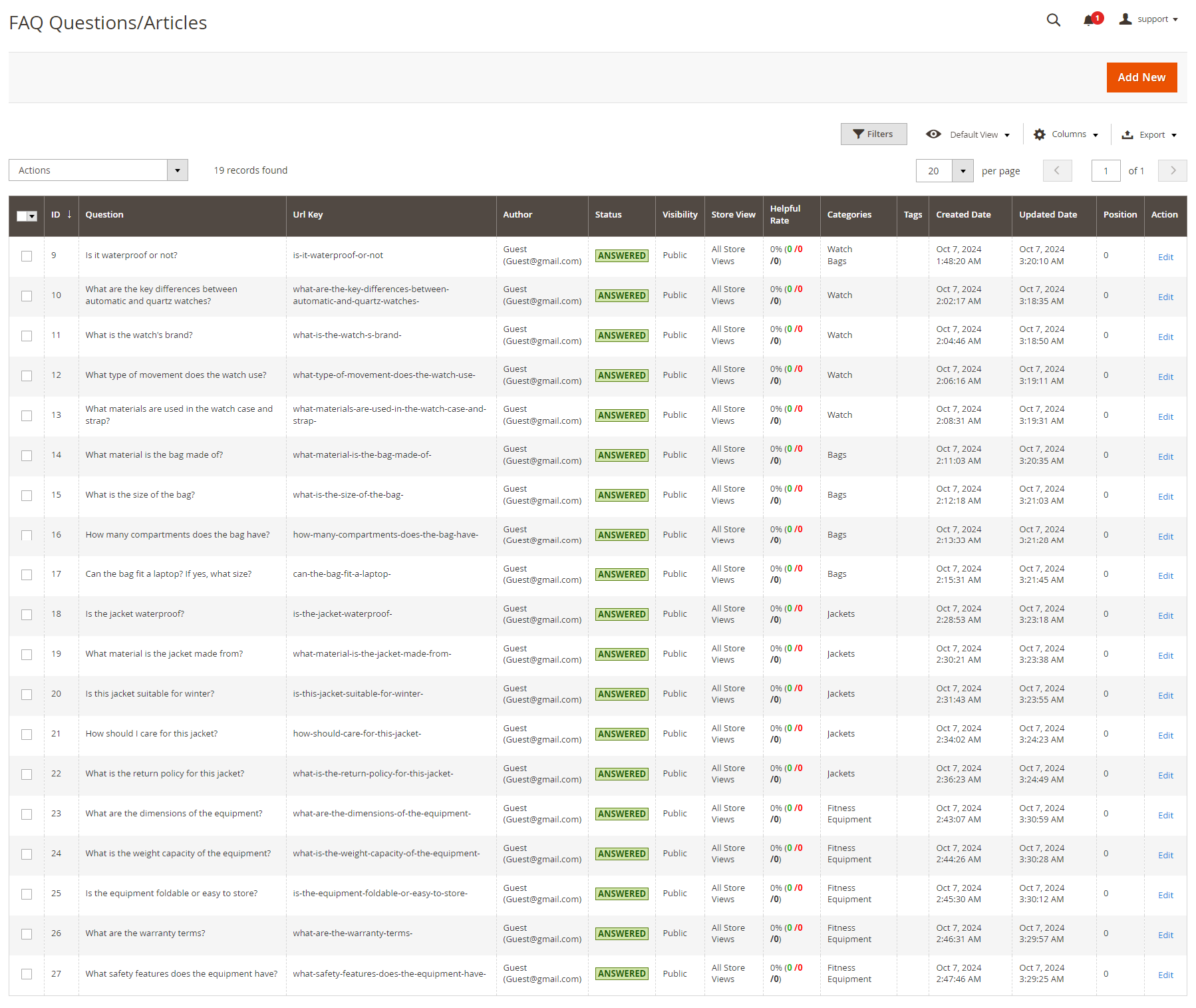
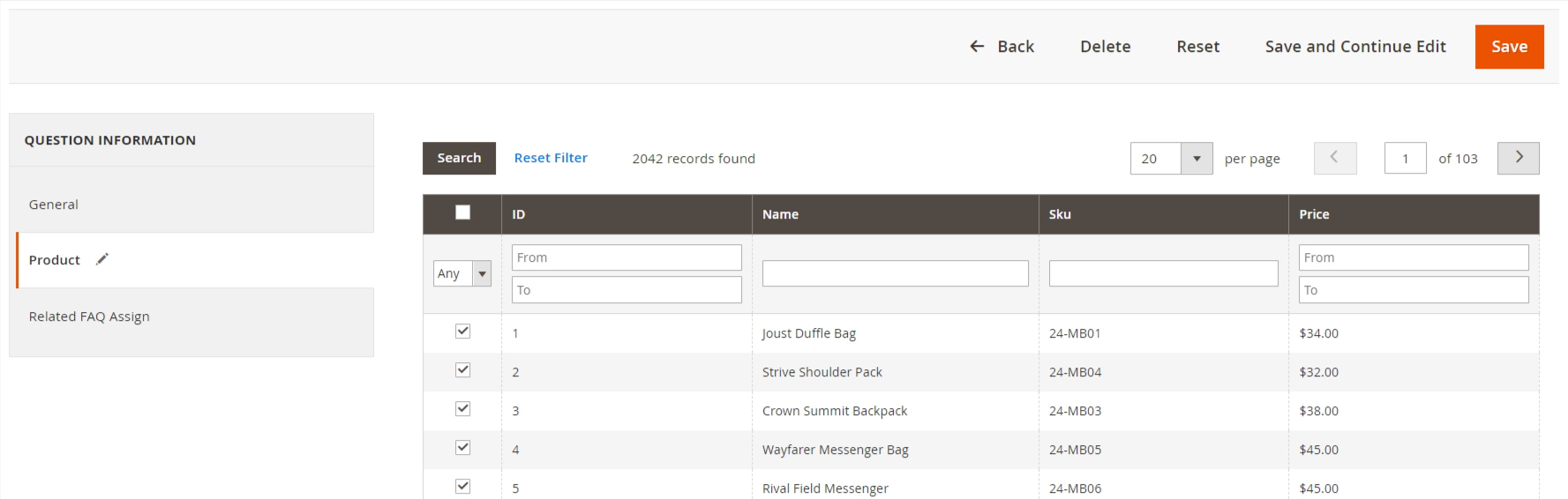
To create new questions/articles click on "Add New" button. Show below screen
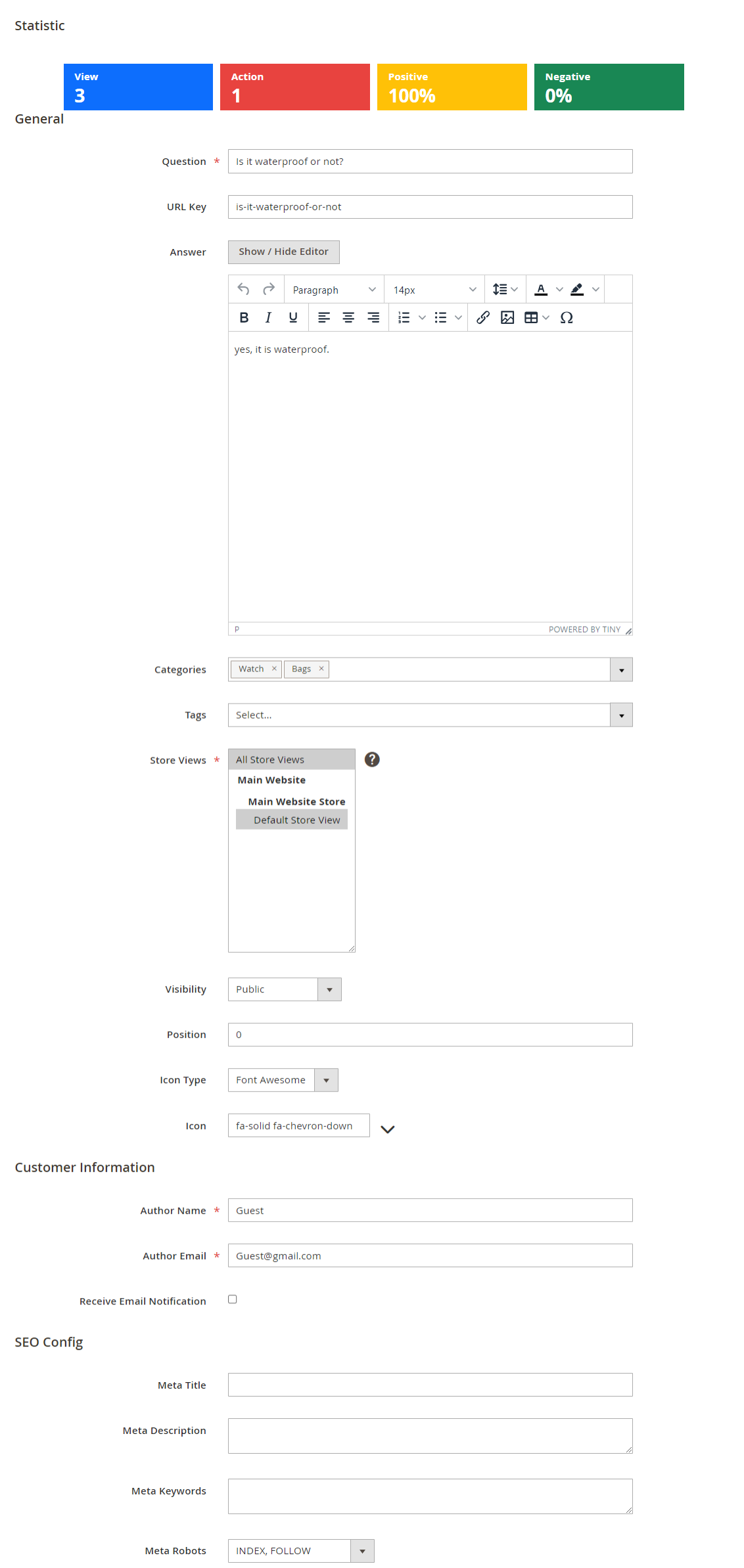
Here we can select the product in which the faq are shown.
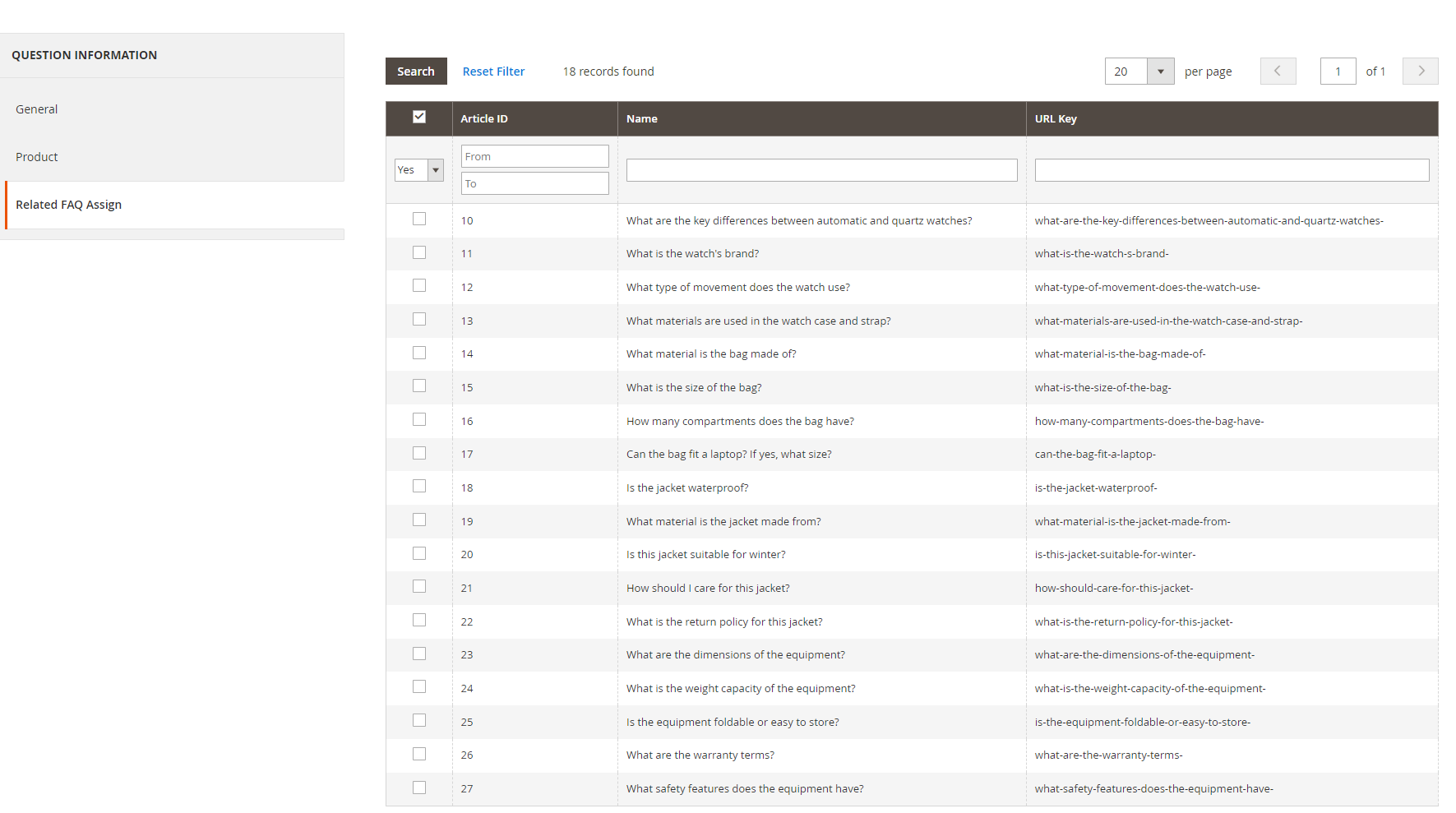
Here we can add related faqs.
Manage Categories
Go to Your Site Backend →CONTENT → Mavenbird→ FAQS->Manage Categories.
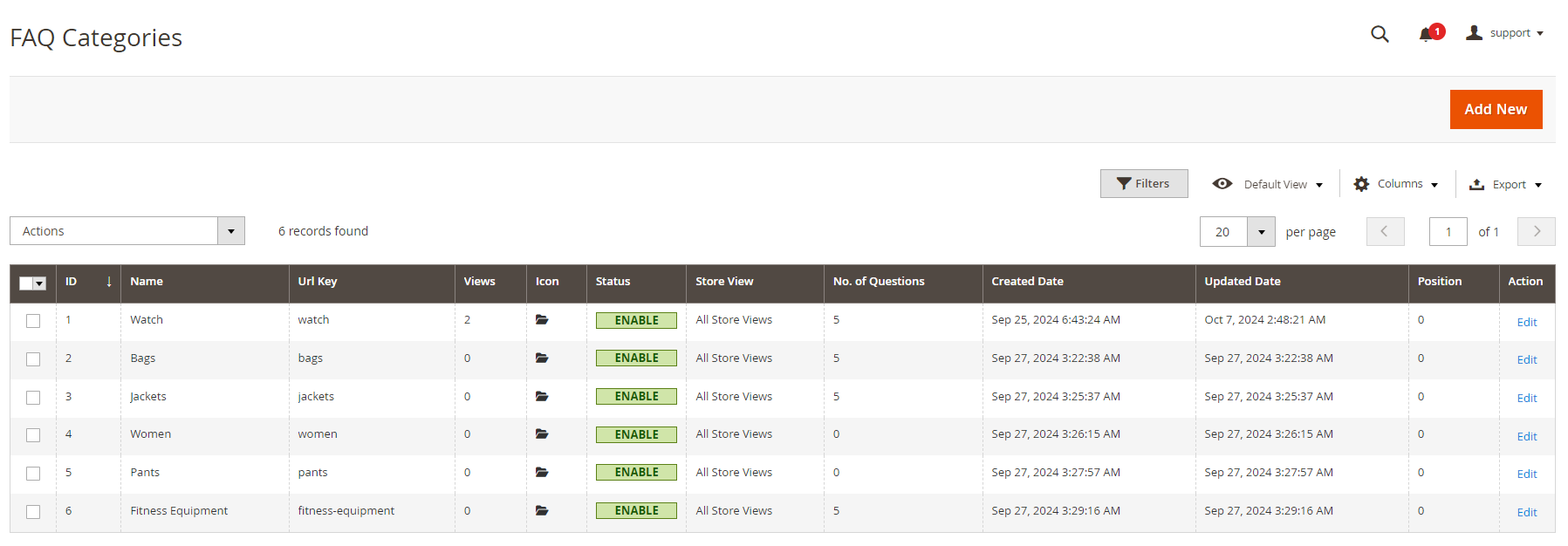
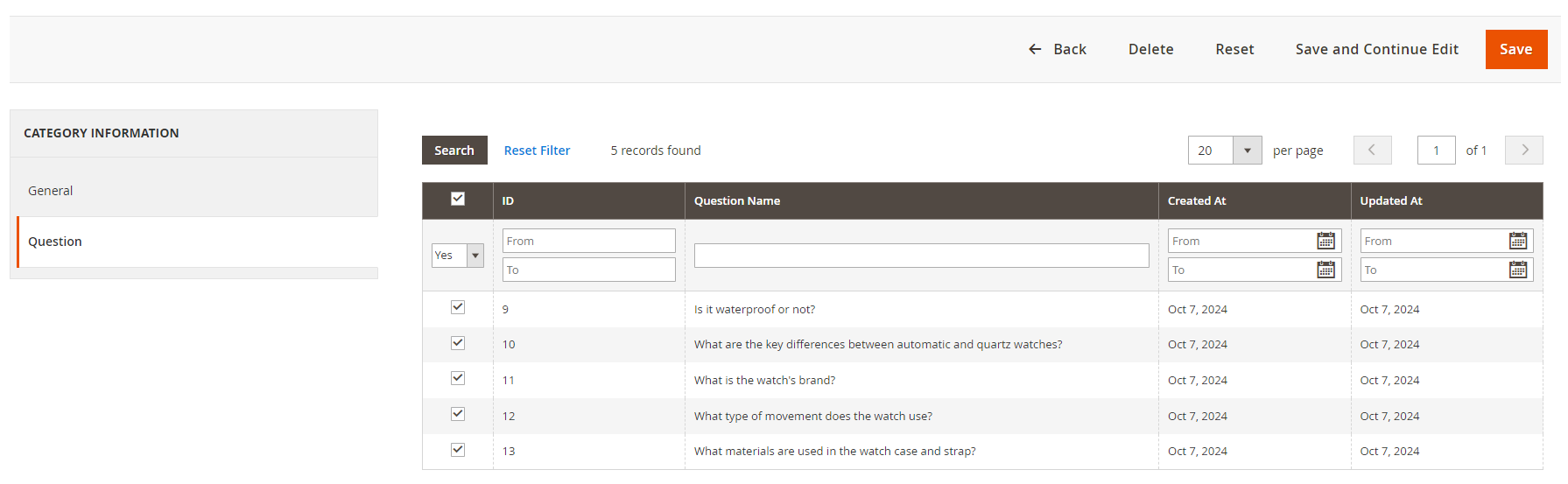
To create new categories click on **"Add New"**button. Show below screen
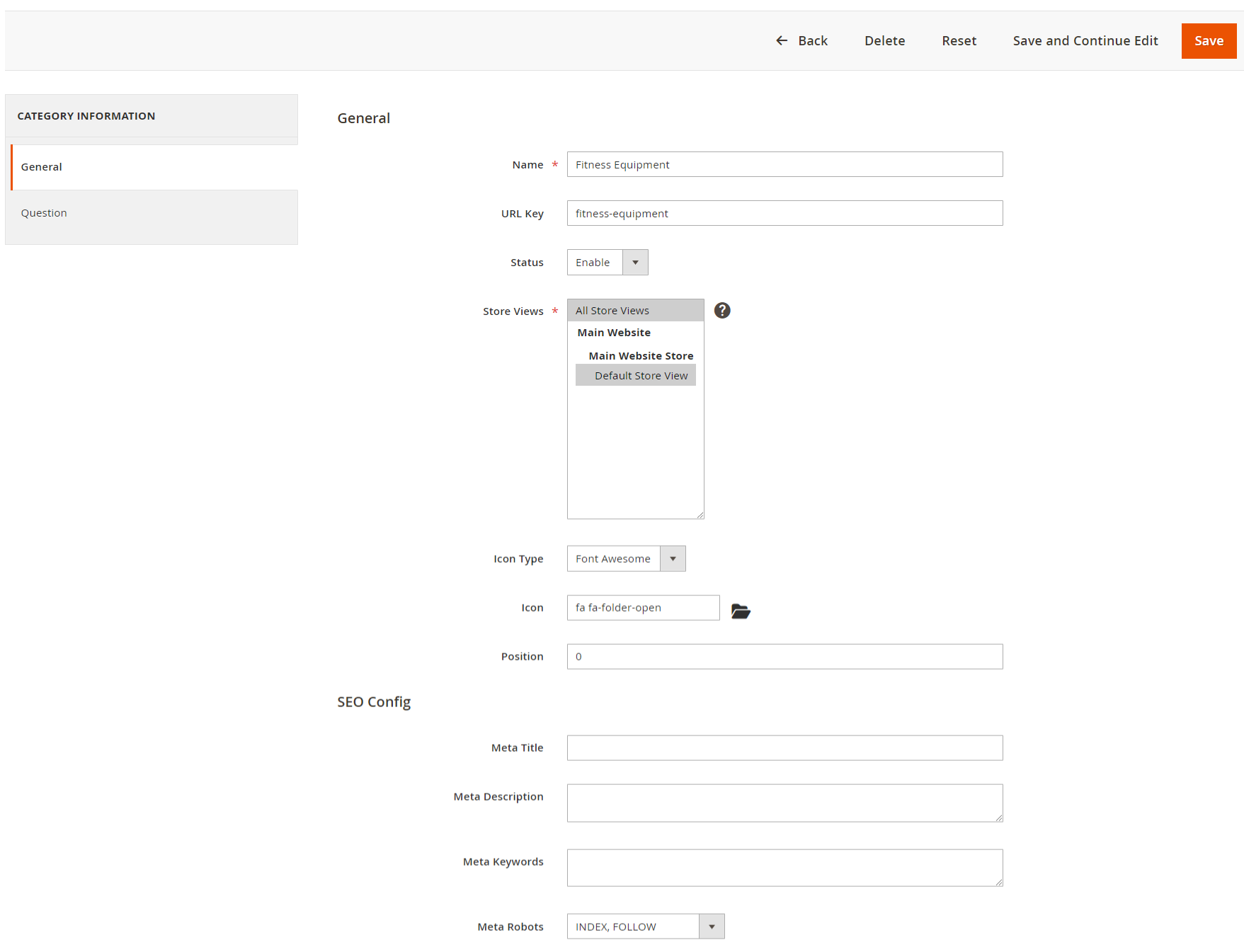
Here we can select the questions that are shown in categories.
Manage Tags
Go to Your Site Backend →CONTENT → Mavenbird→ FAQS->Manage Tags.
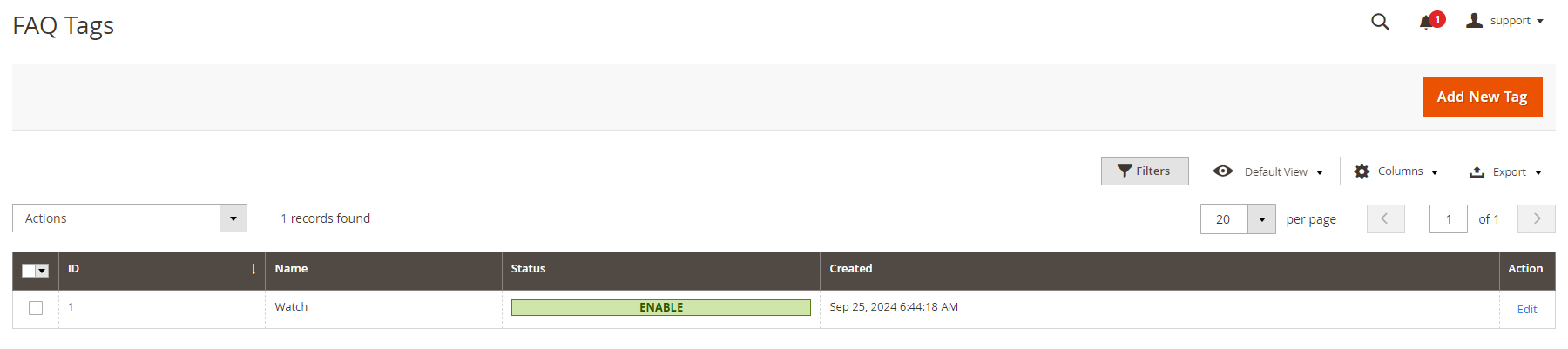
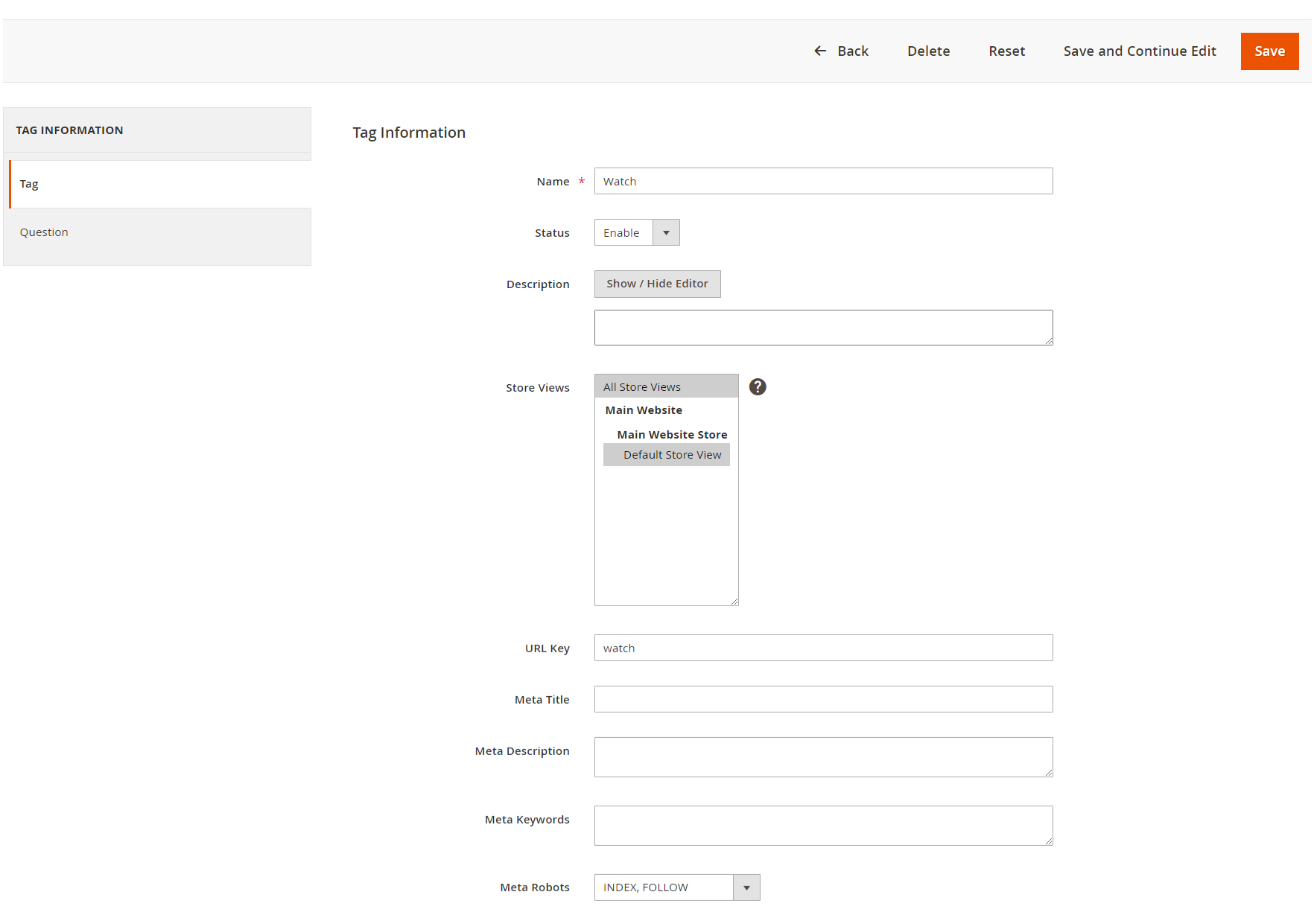
To create new tags click on **"Add New"**button. Show below screen
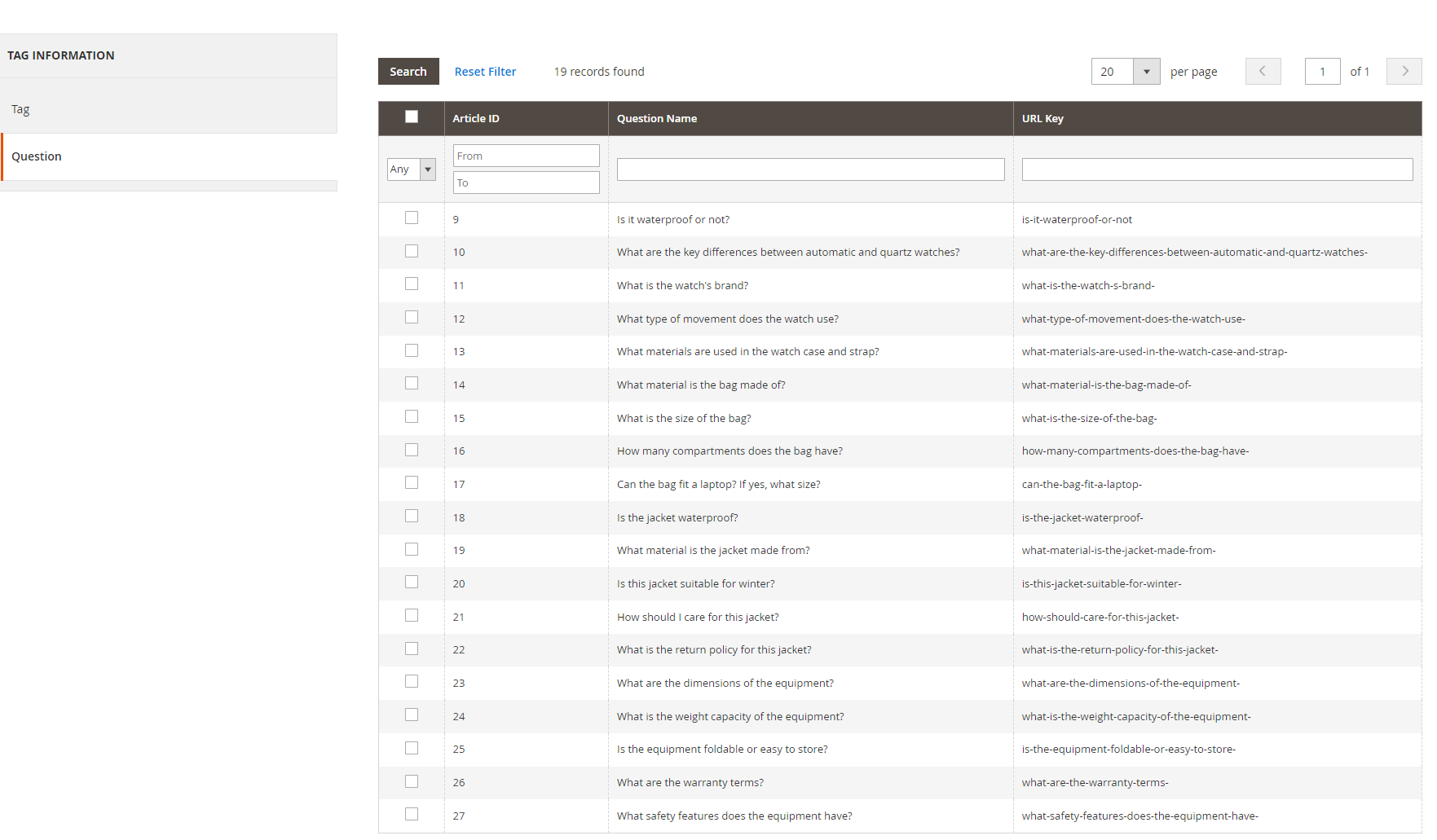
Here we can select the questions in that tags are shown.
FAQs Homepage
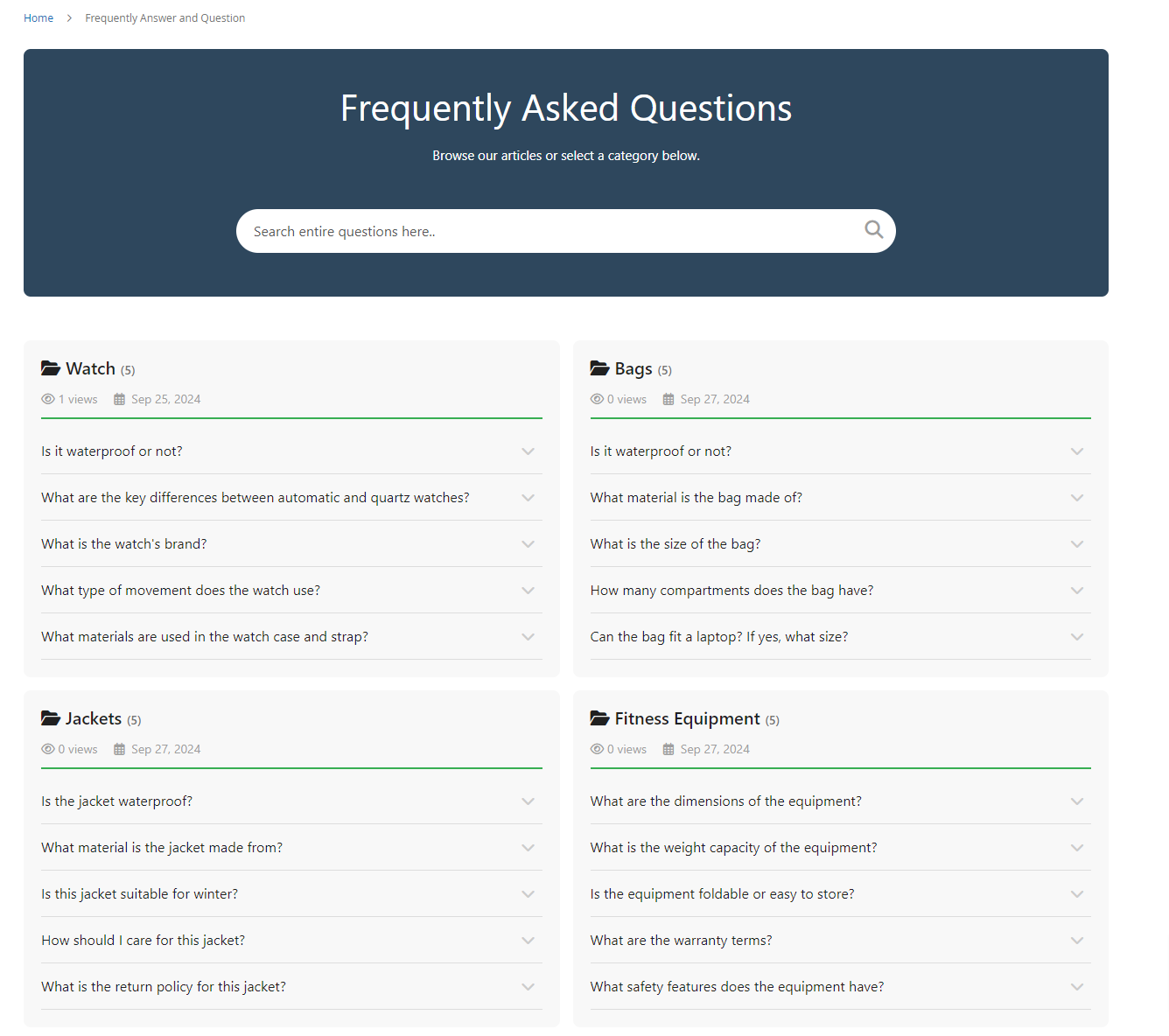
-
Allow displaying all categories and dependent question.
-
Depending on the installation of admins, FAQ Homepage will display Search box or not. Customers can search any question on FAQ Homepage quickly when using Search box.
FAQs Category Page
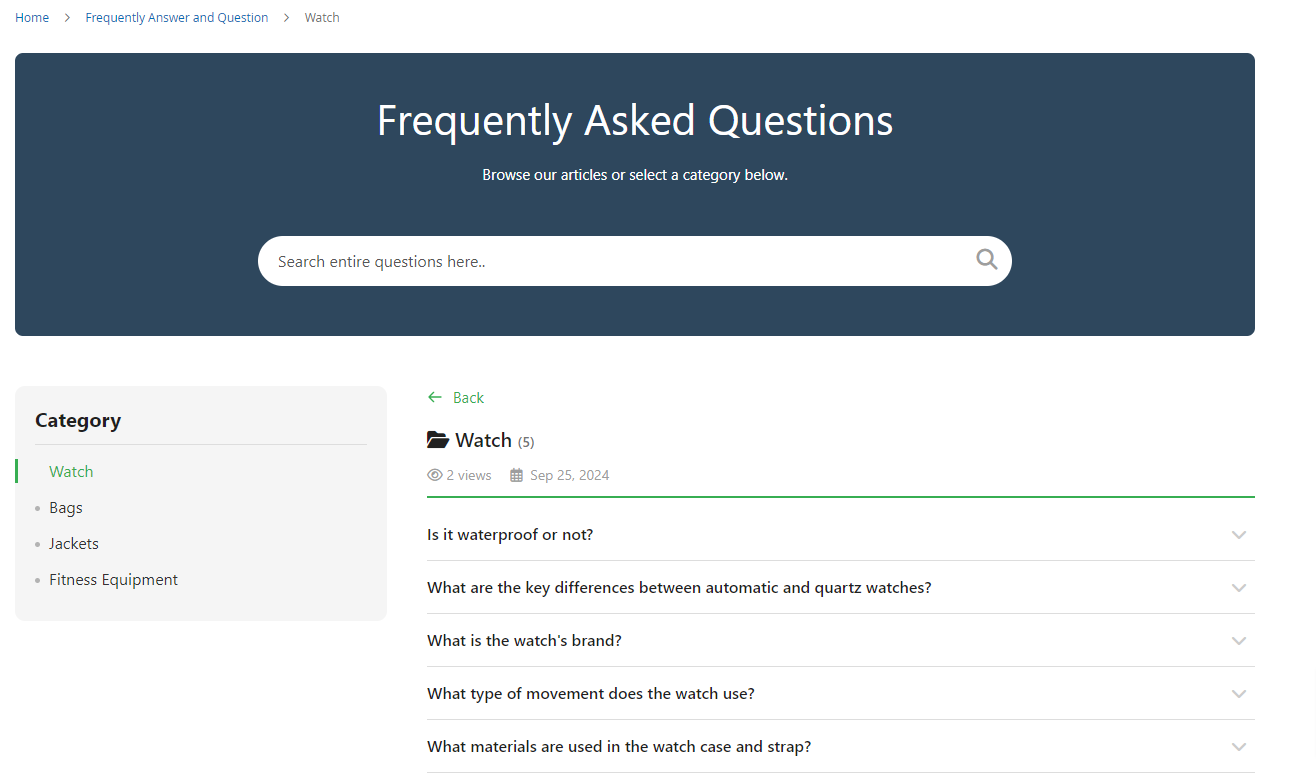
- Display all questions of the category.
- The same as FAQ Homepage, Category page is also displayed on the Search box and performs the function as on FAQ Homepage. When you find by the search box, all satisfied questions (in all categories) will be displayed. To return the current category, you only need to delete the condition that you have just searched.
FAQs Category View Page
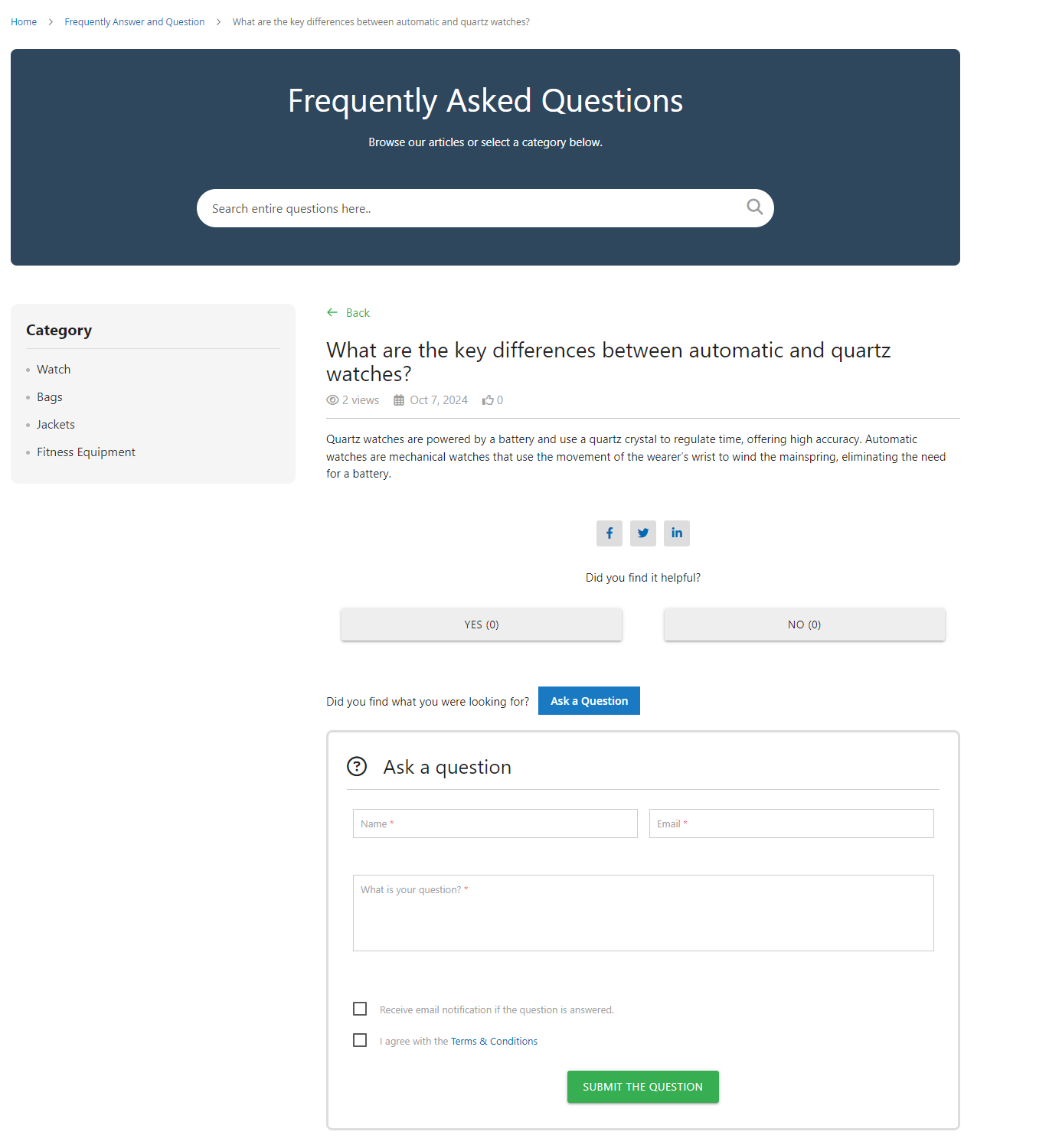
- Here are the category view page in which the answer of the questions are shown.
- Below the question, there are social media sharing buttons for Facebook, Twitter, and LinkedIn, allowing users to share the FAQ content.
- At the bottom of the page, users can submit a new question via the "Ask a Question" form.
- Optional checkboxes to receive email notifications and agree to the terms & conditions.
- A green "Submit the Question" button allows users to send their queries.
FAQs Product Tab
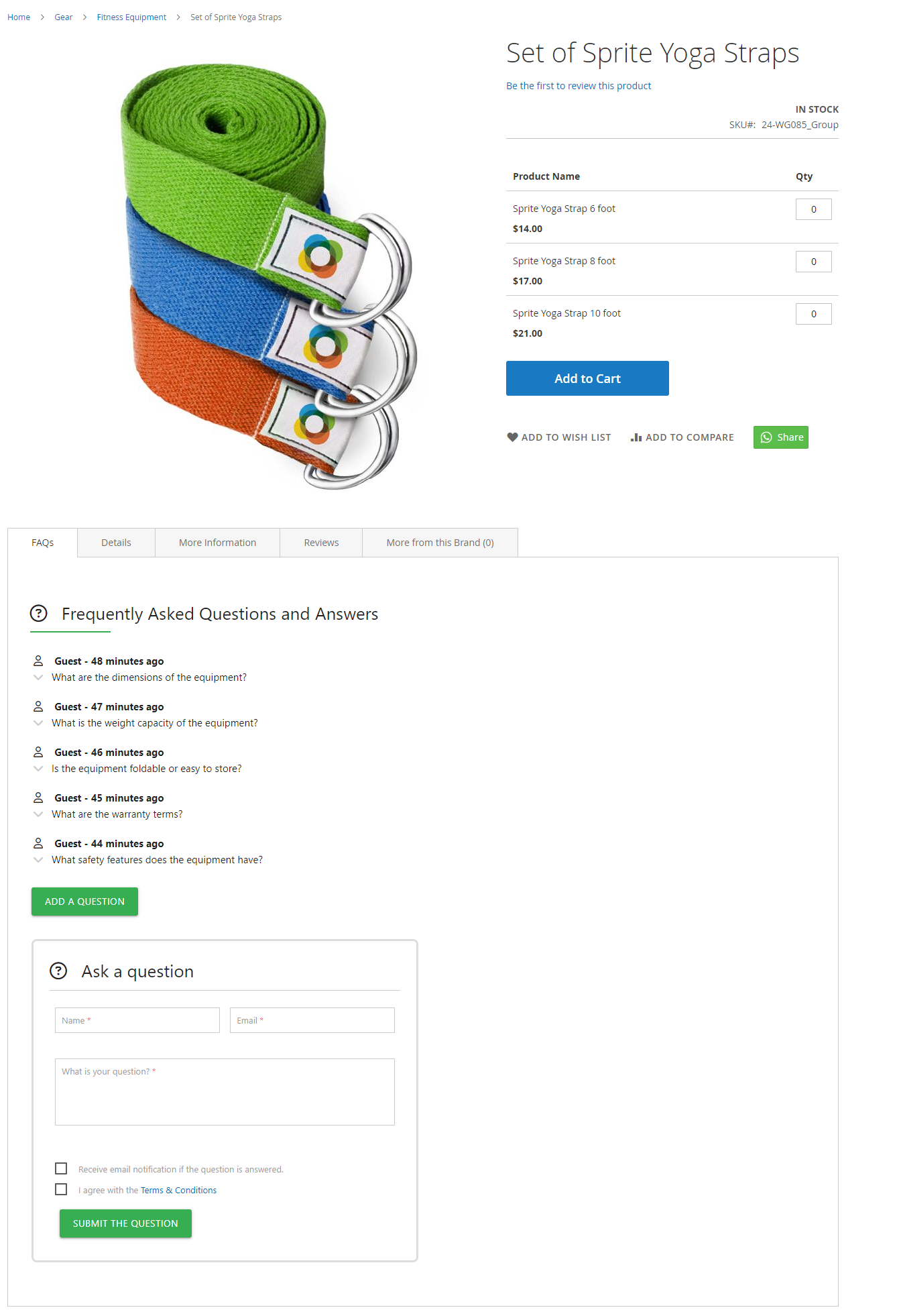
- Display all questions regarding the product.
- Customers can submit a question here. The question submitted by creating the form in the Product Tab will be auto-displayed in the Product Detail when it's public.
- Similar to the submit form in the Question detail page, we don't support the countries that do not use the English alphabet (such as Russian, Japanese, Korean, Chinese, Arabic, etc.)