Promotions Pro
Extension Installation
For Magento Marketplace Customers
-
Find the Composer name and version of the extension in the extension's composer.json file.
-
Login to your SSH and run:
- composer require mavenbird/module-special-promotions-pro
- Wait for Composer to finish updating your project dependencies and make sure there aren't any errors.
-
To verify that the extension installed properly, run the command:
- php bin/magento module:status Mavenbird_PromotionsPro
- By default, the extension is probably disabled.
- Enable the extension and clear static view files:
- php bin/magento module:enable Mavenbird_PromotionsPro --clear-static-content
- php bin/magento setup:upgrade
- For Magento version 2.0.x to 2.1.x - php bin/magento setup:static-content:deploy
- For Magento version 2.2.x & above - php bin/magento setup:static-content:deploy --f
- php bin/magento cache:flush
For Mavenbird Customers
- Extract the zip folder and upload our extension to the root of your Magento 2 directory via FTP.
- Login to your SSH and run below commands step by step:
- php bin/magento setup:upgrade
- For Magento version 2.0.x to 2.1.x - php bin/magento setup:static-content:deploy
- For Magento version 2.2.x & above - php bin/magento setup:static-content:deploy --force
- php bin/magento cache:flush
Magento 2 Advanced Promotions extension allows you to create highly customizable discounts with smart conditions. Leverage customer attributes, purchase history, and over 20 promotion types to craft unique and relevant offers. Ensure precise discount calculations and restrict promotions based on special pricing rules.
- Create 20+ unique promotion types for exclusive deals.
- Use customer attributes as rule conditions.
- Restrict promotions based on order history.
- Choose the base price for accurate discount calculations.
- Prevent promotions for products with special prices.
- Supports GraphQL for headless commerce solutions.
Configuration
To adjust the general settings for the Promotions Pro extension, navigate to Stores > Configuration > Special Promotions. Here, you can customize your promotional offers to enhance your marketing strategies effectively.
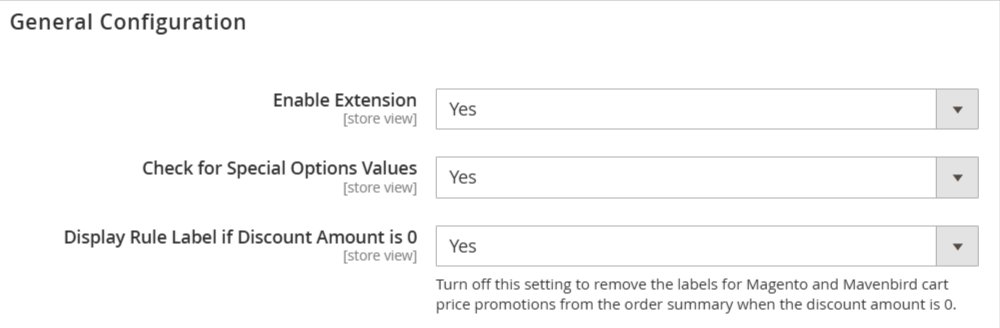
Enable Extension: Allows you to activate or deactivate the Promotions Pro extension for your store.
Check for Special Options Values: Enables verification of special option values during promotions.
Display Rule Label if Discount Amount is 0: Controls whether to show labels for promotions in the order summary when the discount amount is zero.
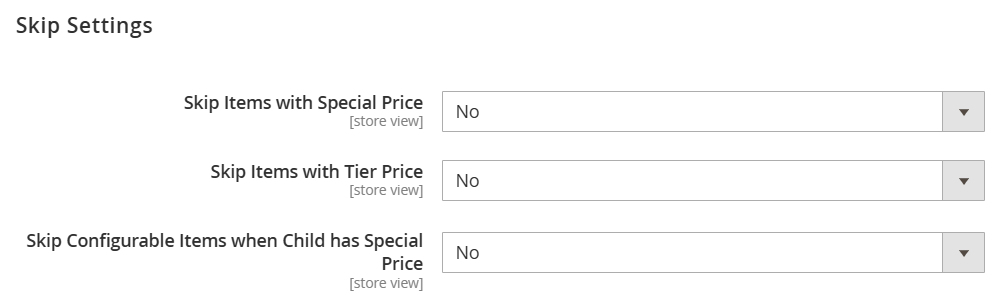
Skip Items with Special Price: When set to "Yes," items that have a special price will be excluded from promotions.
Skip Items with Tier Price: When enabled, items with a tier price will not be considered for promotions.
Skip Configurable Items when Child has Special Price: If set to "Yes," configurable products will be skipped if their child items have a special price.

Display Discount Breakdown: Toggles the visibility of a detailed breakdown of discounts applied to the cart.
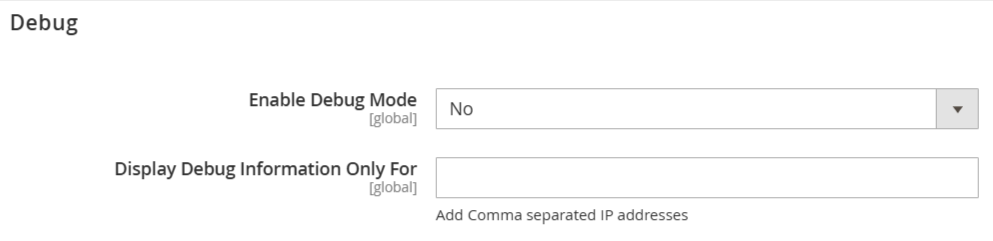
Enable Debug Mode: Option to activate or deactivate the debug mode for troubleshooting purposes.
Display Debug Information Only For: Specify IP addresses (comma-separated) to limit debug information visibility.
Understanding Actions vs. Conditions
What distinguishes the product conditions found in the Actions tab from those in the Conditions tab? This comparison clarifies how each tab influences your promotional strategies within the extension.
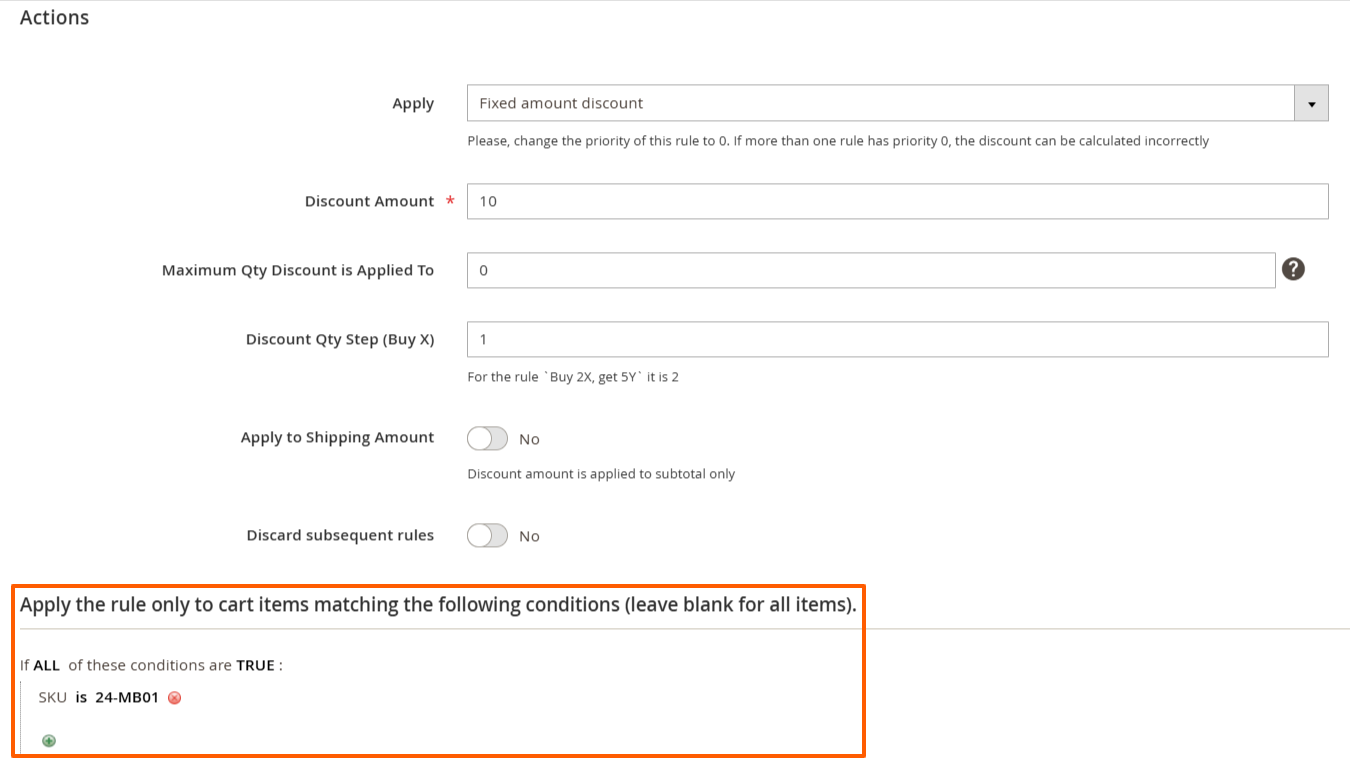
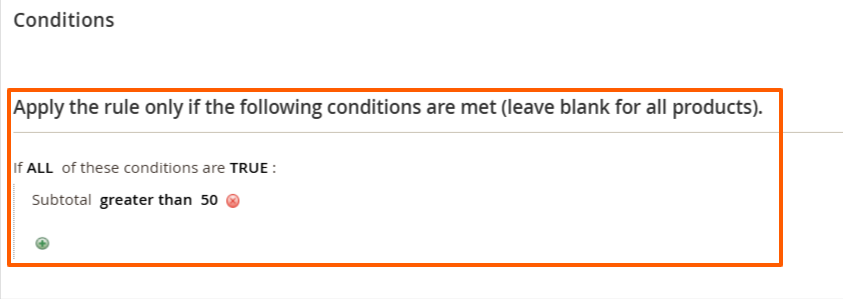
Conditions in the Conditions tab determine the criteria under which a promotional rule is activated. For instance, this could be based on whether the subtotal meets a specific threshold or if certain products are present in the cart.
In contrast, the conditions in the Actions tab specify which products the discount will be applied to. For example, you can limit the discount to only products within a particular category.
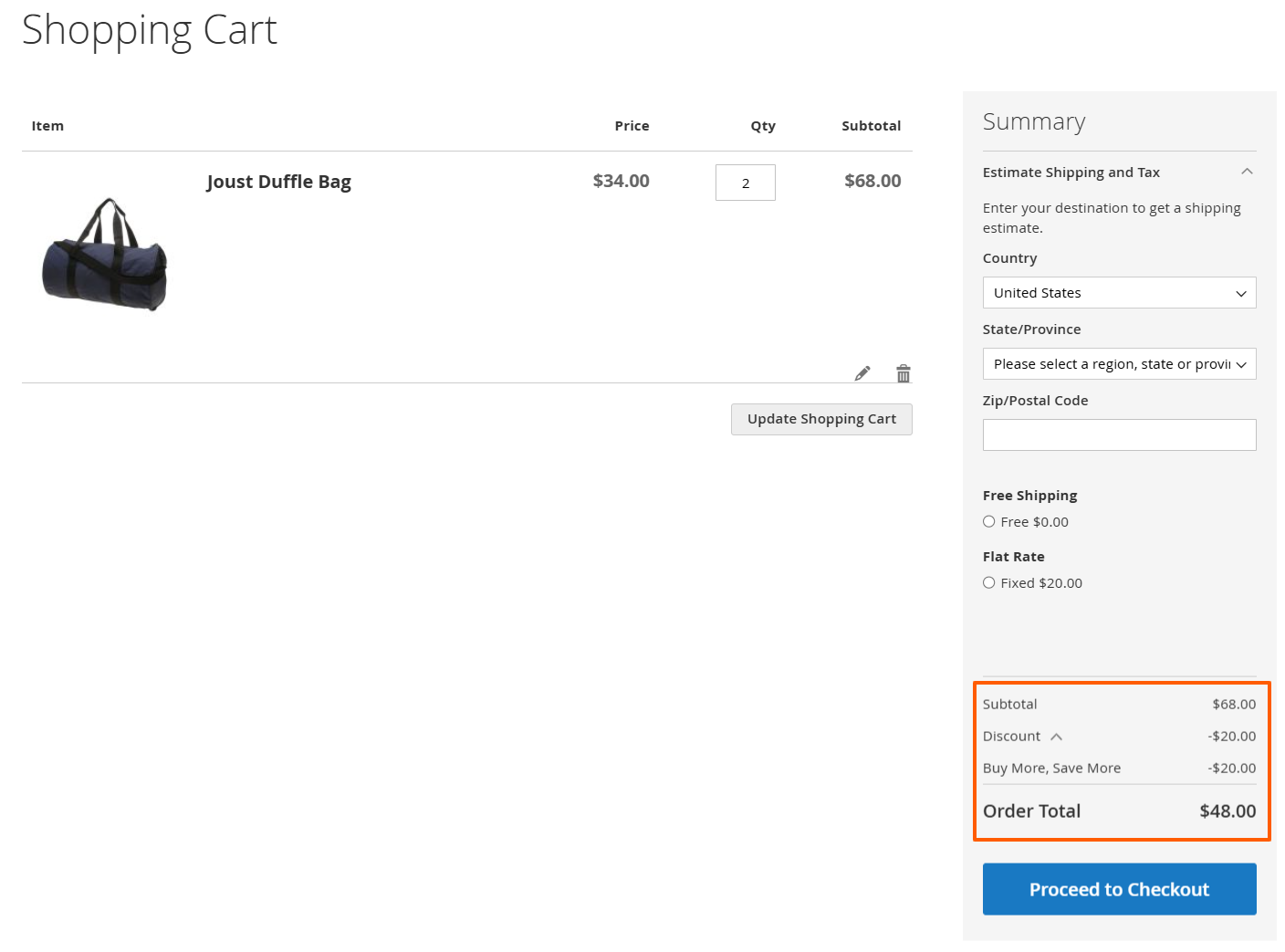
Rule Applied On Cart Page
Here the created rule are applied on cart page.
Shared Settings
These settings are applicable across various actions and function in a similar manner.
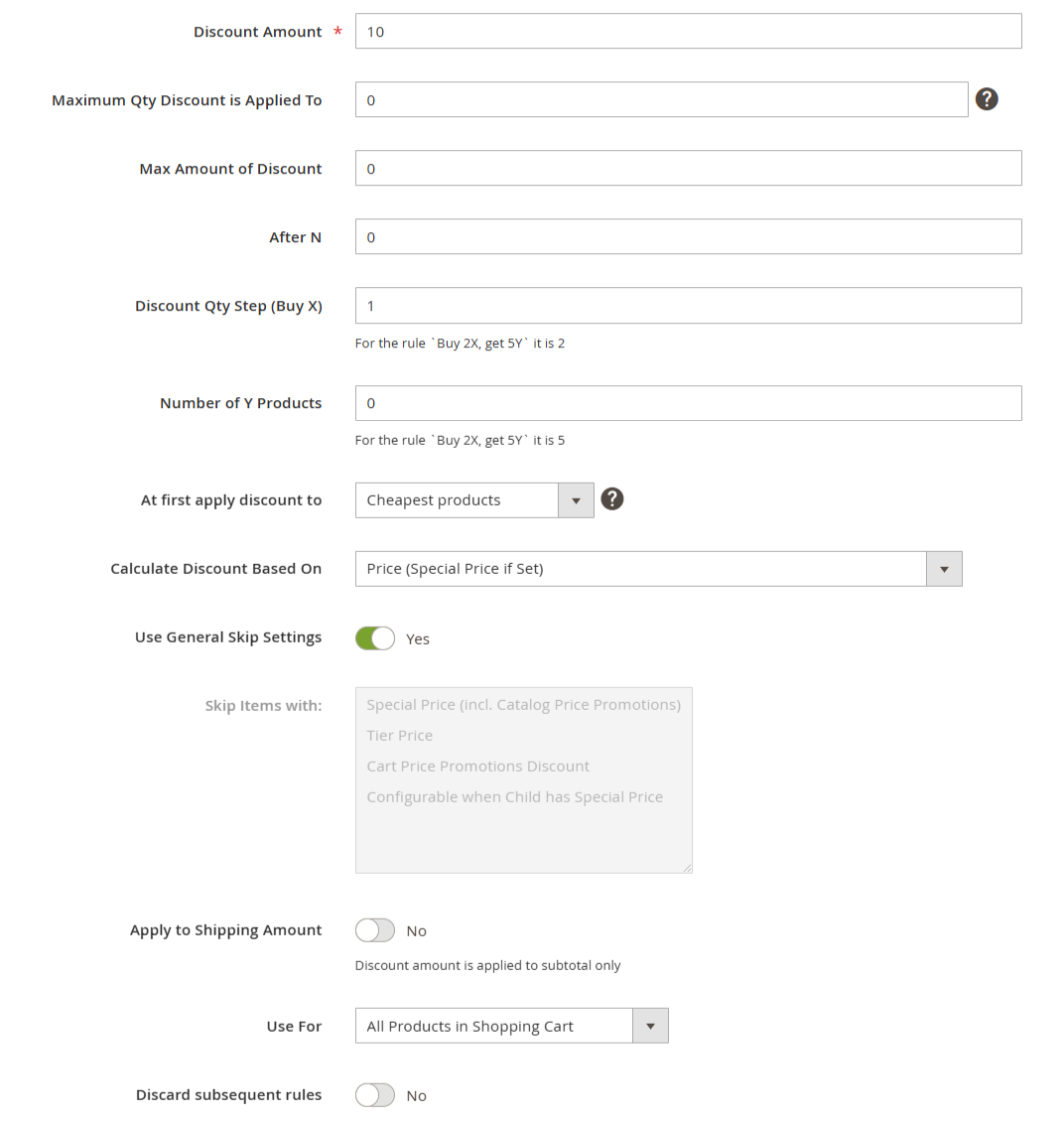
Discount Amount (in %): Defines the percentage deducted from the order total when the promotional rule is activated.
Max Number of Sets Discount is Applied To: Specifies the maximum quantity of items eligible for the discount. For instance, if your promotion applies a discount every second product and this is set to '2', the discount will only apply twice, regardless of how many items are in the cart.
Max Amount of Discount: Establishes the highest discount value that can be applied under a single rule.
Discount Qty Step (Buy X): Typically regulates the increment at which the discount is applied. For example, setting this to '2' means the discount will apply to every second product: 2, 4, 6, etc.
Calculate Discount Based On: Determines the method used for calculating the discount value.
Use General Skip Settings: When enabled, general skip settings will be enforced for the created rule.
Skip Items with: Select the desired option to exclude products with Special Price (including Catalog Price Rules), Tier Price, Cart Price Rules Discount, or Configurable products when their child has a Special Price while setting up the rule.
Apply to Shipping Amount: When enabled, the discount will be applied to the total of the Subtotal plus the Shipping Rate.
Discard Subsequent Rules: Activate this option to prevent rules with lower priority from being applied once this rule is triggered.
Trending Promotions
Buy X Get Y Free (Any Products)
This promotion allows you to specify the quantity of products that customers will receive for free when they purchase a set number of items, applying the rule in a single instance.
Now, let’s explore how to configure the settings for this action.
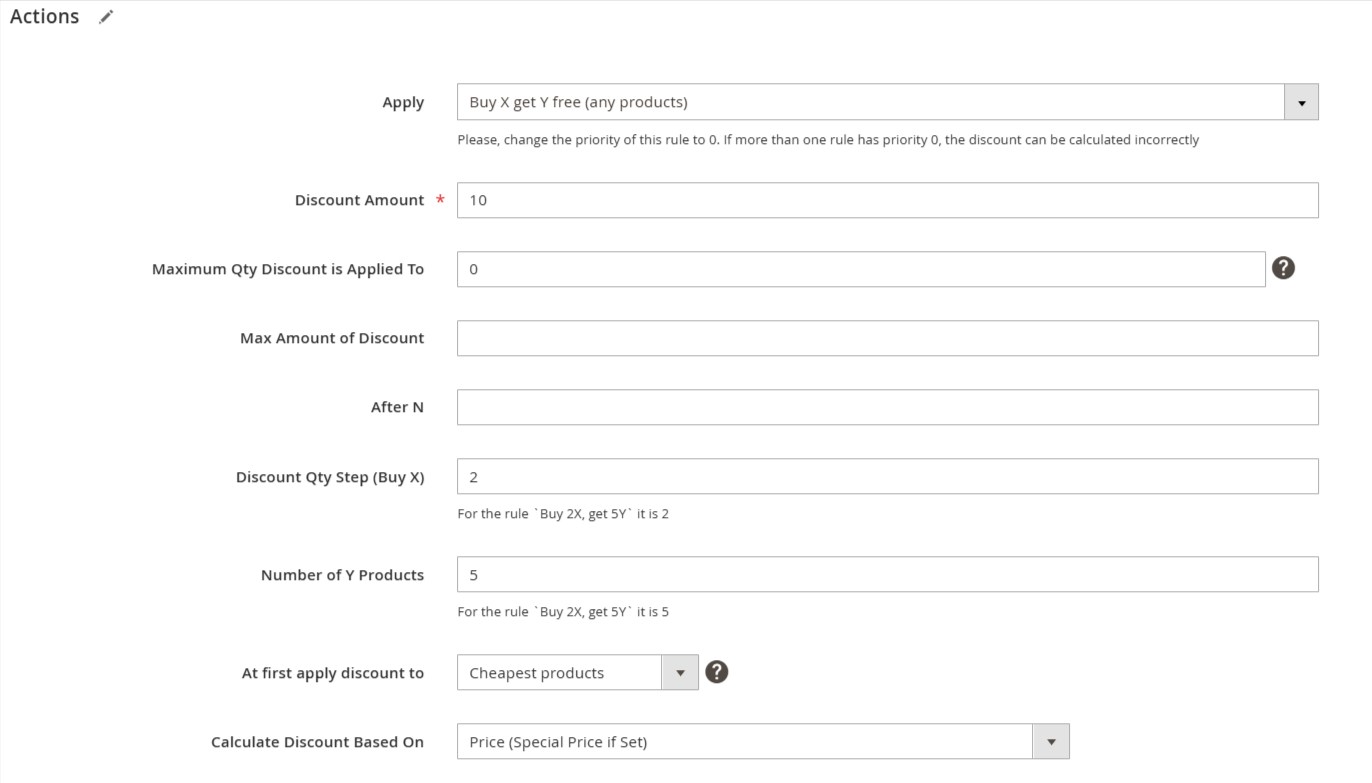
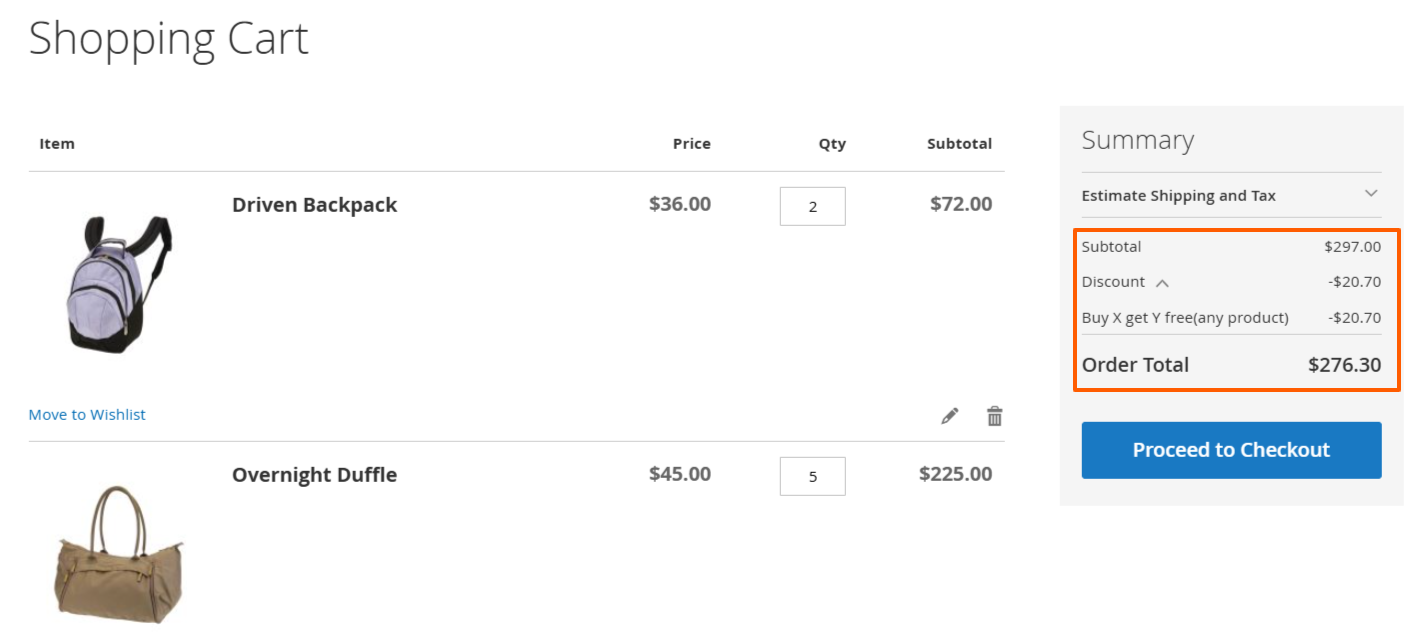
The rule is configured to provide a 10% discount on the 5 least expensive products in the cart. Here are the results:
Percent Discount: The Cheapest, also for Buy 1 get 1 free
The Cheapest action is designed to apply a discount based on the lowest-priced products in the shopping cart.
This rule is configured to offer a 10% discount on the cheapest product in the cart.
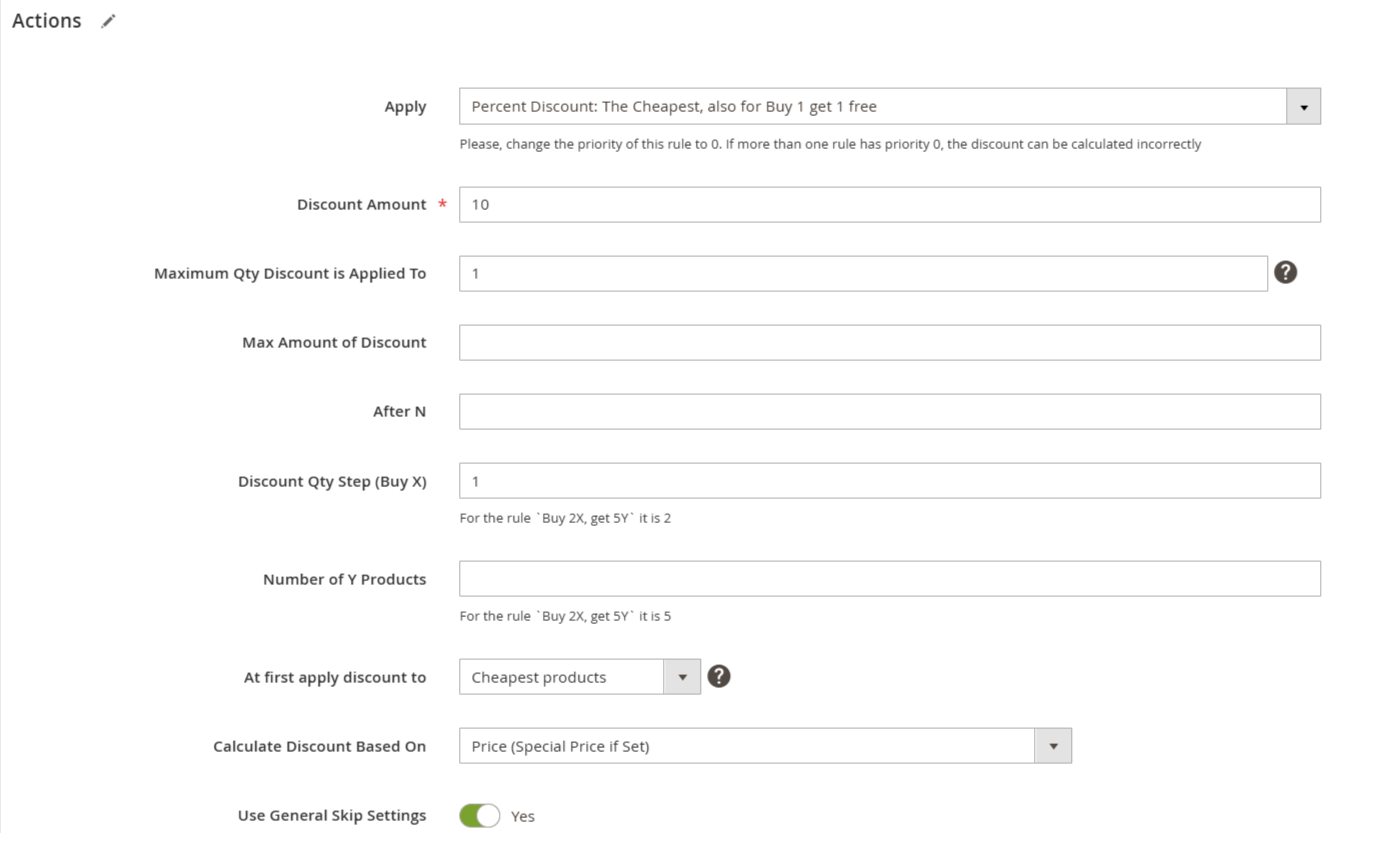
Discount Amount (in %): Specify the percentage of the discount you wish to offer. In this case, it is set to 10%.
Maximum Qty Discount is Applied To: Set the maximum number of items eligible for the discount. For instance, if the promotion applies a discount to 1 cheapest product in the cart and this setting is '1', the discount will only be applied once. To apply a discount to 2 cheapest products, set this option to '2'. Here, we have set it to '1'.
Max Amount of Discount: Define the maximum discount amount that can be applied under a single rule. This means that regardless of the previous settings, the final discount cannot exceed this amount. In our case, no limitations are set.
Discount Qty Step (Buy X): Indicate the step by which the discount will increment. For example, setting this to '2' means the discount applies to every second product in the cart (2, 4, 6, etc.). Here, it is set to '1'.
Calculate Discount Based On: This setting dictates how the discount value is calculated.
Use General Skip Settings: When enabled, general skip settings will be enforced for the created rule.
Skip Items with: Choose from the options to exclude products with Special Price (including Catalog Price Rules), Tier Price, Cart Price Rules Discount, or Configurable products when their child has a Special Price during rule creation.
Apply to Shipping Amount: Enable this option only if you want the discount applied to the total of Subtotal plus Shipping Rate. This is not needed for our promotions, so we set it to 'No'.
Discard Subsequent Rules: Activate this option to prevent lower-priority rules from applying once this rule is triggered. This is not necessary for our promotions, so we set it to 'No'.
Now, let's see the rule in action!
Example Rule Setup
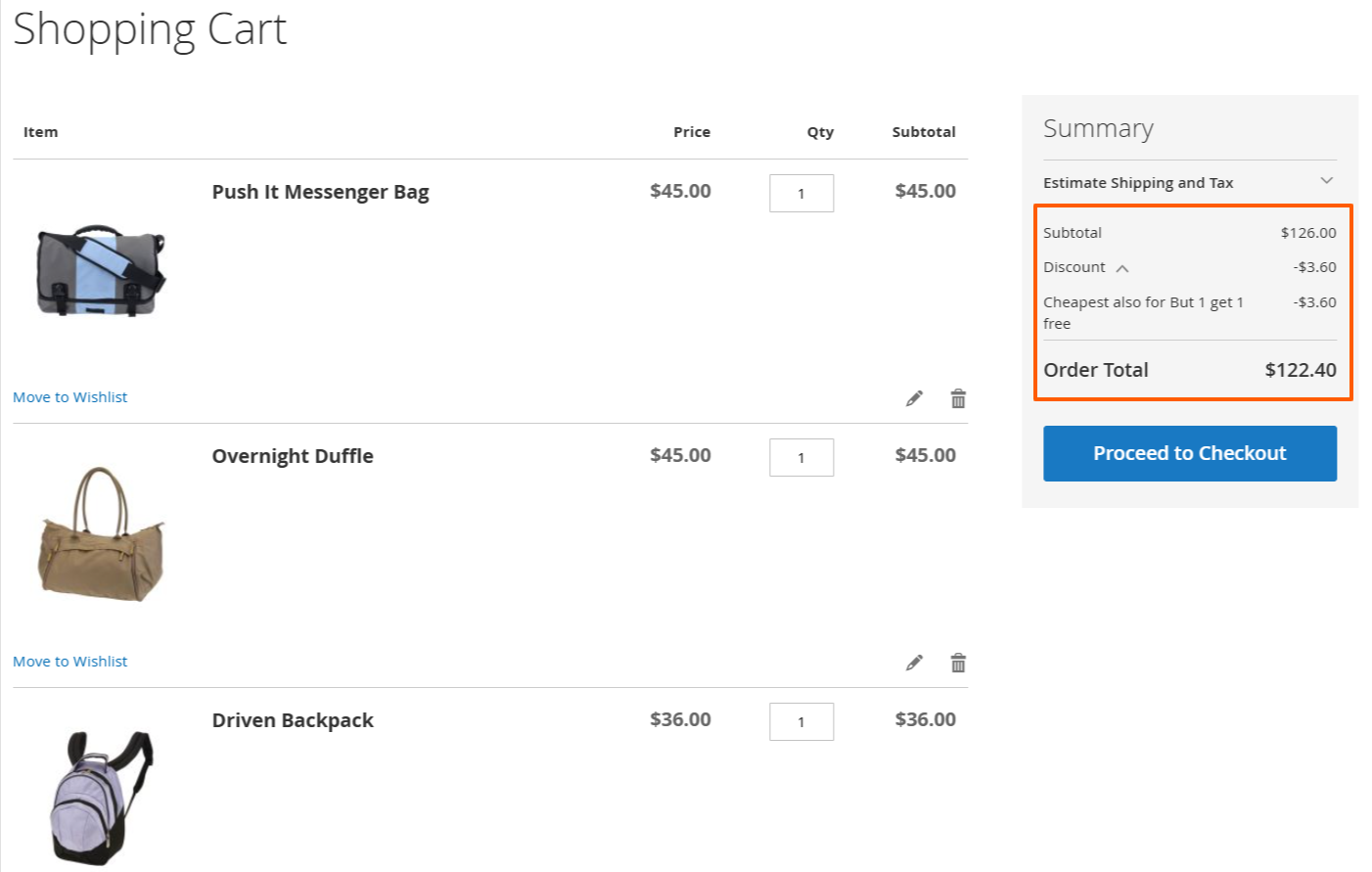
This action functions similarly to the Percent Discount: The Cheapest and Buy 1 Get 1 Free features mentioned above, but instead of applying a percentage discount, it assigns a fixed price to Product Y.
The Most Expensive
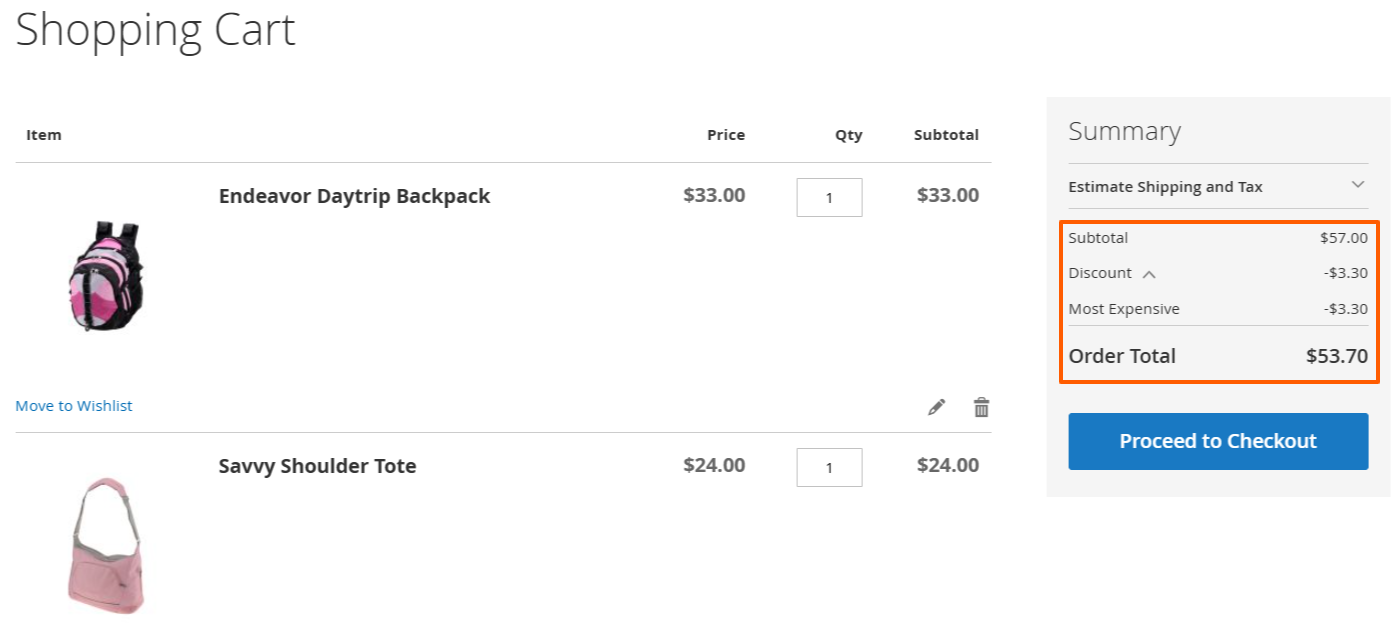
The Most Expensive action operates similarly to the Cheapest action, but instead of calculating discounts based on the cheapest product, it evaluates the price of the most expensive product in the cart.
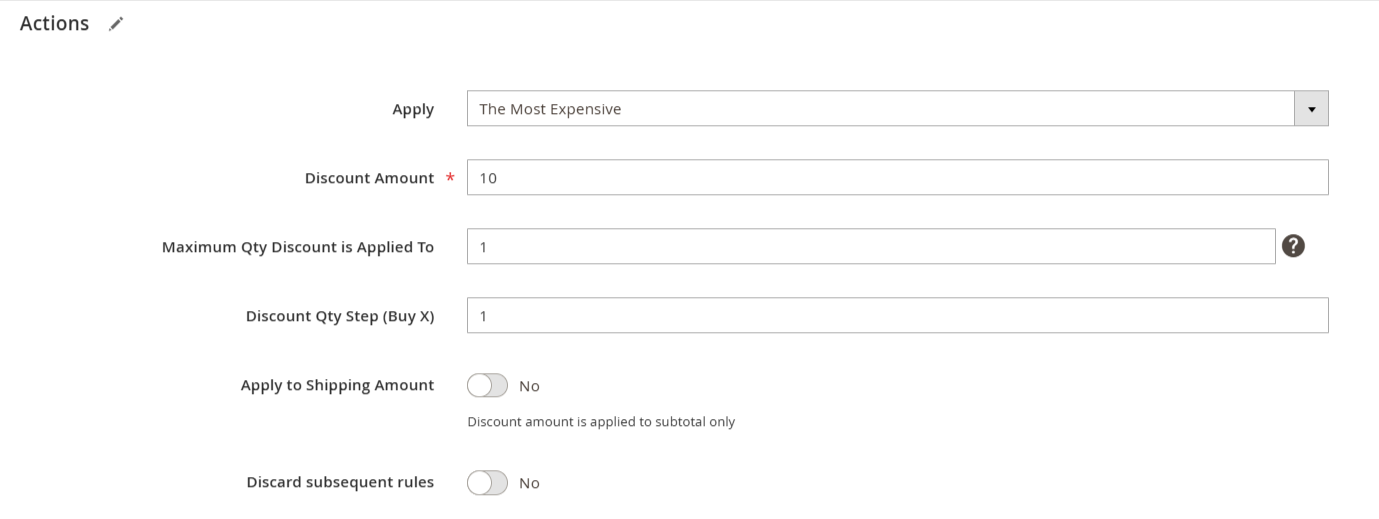
This rule is configured to provide a 10% discount on the most expensive product in the cart. Here are the results:
Get $Y for each $X spent
With this action, you can set up promotions such as "Get $10 off for every $300 spent in your cart."
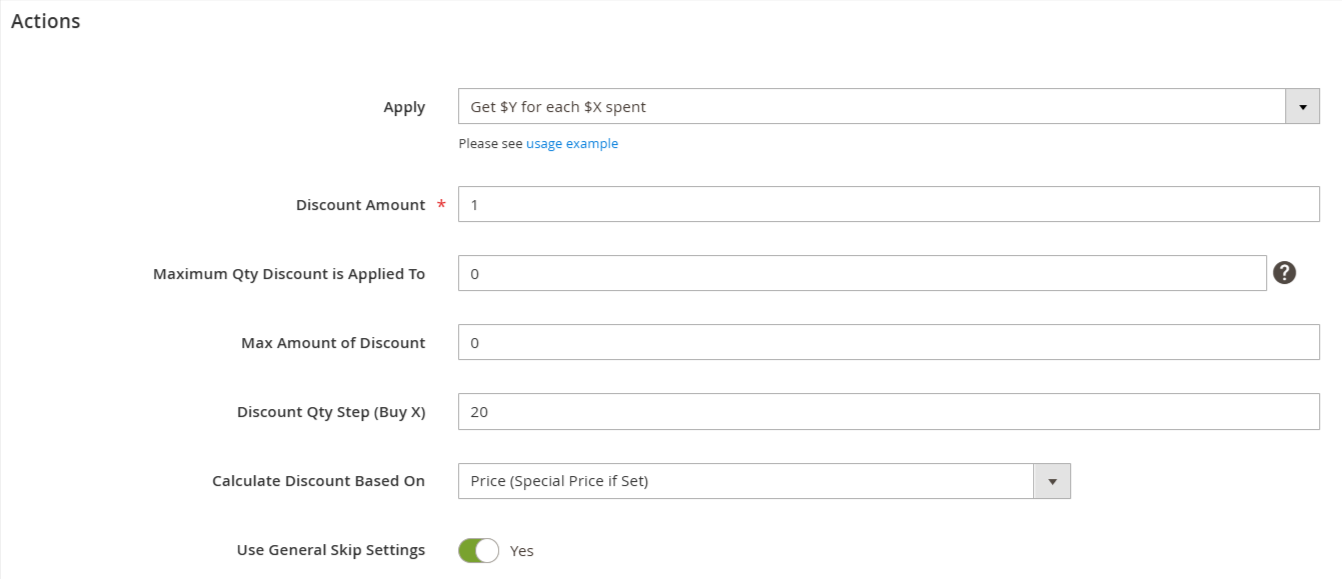
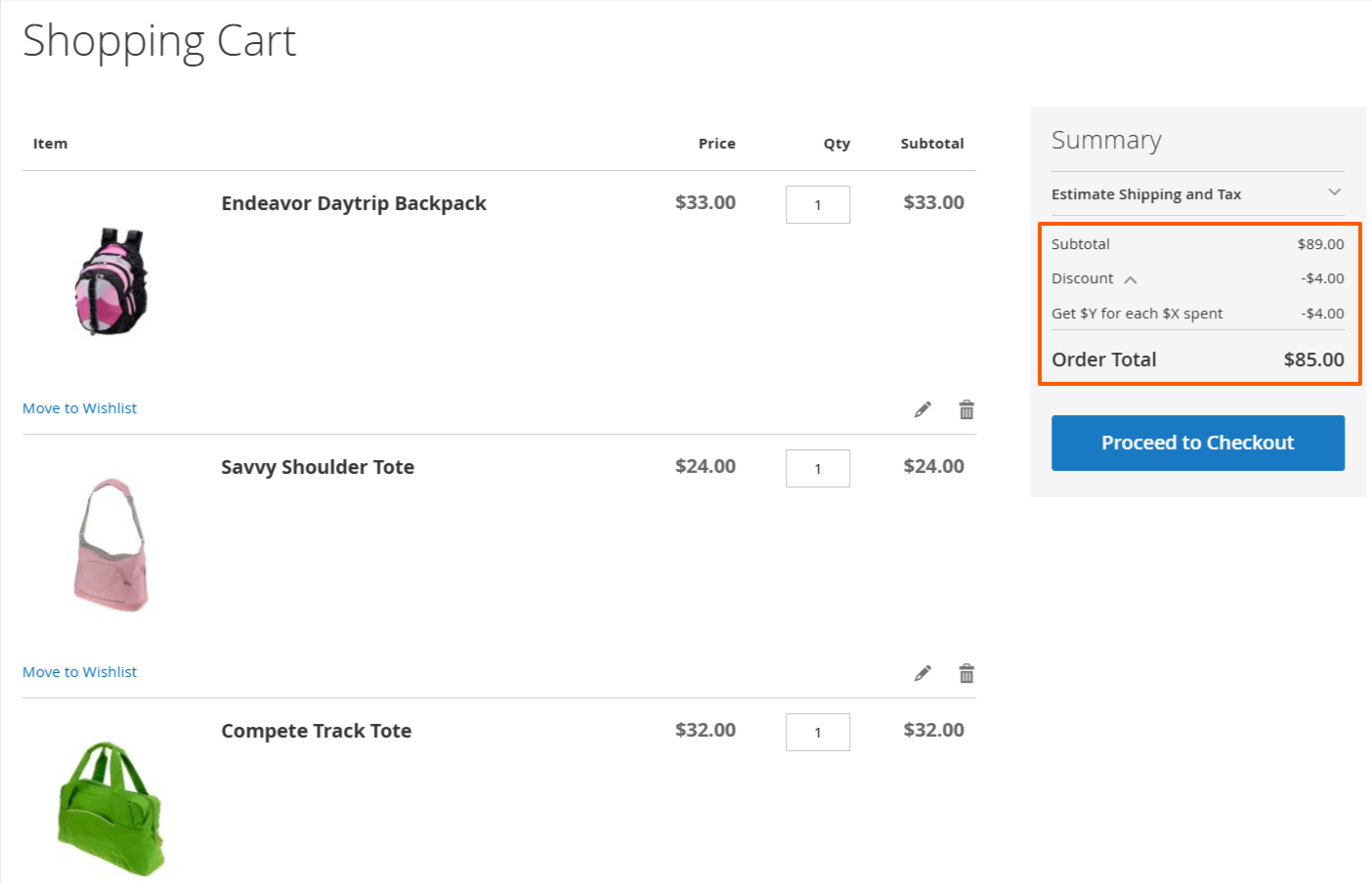
This rule is configured to provide $1 for every $20 spent. Here’s how it looks in action:
Tiered Discount Structure
This section enables you to implement multiple tiered discounts effortlessly, encouraging your customers to spend more to unlock larger discounts.
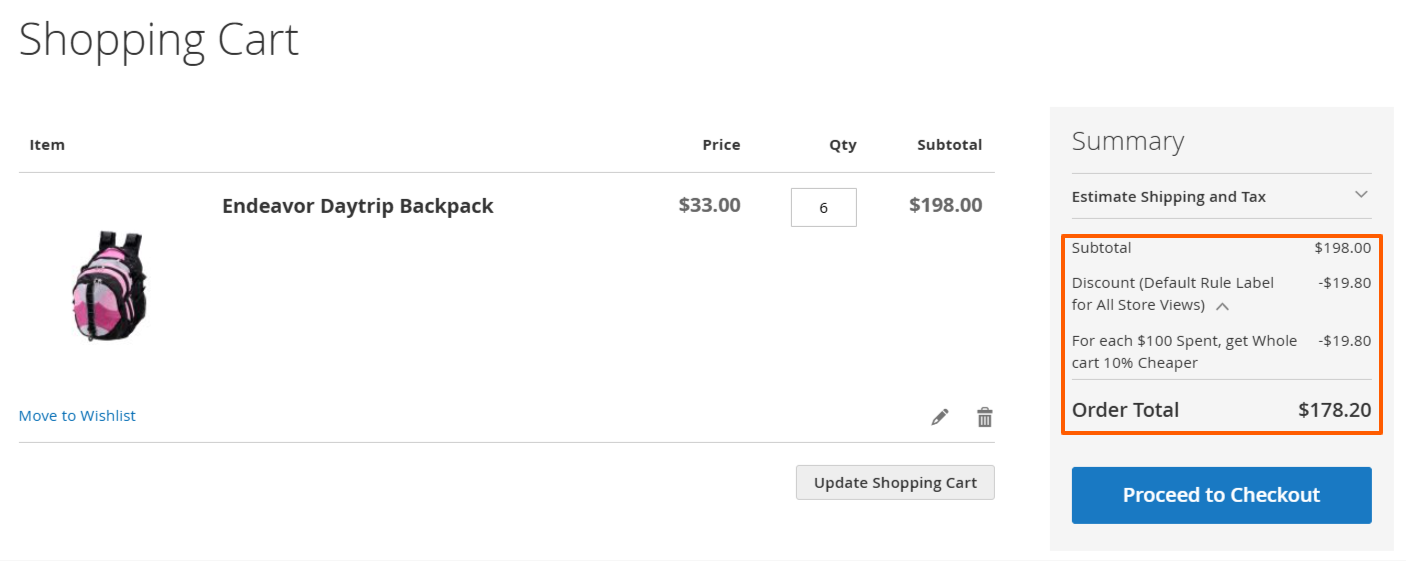
For Each 100$ Spent, get Whole Cart 10% Cheaper
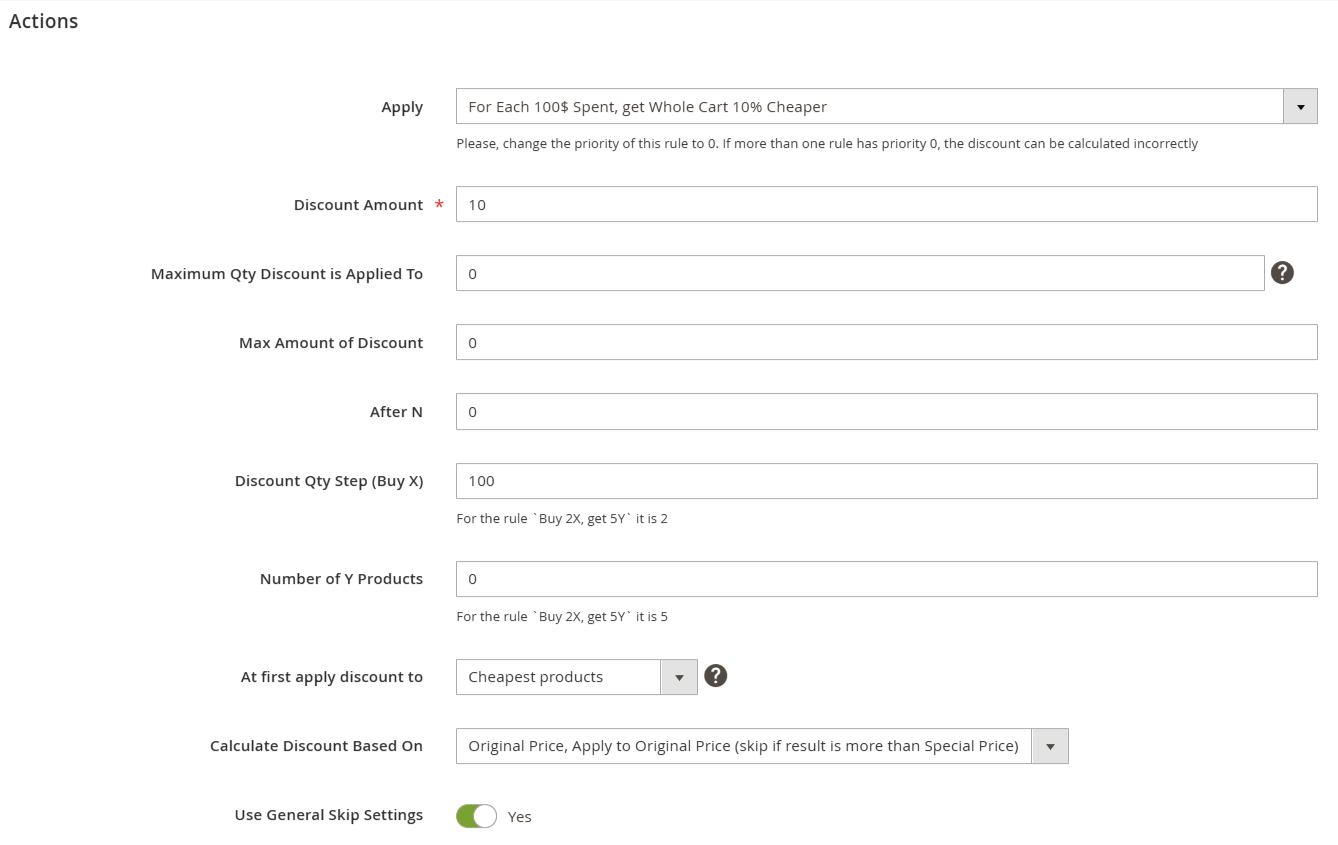
Discount Amount Step (… whole Cart $5 Off), in %: Sets the discount amount for the entire cart as a percentage for each pricing tier.
Cost Step (For Each $100 Spent …), in $: Defines the threshold of total cart value after which the next discount percentage is applied.
Max Amount of Discount: Establishes the cap for the maximum discount that can be applied.
Calculate Discount Based On: Choose the base price type on which the discount calculation will be based.
Skip Items with Special Price: Indicate whether the discount should apply to products that have a special price.
Apply to Shipping Amount: Set this to 'Yes' if you want the discount rule to also apply to the shipping costs.
Discard Subsequent Rules: Toggle to 'Yes' to disable any following rules if this rule is applicable.
Let’s explore how this rule functions in the storefront.
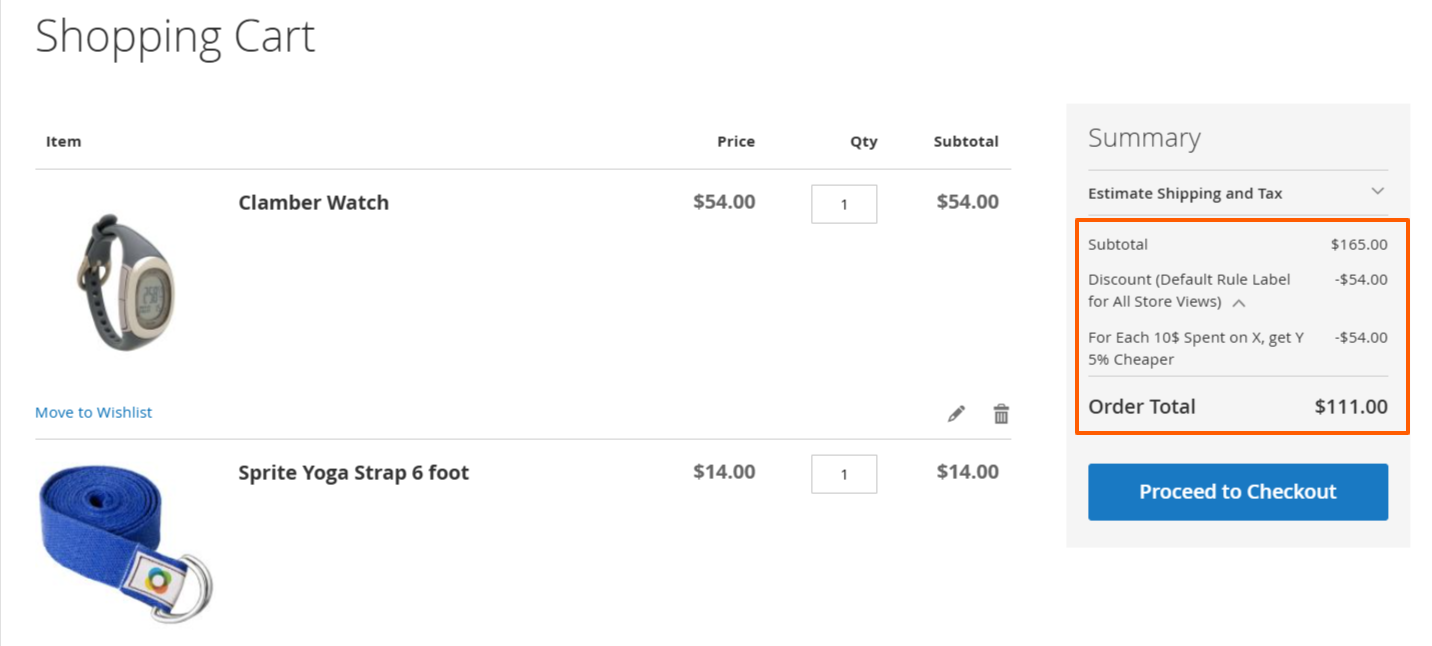
For Each 10$ Spent on X, get Y 5% Cheaper
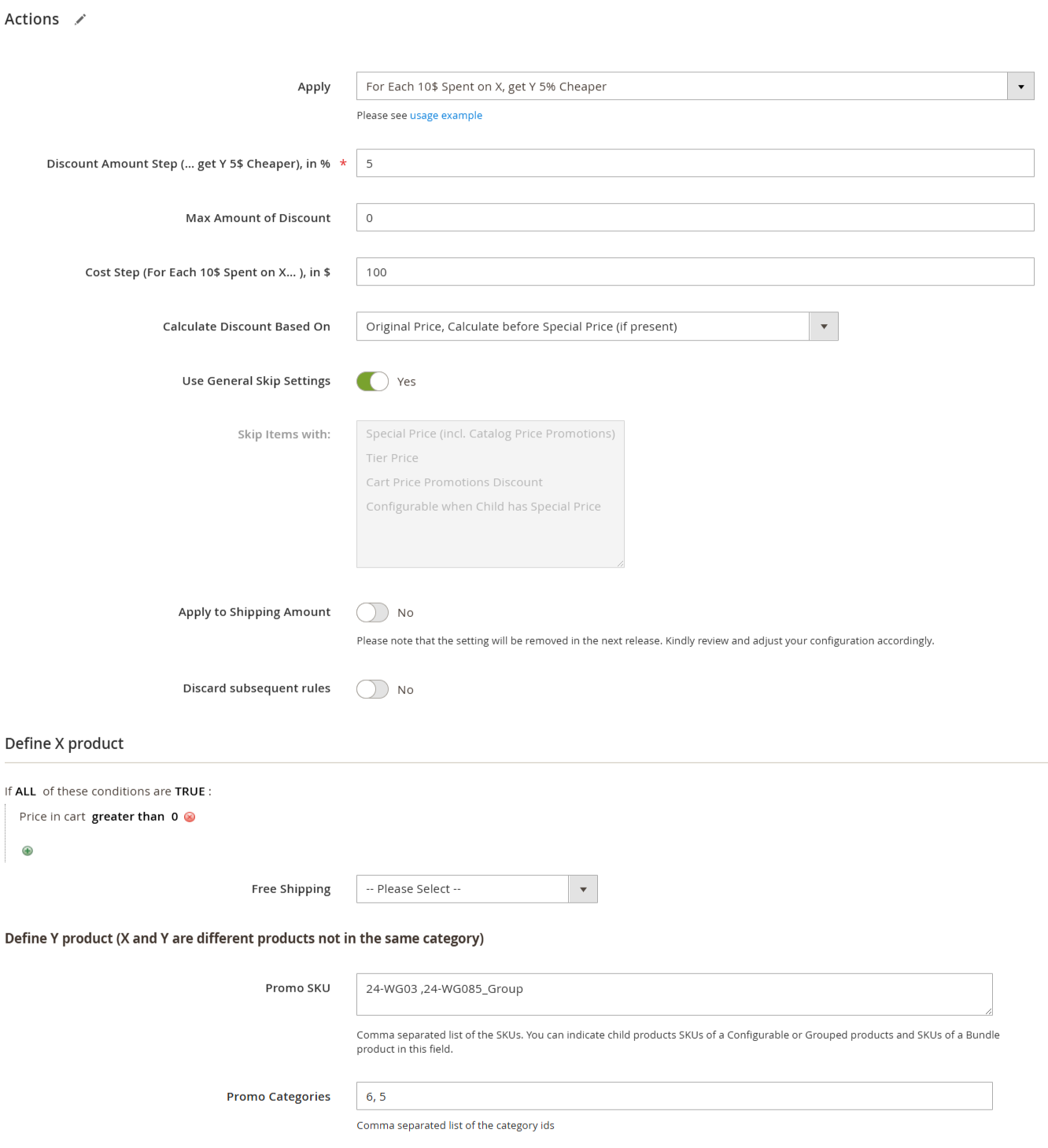
Discount Amount Step (… get Y $5 Off), in %: Sets the discount percentage for each applicable step.
Cost Step (For Each $10 Spent on X… ), in $: Defines the cost threshold of product X in the cart after which the next discount percentage is triggered.
Max Amount of Discount: Establishes the maximum allowable discount.
Calculate Discount Based On: Select the type of price on which the discount will be calculated.
Skip Items with Special Price: Indicate whether the discount should be applied to items that have a special price.
Apply to Shipping Amount: Set to 'Yes' if you want the rule to apply to the shipping charges.
Discard Subsequent Rules: Toggle to 'Yes' to ignore any following rules if this one applies.
Define X Product and Define Y Product: Configure these settings similarly to how it was described for the Buy X Get Y action.
Let’s examine how this rule is applied in the storefront.
Each N-th
This action enables promotions such as "Get 20% off every 5th product in the cart."
The discount is applied to each N-th item added to the cart.
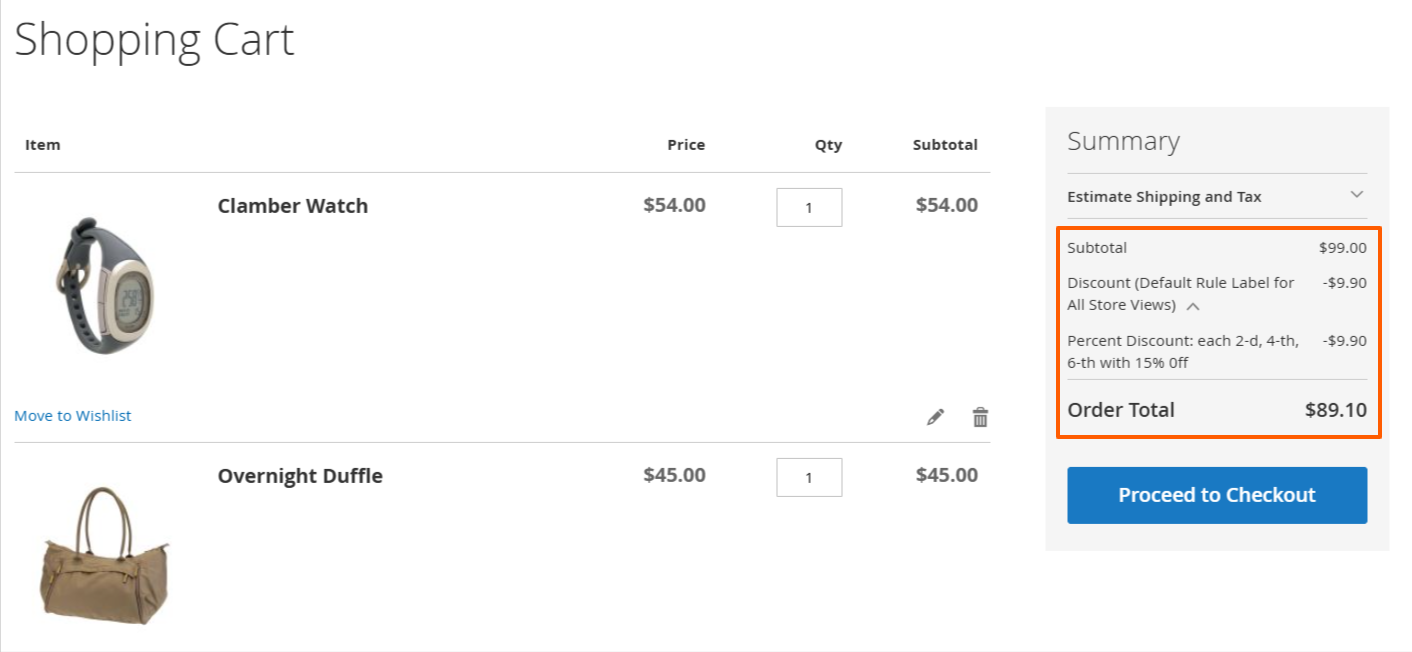
Percent Discount: each 2-d, 4-th, 6-th with 15% Off
Let’s configure a rule to offer 10% off on each second item in the cart. The rule will be set up as follows:
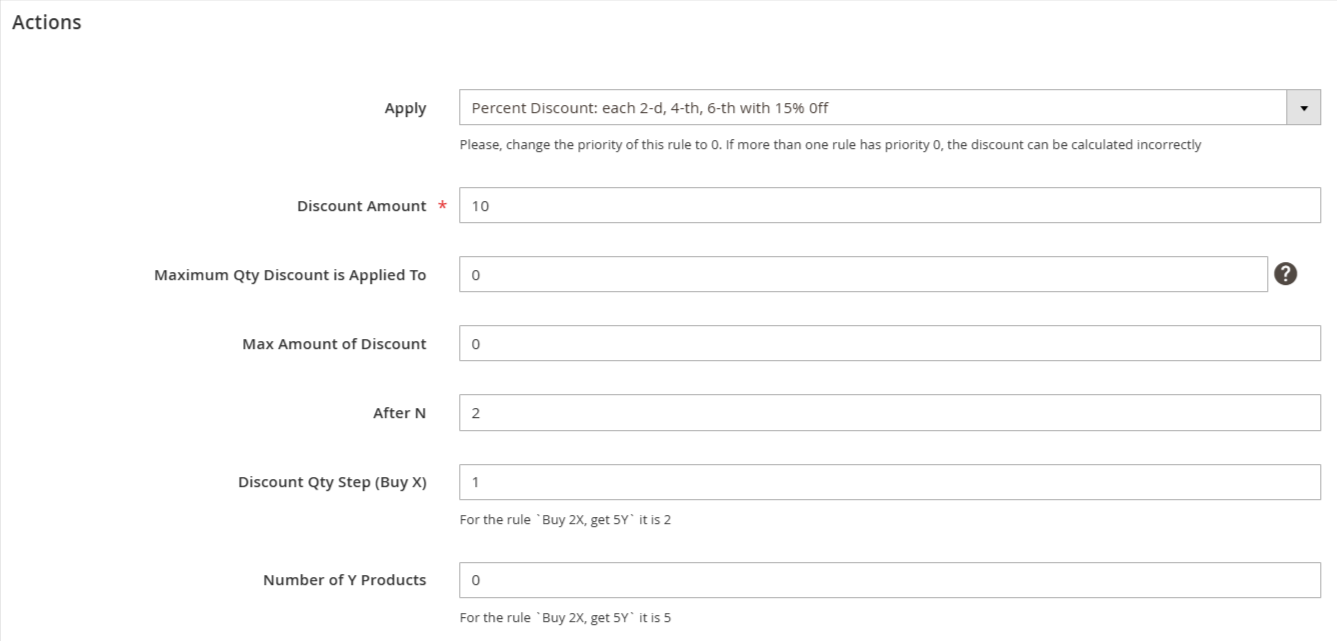
Now, let’s take a look at how the rule has been applied in our shopping cart.
Fixed Discount: each 3-d, 6-th, 9-th with $15 Off
This action functions similarly to the Percent Discount method (e.g., 15% off every 2nd, 4th, 6th item); however, it provides a fixed dollar amount discount instead of a percentage discount.
Fixed Price: each 5th, 10th, 15th for $49
This action operates similarly to the Fixed Discount method (e.g., $15 off every 3rd, 6th, 9th item); however, it provides a fixed price for each N-th product rather than a set discount amount.
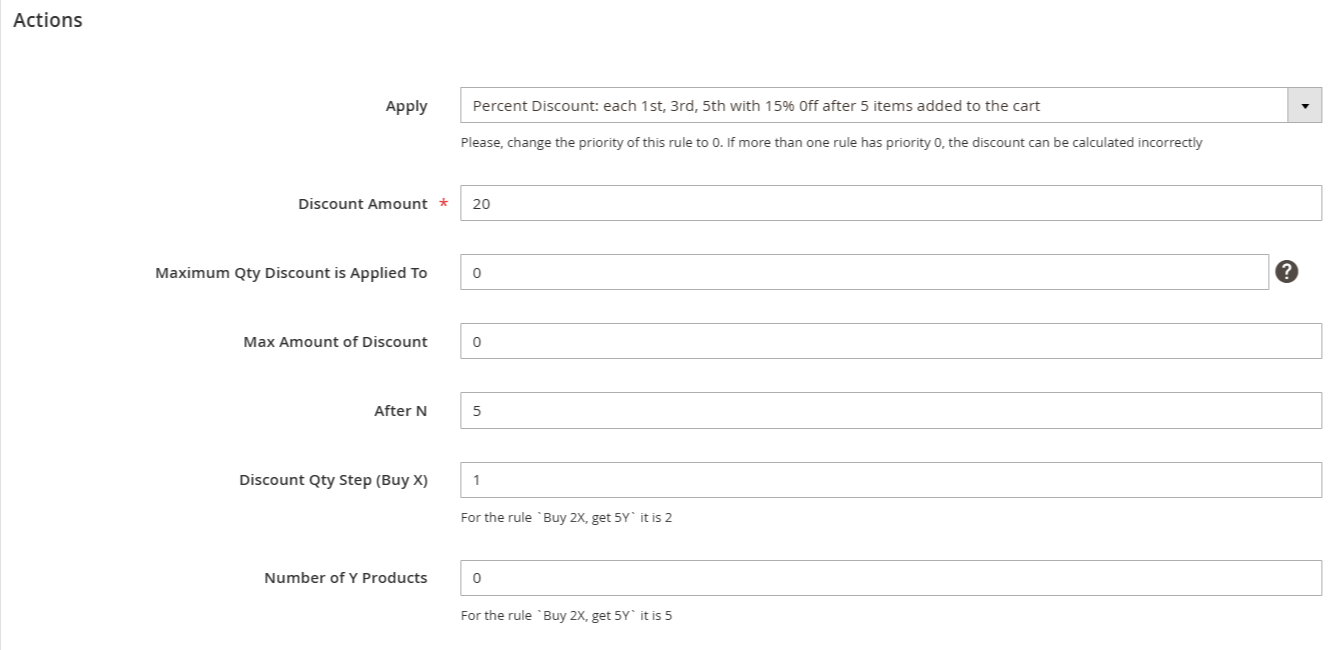
Percent Discount: each 1st, 3rd, 5th with 15% 0ff after 5 items added to the cart
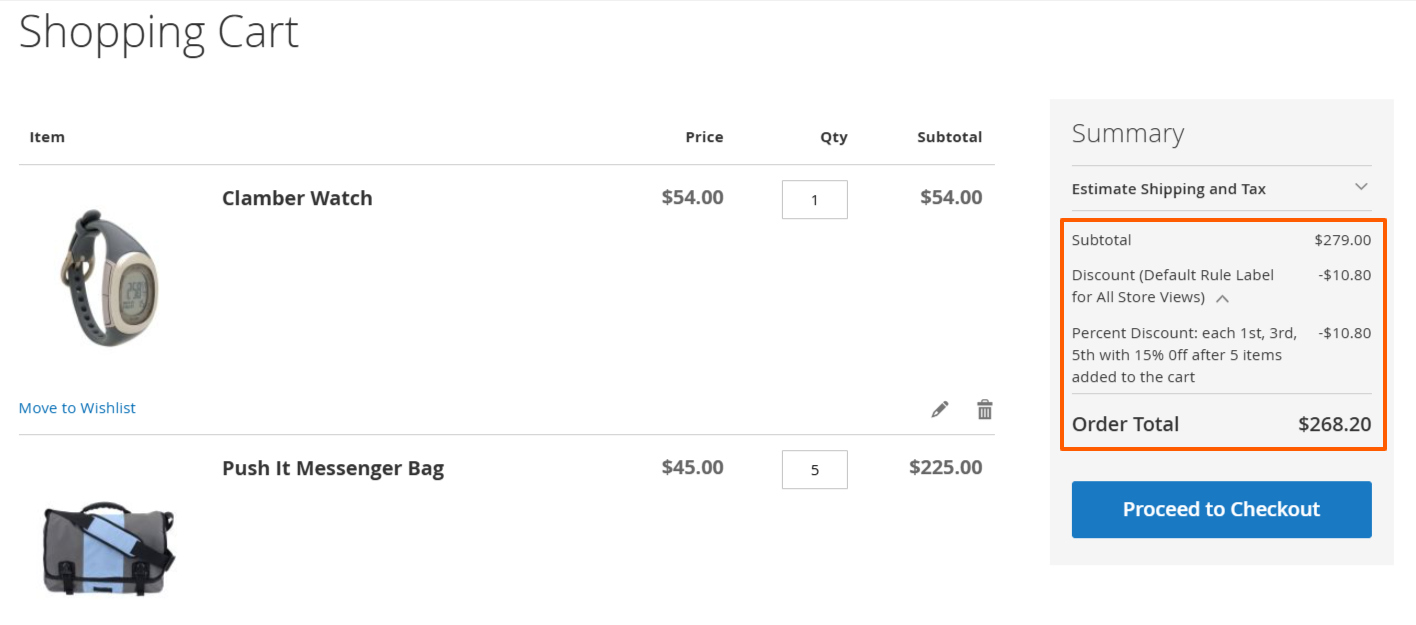
A promotion such as “Get 20% off any product after the fifth item in the cart” sounds appealing. Let’s implement it.
Here’s how the rule could be set up in this scenario:
Here’s how this promotion will influence the items in the cart:
Fixed Discount: each 3d, 7th, 11th with $15 0ff after 5 items added to the cart
This action functions similarly to the Percent Discount method (e.g., 15% off each 1st, 3rd, and 5th item after five items are added to the cart). However, it offers a fixed dollar amount discount instead of a percentage discount.
Fixed Price: each 5th, 7th, 9th for $89.99 after 5 items added to the cart
This action works similarly to the Fixed Discount rule. For example, on every 3rd, 7th, and 11th item added to the cart (after at least 5 items are in the cart), a fixed price is applied to the product instead of a fixed discount amount.
Each Group of N
This promotion allows customers to purchase a set number of products for a fixed price.
- The discount amount represents the total price for a defined group of items.
- Specifies how many products are required to form a group.
- Sets the highest possible discount available per order.
- Items in the cart are arranged from lowest to highest price.
- Products are grouped accordingly, and the discount is applied separately to each group.
For example,
Fixed Price: Each 5 items for $50
Let's create a simple promotion rule without applying any product-specific restrictions.
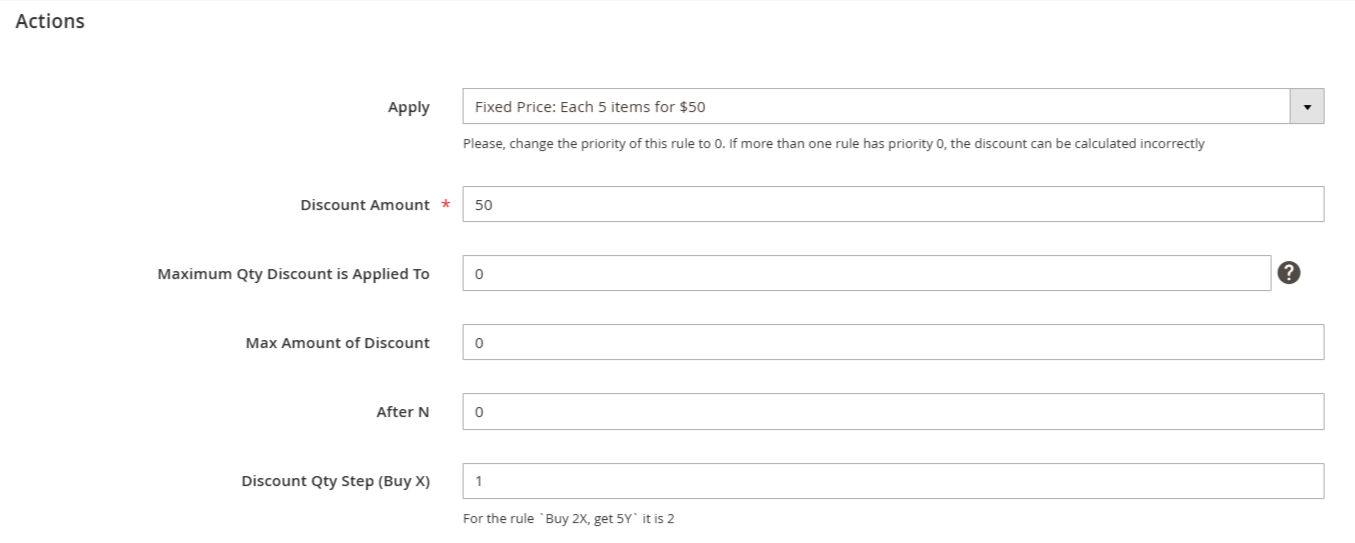
This rule applies a fixed price of $50 when purchasing a group of three products, with no restrictions on the products. However, if you want to specify which products should be considered for the discount, use the conditions tree in the Actions tab to define eligible products.
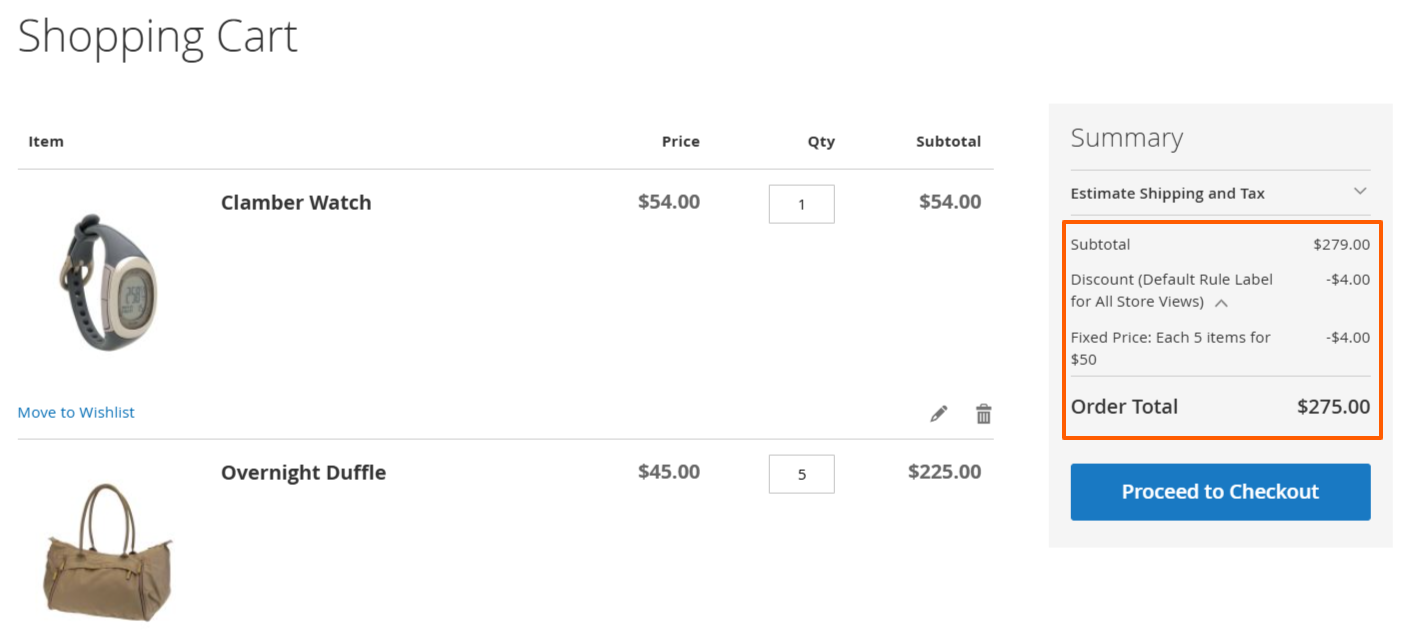
When the Discount Qty Step (Buy X) is set to 3, and there are 6 products in the cart, the discount applies only once.
After sorting the products by price, the cart contains: $54, $45, $45, $45, $45, $45.
The three lowest-priced items ($54, $45, and $45) are selected for the discount.
Calculation is Original price of selected products: $54 + $45 + $45 = $144
The fixed price for this group is set to $50
Total discount applied: $144 - $50 = $4
Percent Discount: Each 5 items with 10% off
This promotion works similarly to the "Fixed Price: Each 5 Items for $50" offer. However, instead of setting a fixed price for a group of products, it applies a percentage discount to them, allowing for more flexible pricing while maintaining bulk purchase benefits.
Product Set
This allows store owners to create attractive bundle deals, boosting sales and enhancing customer shopping experience.
Discount Amount: Define the fixed price for the product set.
Max Number of Sets Discount Applied To: Set the maximum number of eligible sets for the rule. (Leave empty for unlimited sets.)
Max Amount of Discount: Specify the maximum discount allowed. (The discount is calculated as the difference between the total price of products in the set and the fixed set price.)
Promo SKU: Enter the SKUs of the products that form the set.
Percent discount for product set
Set up a special promotion offering a 50% discount when customers purchase a combination of Clamber Watch, Sprite Foam Roller, and a Bag. Easily configure this rule using the Promotions Pro Extension in Magento 2 to enhance sales and attract fitness enthusiasts.
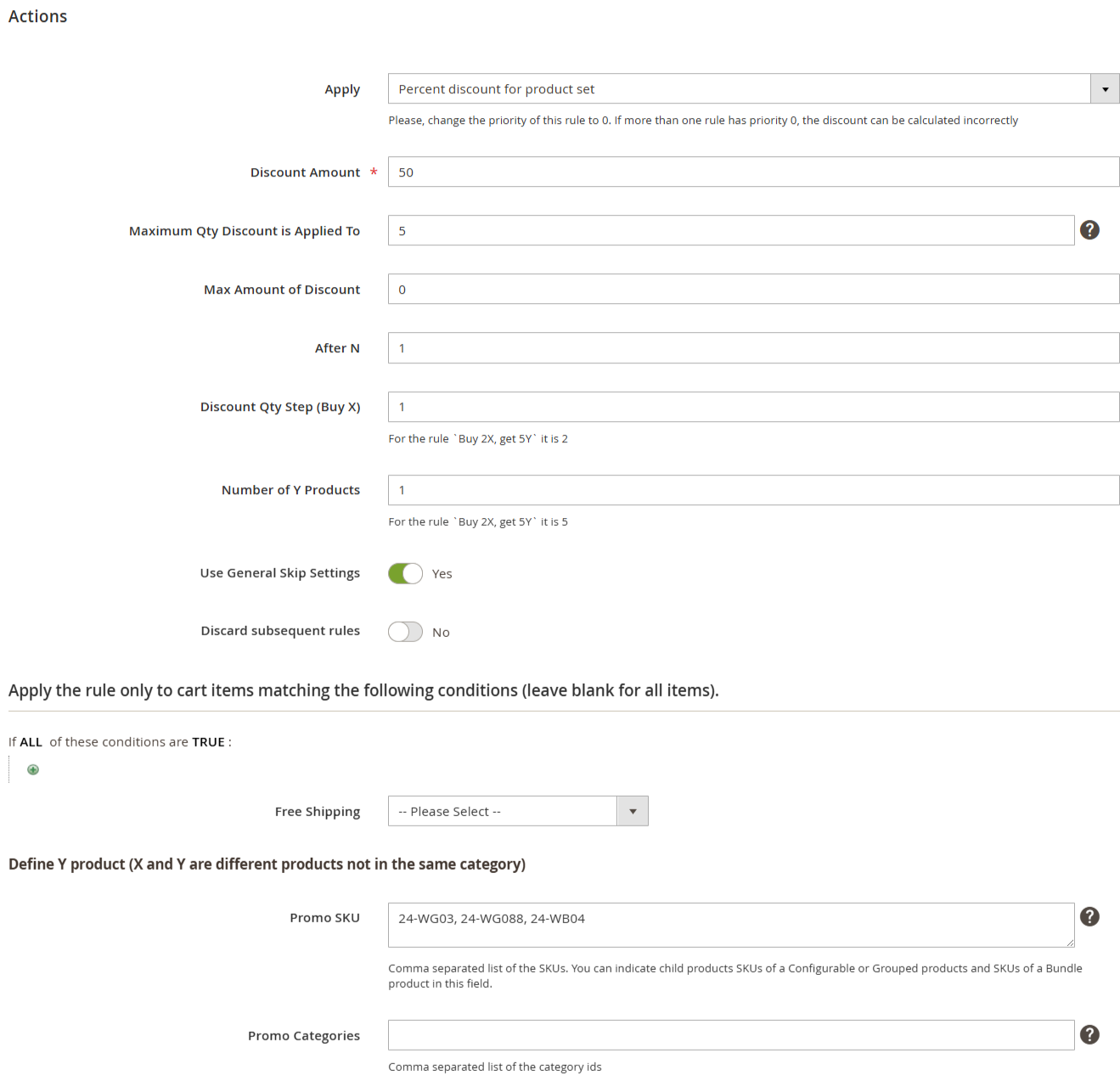
Here is the outcome,
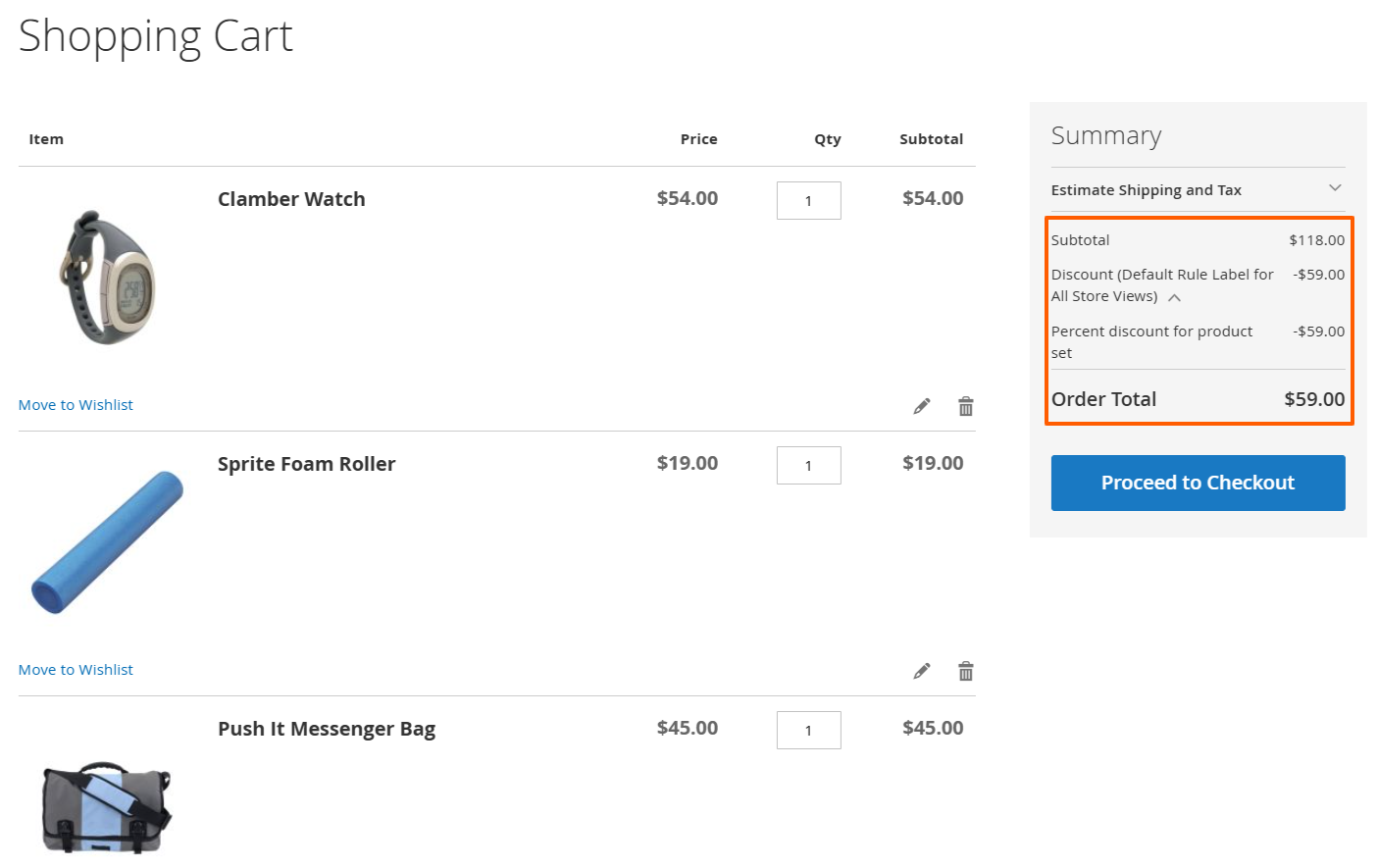
If your cart contains only products from the defined product set, the total product value is calculated as $54 + $19 + $45 = $118.00. A 50% discount on this total would be $59.00, which is correct.
Pay close attention to the Set Items by SKU and Set Items by Category IDs fields. These fields allow you to specify which products should be included in the product set.
Instead of manually adding product SKUs, you can assign categories, enabling customers to select any products from the specified categories. This provides more flexibility and convenience in defining eligible products for promotions.
Fixed price for product set
This action functions similarly to the "Percent Discount for Product Set Above," but instead of applying a percentage-based discount, it provides a fixed amount of discount.
We have created a promotional rule that offers a special bundle for just $20. This bundle includes the Go-Get'r Pushup Grips, Luma Analog Watch, and Overnight Duffle.
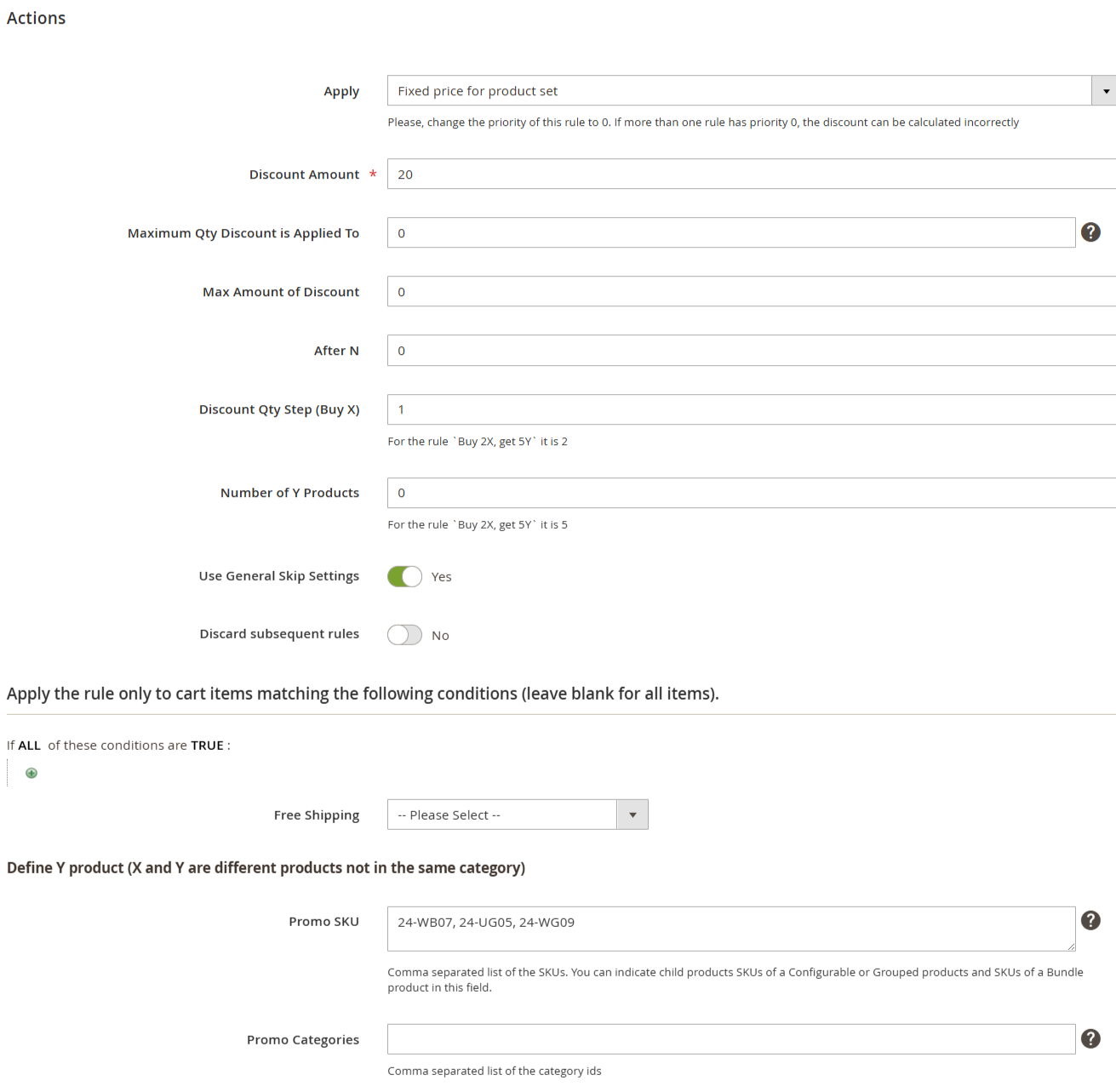
The outcome,
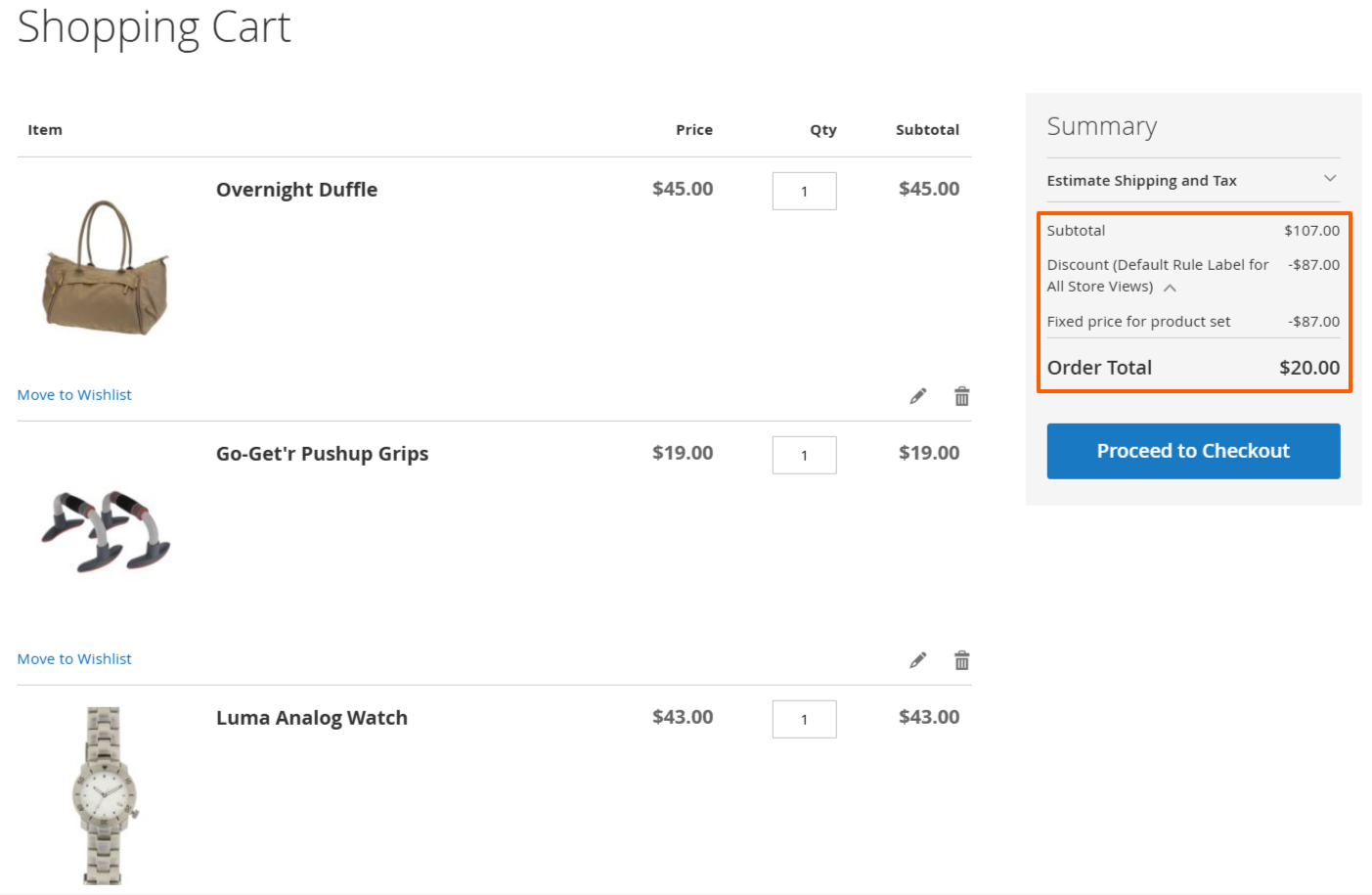
In this example, there are 2 units of each promotional item in the cart, allowing the creation of 2 sets. Based on this:
The total discount is calculated as: (45 + 19 + 43) – (2 × 20) = 67
The updated subtotal after applying the discount is: 107 – 67 = 20