Vyrä Theme – Complete Documentation
Extension Installation
For Magento Marketplace Customers
-
Find the Composer name and version of the extension in the extension's composer.json file.
-
Login to your SSH and run:
- composer require mavenbird/themeconfig
- Wait for Composer to finish updating your project dependencies and make sure there aren't any errors.
-
To verify that the extension installed properly, run the command:
- php bin/magento module:status Mavenbird_ThemeConfig
- By default, the extension is probably disabled.
- Enable the extension and clear static view files:
- php bin/magento module:enable Mavenbird_ThemeConfig --clear-static-content
- php bin/magento setup:upgrade
- For Magento version 2.0.x to 2.1.x - php bin/magento setup:static-content:deploy
- For Magento version 2.2.x & above - php bin/magento setup:static-content:deploy --f
- php bin/magento cache:flush
For Mavenbird Customers
- Extract the zip folder and upload our extension to the root of your Magento 2 directory via FTP.
- Login to your SSH and run below commands step by step:
- php bin/magento setup:upgrade
- For Magento version 2.0.x to 2.1.x - php bin/magento setup:static-content:deploy
- For Magento version 2.2.x & above - php bin/magento setup:static-content:deploy --force
- php bin/magento cache:flush
Introduction
- List of supported industries: Fashion,Furniture, Cosmetics, Auto Parts, Grocery, Electronics, Footwear, Organics, Wine, Jewelry, Healthcare, Medicine, Fitness & Nutrition.
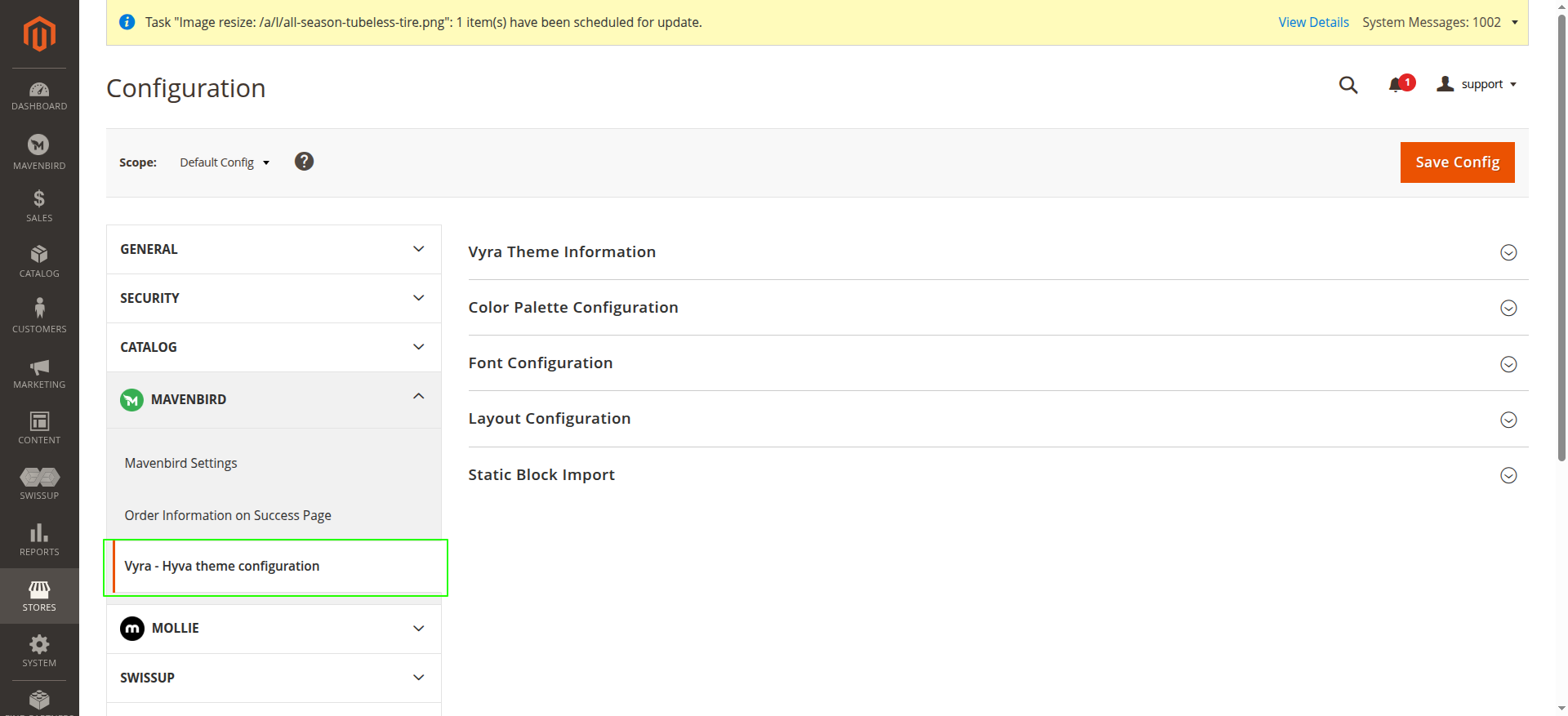
- Explain that the theme is configurable via Admin → Stores → Configuration → Mavenbird → Vyra - Hyva theme configuration.
Theme Installation & Activation
- Upload theme files
- Copy the Vyrä theme files to
app/design/frontend/Mavenbird/Basein your Magento installation.
- Copy the Vyrä theme files to
- Install the module
- Copy the Vyrä module files to
app/code/Mavenbird/ThemeConfigin your Magento installation. or - Run the following command in your Magento root directory:
composer require mavenbird/themeconfig
- Copy the Vyrä module files to
- Run Magento upgrade
- Execute the following command to register the theme and any new modules:
bin/magento setup:upgrade
- Execute the following command to register the theme and any new modules:
- Apply the theme
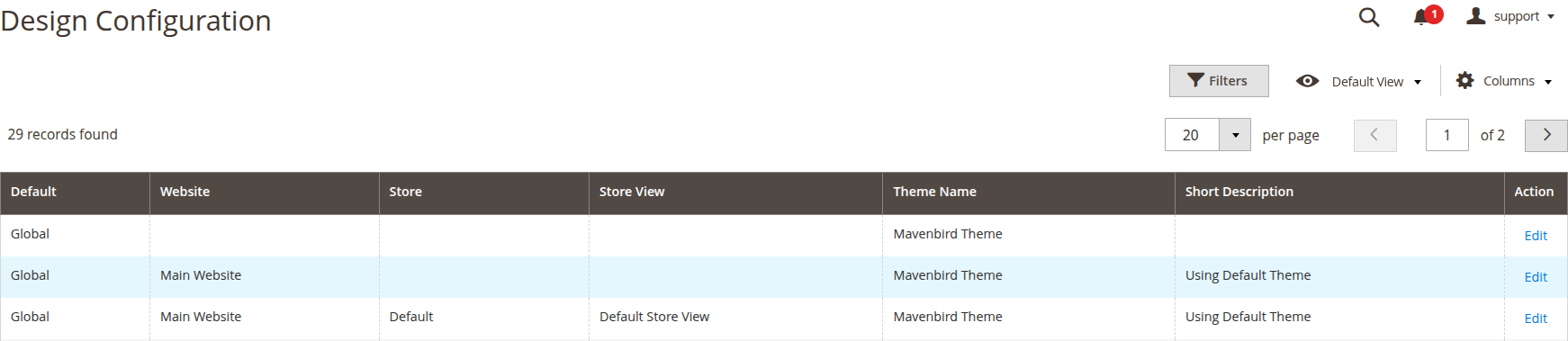
- Go to Admin → Content → Design → Configuration → Edit Store View.
- Select the Vyrä theme for your store view and save the configuration.
- Deploy static content and clear cache
- Run the following commands:
bin/magento setup:static-content:deploy -f
bin/magento cache:clean
- Run the following commands:
Theme Customization
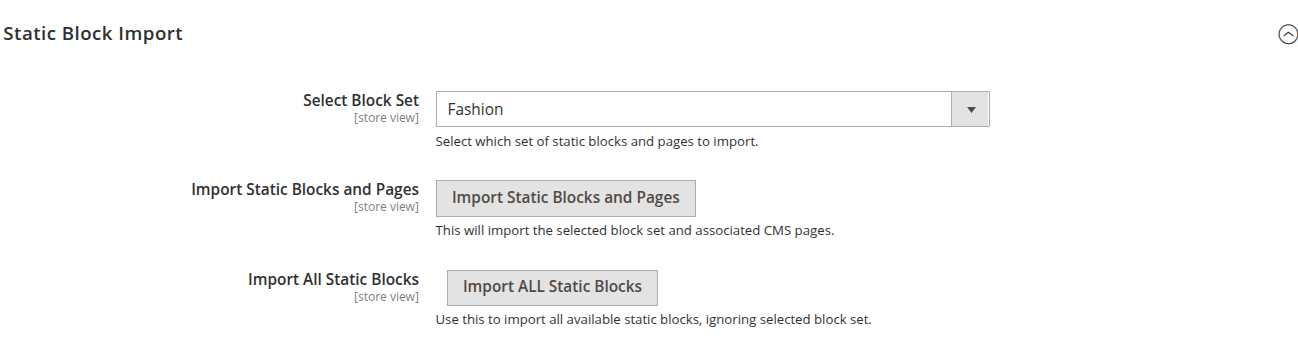
Static Block Import Configuration:
Used to quickly load demo content depending on industry.
Options Explained:
- Select Block Set – Choose demo content type (Fashion, Electronics, etc.).
- Import Static Blocks and Pages – Loads CMS Pages + Blocks.
- Import ALL Static Blocks – Imports everything (Only Import static blocks of all demos which you can use on different demos).
- Set Homepage – After importing demo content, go to Admin → Content → Pages, find the desired homepage (e.g., "Home Fashion", "Home Electronics"), and set it as the default homepage in Stores → Configuration → General → Web → Default Pages.
Color Palette Configuration
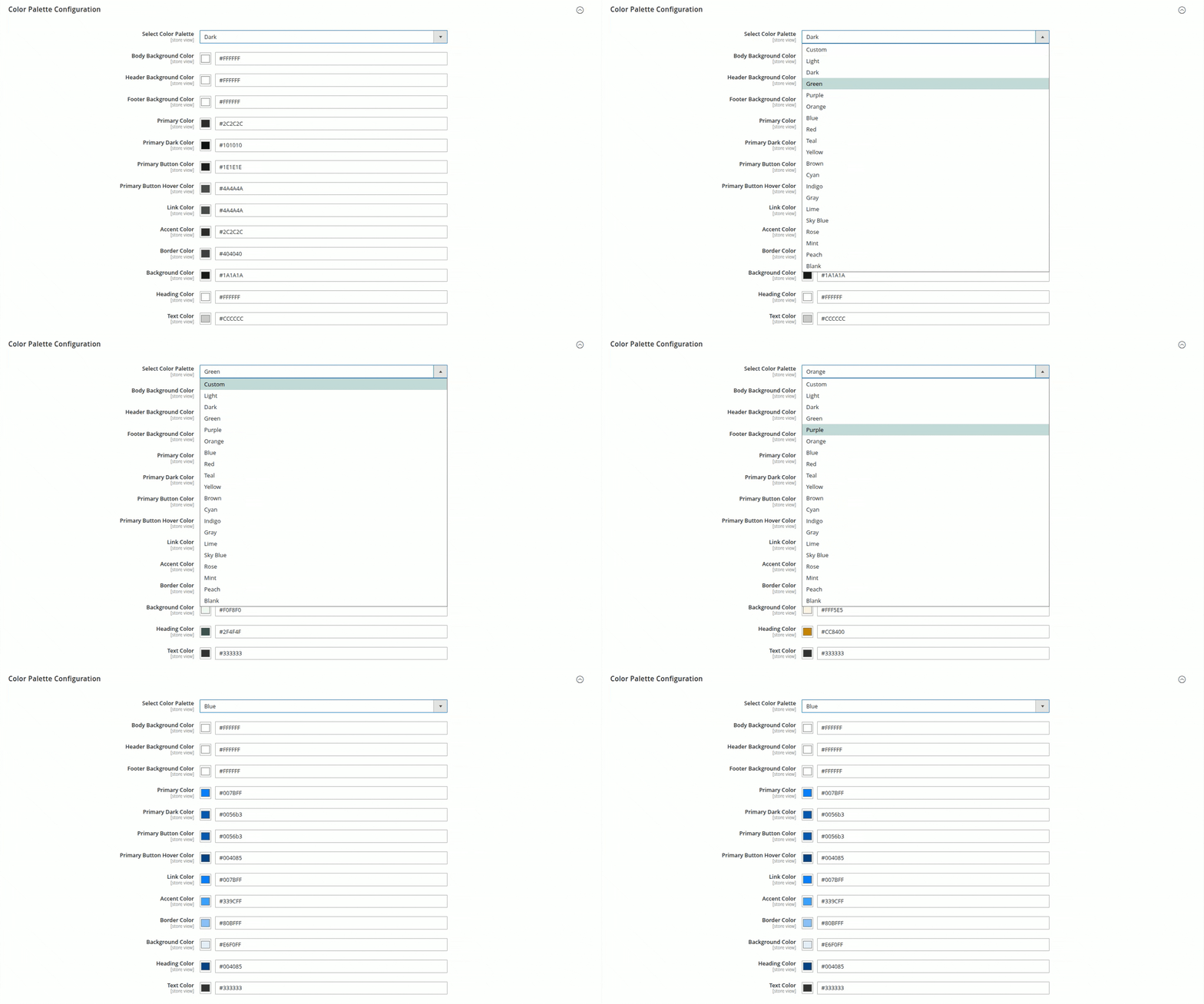
Users can customize all colors via admin without editing CSS.
Color Palette Options:
- Select Color Palette – Predefined color sets (Light, Dark) or Custom.
- Body Background Color – Controls background of the whole site.
- Header / Footer Background Color – Branding areas.
- Primary / Primary Dark / Accent Colors – Used for buttons, highlights.
- Button Hover Color – Interaction highlight.
- Link Color – Hyperlink text styling.
- Heading / Text Colors – Typography consistency.
- Border / Background Color – Separators, section containers.
When you choose Custom for the color palette, you can manually set every color field to match your brand or design needs. This option gives you full flexibility—no preset colors are applied, so you can select unique values for background, header, footer, buttons, links, text, borders, and more. Save your changes and clear cache to apply your custom palette.
If you are saving the color palette at the Store View or Website View level, first uncheck the "Use Default" or "Use Website" checkbox next to each field before saving.
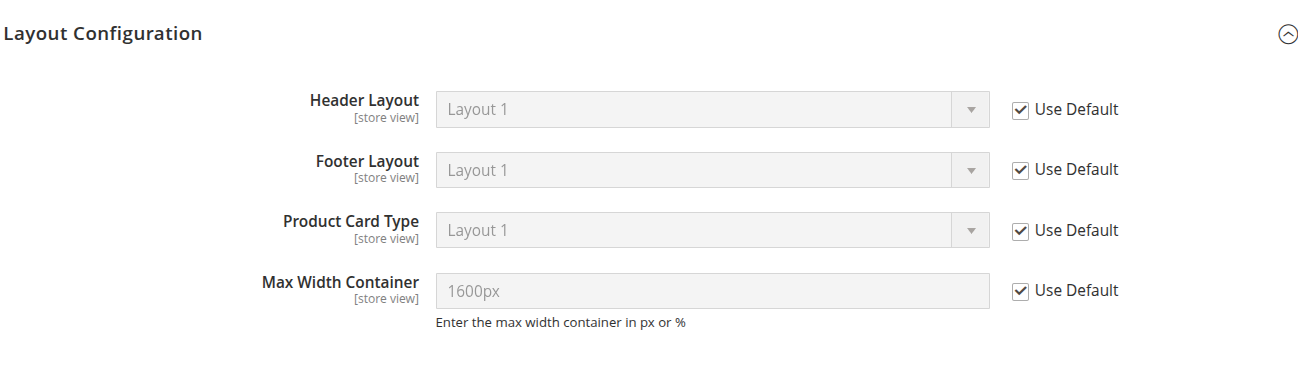
Layout Configuration
Control structural design of pages.
Layout Configuration Options:
- Header Layout – Choose different styles for header navigation.
- Footer Layout – Select structured or minimal footer.
- Product Card Type – Grid or list style product card.
- Max Width Container – Define site container width (px or %).
Font Configuration
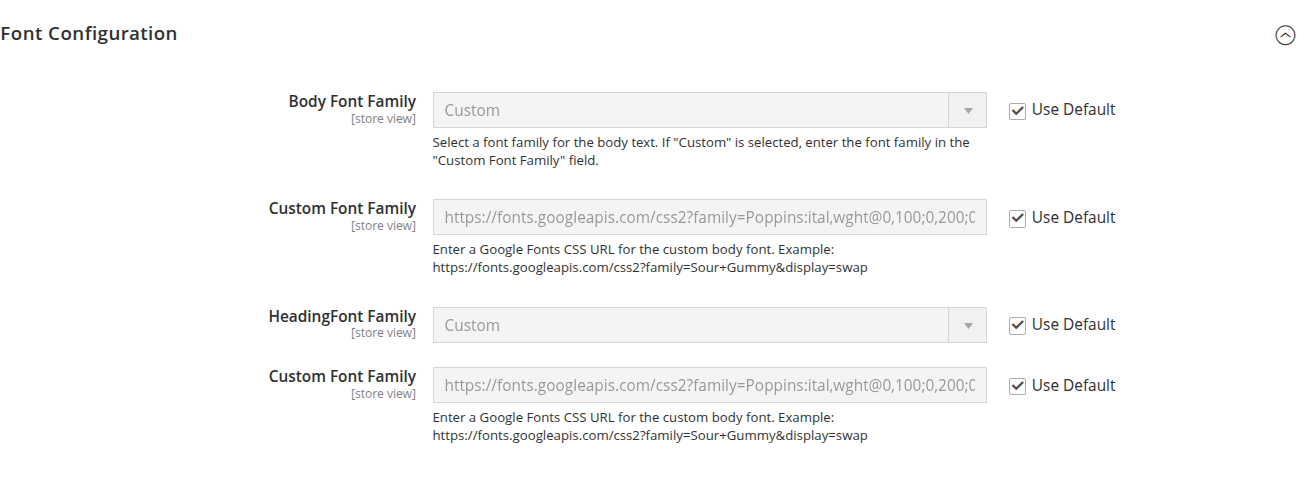
Typography customization via admin.
Font Configuration Options:
- Body Font Family – Default text font.
- Custom Body Font – Insert Google Fonts URL.
- Heading Font Family – For H1–H6.
- Custom Heading Font – Insert Google Fonts URL.
Industry-Specific Demo Sets
- Each demo (Fashion, Furniture, etc.) comes with preconfigured static blocks.
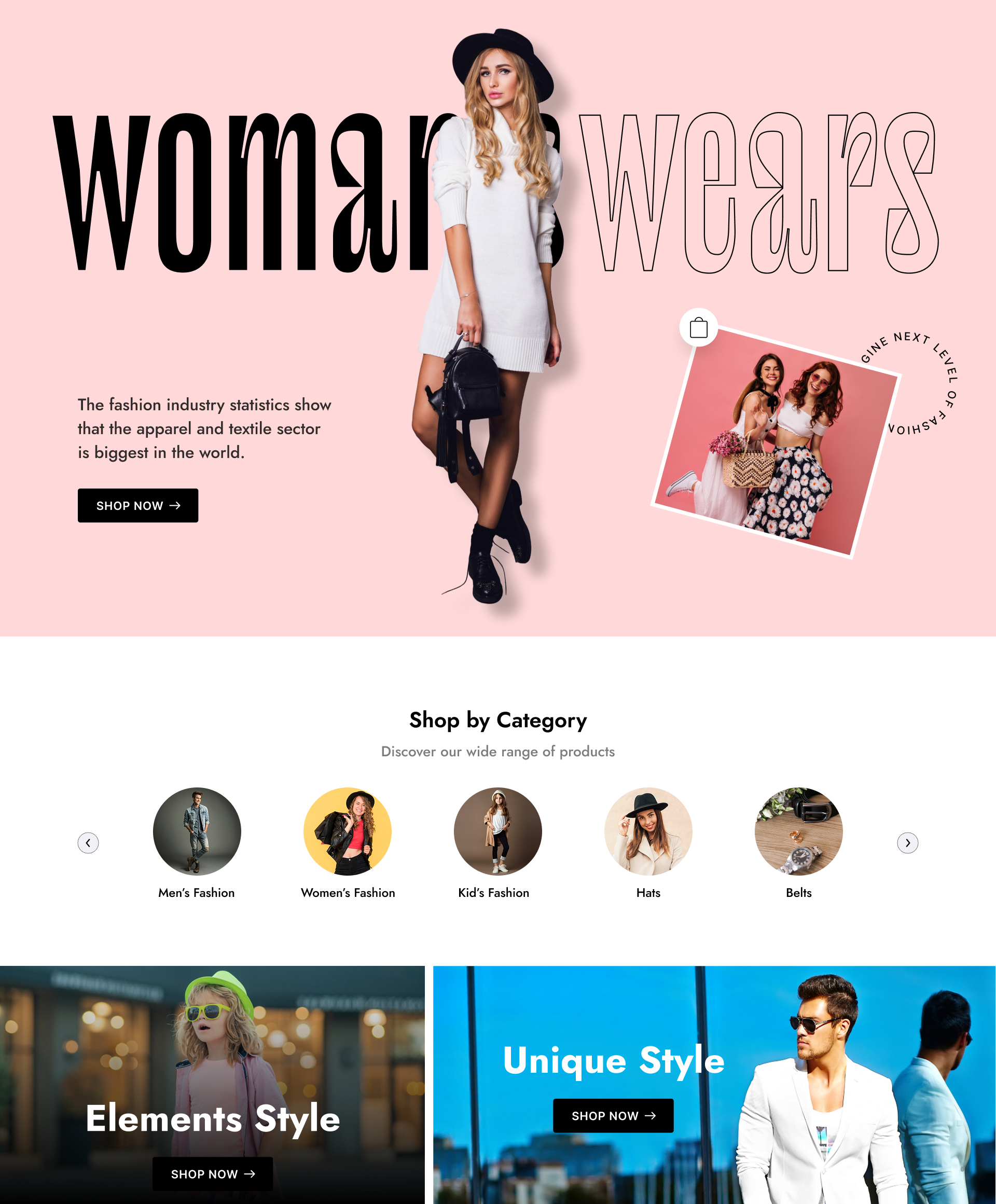
Example: Fashion
- Homepage with banners and trending products.
- Blocks: New Arrivals, Best Sellers.
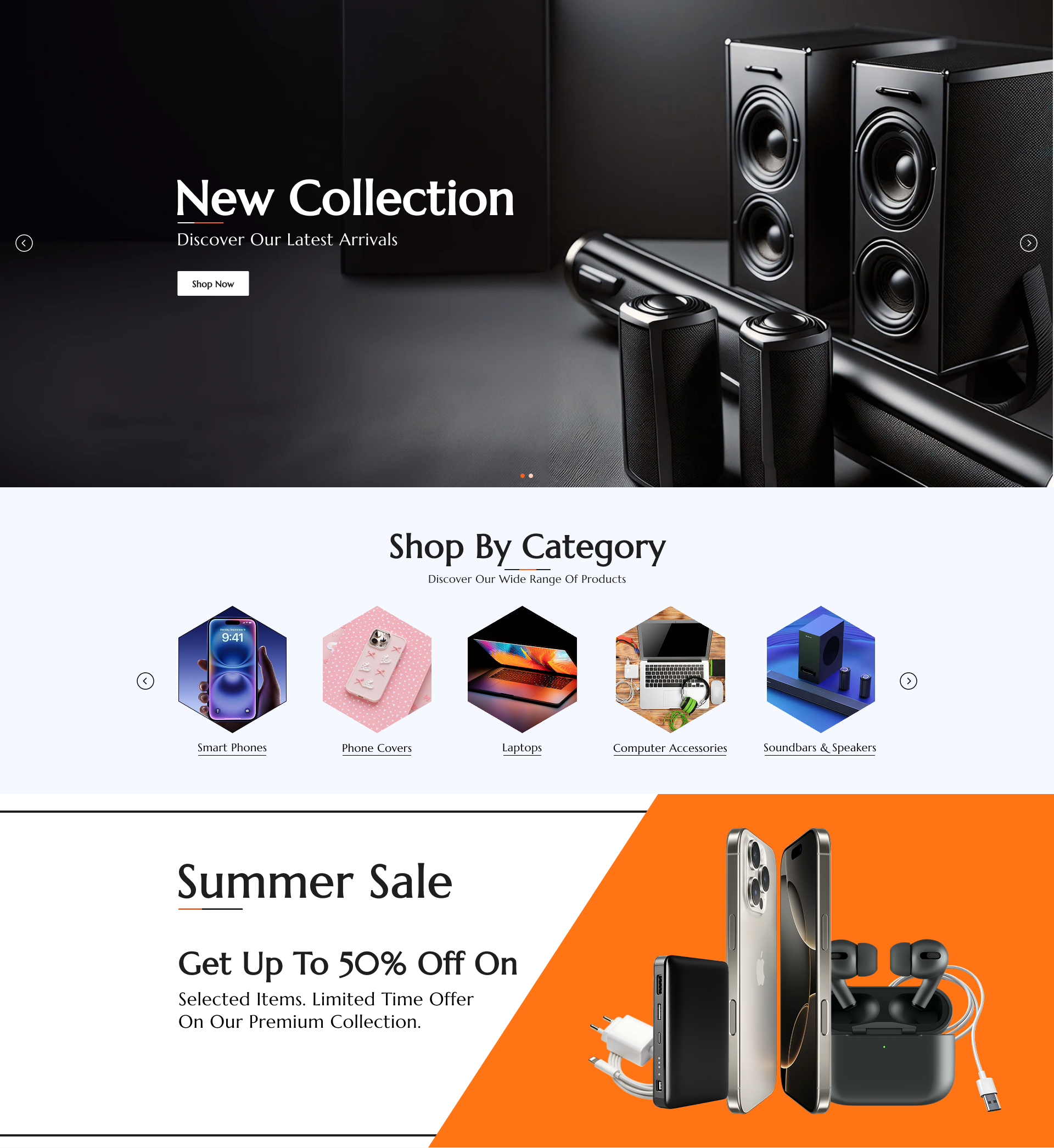
Example: Electronics
- Homepage with category banners.
- Blocks: Top Deals, Featured Products.
Applying Configurations
Step-by-step:
Go to Admin → Stores → Configuration → Mavenbird → Vyra - Hyva theme configuration.
- Adjust settings in Color Palette, Layout, Fonts.
- Import relevant static blocks.
- Save and clear cache.
- Review changes on frontend.
Best Practices
- Always backup before importing blocks.
- Test color combinations for accessibility (contrast).
- Use Google Fonts that support multiple weights for better design flexibility.
Troubleshooting
- Changes not visible? → Clear Magento cache + browser cache.
- Fonts not loading? → Verify correct Google Fonts URL.
- Wrong block imported? → Re-import with the correct block set.
Conclusion
- Hyvä custom theme is flexible, industry-ready, and fully configurable from Magento admin.
- No code changes required for most design adjustments.