Booking System
Extension Installation
For Magento Marketplace Customers
-
Find the Composer name and version of the extension in the extension's composer.json file.
-
Login to your SSH and run:
- composer require mavenbird/booking-system
- Wait for Composer to finish updating your project dependencies and make sure there aren't any errors.
-
To verify that the extension installed properly, run the command:
- php bin/magento module:status Mavenbird_BookingSystem
- By default, the extension is probably disabled.
- Enable the extension and clear static view files:
- php bin/magento module:enable Mavenbird_BookingSystem --clear-static-content
- php bin/magento setup:upgrade
- For Magento version 2.0.x to 2.1.x - php bin/magento setup:static-content:deploy
- For Magento version 2.2.x & above - php bin/magento setup:static-content:deploy --f
- php bin/magento cache:flush
For Mavenbird Customers
- Extract the zip folder and upload our extension to the root of your Magento 2 directory via FTP.
- Login to your SSH and run below commands step by step:
- php bin/magento setup:upgrade
- For Magento version 2.0.x to 2.1.x - php bin/magento setup:static-content:deploy
- For Magento version 2.2.x & above - php bin/magento setup:static-content:deploy --force
- php bin/magento cache:flush
Transform your Magento 2 store into a dynamic event-driven platform with our Booking and Reservation Extension. Perfect for businesses that require a streamlined and efficient booking system, this extension supports both single and multiple-day bookings, providing an enhanced user experience for your customers.
- Create One Booking for Many Days Create Many Bookings in One Day
- Manage available slots efficiently.
- Dynamic event creation with brilliant UI and UX.
- Supports real-time booking for hassle-free reservations.
- Customizable time slots and break times.
- Customers can view booking details like date and time slots in the cart.
- Ensures stability and performance.
- Fully compatible with the Hyva Theme.
- Enhanced performance and flexibility with GraphQL.
Create booking product
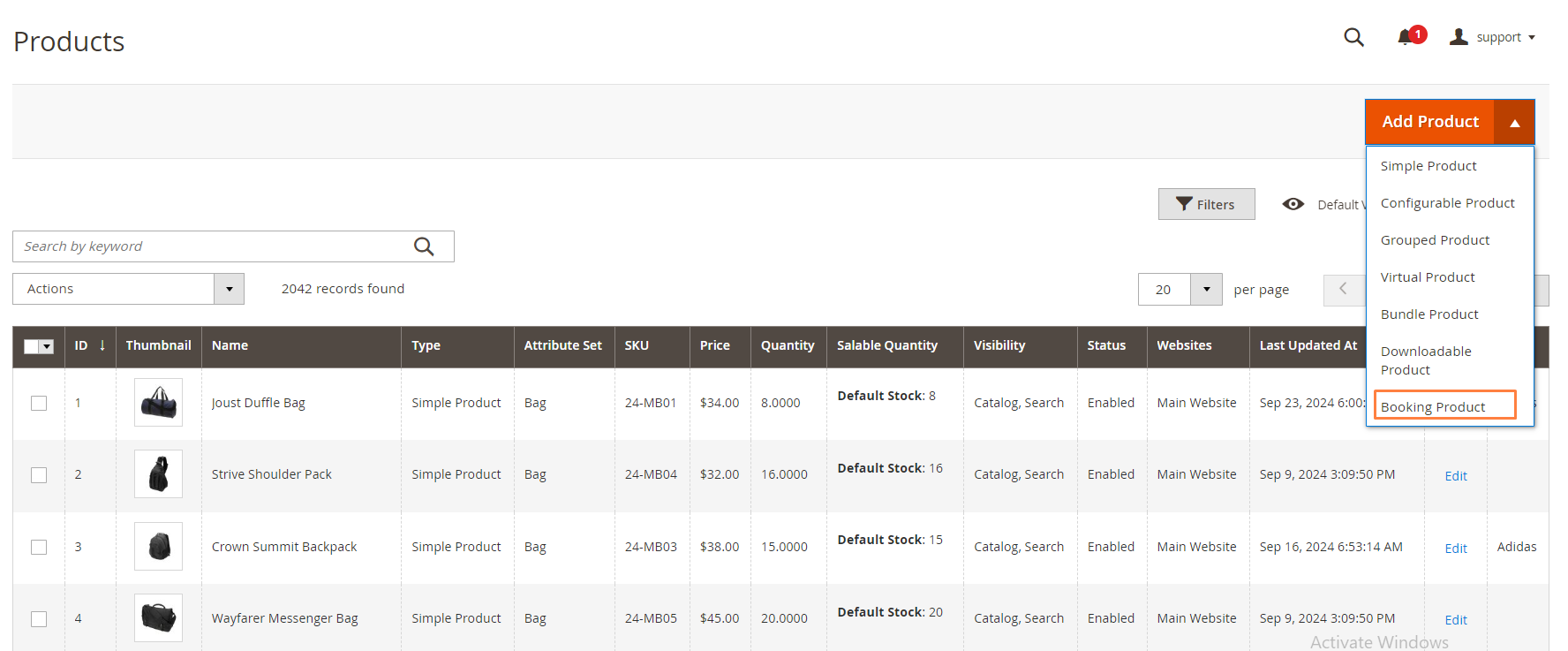
First of all click on Catalog → Product → Booking product. Then click on drop down.Then click on the Add Booking System button.
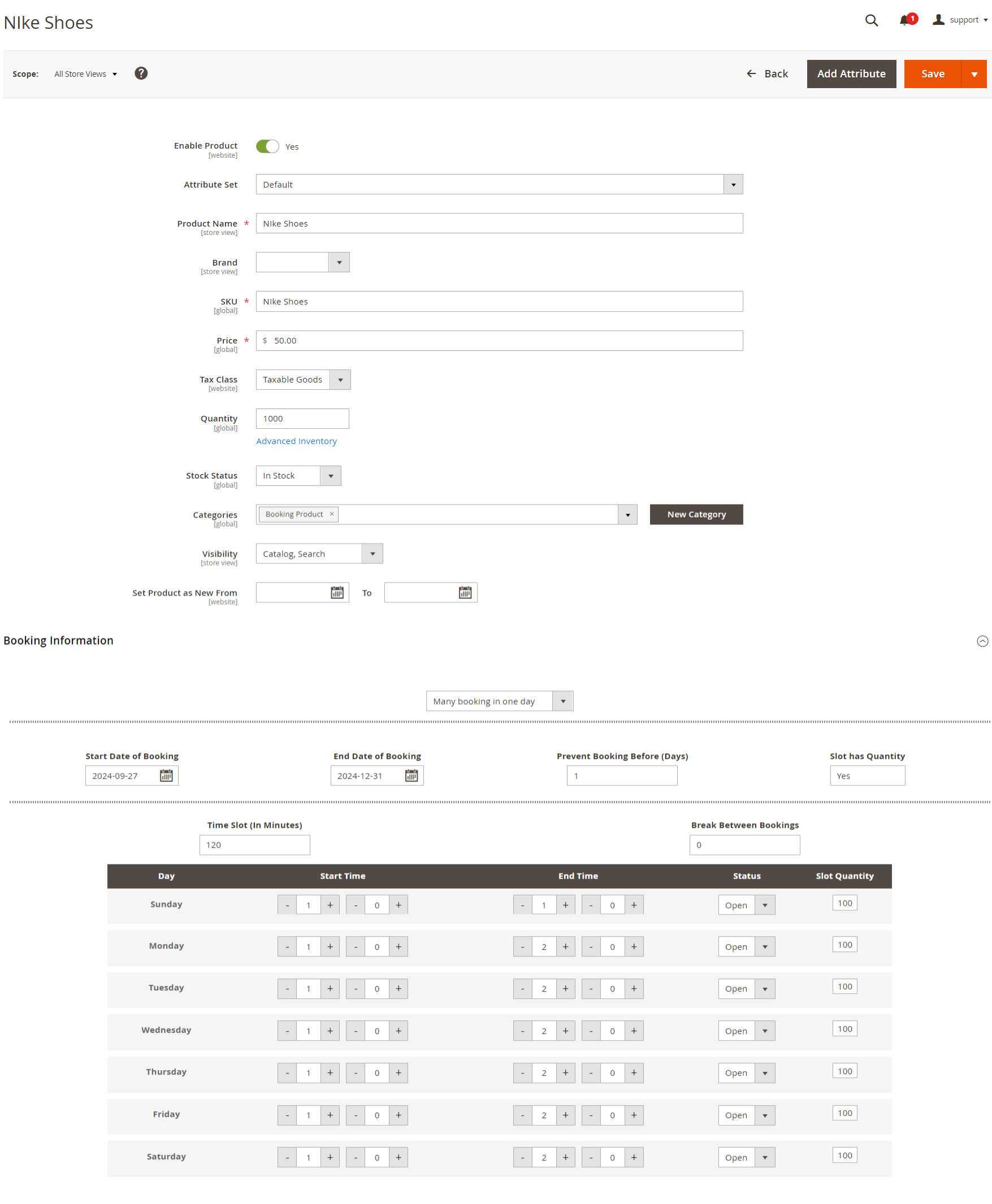
Create Booking Product shown in below screen.
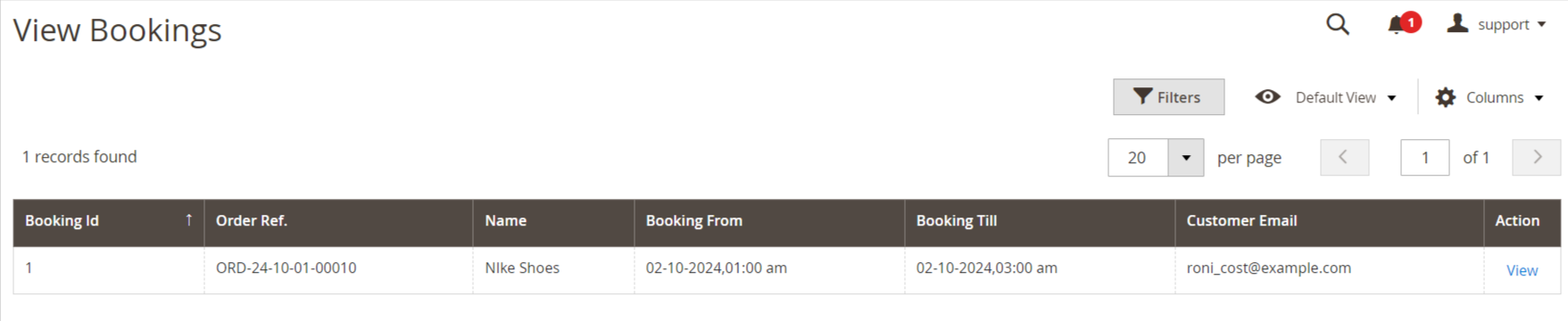
View Bookings
First of all click on Mavenbird->Booking system→ view booking.
When customer add order a file then some logs are create so this log entry in this table.
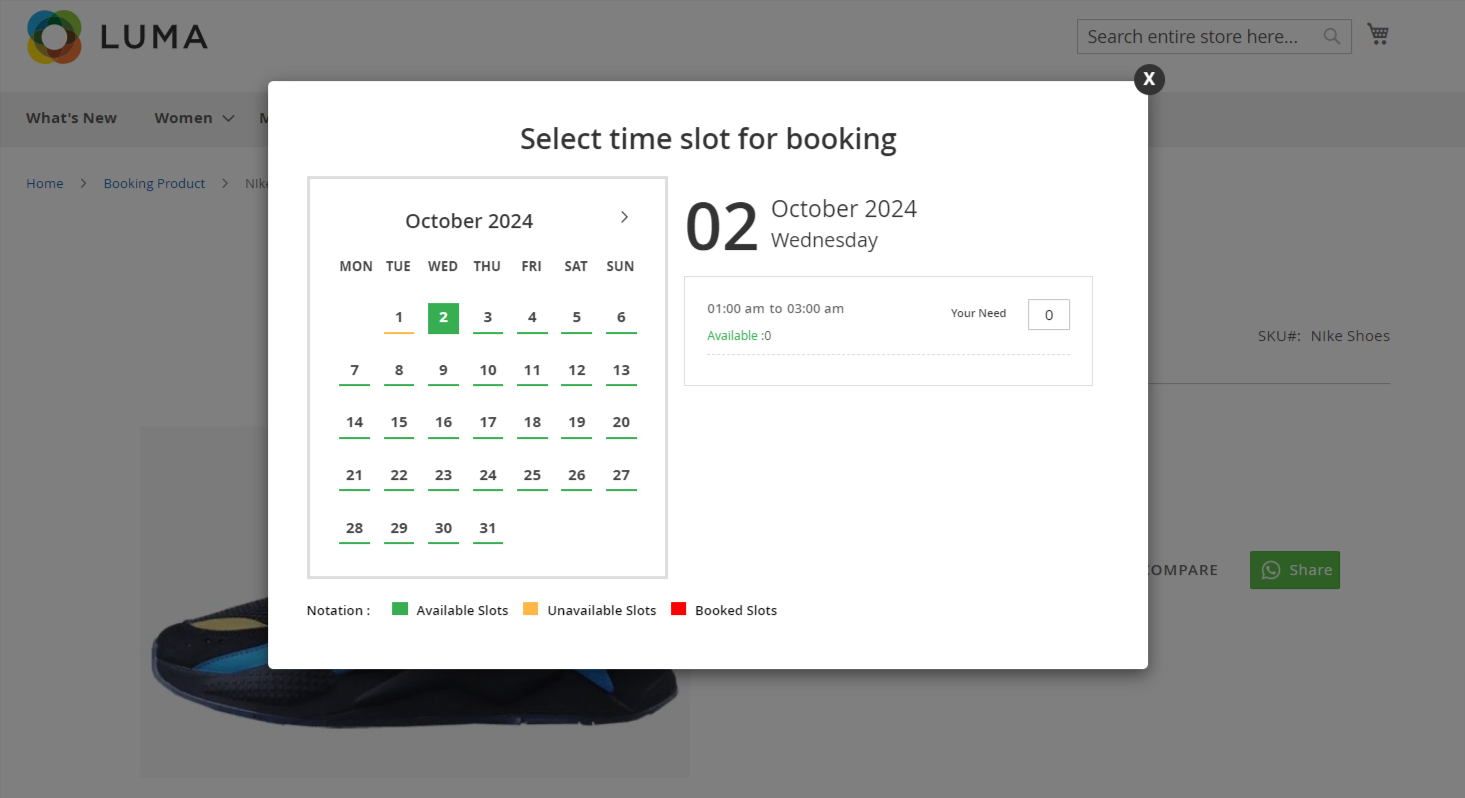
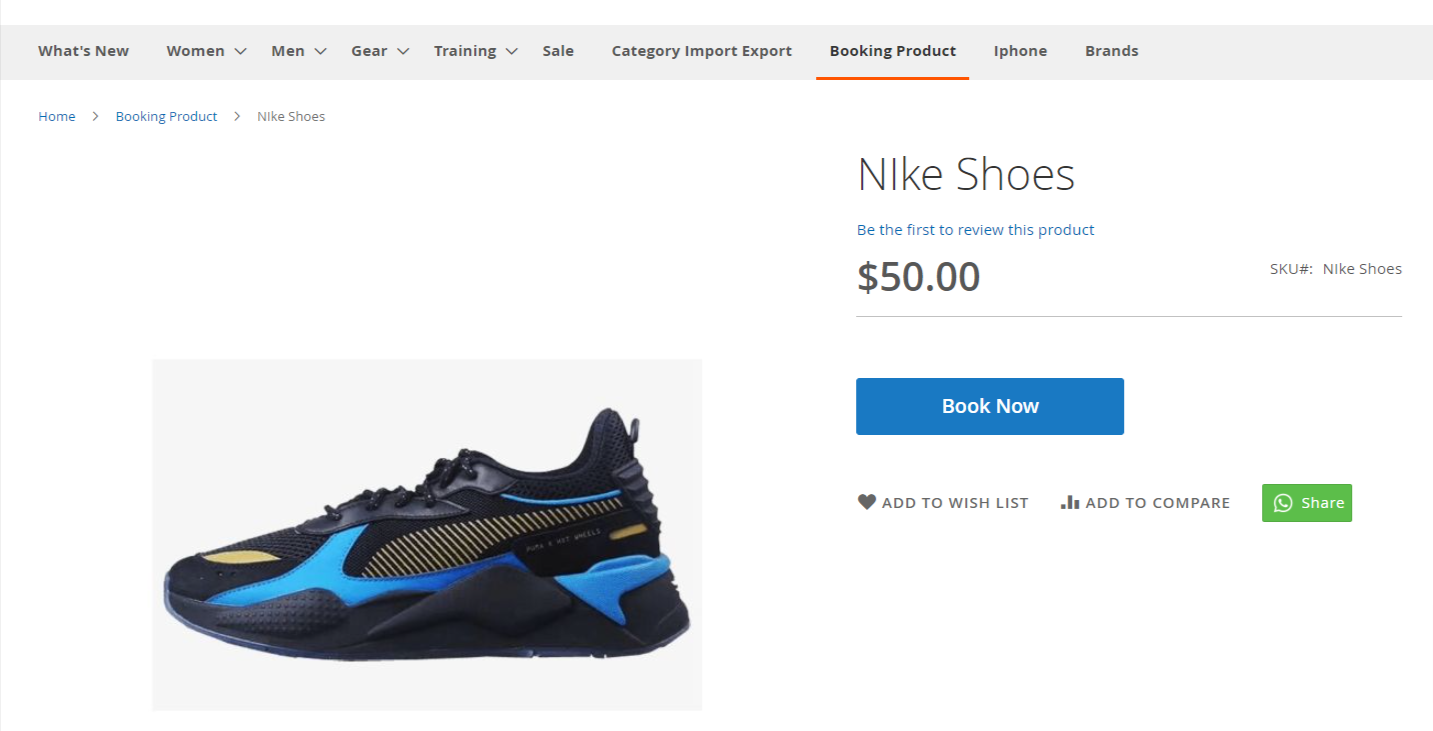
Frontend View
Here are the frontend view of booking system shown in below screen.
When click on **"Book Now"**Button show the below screen.