Shipping Restrictions
Extension Installation
For Magento Marketplace Customers
-
Find the Composer name and version of the extension in the extension's composer.json file.
-
Login to your SSH and run:
- composer require mavenbird/shiprestriction
- Wait for Composer to finish updating your project dependencies and make sure there aren't any errors.
-
To verify that the extension installed properly, run the command:
- php bin/magento module:status Mavenbird_Shiprestriction
- By default, the extension is probably disabled.
- Enable the extension and clear static view files:
- php bin/magento module:enable Mavenbird_Shiprestriction --clear-static-content
- php bin/magento setup:upgrade
- For Magento version 2.0.x to 2.1.x - php bin/magento setup:static-content:deploy
- For Magento version 2.2.x & above - php bin/magento setup:static-content:deploy --f
- php bin/magento cache:flush
For Mavenbird Customers
- Extract the zip folder and upload our extension to the root of your Magento 2 directory via FTP.
- Login to your SSH and run below commands step by step:
- php bin/magento setup:upgrade
- For Magento version 2.0.x to 2.1.x - php bin/magento setup:static-content:deploy
- For Magento version 2.2.x & above - php bin/magento setup:static-content:deploy --force
- php bin/magento cache:flush
As a basis for shipping system constraints, use various parameters (product, cart, customer attributes). Make it more versatile and effective, improve your shipping process.
- Define a particular area of each application for shipping method
- Few methods of shipping of specific companies
- Offer customers various sets of shipping methods, according to their buying history
- Choose the kind of orders that should be subject to shipping restriction rules
- Specific shipping methods for particular stores and consumer groups
General Settings
Until the restrictions are configured, please go to **Stores → Configuration → MAVENBIRD EXTENSION→ Shipping Restrictions → General. ** Here, as you are limited to the order subtotal, you can handle taxes and discounts.
Include tax in subtotal - Set Yes if you'd like the tax included to show subtotal.
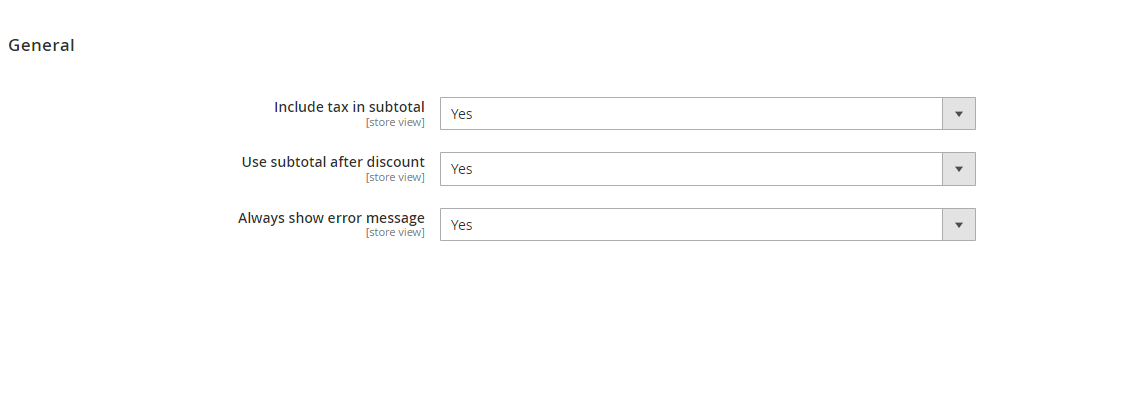 Use subtotal after discount - Allow this option, considering the discounts applied if you want to use the subtotal value.
Always show error message - Disable the error message option only when no shipping methods are usable.
Restriction rule settings
The extension allows you to build a huge amount of shipping rules based on consumer, cart, and product attributes, with different restriction requirements.
Manage shipping restrictions and establish a restriction rule, go to Mavenbird → Shipping Restrictions.
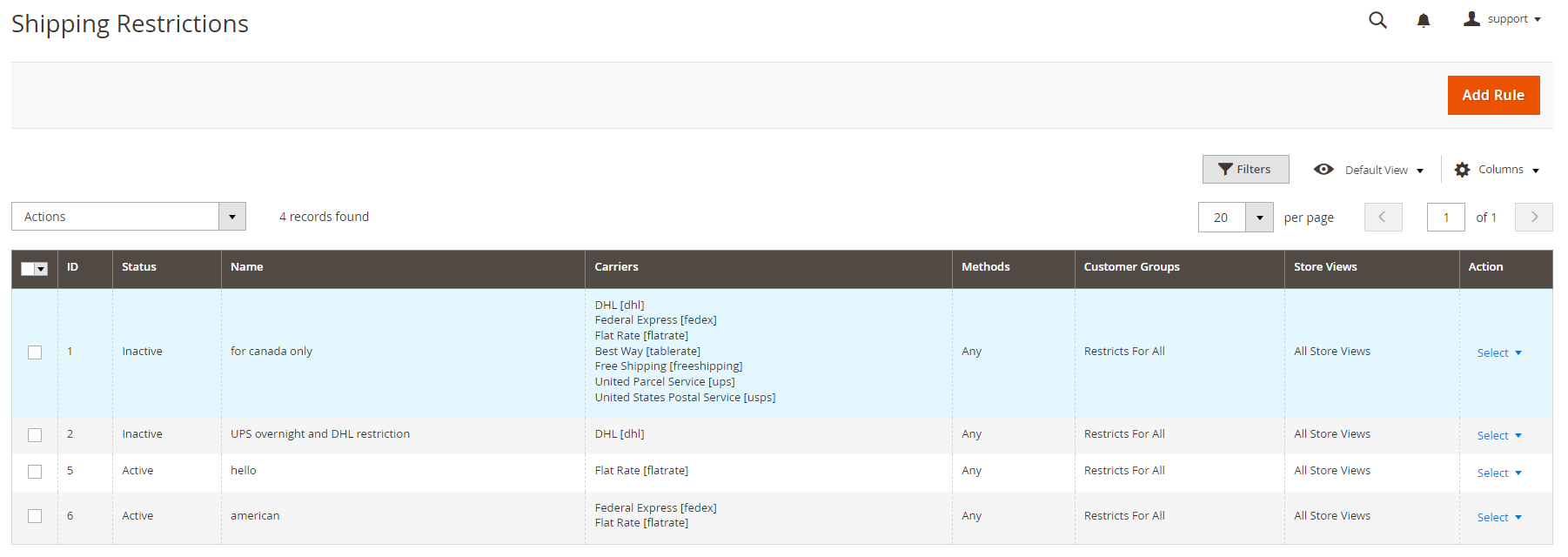
The grid shows all the rules for restrictions. The rules ID, Status, Names, Carriers and Methods of carriage, Customer Groups, and Store Views can only be found in one location.
Manage all the rules on the shipping restriction on the grid. //Edit// them in the Action column, or //Duplicate// them.
Pick the rules and select the action you need from our Actions dropdown menu to commit mass actions. In just one click you can //Delete// or //Change the Status to Activate/Inactivate//.
Creating the Restrictions
To build a new restriction rule, click the Add Rule button. Go to the Shipping Methods tab to configure the rule.
Shipping Methods
The extension will restrict the shipping of Magento 2 to a certain country, prohibit the shipping of forbidden products, specific shipping methods, etc.
For example, by offering all the customers except those located in certain areas free shipping, you can greatly increase your sales. In the following case, we establish the rule of limitation for a particular nation.
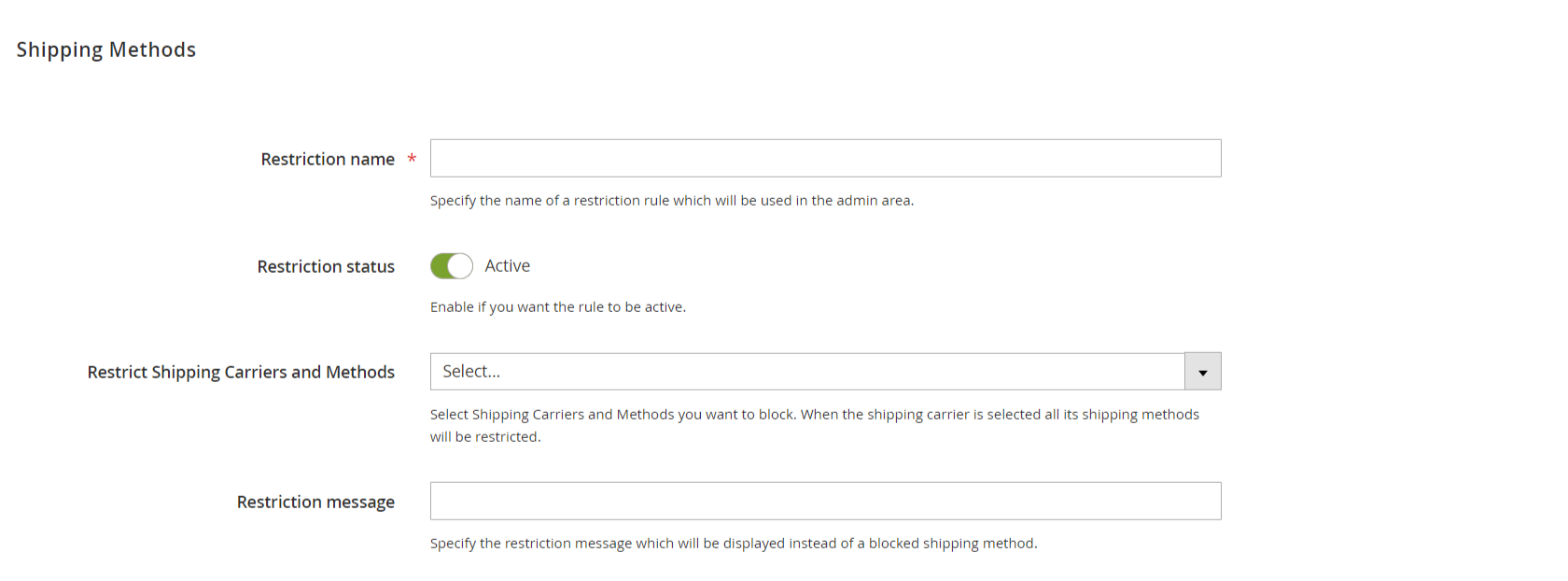
Restriction name - Indicate the name to be used in the admin area of a restriction rule. You're going to see it on the grid.
Restriction status - If you want the rule to be activated, set Enabled.
Restrict Shipping Carriers and Methods - specify your blocking list of shipping carriers. All shipping methods are limited automatically when the shipping carrier is chosen. Furthermore, the module allows only needless shipping methods for the carrier to be restricted rather than blocked.
All possible carriers and methods included have been blocked in this case.
Restriction message - instead of a blocked method of shipping, define the message restriction to view.
Conditions
Set the conditions in which the rule is applied in this tab.
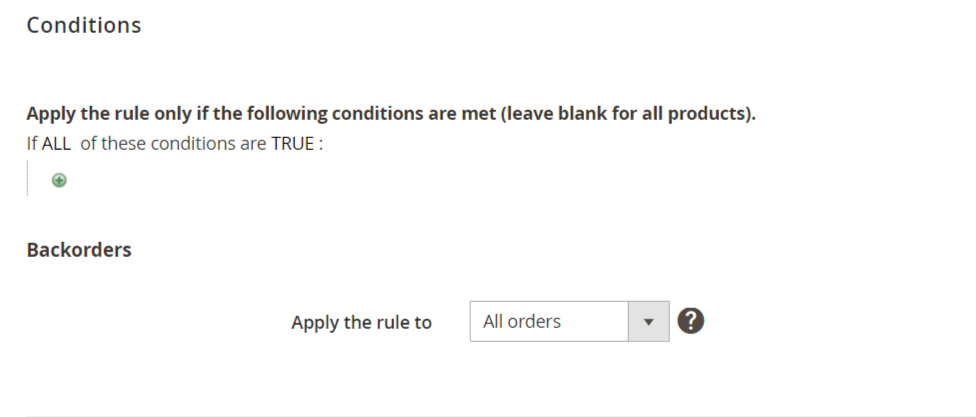
Condition tree - determines the requirements for the application of a rule that must be met. The rule would apply to all products where no conditions are specified.
Product Subselection, Combination of Condition, Cart Attributes, Advanced Conditions, Customer Attributes, may form part of the Terms. Thus, you can restrict shipping to different customer attributes, custom groups, etc. according to product level and category.
Backorders - indicate the condition, according to the presence in the cart of Backorders when the rule should be applied.
There are three options:
- All orders - The rule applies for all orders, irrespective if Backorders are part of the products in the cart.
- Backorders only - The rule applies when the cart includes Backorders only;
- Non-backorders - If there are no backorder products in the cart, the rule should be followed.
Coupons and discounts
Use this tab to restrict the facilities of some customers and disable or allow coupons to be delivered.
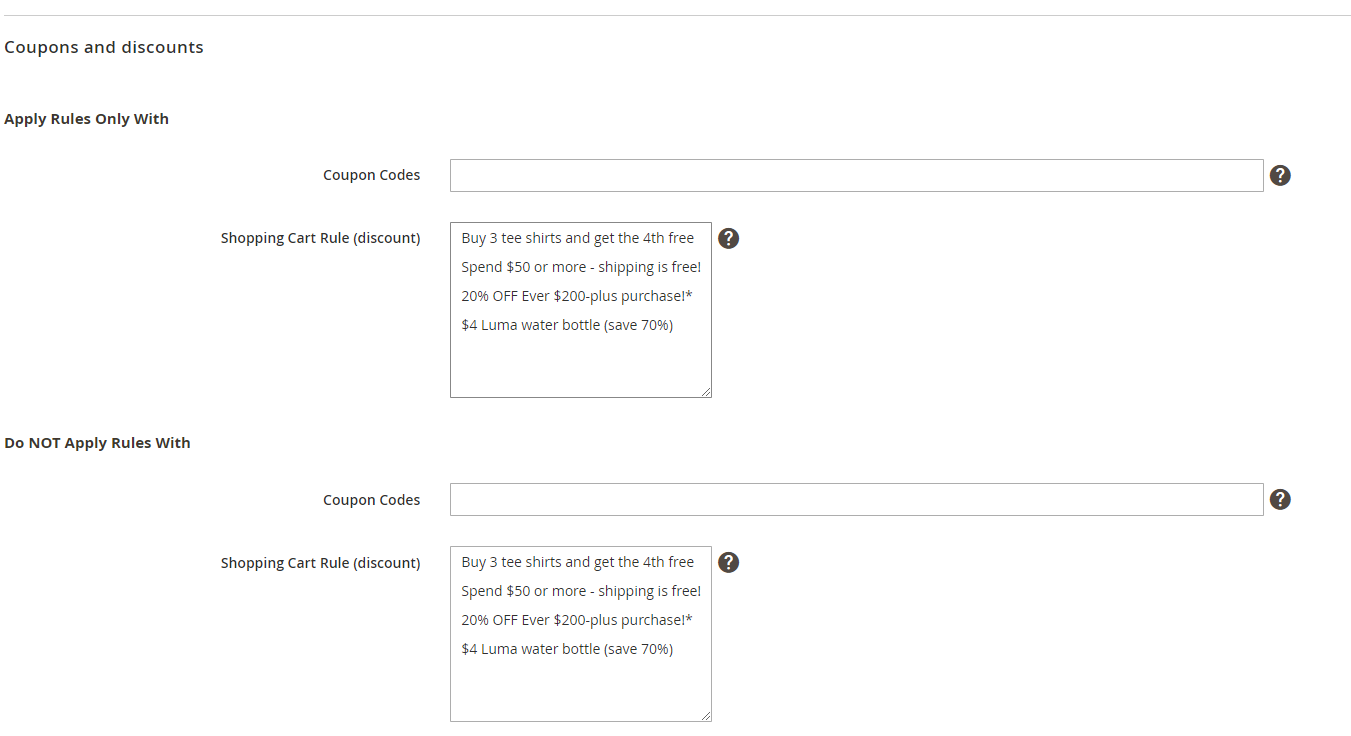
Apply Rules Only With
Coupon Code - To activate the rule, identify the coupon code a client should enter. Only after entering the coupon code will the rule be applied.
Shopping Cart Rule (discount) - If you want a rule to be activated when you enter the coupon code from the coupon lists of the given rules, define the current rules for your shopping cart.
Do NOT Apply Rules With
Coupon Code - when entered by a consumer, specify the coupon code that will abolish the rule application.
**Shopping Cart Rule (discount) -**name the rules for the shopping cart, if a coupon code is entered from the coupon list set in the rules mentioned.
Stores & Customer Groups
In this tab, customer groups and store views can be used as a restriction base.
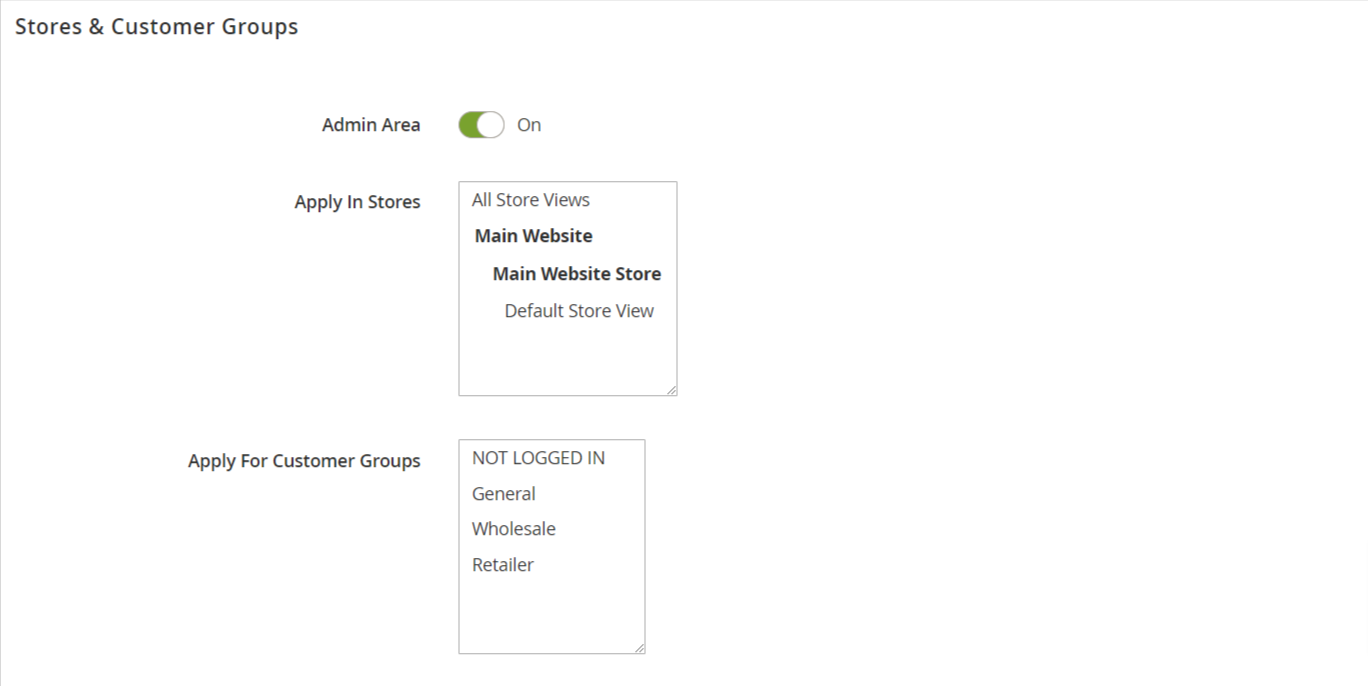
Admin Area - If you don't want this rule to apply in the Admin Area, disable this option.
Apply In Stores - Choose can store to apply the rule to. Leave empty or choose something for every store to enforce the rule. This feature is very useful when you work in many online shops worldwide.
Apply For Customer Groups - special customer groups should be described to which the rule should apply. You can, for example, only offer wholesale users a free shipping method to access. Enable the rule to be empty or select a group.
Days & Time
The extension enables shipping restrictions to be established on specific days. If you do not deliver goods on weekends or holidays, this choice can be very useful.
To set the schedule, enlarge the Days and Time tab.
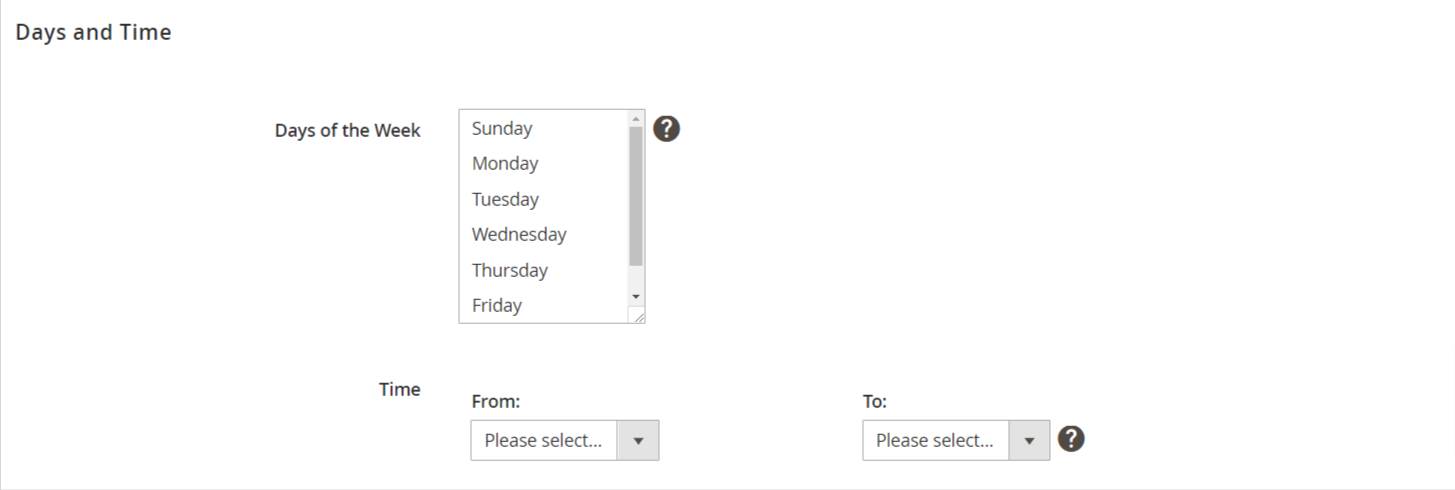
Days of the Week - If the rule is not to be enforced during the week, choose certain days of the week. Leave the rule empty or choose to apply every day.
Time From - Time To - Select the validity time period of the rule.
Troubleshooting checklist
Please ensure, if the rule you made doesn't work:
- there are no other active rules, that should not be applied: if there are two or more limits, they will simultaneously be enforced;
- the conditions are set correctly.