Admin Payment Method
Extension Installation
For Magento Marketplace Customers
-
Find the Composer name and version of the extension in the extension's composer.json file.
-
Login to your SSH and run:
- composer require mavenbird/magento-2-admin-payment-method
- Wait for Composer to finish updating your project dependencies and make sure there aren't any errors.
-
To verify that the extension installed properly, run the command:
- php bin/magento module:status Mavenbird_AdminPaymentMethod
- By default, the extension is probably disabled.
- Enable the extension and clear static view files:
- php bin/magento module:enable Mavenbird_AdminPaymentMethod --clear-static-content
- php bin/magento setup:upgrade
- For Magento version 2.0.x to 2.1.x - php bin/magento setup:static-content:deploy
- For Magento version 2.2.x & above - php bin/magento setup:static-content:deploy --f
- php bin/magento cache:flush
For Mavenbird Customers
- Extract the zip folder and upload our extension to the root of your Magento 2 directory via FTP.
- Login to your SSH and run below commands step by step:
- php bin/magento setup:upgrade
- For Magento version 2.0.x to 2.1.x - php bin/magento setup:static-content:deploy
- For Magento version 2.2.x & above - php bin/magento setup:static-content:deploy --force
- php bin/magento cache:flush
Create New Order (Admin Panel)
Location: Sales → Orders → Create New Order
Follow the steps below to manually create a new order from the Magento 2 Admin Panel.
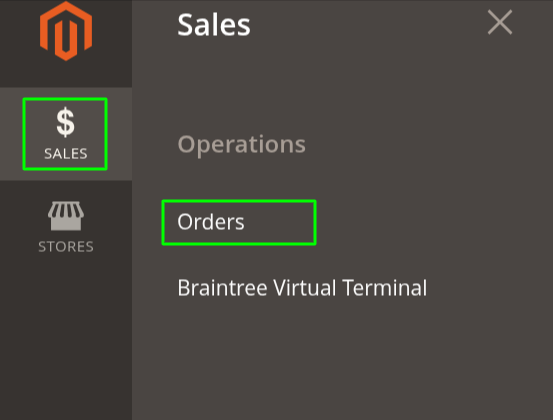
1. Select Customer
- Click Create New Order.
- Choose an existing customer from the customer grid
OR - Click Create New Customer and fill in:
- First Name
- Last Name
- Address information
- Click Save Customer (if creating a new one).
2. Select Store View
- If your Magento instance has multiple websites or store views,
- Select the appropriate Store View where the order should be placed.
- The product catalog and pricing will load based on the selected store view.
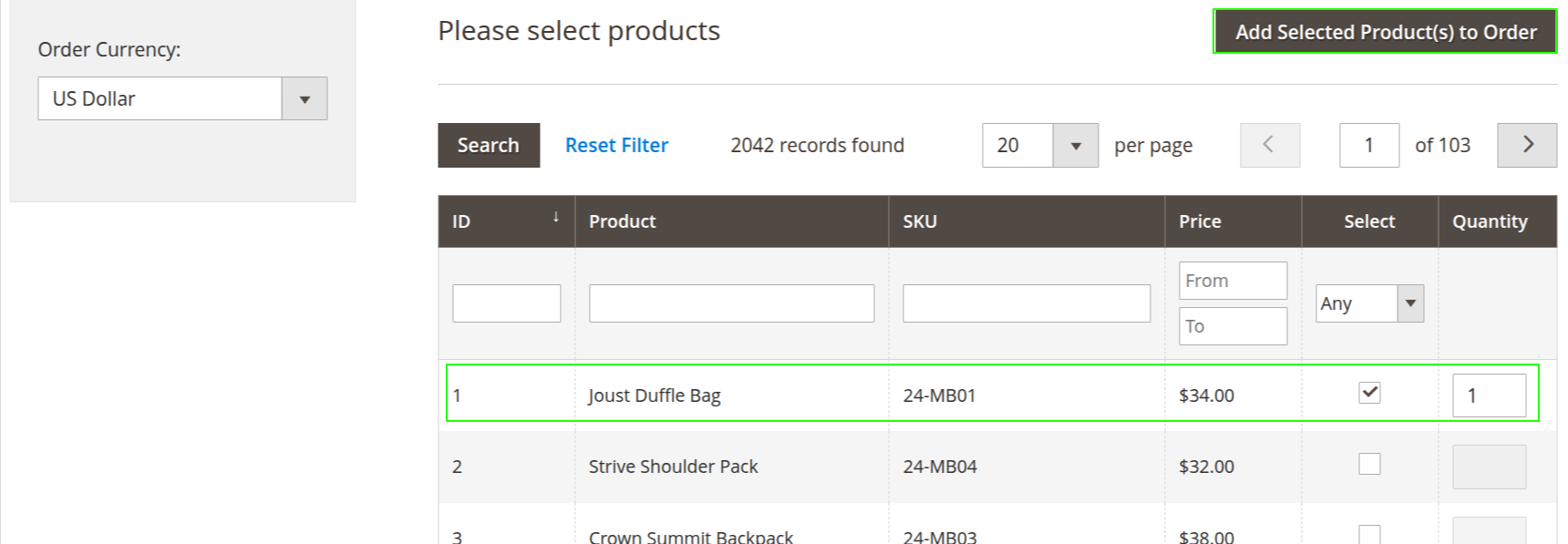
3. Add Products to Order
- Use the product grid to search by:
- Product Name
- SKU
- Attribute filters
- Enter the desired Qty for each product.
- Click Add Selected Product(s) to Order.
- Configure product options if required (e.g., configurable, bundle, custom options).
4. Configure Billing Address
- The billing address is auto-filled if the customer already has saved addresses.
- You can:
- Select an existing address from the dropdown
- Click Add New Address
- Edit address fields manually
- Click Save in Address Book to store changes permanently.
Fields include:
- Company (optional)
- Street Address
- City
- State/Province
- Zip/Postal Code
- Country
- Telephone
5. Configure Shipping Address
- Similar to billing address:
- Select existing address
- Or enter a new shipping address
- Optionally uncheck Same As Billing Address to enter different details.
6. Select Shipping Method
- Click Get shipping methods and rates if rates are not loaded.
- Available shipping methods will be displayed (based on configuration).
- Select the appropriate shipping method.
- Shipping charges will be added to order totals automatically.
7. Select Payment Method
- Choose the desired payment method from available options.
- Admin Payment Method
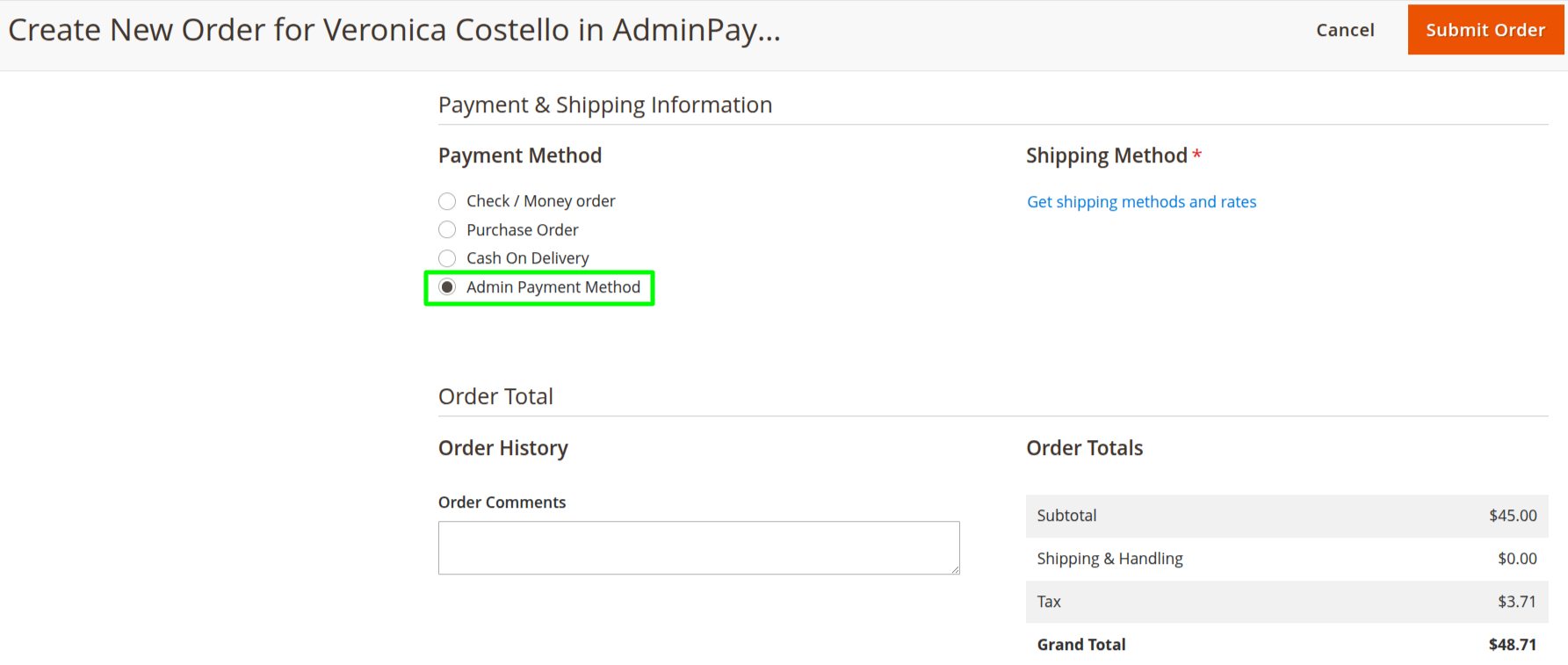
8. Submit Order
- Click Submit Order (top-right corner).
- Magento will:
- Generate Order ID
- Save order in system
- Optionally send order confirmation email to customer
After Order Creation
You can now:
- Create Invoice
- Create Shipment
- Create Credit Memo
- Add comments or change order status
The order will be available at:
Sales → Orders