Mobile Login
Extension Installation
For Magento Marketplace Customers
-
Find the Composer name and version of the extension in the extension's composer.json file.
-
Login to your SSH and run:
- composer require mavenbird/magento-2-mobile-login
- Wait for Composer to finish updating your project dependencies and make sure there aren't any errors.
-
To verify that the extension installed properly, run the command:
- php bin/magento module:status Mavenbird_Mobilelogin
- By default, the extension is probably disabled.
- Enable the extension and clear static view files:
- php bin/magento module:enable Mavenbird_Mobilelogin --clear-static-content
- php bin/magento setup:upgrade
- For Magento version 2.0.x to 2.1.x - php bin/magento setup:static-content:deploy
- For Magento version 2.2.x & above - php bin/magento setup:static-content:deploy --f
- php bin/magento cache:flush
For Mavenbird Customers
- Extract the zip folder and upload our extension to the root of your Magento 2 directory via FTP.
- Login to your SSH and run below commands step by step:
- php bin/magento setup:upgrade
- For Magento version 2.0.x to 2.1.x - php bin/magento setup:static-content:deploy
- For Magento version 2.2.x & above - php bin/magento setup:static-content:deploy --force
- php bin/magento cache:flush
Configuration Fields
Location: Stores → Configuration → Mavenbird → Mobile Login → General Settings
- Enable: Enable or disable the Mobile Login functionality.
- OTP SMS Provider: Configure API key, sender ID, and SMS gateway settings.
- OTP Expiry: Set the expiry time for OTPs.
- Enable Login With Password: Allow login using email/mobile and password.
- Enable Registration With Mobile: Allow registration using mobile number.
Features & User Flows
Login With OTP
- Enter mobile number
- Request OTP
- Enter OTP
- Login success/failure
Login With Password
- Enter email/mobile number
- Enter password
- Login success/failure
Account Creation
- Enter first name, last name, mobile number, email, password
- Register account
- Validation
Account Dashboard
- Manage mobile number
- Edit/update mobile number
Password Recovery
- Forgot password via mobile
- Forgot password via email
Admin Panel Actions
The Mobile Login module provides a comprehensive set of admin features for managing mobile authentication and SMS OTP workflows:
Admin Configuration Sections
Main Configuration Path: Stores > Configuration > Mavenbird > Mobile Login
1. General Settings
Configuration Path: Stores > Configuration > Mavenbird > Mobile Login > General Settings
- Enable: Turns the mobile login functionality on or off for your store.
- OTP Type: Choose whether OTPs are numeric or alphanumeric for added security.
- OTP Length: Set the number of digits/characters in the OTP (e.g., 6).
These settings control the basic behavior of mobile authentication for your store.

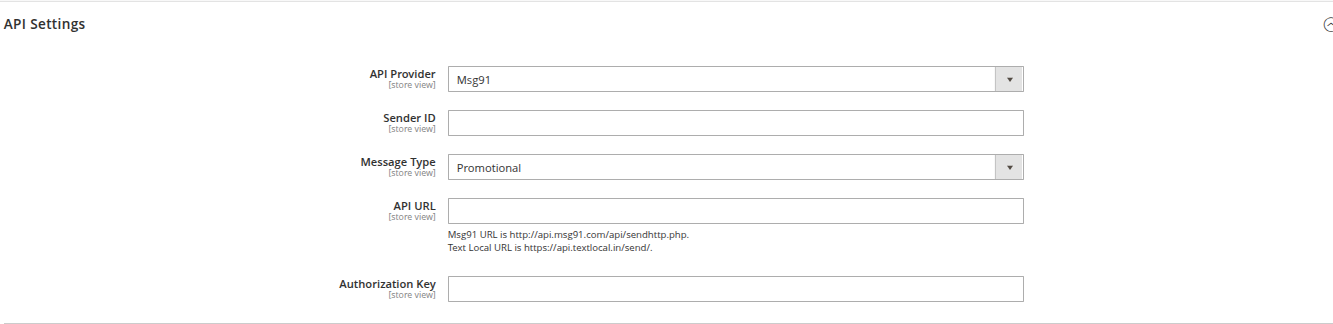
2. API Settings
Configuration Path: Stores > Configuration > Mavenbird > Mobile Login > API Settings
- API Provider: Select your SMS gateway provider (e.g., Msg91, TextLocal).
- Sender ID: The sender name/ID that appears in the SMS message.
- Message Type: Choose between promotional or transactional SMS types.
- API URL: The endpoint URL for sending OTP SMS.
- Authorization Key: The API key or token used to authenticate requests to your SMS provider.
These fields ensure OTPs are sent securely and reliably via your chosen SMS gateway.
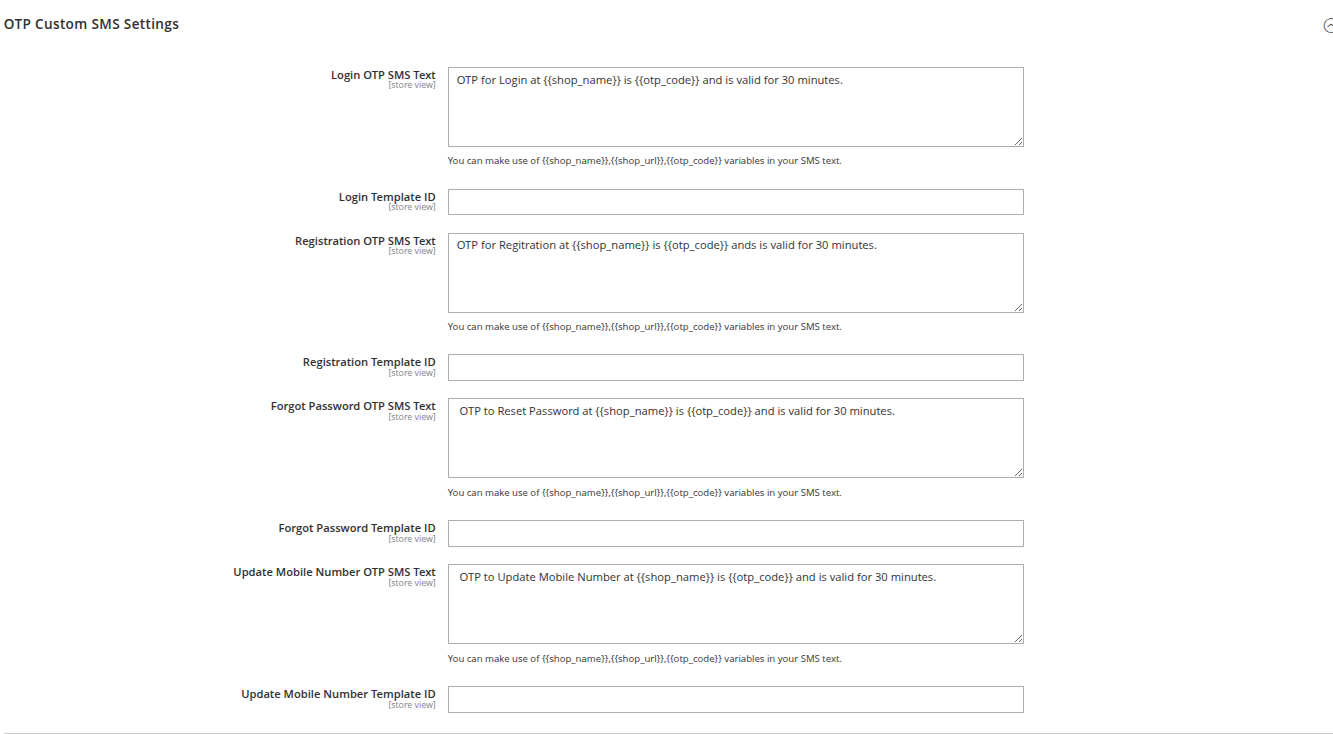
3. OTP Custom SMS Settings
Configuration Path: Stores > Configuration > Mavenbird > Mobile Login > OTP Custom SMS Settings
- Login OTP SMS Text: Customize the SMS content sent for login OTPs. Use variables like
{shop_name}and{otp_code}. - Login Template ID: Enter the template ID for login OTP SMS (required by some providers).
- Registration OTP SMS Text: SMS content for registration OTPs.
- Registration Template ID: Template ID for registration OTP SMS.
- Forgot Password OTP SMS Text: SMS content for password reset OTPs.
- Forgot Password Template ID: Template ID for password reset OTP SMS.
- Update Mobile Number OTP SMS Text: SMS content for updating mobile number OTPs.
- Update Mobile Number Template ID: Template ID for updating mobile number OTP SMS.
You can use variables like {shop_name}, {shop_url}, and {otp_code} for dynamic content in your messages.
4. Synchronize Telephone Number
Configuration Path: Stores > Configuration > Mavenbird > Mobile Login > Synchronize Telephone Number
- Sync Now: Click to synchronize customer telephone numbers with their mobile numbers. This is useful for bulk updating existing customer records to ensure consistency between telephone and mobile fields.

5. Form Title Texts
Configuration Path: Stores > Configuration > Mavenbird > Mobile Login > Form Title Texts
- Login With OTP Title: Title shown on the login form when using OTP.
- Login With Password Title: Title shown on the login form when using password.
- Create Account Title: Title shown on the registration form.
- Forgot Password Title: Title shown on the password recovery form.
These fields help you tailor the user experience to your branding and communication style.

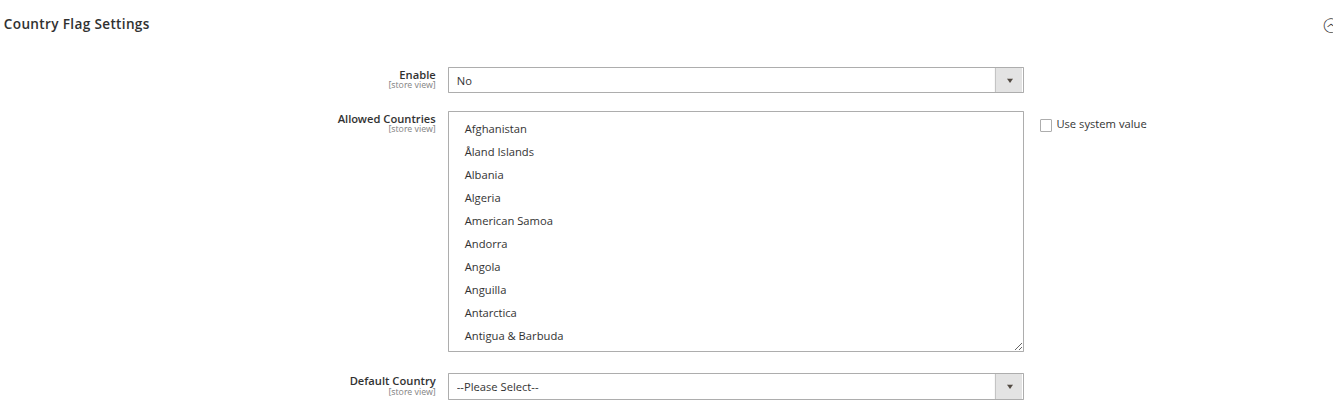
6. Country Flag Settings
Configuration Path: Stores > Configuration > Mavenbird > Mobile Login > Country Flag Settings
- Enable: Turns country flag selection on or off for mobile login forms.
- Allowed Countries: Select which countries are allowed for registration/login.
- Default Country: Set the default country shown in the form.
Useful for stores operating in multiple regions or requiring country-specific validation.
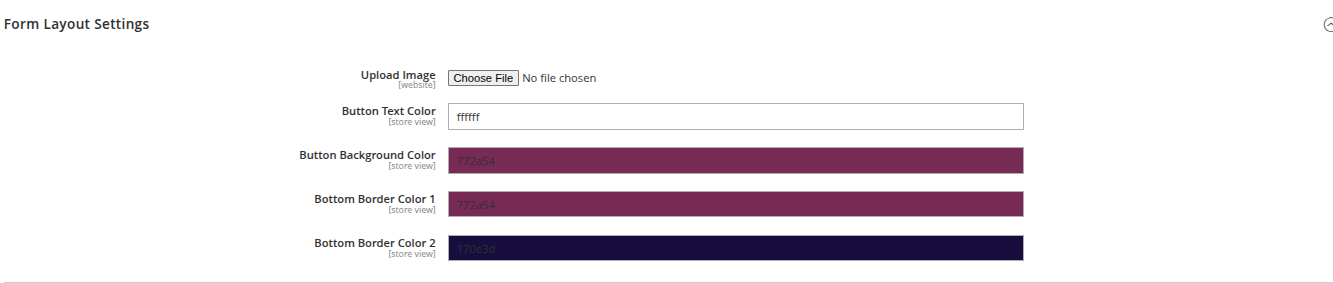
7. Form Layout Settings
Configuration Path: Stores > Configuration > Mavenbird > Mobile Login > Form Layout Settings
- Upload Image: Add a custom image/logo to the mobile login form.
- Button Text Color: Set the color of the text on the login button.
- Button Background Color: Set the background color of the login button.
- Bottom Border Color 1: Set the first color for the button's bottom border.
- Bottom Border Color 2: Set the second color for the button's bottom border.
These settings help you match the login form to your store's branding and improve user experience.
Frontend Screens & User Flow
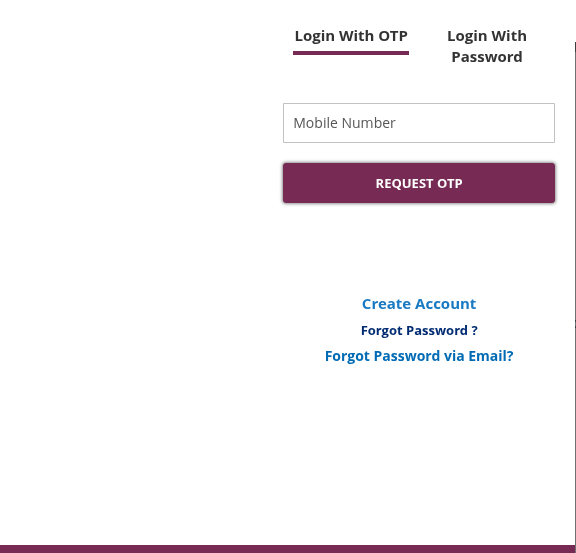
1. Login With OTP
This screen allows users to log in using their mobile number and a one-time password (OTP). The admin can configure the form titles, button colors, and OTP SMS settings from the backend. The tabs at the top let users switch between OTP and password login.
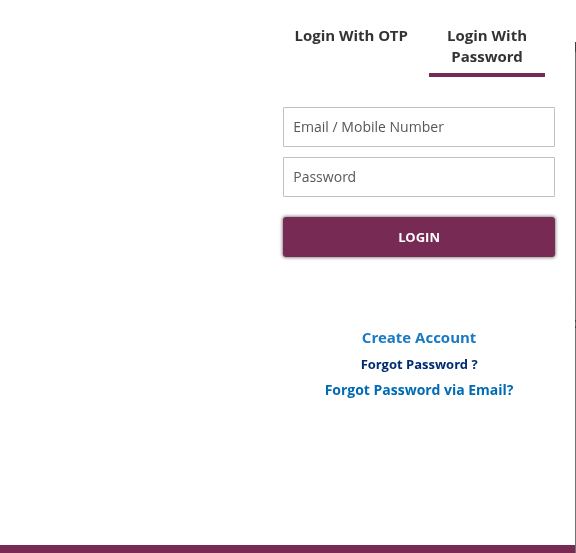
2. Login With Password
This screen allows users to log in using their email/mobile number and password. The admin can configure the form titles and button styles. The tabs at the top let users switch between OTP and password login.
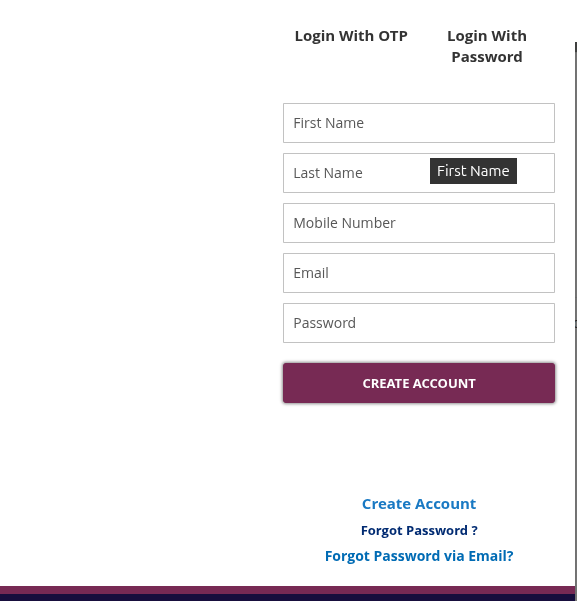
3. Registration Form
This screen allows users to create a new account using their first name, last name, mobile number, email, and password. The admin can configure the form titles, field order, and button styles.
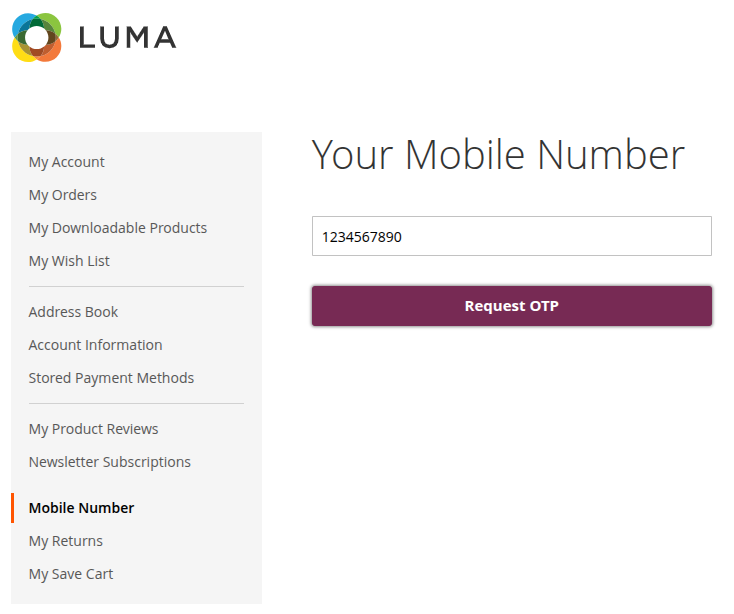
4. Account Mobile Number Update
This screen is shown in the customer account area, allowing users to update their mobile number. The admin can configure the title and button style, and the OTP SMS template for updating mobile numbers.
5. Forgot Password
This screen allows users to reset their password using their mobile number and OTP. The admin can configure the form title, button style, and OTP SMS template for password reset.
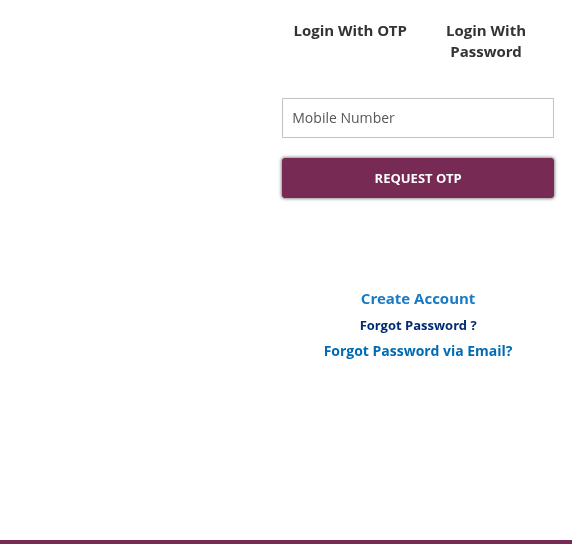
Each frontend screen is directly influenced by the admin configuration options for form titles, button colors, SMS templates, and layout settings. Refer to the Admin Configuration Sections above for details on customizing these screens.
Notes & Tips
- Compatible with both Luma and Hyvä themes.
- Ensure your SMS gateway credentials are configured correctly before enabling OTP login.
- Use Transactional SMS routes where required by your SMS provider to improve OTP delivery.
- Configure an appropriate OTP expiry time to balance security and user convenience.
- Customize SMS templates using the available variables such as
{shop_name},{shop_url}, and{otp_code}. - If migrating existing customers, use the Synchronize Telephone Number feature to keep customer telephone and mobile fields consistent.
- Restrict Allowed Countries when your store serves specific regions to improve data validation.
- Test the complete login, registration, forgot password, and mobile update workflows after changing SMS providers or configuration settings.
- Clear the Magento cache after saving configuration changes if frontend updates are not immediately visible.
- Ensure your Magento cron jobs are running properly for optimal platform performance.
Upgrade Safety & Testing
The Mobile Login extension is developed following Magento 2 best practices to ensure long-term maintainability and compatibility.
Upgrade Safety
- Uses Magento's dependency injection (DI) architecture.
- Does not modify Magento core files.
- Configuration values are stored using Magento's configuration system.
- Supports safe upgrades through Composer or manual module updates.
- Compatible with standard Magento cache, compilation, and deployment workflows.