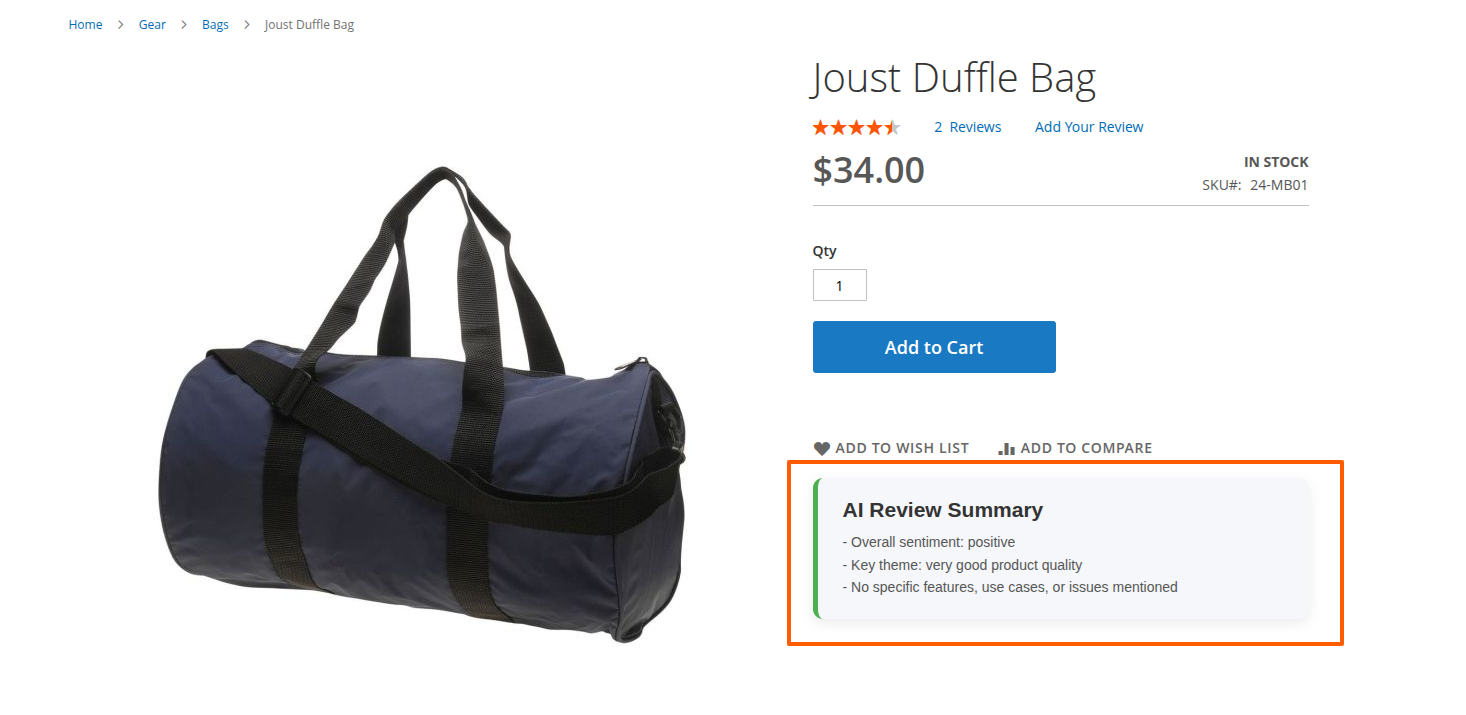
AI Review Summary
Extension Installation
For Magento Marketplace Customers
-
Find the Composer name and version of the extension in the extension's composer.json file.
-
Login to your SSH and run:
- composer require mavenbird/magento-2-ai-review-summary
- Wait for Composer to finish updating your project dependencies and make sure there aren't any errors.
-
To verify that the extension installed properly, run the command:
- php bin/magento module:status Mavenbird_AiReviewSummary
- By default, the extension is probably disabled.
- Enable the extension and clear static view files:
- php bin/magento module:enable Mavenbird_AiReviewSummary --clear-static-content
- php bin/magento setup:upgrade
- For Magento version 2.0.x to 2.1.x - php bin/magento setup:static-content:deploy
- For Magento version 2.2.x & above - php bin/magento setup:static-content:deploy --f
- php bin/magento cache:flush
For Mavenbird Customers
- Extract the zip folder and upload our extension to the root of your Magento 2 directory via FTP.
- Login to your SSH and run below commands step by step:
- php bin/magento setup:upgrade
- For Magento version 2.0.x to 2.1.x - php bin/magento setup:static-content:deploy
- For Magento version 2.2.x & above - php bin/magento setup:static-content:deploy --force
- php bin/magento cache:flush
Configuration Fields
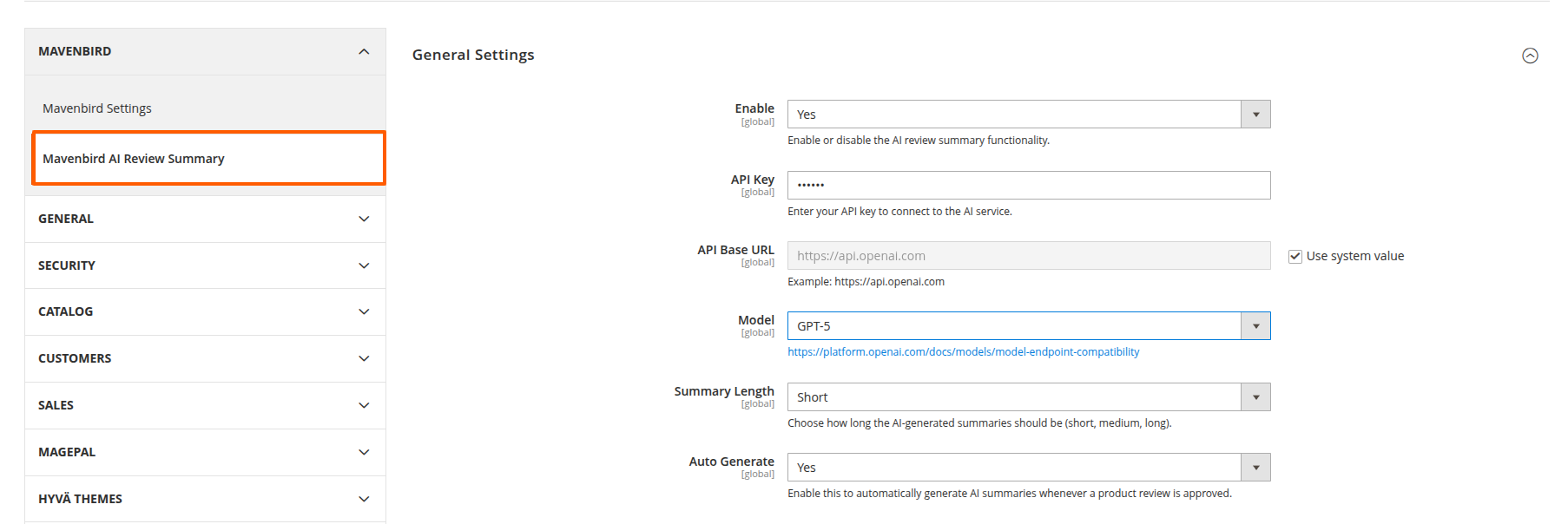
Location: Stores → Configuration → Mavenbird → AI Review Summary → General Settings
- Enable: Enable or disable the AI review summary functionality.
- API Key: Enter your API key to connect to the AI service.
- API Base URL: Set the base URL of the AI service (e.g., https://api.openai.com).
- Model: Select the AI model version for generating summaries.
- Summary Length: Choose the length of AI-generated summaries (short, medium, long).
- Auto Generate: Enable automatic generation of AI summaries for approved reviews.

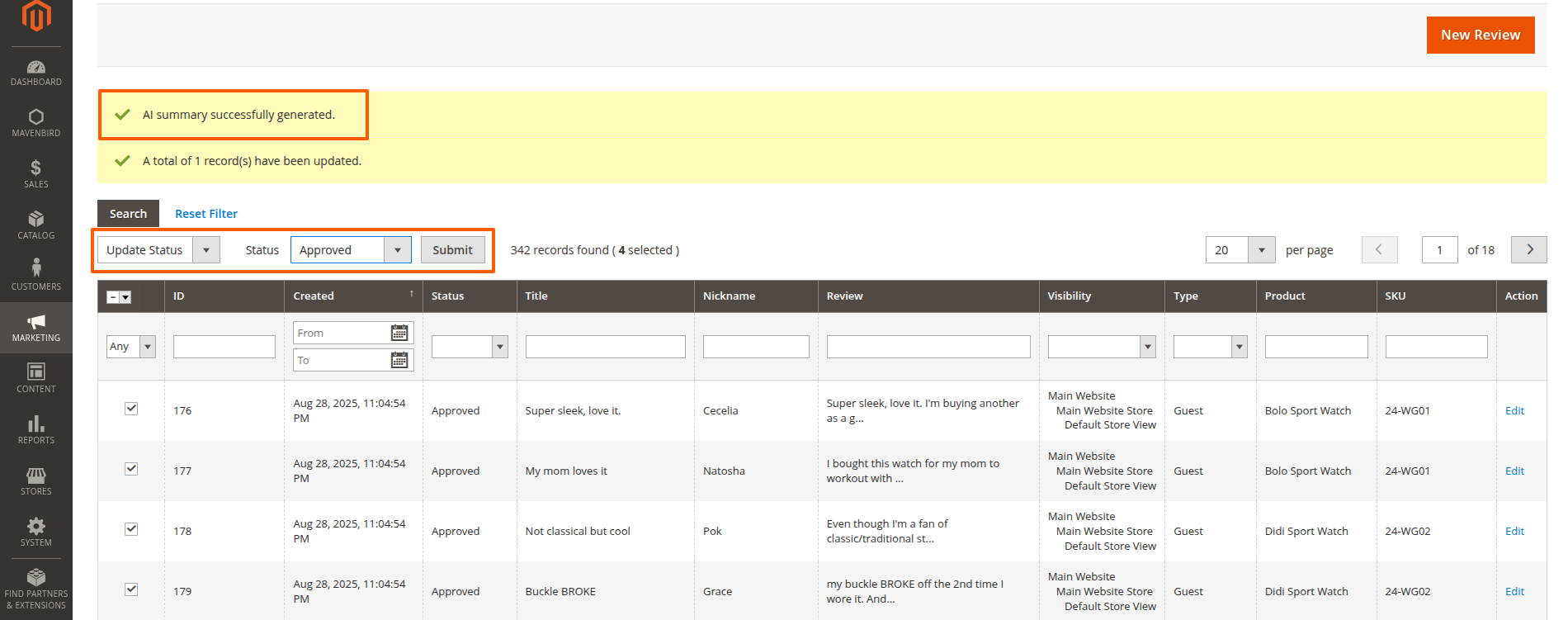
Mass Action: Approved Reviews – Generate AI Summaries
Location: Admin Panel → Marketing → Reviews → All Reviews (Grid)
Description:
This mass action allows admins to generate AI-powered summaries for multiple product reviews at once. Summaries are only generated for reviews that have been approved.
Requirements:
- The AI Review Summary module must be enabled.
- The Auto Generate configuration in Stores → Configuration → Mavenbird → AI Review Summary → General Settings must be enabled for automatic generation.
- Only reviews with Approved status will have AI summaries generated.
Steps to Use:
- Navigate to Marketing → Reviews → All Reviews.
- Select one or more approved reviews using the checkboxes.
- In the Actions dropdown, choose Generate AI Summary.
- Click Submit to generate summaries for the selected reviews.
- The selected AI model and summary length settings will be applied.
- Generated summaries are saved in the database and can be viewed in the review grid or product page.
Mass Action Products: Generate AI Summaries for Products
Location: Admin Panel → Catalog → Products (Grid)
Description:
This mass action allows admins to generate AI-powered review summaries for multiple products at once. Instead of generating summaries for each product individually, you can select multiple products and apply the AI summary generation in bulk.
Steps to Use:
- Go to Catalog → Products.
- Select one or more products using the checkboxes.
- In the Actions dropdown, choose Generate AI Summaries.
- Click Submit to generate summaries for the selected products.
- The AI Review Summary module must be enabled.
- The selected AI model and summary length settings will be applied to all selected products.
- Generated summaries will be saved in the database and can be viewed in the product edit page under the AI Review Summary tab.

Generate AI Review Summaries – Product Edit Page
Location: Admin Panel → Catalog → Products → Edit Product → AI Review Summary Tab
Description:
Within the product edit page, admins can generate AI-powered summaries for a specific product’s reviews directly from the AI Review Summary tab. You can also preview the generated summary before saving.
Steps to Use:
- Navigate to Catalog → Products and open a product for editing.
- Go to the AI Review Summary tab.
- Click Generate AI Summary to create a summary for the product’s reviews.
- The generated summary will appear in the preview area below the button.
- Review the summary and save the product to store the AI-generated content.
- The AI Review Summary module must be enabled.
- The selected AI model and summary length settings from configuration will be applied.
- You can preview summaries before saving to ensure accuracy and quality.
- This feature allows generating summaries individually per product without using mass actions.

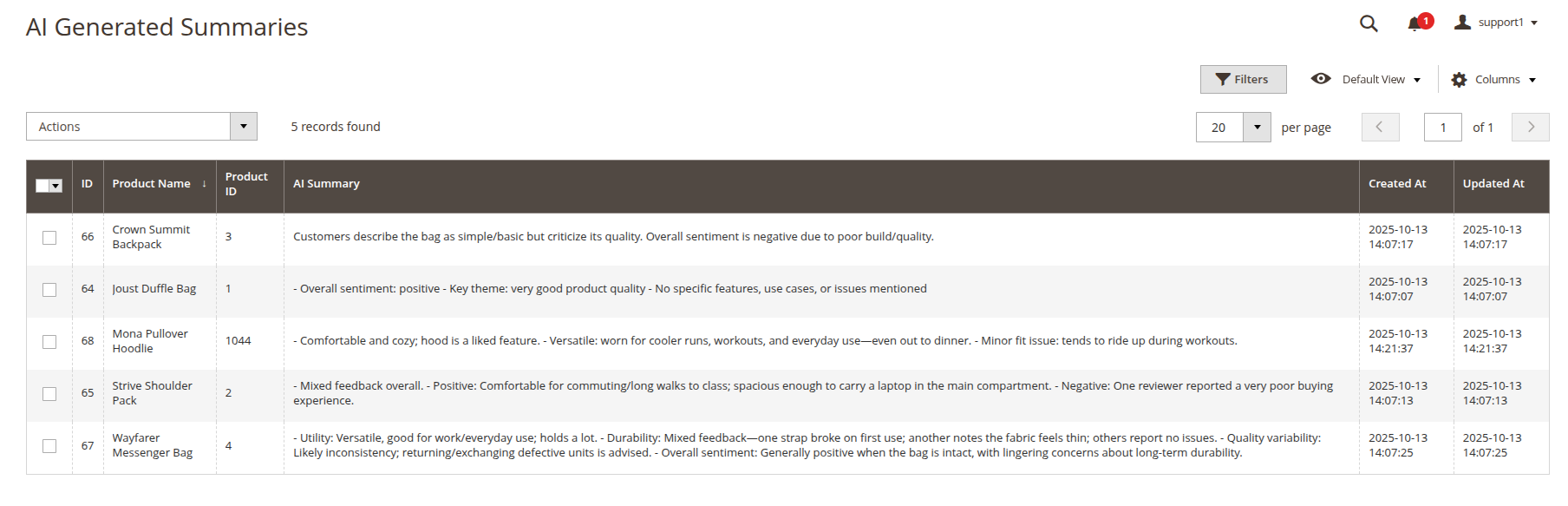
AI Summary Grid
Location: Admin Panel → Mavenbird → AI Summary Grid
Description:
The AI Summary Grid displays all AI-generated review summaries in a tabular format, allowing admins to quickly view, filter, and manage summaries for multiple products and reviews. This centralized grid helps streamline the review management process and provides easy access to summarized insights.
Features:
- View all AI-generated summaries in one place
- Filter summaries by product, review status, date, and more
- Edit or delete summaries directly from the grid
- Bulk actions for managing multiple summaries
- Quick links to related products and reviews
Steps to Use:
- Navigate to Mavenbird → AI Summary Grid in the admin panel.
- Use filters to find specific summaries by product, date, or status.
- Select one or more summaries to edit, delete, or perform bulk actions.
- Click on a summary to view detailed information or related product/review.
- The AI Review Summary module must be enabled for this grid to appear.
- Summaries are generated based on approved reviews and product settings.
- Bulk actions help save time when managing large numbers of summaries.
- Editing a summary allows you to refine AI-generated content before publishing.
Preview AI Review Summaries on Product Detail Page
Admins can preview AI-generated review summaries directly on the product edit page before saving, allowing verification of content quality and accuracy.