Frontend Cancel Order
Extension Installation
For Magento Marketplace Customers
-
Find the Composer name and version of the extension in the extension's composer.json file.
-
Login to your SSH and run:
- composer require mavenbird/magento-2-frontend-cancel-order
- Wait for Composer to finish updating your project dependencies and make sure there aren't any errors.
-
To verify that the extension installed properly, run the command:
- php bin/magento module:status Mavenbird_FrontendCancelOrder
- By default, the extension is probably disabled.
- Enable the extension and clear static view files:
- php bin/magento module:enable Mavenbird_FrontendCancelOrder --clear-static-content
- php bin/magento setup:upgrade
- For Magento version 2.0.x to 2.1.x - php bin/magento setup:static-content:deploy
- For Magento version 2.2.x & above - php bin/magento setup:static-content:deploy --f
- php bin/magento cache:flush
For Mavenbird Customers
- Extract the zip folder and upload our extension to the root of your Magento 2 directory via FTP.
- Login to your SSH and run below commands step by step:
- php bin/magento setup:upgrade
- For Magento version 2.0.x to 2.1.x - php bin/magento setup:static-content:deploy
- For Magento version 2.2.x & above - php bin/magento setup:static-content:deploy --force
- php bin/magento cache:flush
Configuration
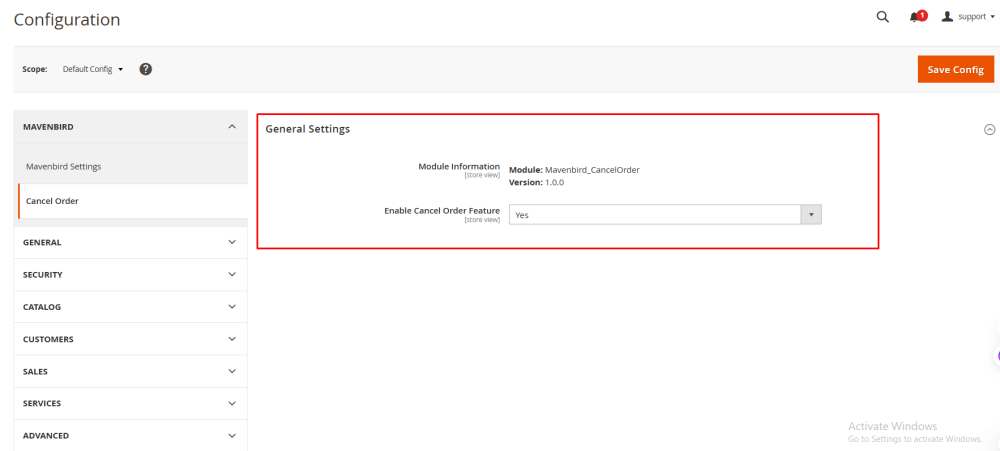
- To configure the Frontend Cancel Order extension:
- Log in to the Magento Backend.
- Go to Stores > Configuration.
- Under the General tab, select Frontend Cancel Order.
- Here, you can configure the following settings:
- Enable Frontend Cancel Order: Enable and Disable the Frontend Cancel Order extension.
Steps to Cancel an Order from Order History
1. Navigate to Order History
- Log in to your account on the website.
- From the main menu or account dropdown, select Order History.
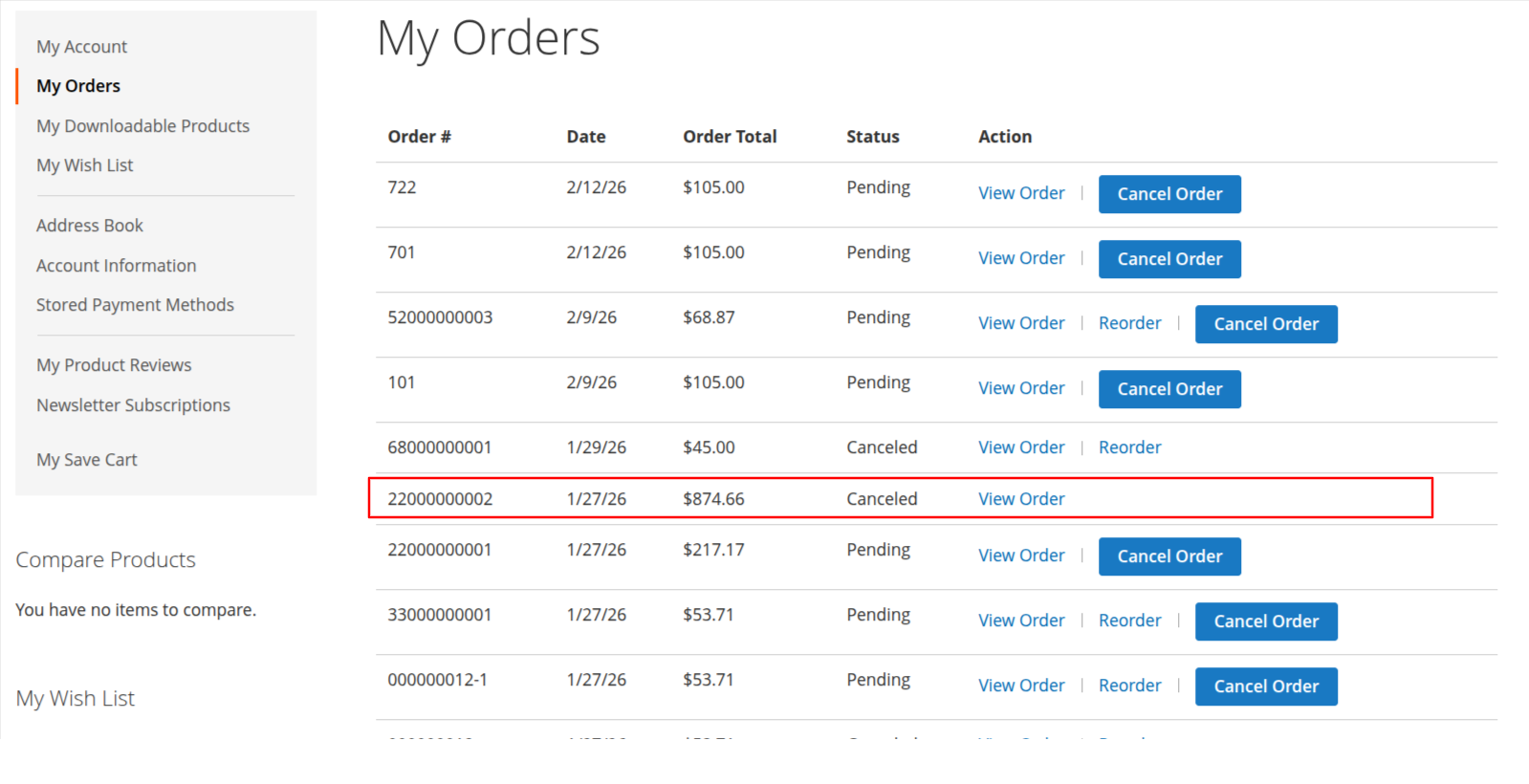
- The page will display a list of all your past and current orders.
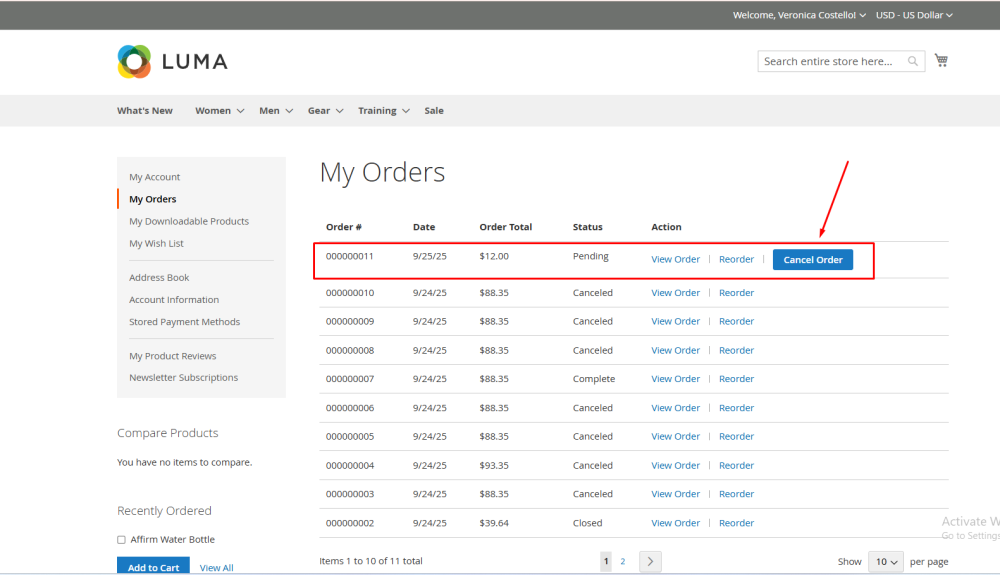
2. Identify Eligible Orders
- Look through your order list.
- Orders eligible for cancellation will show a Cancel Order button next to them.
- Orders that are already shipped, delivered, or otherwise ineligible will not display this button.
3. Initiate Cancellation
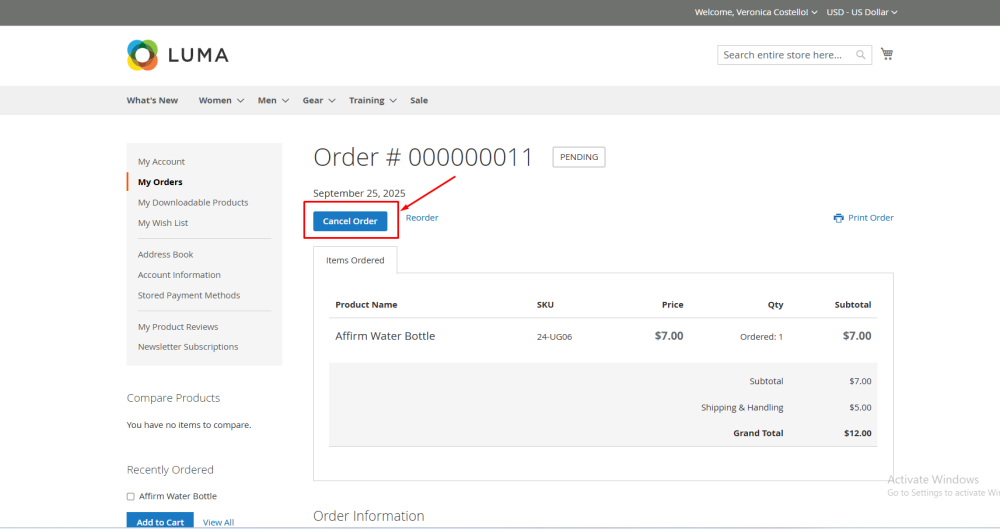
- Click the Cancel Order button for the order you want to cancel.
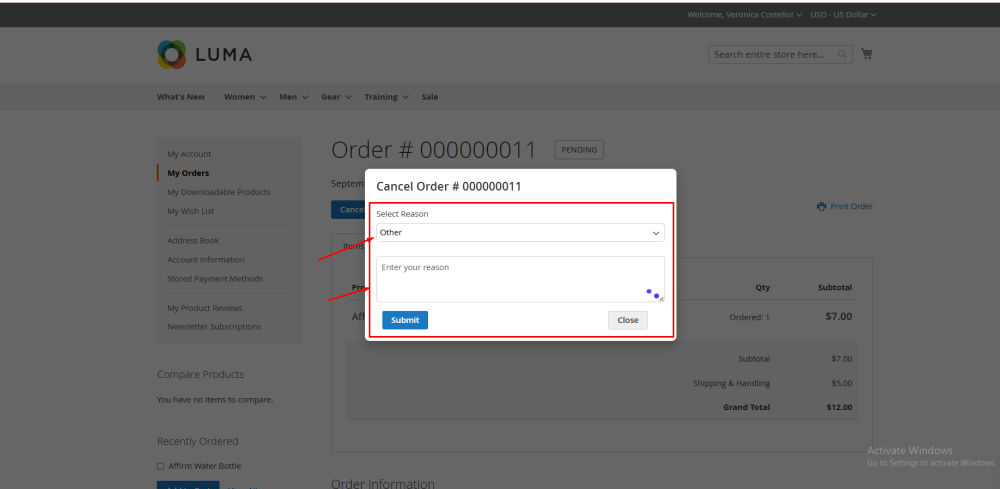
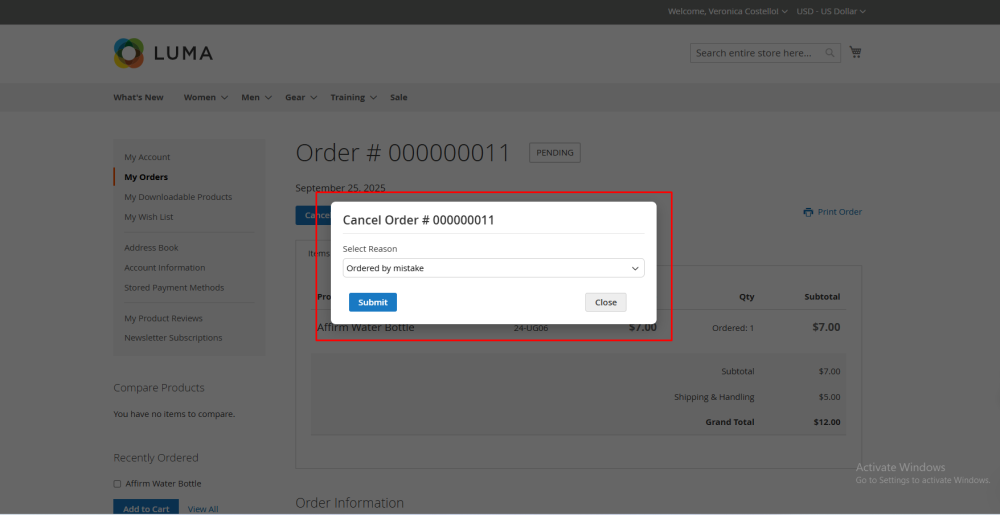
- A confirmation popup appears (as shown in the screenshot).
4. Confirm Cancellation
- Review the details in the popup.
- Confirm your intention to cancel the order by clicking Confirm (or the appropriate confirmation button).
- The system will process the cancellation and update the order status.
5. Verify Cancellation
- Check your Order History to confirm that the order status has changed to Cancelled.
- You may also receive a confirmation email about the cancellation.