Wholesale Fast Order
Extension Installation
For Magento Marketplace Customers
-
Find the Composer name and version of the extension in the extension's composer.json file.
-
Login to your SSH and run:
- composer require mavenbird/magento-2-wholesale-fast-order
- Wait for Composer to finish updating your project dependencies and make sure there aren't any errors.
-
To verify that the extension installed properly, run the command:
- php bin/magento module:status Mavenbird_WholesaleFastOrder
- By default, the extension is probably disabled.
- Enable the extension and clear static view files:
- php bin/magento module:enable Mavenbird_WholesaleFastOrder --clear-static-content
- php bin/magento setup:upgrade
- For Magento version 2.0.x to 2.1.x - php bin/magento setup:static-content:deploy
- For Magento version 2.2.x & above - php bin/magento setup:static-content:deploy --f
- php bin/magento cache:flush
For Mavenbird Customers
- Extract the zip folder and upload our extension to the root of your Magento 2 directory via FTP.
- Login to your SSH and run below commands step by step:
- php bin/magento setup:upgrade
- For Magento version 2.0.x to 2.1.x - php bin/magento setup:static-content:deploy
- For Magento version 2.2.x & above - php bin/magento setup:static-content:deploy --force
- php bin/magento cache:flush
Configuration
- To configure the Wholesale Fast Order extension:
- Log in to the Magento Backend.
- Go to Stores > Configuration.
- Under the General tab, select Fast Order.
Fast Order – General Configuration
The General configuration section allows administrators to manage global settings for the Fast Order feature.
Admin Path:
Admin Panel → Stores → Configuration → Fast Order → General
Configuration Fields
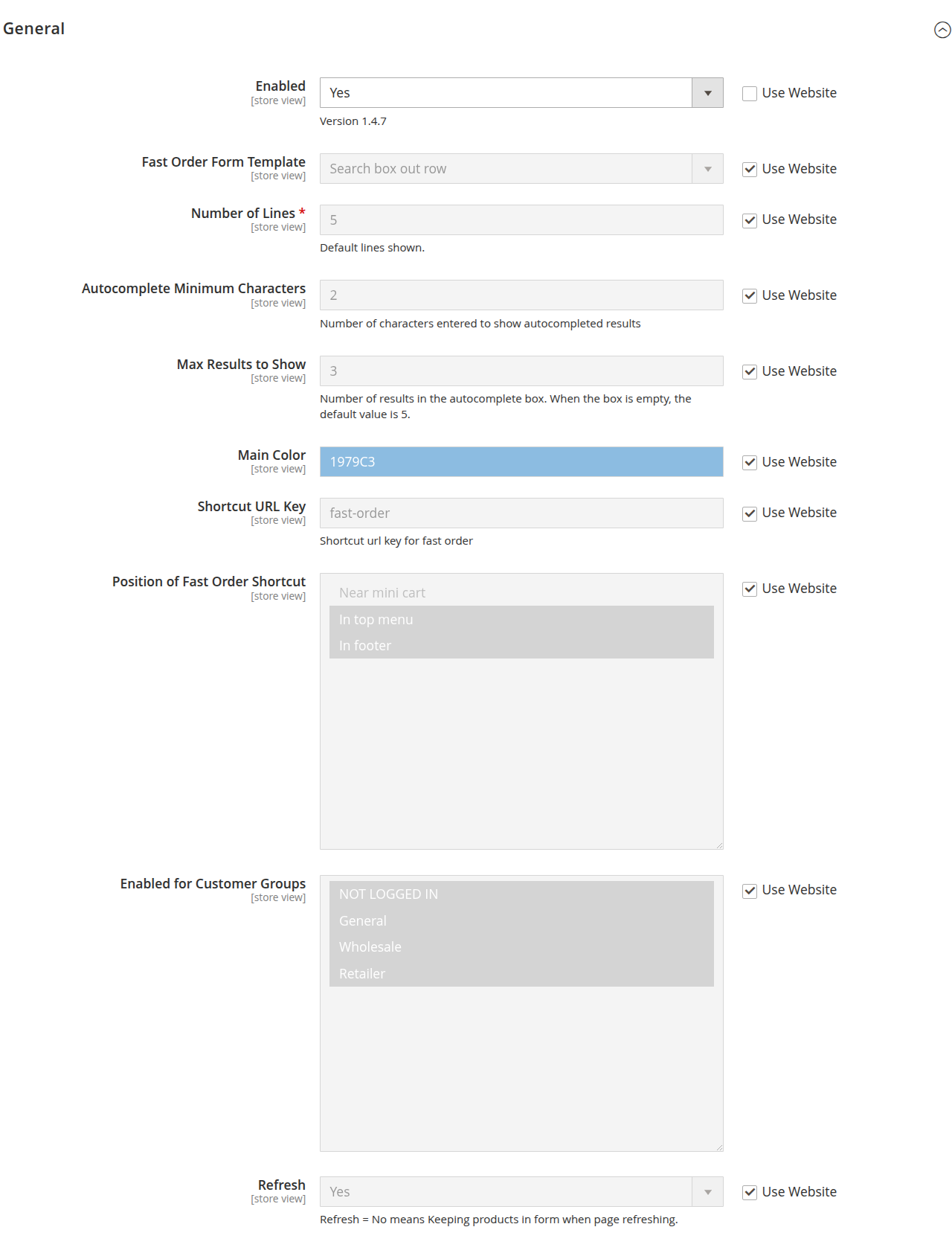
Enabled
Enable or disable the Fast Order feature.
- Yes – Fast Order is available on the storefront.
- No – Fast Order is disabled.
Fast Order Form Template
Select the template layout for the Fast Order form.
This determines how product rows and the search box are displayed.
Number of Lines *
Define the default number of product rows displayed in the Fast Order form.
Example:
5→ Shows 5 product entry rows by default.
Autocomplete Minimum Characters
Set the minimum number of characters required before autocomplete suggestions appear.
Example:
2→ Suggestions appear after entering 2 characters.
Max Results to Show
Define the maximum number of autocomplete suggestions displayed.
- If left empty, the default value is 5.
- Example:
3→ Displays 3 suggestions.
Main Color
Set the primary color used in the Fast Order interface.
- Accepts a HEX color value.
- Example:
#1979C3
Shortcut URL Key
Define the custom URL key for accessing the Fast Order page.
Example:
fast-order- Accessible via:
https://yourstore.com/fast-order
Position of Fast Order Shortcut
Choose where the Fast Order shortcut link appears on the storefront.
Available options:
- Near mini cart
- In top menu
- In footer
Multiple positions can be selected if supported.
Enabled for Customer Groups
Select which customer groups can access the Fast Order feature.
Example groups:
- NOT LOGGED IN
- General
- Wholesale
- Retailer
If no groups are selected, the feature may not be visible.
Refresh
Control whether product entries remain in the form after a page refresh.
- Yes – Products are cleared on refresh.
- No – Products remain in the form after refresh.
Scope
Most settings are available at:
- Default Config
- Website Level
- Store View Level
Use the Use Website checkbox to override website-level configuration.
Mini Fast Order Form Configuration
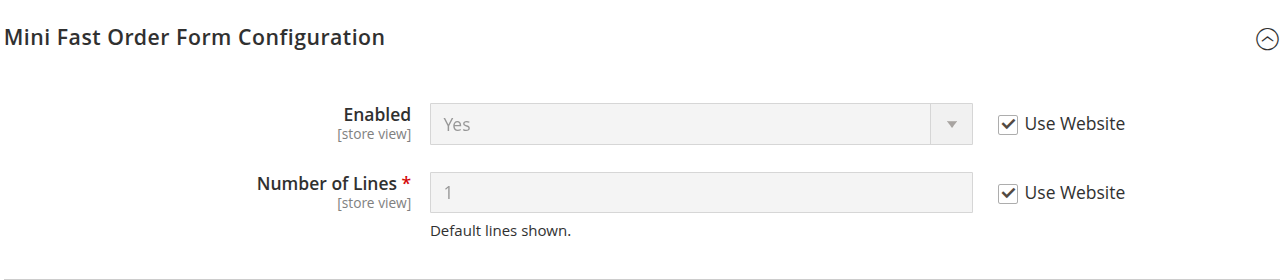
The Mini Fast Order Form Configuration section allows administrators to configure the compact version of the Fast Order form, typically displayed in the header, sidebar, or other shortcut positions.
Admin Path:
Admin Panel → Stores → Configuration → Fast Order → Mini Fast Order Form
Configuration Fields
Enabled
Enable or disable the Mini Fast Order form.
-
Yes – Mini Fast Order form is visible on the storefront.
-
No – Mini Fast Order form is disabled.
-
This setting works independently from the main Fast Order page configuration.
Number of Lines *
Define the default number of product entry rows shown in the Mini Fast Order form.
Example:
1→ Displays one product input row by default.3→ Displays three product input rows.
This value determines how many SKU/product input fields are initially available to the customer.
Scope
Settings can be configured at:
- Default Config
- Website Level
- Store View Level
Use the Use Website checkbox to inherit or override website-level settings.
Recommended Configuration
- Set Number of Lines to a low value (1–2) for compact layouts.
- Use the mini form for quick SKU-based ordering.
- Ensure the feature is enabled only for relevant customer groups if required.
Pre-populated Products Configuration
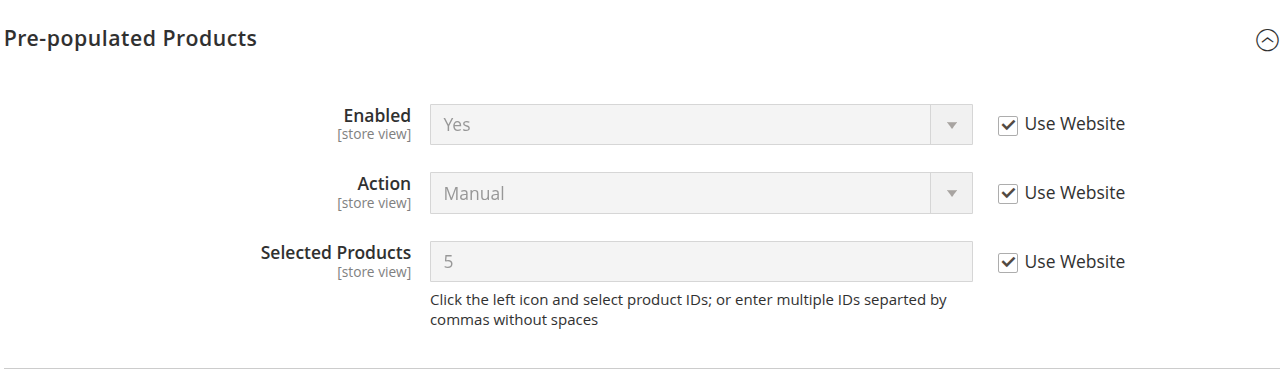
The Pre-populated Products section allows administrators to automatically load specific products into the Fast Order form when the page is opened.
This helps streamline ordering for frequently purchased or promoted products.
Admin Path:
Admin Panel → Stores → Configuration → Fast Order → Pre-populated Products
Configuration Fields
Enabled
Enable or disable the pre-populated products feature.
- Yes – Selected products are automatically added to the Fast Order form.
- No – No products are preloaded.
Action
Define how products are selected for pre-population.
Common option:
- Manual – Admin manually selects product IDs.
(Additional options may be available depending on module customization.)
Selected Products
Specify which products should be preloaded into the Fast Order form.
You can:
- Click the selection icon to choose products.
- Enter multiple product IDs separated by commas (without spaces).
Example:
- 5,12,25
Each product ID will appear as a pre-filled row in the Fast Order form.
Scope
Settings are available at:
- Default Config
- Website Level
- Store View Level
Use the Use Website checkbox to inherit or override website-level configuration.
How It Works
- Fast Order page loads.
- Selected product IDs are automatically inserted into the form.
- Customers can adjust quantities or remove products before submitting.
Recommended Usage
- Preload frequently purchased SKUs.
- Add promotional or seasonal products.
- Provide predefined product bundles for wholesale customers.
Fast Order Page (Frontend)
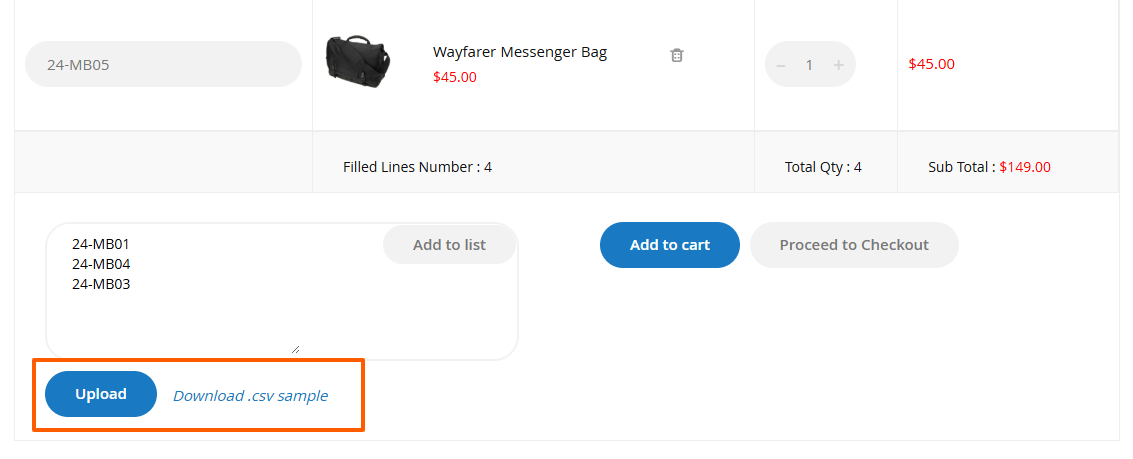
The Fast Order page allows customers to quickly add multiple products to the cart using SKU-based entry, autocomplete search, or bulk upload.
This feature is designed for wholesale buyers and customers placing bulk or repeat orders.
Frontend URL Example:
https://yourstore.com/fast-order
Page Components
Search Bar
Customers can search by:
- Product Name
- SKU
Autocomplete suggestions appear based on the configured minimum characters and result limit.
Product Grid Columns
| Column | Description |
|---|---|
| SKU | Product SKU identifier. |
| Product | Product image, name, and price. |
| QTY | Quantity selector with increment/decrement controls. |
| Subtotal | Price × Quantity for each product row. |
Product Row Actions
Depending on product type, additional icons may appear:
- Edit – Configure product options (for configurable/bundle products).
- Remove – Delete the product row from the list.
Summary Section
Located at the bottom of the grid:
- Filled Lines Number – Number of populated product rows.
- Total Qty – Total quantity of all items.
- Sub Total – Combined subtotal of all added products.
Manual SKU Entry
Customers can manually enter products using:
-
SKU: quantity
-
Example:
-
24-1000001: 2
-
24-1000002: 1
Click Add to list to load products into the grid.
CSV Upload
The page supports bulk product import using a CSV file.
Steps:
- Click Upload.
- Select a CSV file formatted with SKU and quantity.
- Products will be automatically added to the list.
You can download a reference file using:
- Download .csv sample
Action Buttons
Add to Cart
Adds all listed products to the shopping cart.
Proceed to Checkout
Redirects directly to checkout with the selected products.
Add to List
Loads manually entered SKU:quantity entries into the grid.
Supported Product Types
- Simple Products
- Configurable Products
- Grouped Products
- Virtual Products
- Downloadable Products
(Behavior may vary based on product configuration.)
Workflow
- Customer searches or enters SKUs.
- Adjusts quantities if required.
- Reviews subtotal and total quantity.
- Clicks Add to Cart or Proceed to Checkout.
Best Practices
- Use SKU entry for faster bulk ordering.
- Utilize CSV upload for large purchase lists.
- Configure autocomplete limits for performance optimization.
- Restrict access to specific customer groups if needed.
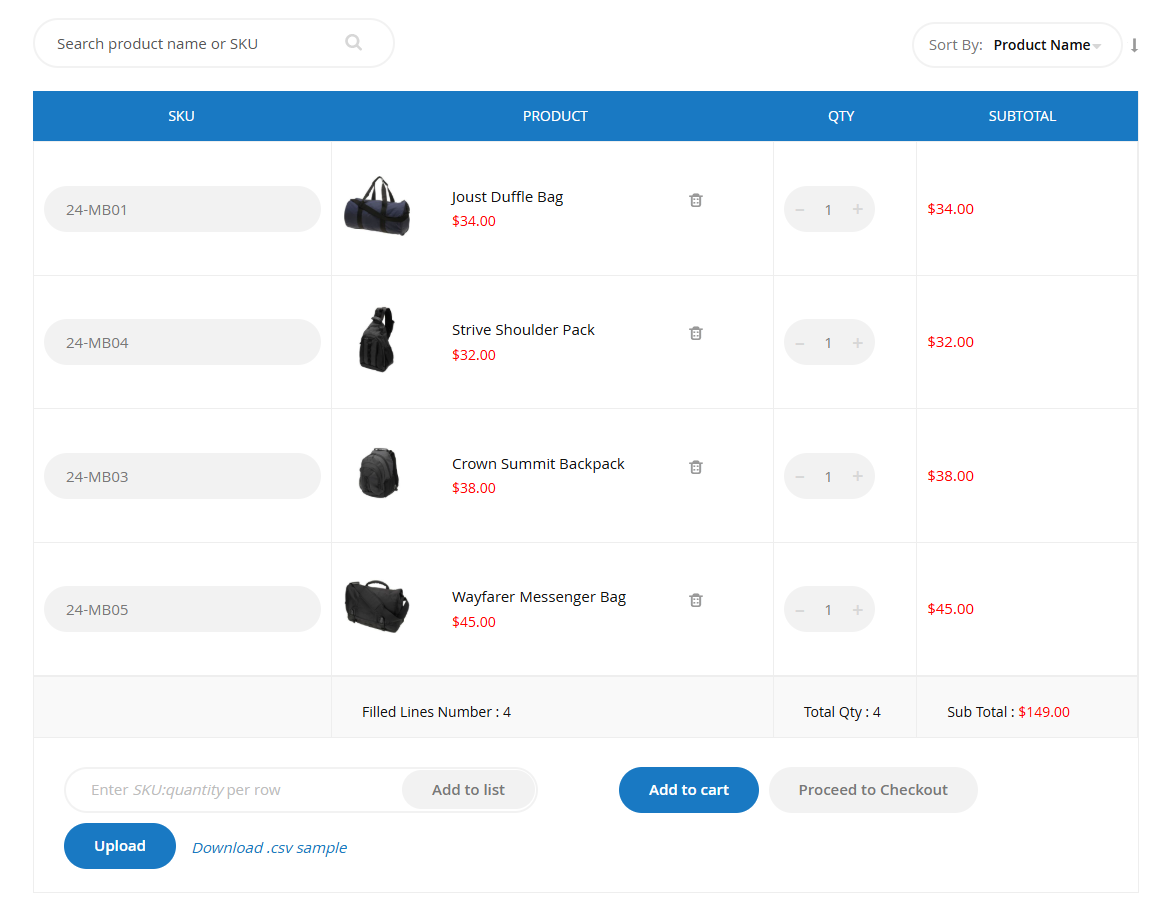
Fast Order – CSV Upload Feature
The CSV Upload feature allows customers to bulk upload products into the Fast Order form using a properly formatted CSV file.
This is especially useful for wholesale buyers or repeat bulk orders.
Location
On the Fast Order page, the CSV upload section appears below the product entry area.
Available options:
- Upload button
- Download .csv sample link
How to Use CSV Upload
Step 1: Download Sample File
Click Download .csv sample to get a reference template.
The sample file shows the required format for SKU and quantity.
Step 2: Prepare CSV File
The CSV file must include:
- Product SKU
- Quantity
Ensure:
- SKUs exist in the system
- Quantities are valid numeric values
- No extra spaces in SKU values
Step 3: Upload File
- Click Upload
- Select your CSV file
- Products will automatically load into the Fast Order grid
After Upload
- Products appear in the product list.
- Quantities are auto-filled from the CSV.
- Subtotals and totals update automatically.
- Customer can adjust quantities before checkout.
Validation Rules
- Invalid SKUs will be ignored or flagged.
- Non-numeric quantities may trigger validation errors.
- Duplicate SKUs may be merged or listed separately depending on configuration.
Best Practices
- Use the sample CSV format to avoid errors.
- Verify SKUs before upload.
- Avoid very large files to maintain performance.
- Review loaded products before clicking Add to Cart.