Import Export Wishlist Products
Extension Installation
For Magento Marketplace Customers
-
Find the Composer name and version of the extension in the extension's composer.json file.
-
Login to your SSH and run:
- composer require mavenbird/module-importexport-wishlist-products
- Wait for Composer to finish updating your project dependencies and make sure there aren't any errors.
-
To verify that the extension installed properly, run the command:
- php bin/magento module:status Mavenbird_ImportExportWishlistProducts
- By default, the extension is probably disabled.
- Enable the extension and clear static view files:
- php bin/magento module:enable Mavenbird_ImportExportWishlistProducts --clear-static-content
- php bin/magento setup:upgrade
- For Magento version 2.0.x to 2.1.x - php bin/magento setup:static-content:deploy
- For Magento version 2.2.x & above - php bin/magento setup:static-content:deploy --f
- php bin/magento cache:flush
For Mavenbird Customers
- Extract the zip folder and upload our extension to the root of your Magento 2 directory via FTP.
- Login to your SSH and run below commands step by step:
- php bin/magento setup:upgrade
- For Magento version 2.0.x to 2.1.x - php bin/magento setup:static-content:deploy
- For Magento version 2.2.x & above - php bin/magento setup:static-content:deploy --force
- php bin/magento cache:flush
This module enables you to import and export your store wishlist products in bulk using CSV formats, such as a store, product options, client e-mail, etc. You can import-export any data on the Magento wishlist from store to store through this extension. You can export the data from the store view.
Features
- Wishlist products with all related data for import/export.
- Simple to update and add Magento Store products with a CSV file.
- Import/Export store view wise wishlist products.
- All kinds of wishlist products have been supported.
- Magento admin/browser import/export files. No FTP access requirement.
- Multi-store and multi-website support.
CSV Creating
store_id: Specifies the ID of the store view in which the wishlist item was added. In this case, "1" indicates the store view where the product is added to the wishlist. added_at: The timestamp when the product was added to the wishlist. In this example, it is "2024-01-25 06:48:28", indicating when the product was added.
description: A field for any optional description or notes related to the product in the wishlist. In this example, it is left blank.
qty: The quantity of the product added to the wishlist. Here, it is "1", meaning one unit of the product is added.
sku: The Stock Keeping Unit (SKU) of the product. In this example, the SKU is "24-MB05", which is a unique identifier for the product in the wishlist.
customer_email: The email address of the customer who added the product to their wishlist. In this case, it is "[email protected]".
options: A field for any additional product options (like custom options) selected when the product was added to the wishlist. It is blank in this case.
super_attribute: Contains information about the configurable product attributes selected (e.g., color, size) when adding the product to the wishlist. It is blank here.
group_options:Information related to grouped product options, if applicable. In this case, it is left blank.
bundle_options:Contains information about bundle product options selected when adding a bundled product to the wishlist. This is left blank in the example.
bundle_options_qty:Specifies the quantity of each option in a bundled product. It is also left blank here.
links:Represents downloadable product links if the product is a downloadable product. It is left blank, meaning no links were associated with this product.
How to Import Wishlist Products
The following steps must be followed:
Step-1
As per our documents, prepare your CSV. See (How do I build CSV) for information. Or the CSV sample reference. Create a new file "somewhat.csv."
Note: - Do Not Change CSV header.
Step-2
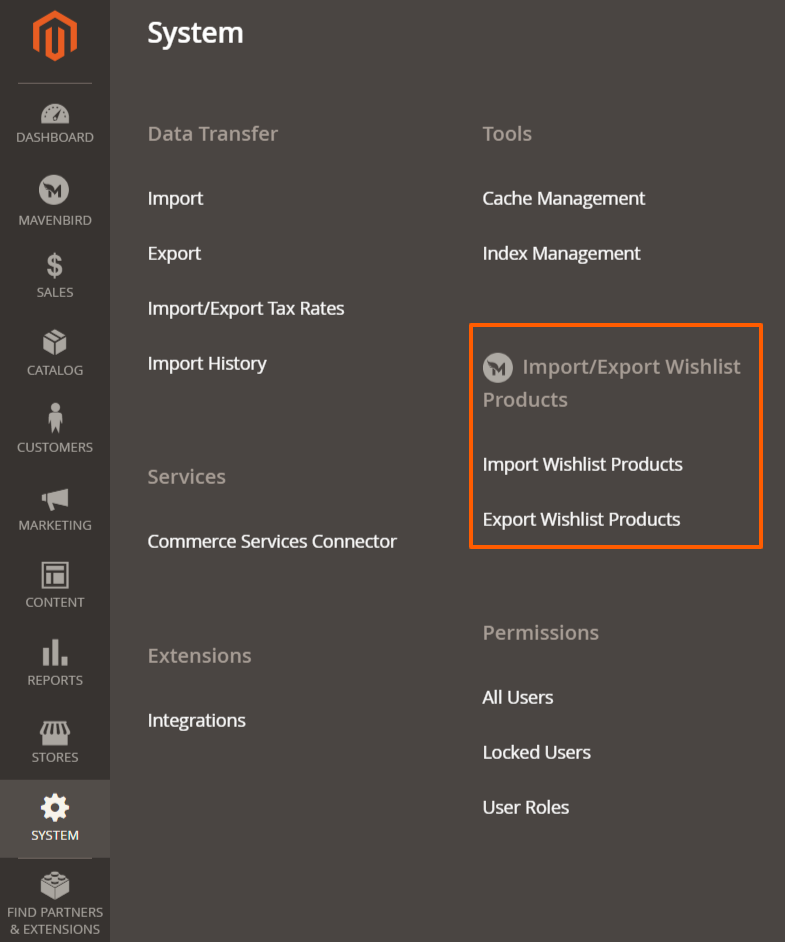
Go to Your Site Backend -> SYSTEM -> Import/Export Wishlist Products -> Import Wishlist Products.
Step-3
Click on the "Import Wishlist Products" button to upload the generated CSV file.
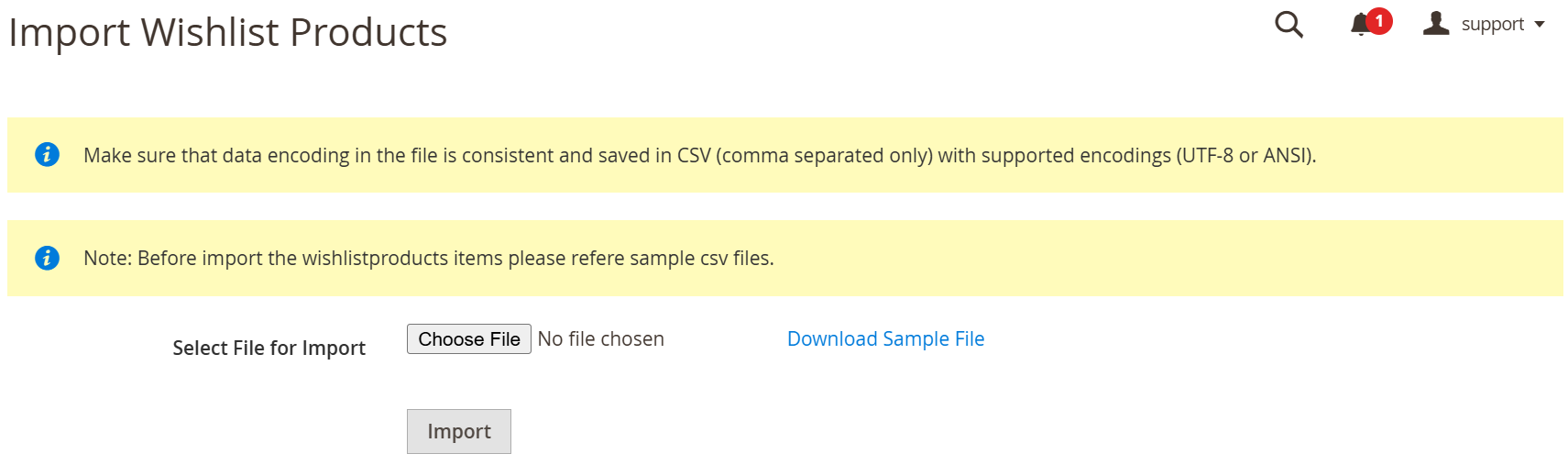
Note: Before completing the process, please do not close this tab. If you close before you finish the operation, it will lead to undesired outcomes.
Step-4
Import wishlist products now successfully.
How to Export Wishlist Products
The following steps must be followed:
Step-1
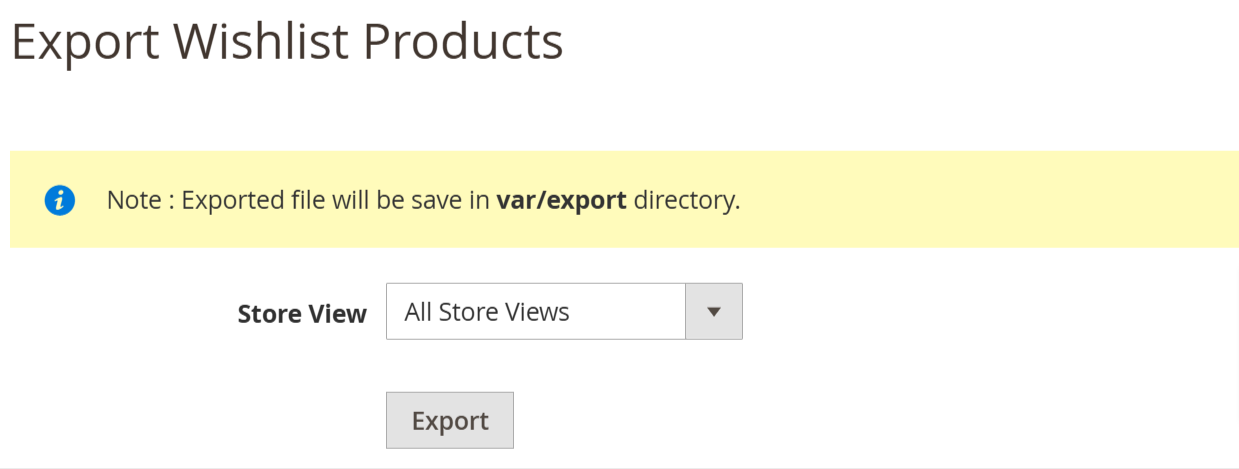
Go to Your Site Backend -> SYSTEM -> Import/Export Wishlist Items -> Export Wishlist Products.
Step-2
Select the "Export Wishlist Products" button as per your requirements.
Step-3
Export wishlist items now successfully.
It is possible to get CSV export file <Magento-Root>/var/export/file