

Embedding tracking code manually across your Magento 2 site is tedious and error-prone. The Google Tag Manager extension by Mavenbird streamlines this by centrally managing tags, data layers, and event tracking from the admin—no direct theme alterations required.
Why Google Tag Manager Matters for Magento Stores
- Deploy analytics, marketing, or conversion tracking tags without modifying code.
- Maintain consistent eCommerce data layers (product views, add-to-cart, purchases).
- Switch, add, or remove tags via GTM UI without redeploying your store.
- Enable cross-domain tracking, conversion and remarketing tags with minimal overhead.
Key Features of the Mavenbird GTM Extension
- GTM Snippet Integration: Insert `` and `` container codes via admin config. :contentReference[oaicite:0]{index=0}
- Automatic Data Layer Support: Expose product, category, cart, and checkout data layers for tracking. :contentReference[oaicite:1]{index=1}
- Container Import / Tag Setup: Import predefined containers or use the container config page in Magento. :contentReference[oaicite:2]{index=2}
- Google Ads & GA Integration: Configure conversion IDs, dynamic remarketing, GA4 / Universal tags. :contentReference[oaicite:3]{index=3}
- Admin Operations Tracking: Optionally track refund operations or admin order updates. :contentReference[oaicite:4]{index=4}
- Custom Dimensions & Mapping: Map attributes (brand, variant, customer group) to GTM dimensions. :contentReference[oaicite:5]{index=5}
How It Works in Magento Admin
- Enable Module: Use composer or zip, enable `Mavenbird_GoogleTagManager`, run setup:upgrade, deploy static content, and flush cache. :contentReference[oaicite:6]{index=6}
- Configure in Admin: Go to Stores → Configuration → Mavenbird Extensions → Google Tag Manager. Paste GTM snippet codes and enable logging if needed. :contentReference[oaicite:7]{index=7}
- Set Container ID & Tags: Define GTM account/container details, configure tags for GA, Ads, remarketing, etc. :contentReference[oaicite:8]{index=8}
- Map Attributes: Choose which product/category/customer attributes to send as dimensions or metrics. :contentReference[oaicite:9]{index=9}
- Enable Tracking Options: Toggle tracking of admin orders, refunds, cross-domain features, etc. :contentReference[oaicite:10]{index=10}
Business Benefits You Gain
| Benefit | Impact |
|---|---|
| Faster Tag Deployment | Marketers can add tags without developer help |
| Consistent Data Tracking | Uniform data layers across the site prevent discrepancies |
| Reduced Risk | No need to modify theme files, minimizing breakage risk |
| Flexibility & Control | Easily enable, disable or adjust tags via GTM UI |
Tracking Flow Example
A visitor views a product. GTM captures “product_view” event with data layer attributes (ID, price, category). If they add the product to cart, another data layer event “add_to_cart” triggers. Upon checkout, the “purchase” event sends order data to GA, Ads, or other tags configured without additional code deployments.
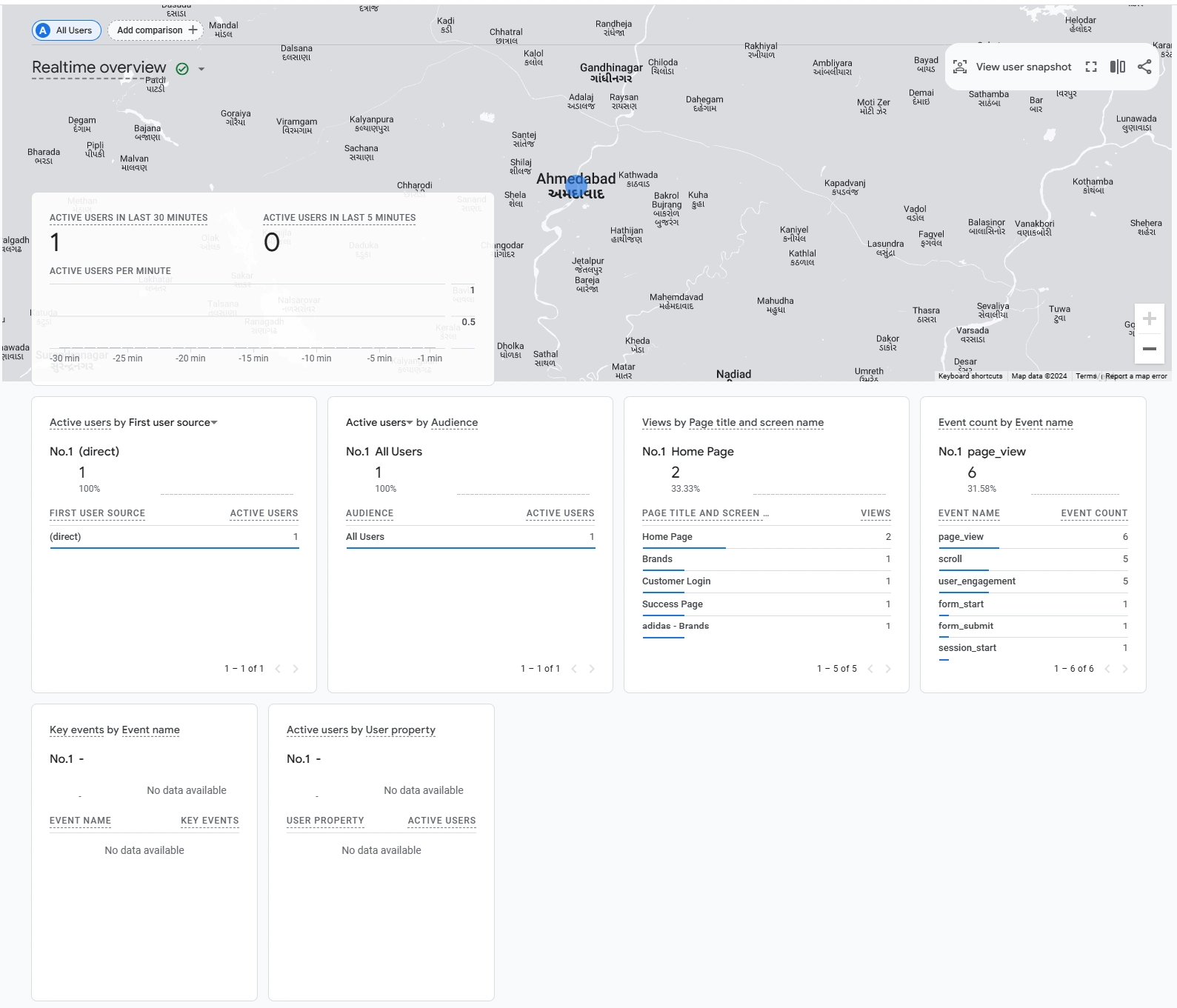
Container & Tag Configuration Screenshot:
Mavenbird empowers Magento 2 merchants to streamline analytics, tag management, and marketing operations with its Google Tag Manager extension.
Want to manage tags without touching code?
Contact Mavenbird today and streamline your tracking setup.
Contact Mavenbird today and streamline your tracking setup.