

We’ve recently rolled out a change to enhance the security of your Shopify Payments account, as well as your entire Shopify account. To provide better protection for our users, we now require store owners who have enabled, or will enable, Shopify Payments to activate two-factor authentication (2FA).
This update aims to add an additional layer of security to your account. In this post, we’ll explain the purpose of two-factor authentication and the added value it brings to you as a merchant.
Two-step authentication adds an extra layer of security to your account. If a malicious actor were to gain access to your login credentials or email account, they still wouldn’t be able to log in. This is because they would also need access to the tool you use for the second layer of authentication, making it much harder for them to breach your account.
Types of Two-Factor Authentication
When setting up Two-Factor Authentication (2FA) for your store and account, there are several methods available to enable this additional layer of security. In this guide, I’ll walk you through the different options so you can choose the one that best suits your needs.
Authenticator App (Recommended Method)
According to Dataprot.net, the most popular method for Two-Factor Authentication (2FA) is using an authenticator app, with 68% of users opting for this option. This method involves downloading an app, such as Microsoft Authenticator or Google Authenticator, to your mobile device. After installing the app, you'll scan a QR code provided by the service you're securing, and the app will sync a code to your account.
Whenever you log in to your store, the app will send a push notification. You can either approve the login directly through the notification or retrieve the code to manually enter it during login.
This method has worked reliably for me across multiple accounts and is highly recommended for added security.
SMS Code
With the SMS code method, you’ll receive a text message containing a code to your phone. When setting up 2FA, you provide a phone number where the code will be sent. Each time you attempt to log in, a code will be sent via SMS, which you will then enter to complete the login process.
Security Key
A Security Key is a hardware device used for identity verification during login. One well-known option is YubiKey. Alternatively, you can use your phone as a Security Key, where you scan a QR code and verify your identity on your phone using a pin or other method. While effective, the downside of this method is that if you lose or misplace your security key, it may be difficult to log in from other devices until you recover it.
Built-in Authentication
If your device supports it, you can use built-in authentication methods to confirm your identity. For example, if your phone has a fingerprint sensor, you can set up fingerprint recognition as your 2FA to log in securely.
Shopify Mobile Prompt
The Shopify Mobile App offers another way to enable 2FA. With this method, the app will send a prompt to your mobile device whenever there is a login attempt on a different device. Simply approve the login through the app for secure access.
While these are some of the most common methods for securing your Shopify account, there are other 2FA options available. For more information, check out Dataprot.Net for additional details on Two-Factor Authentication methods.
How to Set up 2-Factor Authentication for your Store
Below are the steps to activate Two-Factor Authentication (2FA) on your desktop device and sync it with your mobile device. In this tutorial, we will focus on the 'Authentication App' method, as it is the recommended option for secure account access. If you choose a different method, follow the on-screen prompts during setup.
- Log in to your Shopify Admin panel.
- Click on your account name or email address in the top-right corner.
- From the drop-down menu, select 'Manage Account'.
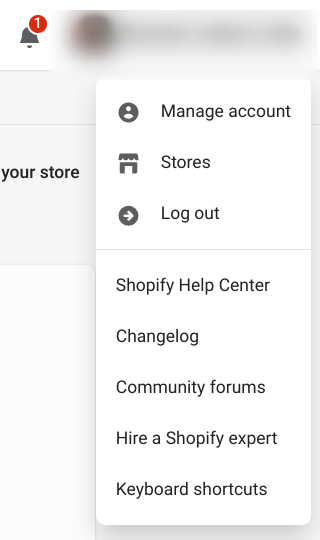
A new page will load showing you some general account options. A small menu should appear on the left side of your screen. On that left side, select the ‘Security’ option that appears.

Once you've completed the previous steps, you'll be directed to a new page with several security options to choose from. For now, scroll down to the section labeled 'Two-Step Authentication'. In the 'Authentication Methods' box, click on the button that says 'Turn On Two-Step'.
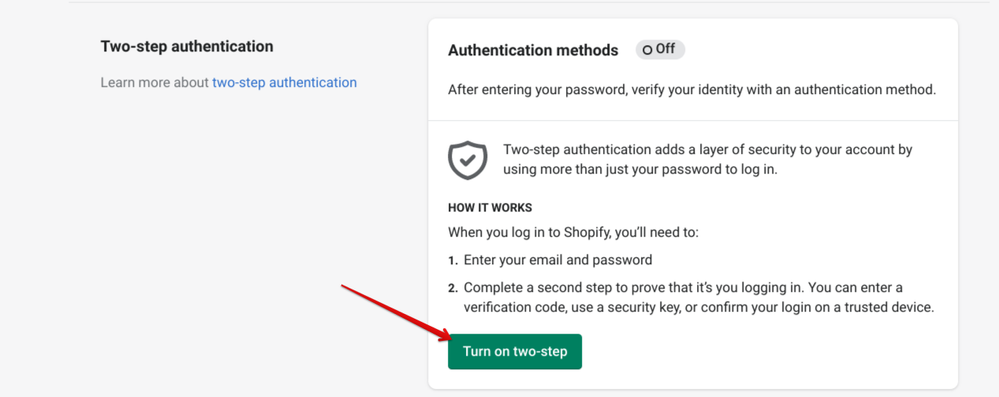
After clicking on "Enable two-step verification", a pop-up window will appear offering different 2-Factor Authentication options. Choose the option labeled "Authenticator App".
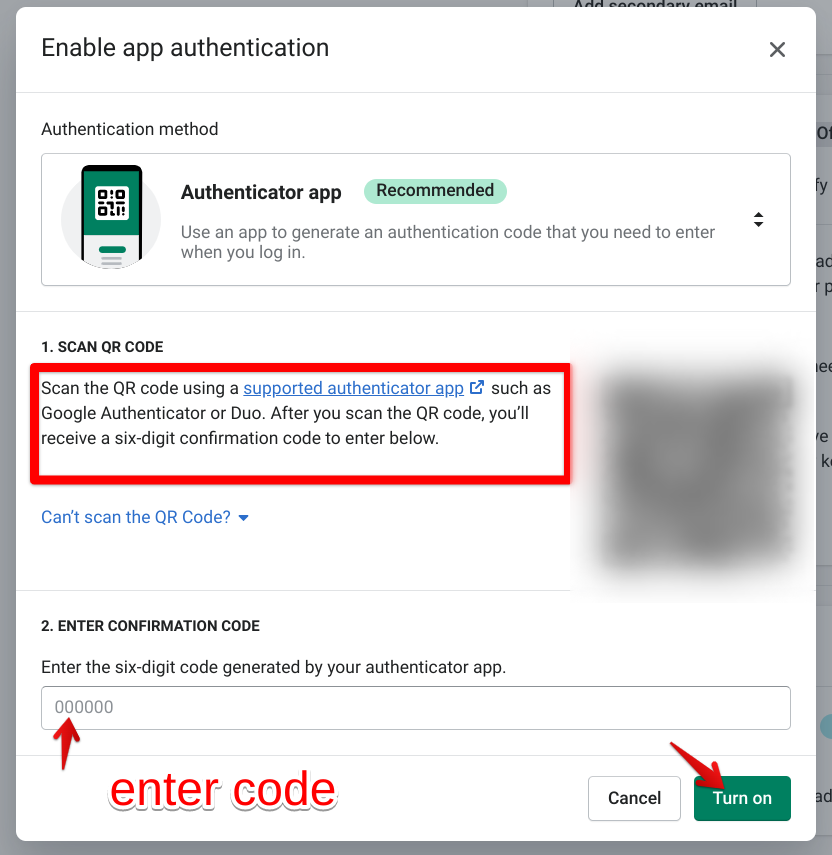
Once you select this option, a screen will appear showing some details and a QR code. Open your newly installed Authenticator App (you can download Google Authenticator or Microsoft Authenticator if you haven't already) and scan the displayed QR code.
After scanning, your Authenticator App will generate a 6-digit code. Enter this code into the field provided on the website and click the "Enable" button.
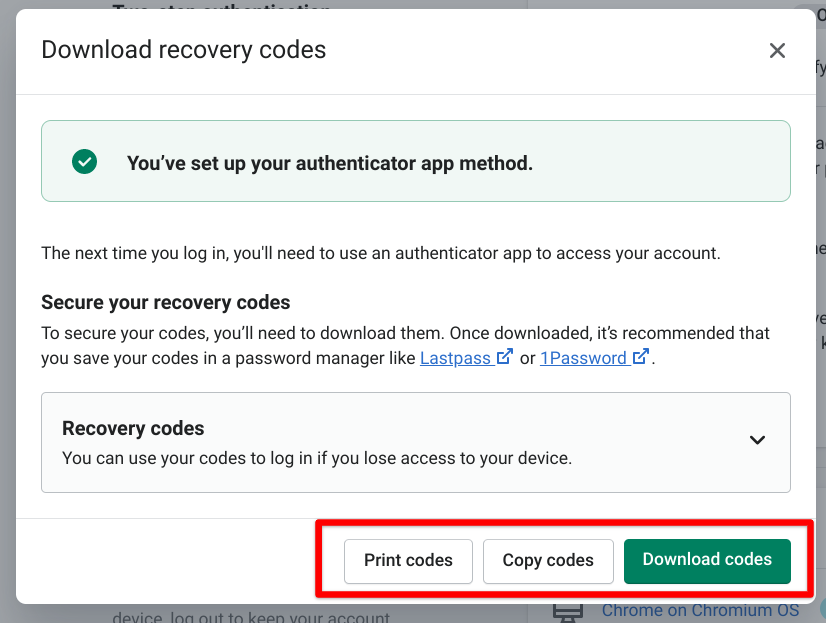
After activating 2FA, you will be asked to save your Recovery Codes. It is very important that you keep these codes in a safe place, either by writing them down on paper or saving them to your device.
These codes are your backup for accessing your account if you ever lose access to your 2FA method. We've seen an increase in users contacting our support team because they didn't save their codes. To avoid any issues, make sure to securely store them!
Conclusion
And that’s everything you need to know to set up Two-Factor Authentication for your store! We hope this guide was helpful to you. If you have any feedback or suggestions, feel free to share them in the comments!
Wishing you safe and secure selling!