

In the dynamic world of e-commerce, efficiently managing your product catalog is essential for operational success and customer satisfaction. As your Shopify store expands, you may find that a single product listing with multiple variants can become challenging to manage and confusing for customers.
Let’s explore how to split products in Shopify to simplify your backend processes and create a more streamlined shopping experience. By breaking down complex product listings into separate, focused entities, you can enhance your store’s organization and improve the overall customer journey.
This easy-to-follow guide will walk you through the steps of splitting products in Shopify. Whether you’re managing a large inventory or just a few items with multiple variations, understanding how to effectively split and manage products can lead to smoother operations and happier customers.
What are Shopify product variants?
Shopify product variants represent different versions of a product based on attributes such as size, color, and material. This feature allows customers to select a specific version without the need to create separate listings for each variant, streamlining product management.
For instance, a snowboard may offer size options (small for kids and large for adults) along with color options (black, blue, yellow). This results in variants like a small black snowboard or a large blue snowboard.
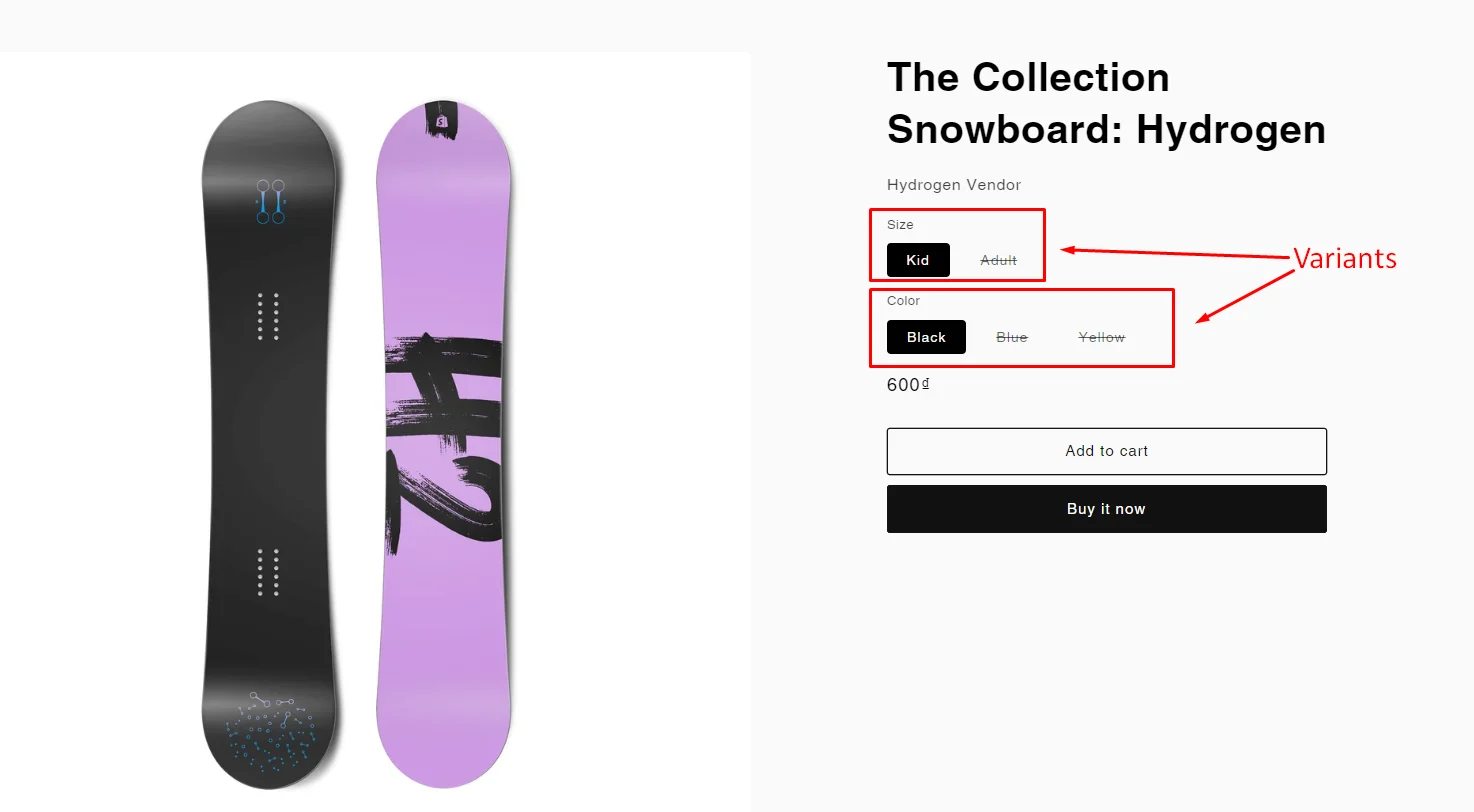
The advantages of utilizing product variants include easier management, enhanced user experience, and improved SEO optimization. To set up product variants, simply add the options and their corresponding values in the Shopify product management section. From there, you can manage inventory and customize details for each variant.
For example, you can set distinct stock levels for each t-shirt variant and upload specific images to help customers visualize their choices. This approach allows your store to offer a range of options while maintaining an efficient product management system.
Why are Shopify product variants important?
Splitting product variants are important for certain reasons:
Enhanced Customer Experience
Shopify product variants significantly enhance the customer experience by allowing shoppers to select from various options like size, color, or material within a single product page. This convenience means customers don’t have to navigate through multiple listings to find their desired version of a product.
Having all options in one place makes the shopping process more seamless and user-friendly, which can lead to increased customer satisfaction and higher conversion rates.
Simplified Product Management
For store owners, product variants streamline product management by consolidating all versions of a product into one listing. This centralization simplifies inventory tracking and management, ensuring accurate stock levels for each variant and reducing the risk of overselling. Additionally, it makes updating product information more efficient, as changes can be applied across all variants simultaneously, saving time and effort.
Improved SEO and Marketing
Using product variants can improve SEO and marketing efforts by consolidating traffic and backlinks to a single product page. This enhances the page’s overall search engine ranking and visibility. Additionally, having multiple variants under one listing allows for better keyword optimization, making it easier to rank for various related search terms. This consolidated approach not only boosts organic traffic but also enhances the effectiveness of marketing campaigns by focusing efforts on fewer, stronger product pages.
Increased Sales Potential
Shopify product variants can lead to increased sales potential by presenting multiple options to customers in a single product listing. This setup encourages customers to explore different variations of a product, which can increase the likelihood of a purchase.
Better Analytics and Insights
Product variants provide valuable analytics and insights into customer preferences and behaviors. By tracking which variants are most popular, store owners can identify trends and preferences that can inform future product development and inventory decisions.
Suggestions for Separate Variants in Shopify
We recommend that you take note of the following advice when applying Shopify variants to products:
- Avoid making separate listings for different product variants.
- Be aware of Shopify's limitations on product variations.
- Include links to the Shopify product variants in your images.
- Use consistent naming for your Shopify product versions.
How to Split Product Variants to Separated Products
Creating separate listings for each product variant in Shopify can enhance SEO, improve customer experience, and streamline inventory management. This approach involves splitting product variants into individual products.
Step 1: Gather Your Product Information
Before you start, collect all the essential details for each variant you intend to separate into individual products. This includes:
- SKU Numbers: Unique identifiers for every variant.
- Variant Options: Details like size, color, and material. Refer to the guide on adding sizes in Shopify.
- Descriptions: Tailored descriptions specific to each variant.
- Images: High-quality images that display each variant effectively.
Step 2: Log in to Your Shopify Account
- If you don't have a Shopify store yet, you'll need to create one (it's free).
- Once you have an account, log in to your online store using your registered email and password.

Step 3: Import Your Desired Products into a List
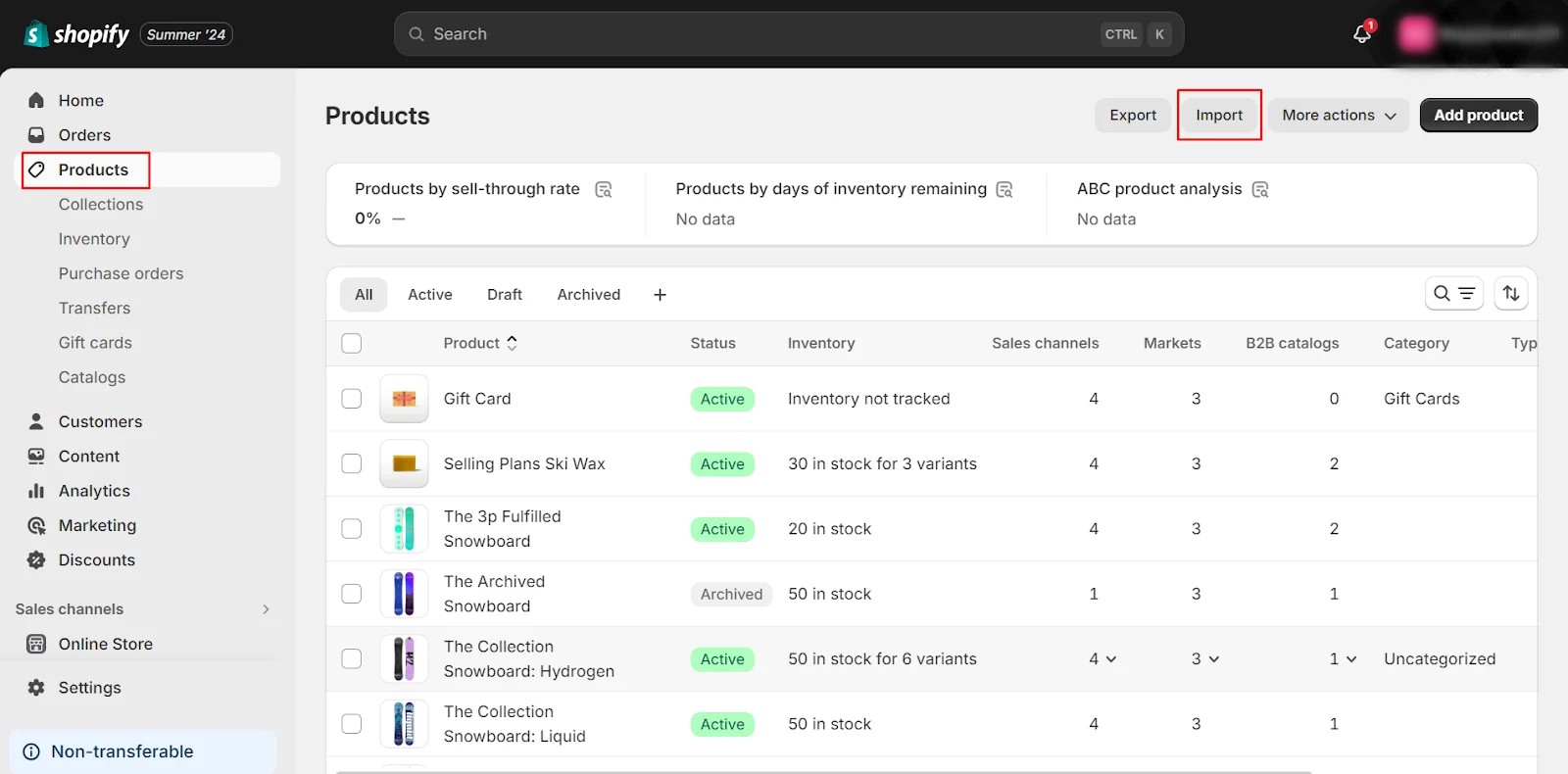
In your Shopify Dashboard, navigate to the Products tab and select the Import option.
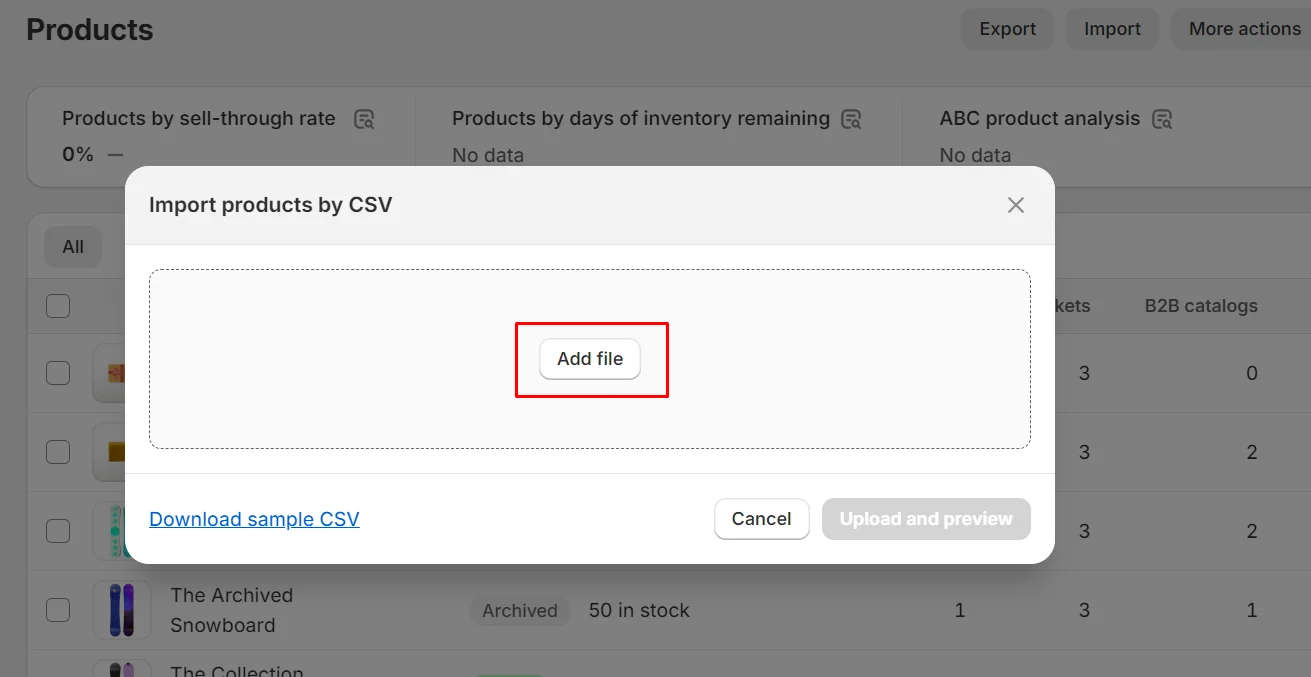
Click Add File
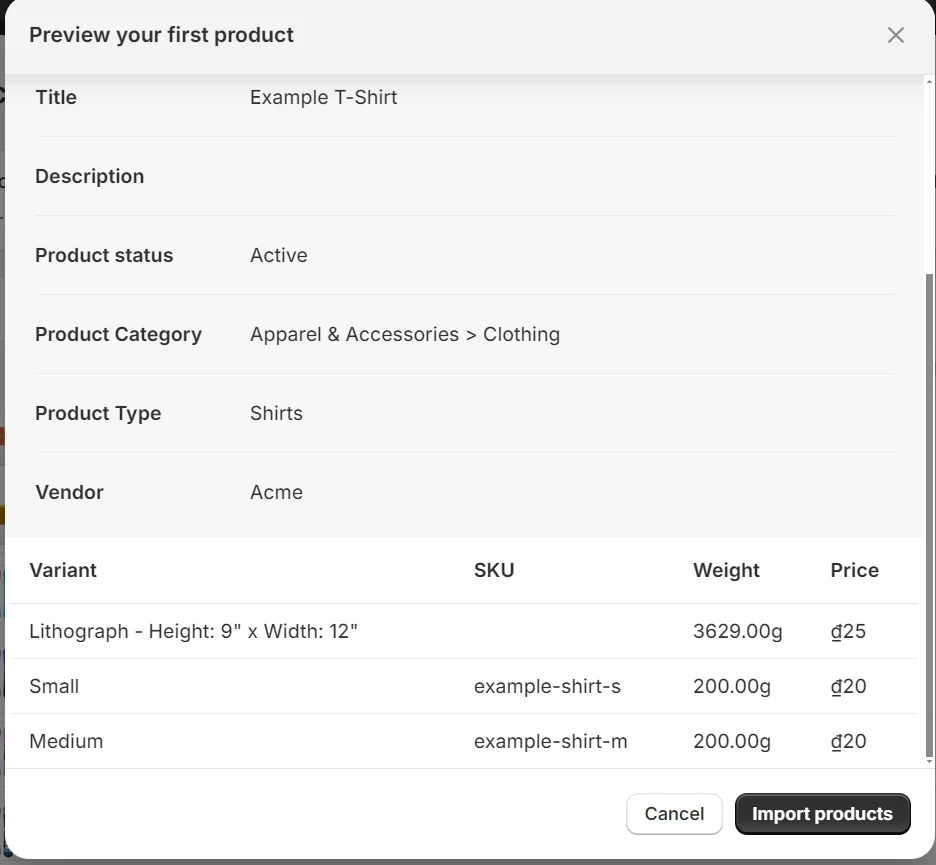
Next, select the Upload and Preview option to verify that your product information is correct.
Step 4: Select Specific Products to Split
After preparing your list, determine which products you want to separate.
Click the “…” button, then select Split Product from the menu.
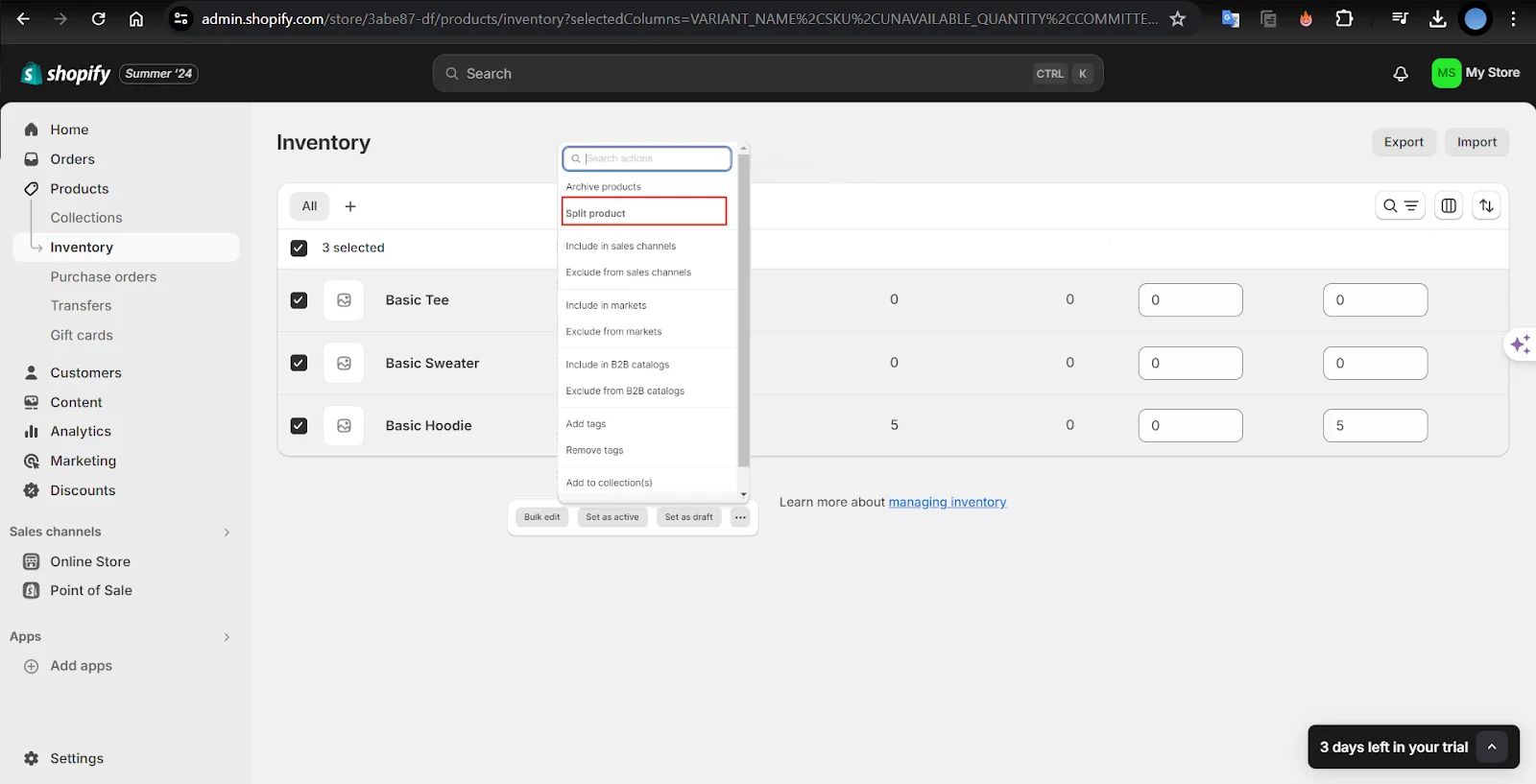
Step 5: Select Variants to Split
Next, choose the variant you wish to separate. If your items have multiple variations, such as color and size, you can select one, like color, to divide them into individual products. The products will automatically be separated based on their colors.
If you don't want to split all variants into individual products, you can opt for a manual approach. For example, if you only want to separate two colors, such as red and black, you can choose to do so manually.
Step 6: Click Split Products in Shopify
Finally, click Split to Products. New products will be created, while any unused variants will be disabled (but not deleted) and can be enabled again at any time.
Step 7: Hit Save
Before finishing your edits, make sure to save all changes. If you find managing and setting up your store too complex, consider utilizing services developed by Mavenbird experts.
How to Find Product Variant ID
In Shopify, each product variant is assigned a unique Variant ID, which is crucial for various administrative and development tasks, such as updating inventory, performing bulk operations, or integrating with third-party apps.
Here’s how to find the Variant ID for a product variant in Shopify:
Step 1: View the product live on the Shopify storefront
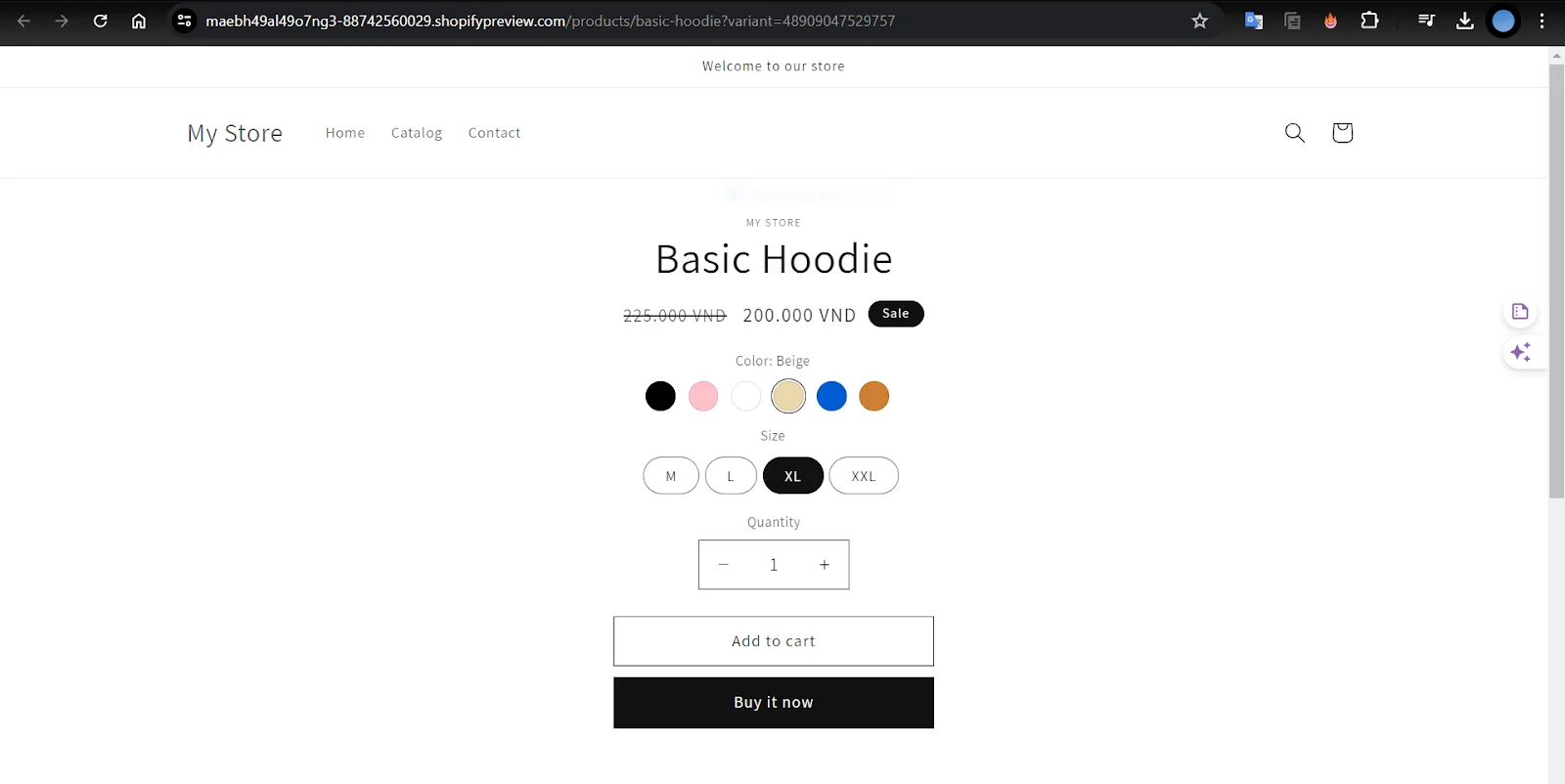
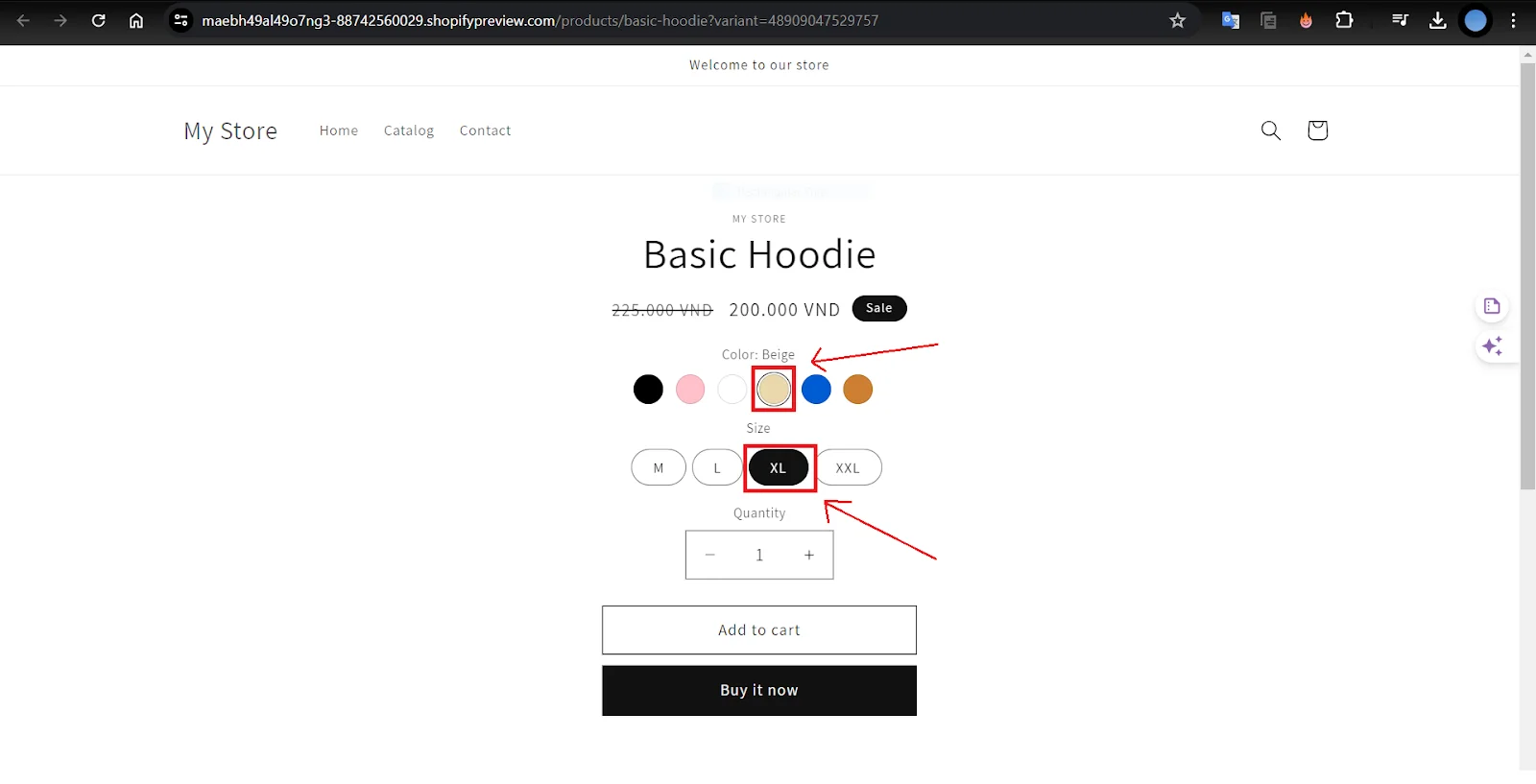
Step 2: Select the variant you wish to ID
Step 3: Take a look at the URL
The Variant ID can be found in the URL at the top of the web page, as shown in this example: https://www.storename.com/products/product-name?variant=XXXXXXXX.
For instance, in the following image, the URL is: https://maebh49al49o7ng3-88742560029.shopifypreview.com/products/basic-hoodie?variant=48909047529757.
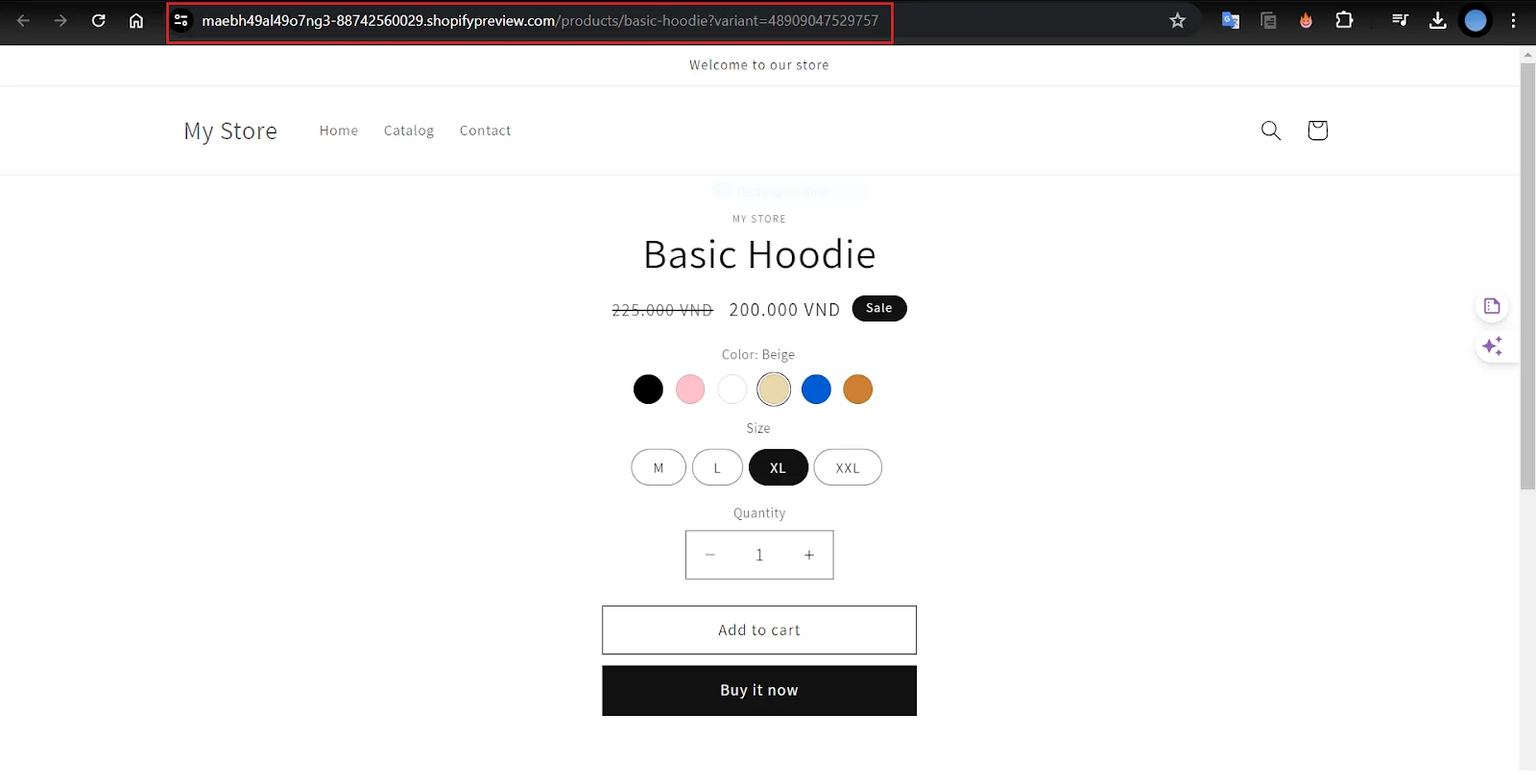
Step 4: Identify the Variant ID
The number following the “=” at the end of the URL is the Variant ID. In the example above, the Variant ID is 48909047529757.
This is how you can find the Shopify product variant IDs.
Top Shopify Apps to Customize Product Variants
Customizing product variants on Shopify can greatly enhance the shopping experience and improve conversion rates. Here are some of the best apps available on Shopify to help you customize product variants effectively:
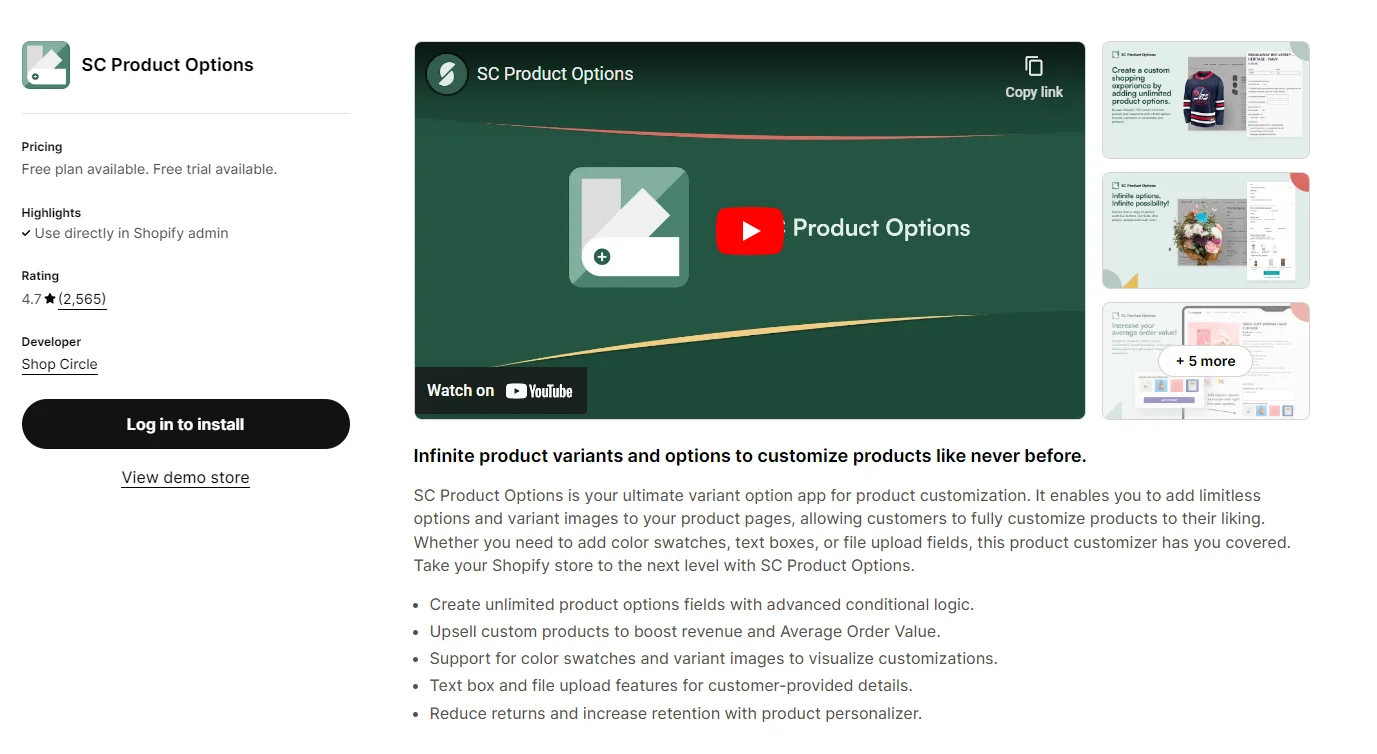
1. SC Product Options
Features:
- Enables the creation of custom options like dropdowns, checkboxes, and text inputs for product variants.
- Supports conditional logic, allowing options to change based on previous selections.
Benefits:
- Enhances user experience with intuitive selection interfaces.
- Ideal for stores with complex product configurations or personalized items.
2. Product Options by HulkApps
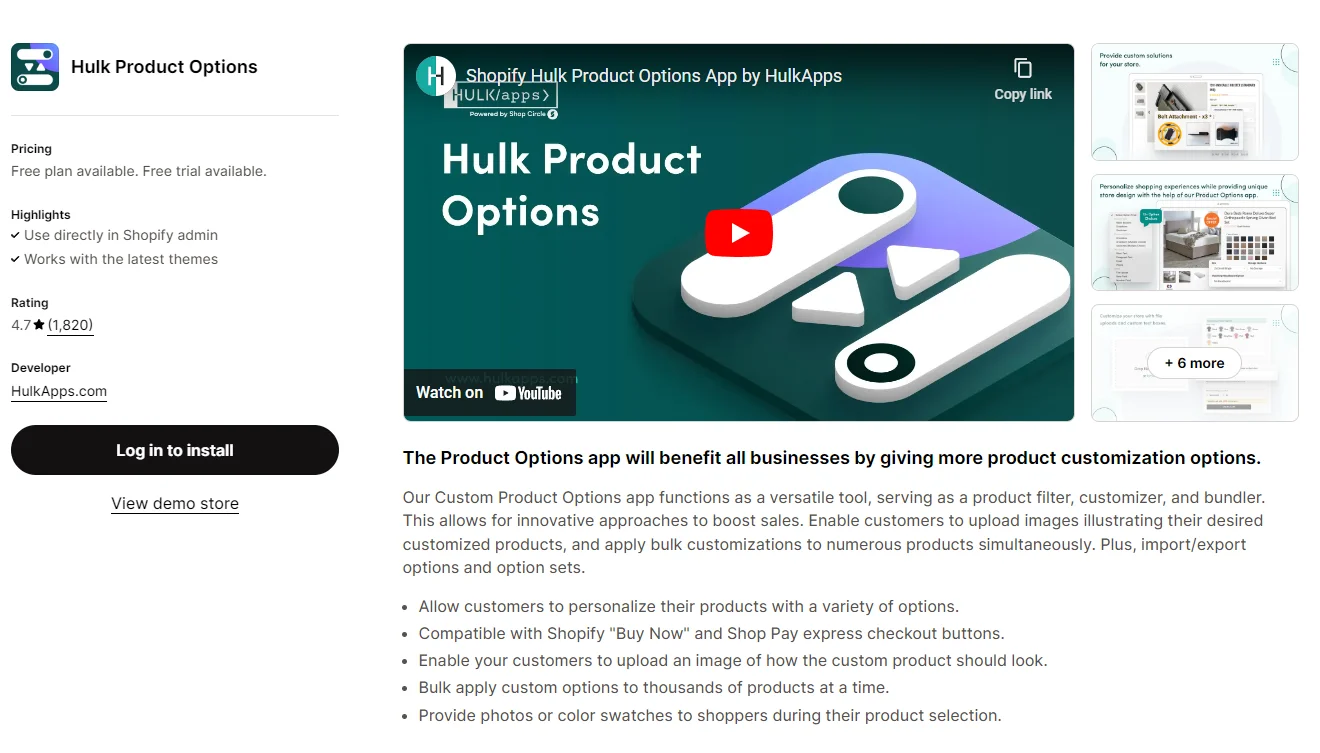
Features: Enables unlimited customizations for product options and variants. You can add custom text fields, upload images, and set pricing based on selections.
Benefits: Flexible and easy to use, suitable for any Shopify store looking to offer extensive customization options to customers.
3. Product Customizer by Zakeke

Features: Provides tools to create customizable products with text, images, and predefined options. Customers can personalize products in real-time before purchase.
Benefits: Perfect for stores selling customizable merchandise like apparel, gifts, or promotional items. It integrates seamlessly with Shopify’s product and cart systems.
How to Add Variants to Existing Products on Shopify
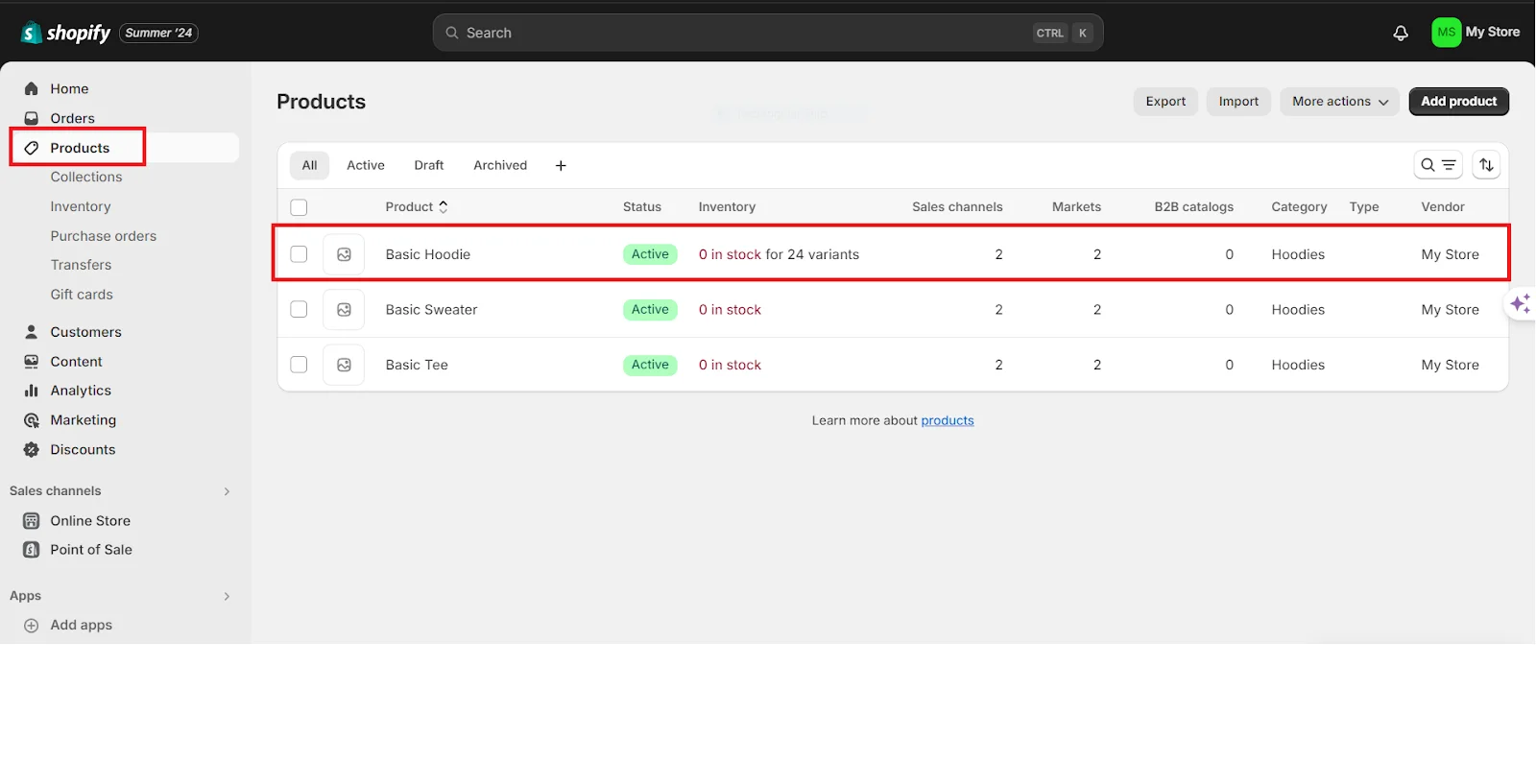
Step 1: In your Shopify Admin account, click on Products. Choose the product you want to modify.
Step 2: On the product page, locate and select the Add Variant box.
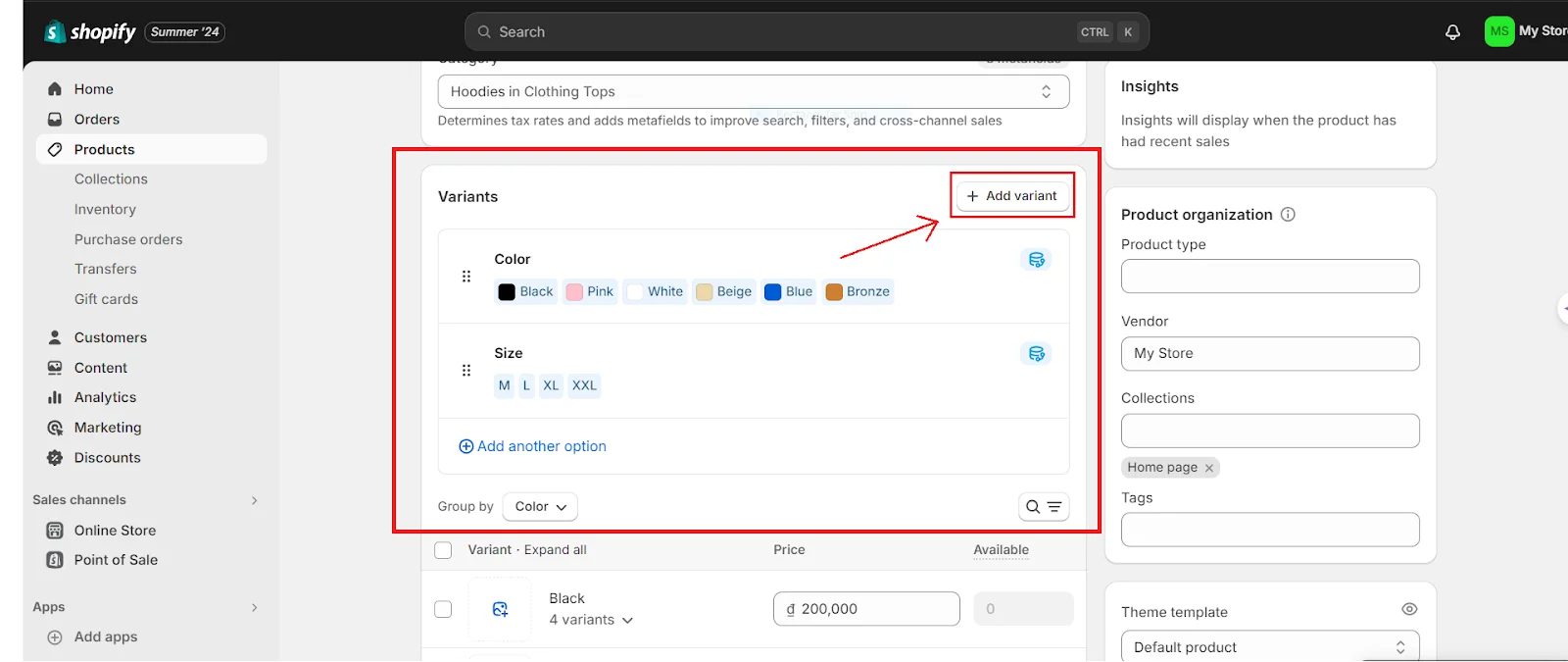
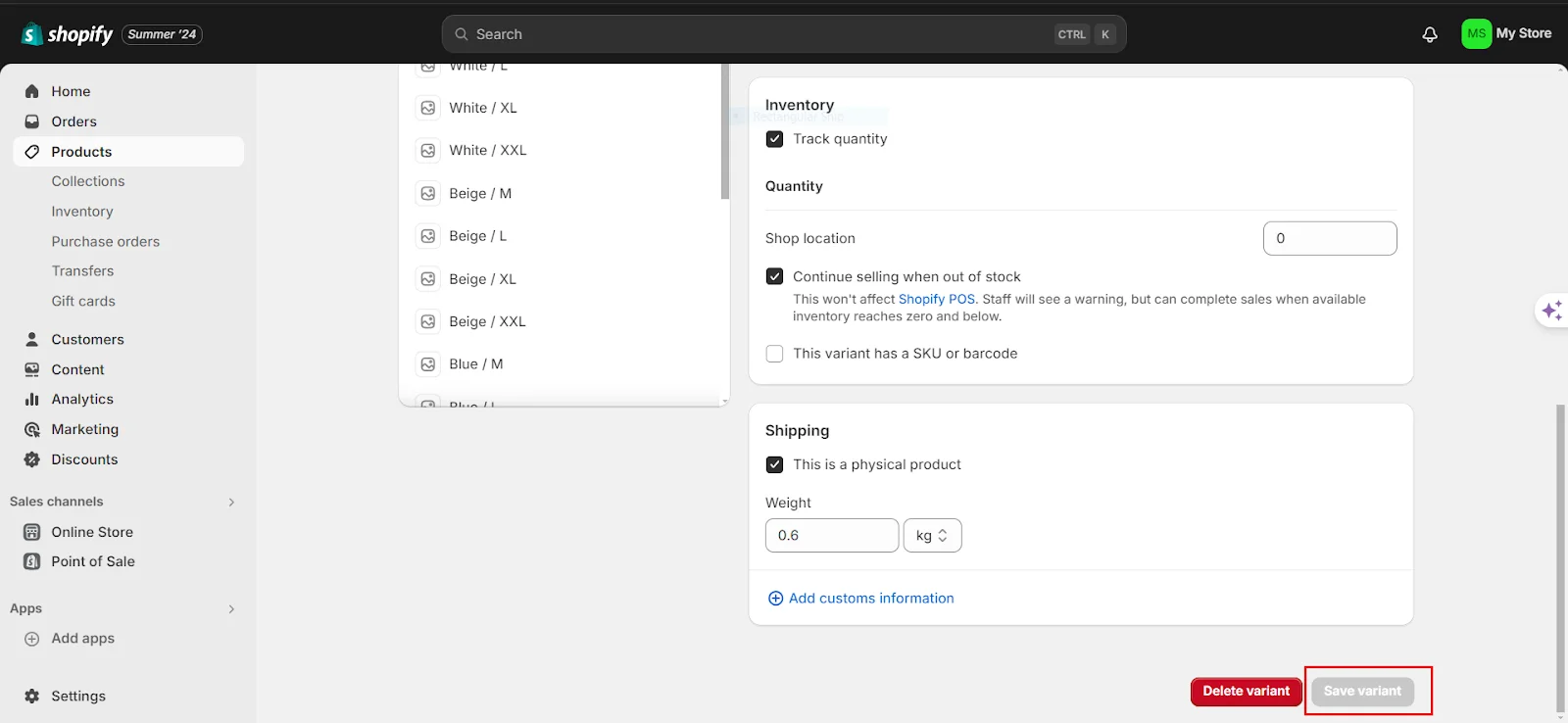
Step 3: Fill in the fields with the option name and values. Then, enter a price, a unique SKU, and a barcode for each option value you created.
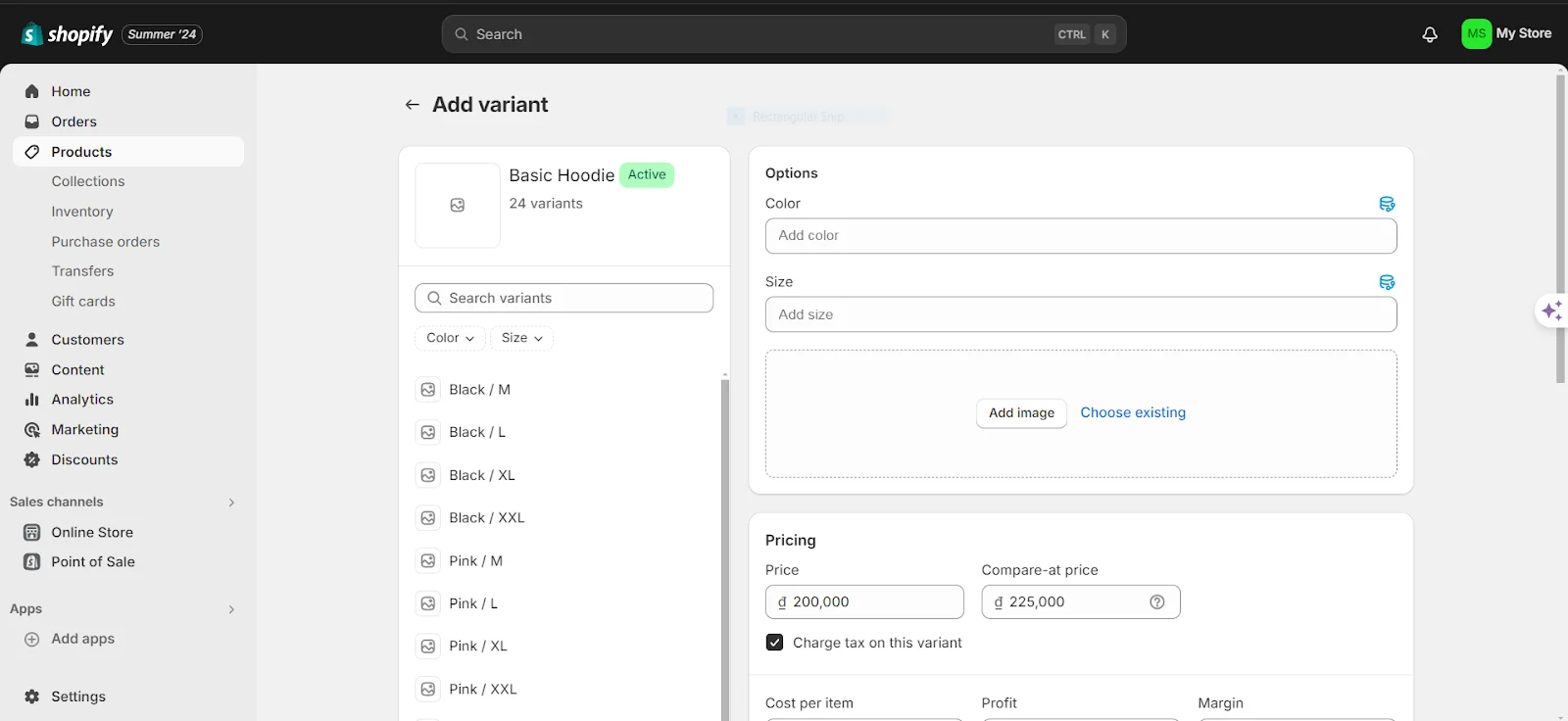
Step 4: Select the options for the variant and click Save. This is how you can add variations to products in Shopify.
Dividing products in Shopify can greatly improve your store's organization and enhance the customer experience. By assessing the necessity of splitting products, exporting and modifying your product data, and maintaining accurate inventory, you can foster a more efficient and user-friendly shopping environment.
This approach not only streamlines product management but also allows customers to easily locate what they're looking for. With effective tools and strategies, product splitting can significantly boost the functionality and attractiveness of your Shopify store, leading to improved business outcomes and increased customer satisfaction.