

The Hyvä Theme simplifies and speeds up Magento 2 frontend development. One of its most powerful built-in features is the support for Heroicons — a lightweight SVG icon set designed to work perfectly with Tailwind CSS. These icons help you add visual clarity to your buttons, menus, and UI components — all without slowing down your website.
What Are Heroicons in Hyvä?
Heroicons are clean and scalable SVG icons crafted by the Tailwind CSS team. In Hyvä Theme, they’re available by default, so there’s no need for extra libraries like Font Awesome or Material Icons.
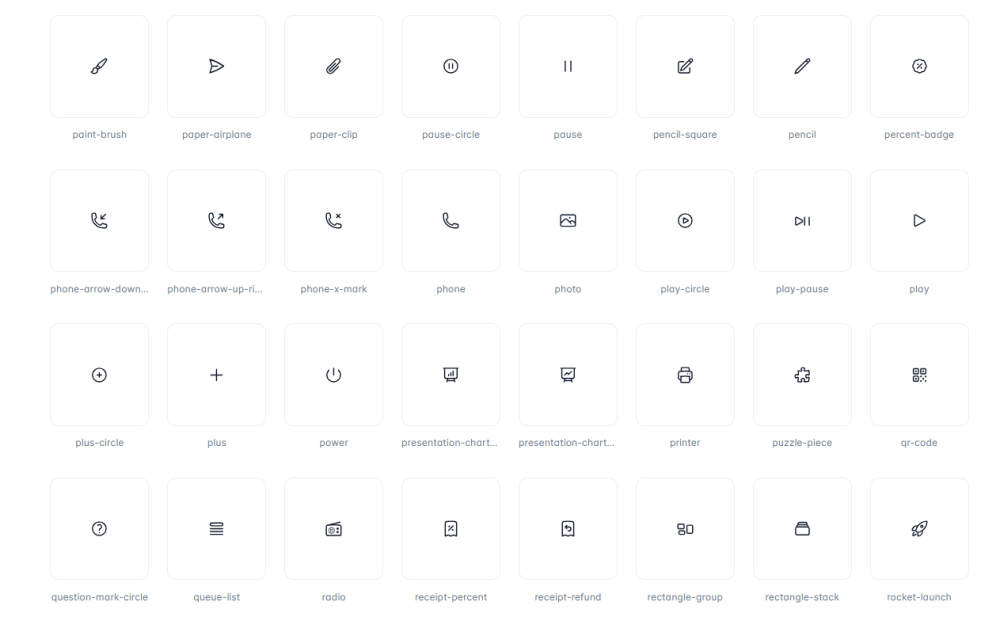
You can choose from two styles:
- Solid Icons – Filled shapes, great for buttons and CTAs
- Outline Icons – Line icons for minimal, clean UI
Explore the full library here → heroicons.com
Why Use Heroicons in Hyvä?
- Performance Friendly: Pure SVG, no font loading
- Customizable: Easily change color and size using Tailwind classes
- Built-in: No need for extra dependencies
- Consistent: Matches the Hyvä + Tailwind design language
Add Heroicons in PHTML Templates
Hyvä provides ready-to-use ViewModels to render Heroicons inside PHTML files. Just include them and call your preferred icon.
Example: Add Arrow Left Icon
<?php
/** @var Hyva\Theme\ViewModel\HeroiconsOutline $heroicons */
$heroicons = $viewModels->require(Hyva\Theme\ViewModel\HeroiconsOutline::class);

// Render arrow-left icon
?> <?= $heroicons->arrowLeftHtml('text-gray-500', 32, 32) ?>
Parameters:
- $classnames – Add Tailwind classes (e.g. text-primary)
- $width / $height – Set size (default: 24)
- $attributes – Add extra HTML attributes (optional)
Use Heroicons Inside CMS Pages or Blocks
Want to add icons in CMS content (no coding)? Use the simple directive:
For custom icons stored in web/svg/:
Works in CMS Pages, Static Blocks, and even Email Templates.
Override Default Heroicons
Want to modify or replace a built-in Heroicon? You can easily override any default SVG icon in your Hyvä theme.
-
Copy the icon: Locate the SVG in
vendor/hyva/theme/web/svg/heroicons/ -
Paste it: Move the file into your theme directory →
app/design/frontend/<Vendor>/<Theme>/web/svg/heroicons/ - Customize it: Open the SVG file and modify its design or path as needed.
- Deploy changes: Run static content deployment and clear the cache.
Magento will now automatically load your updated icon version. No extra configuration required!
Add Custom SVG Icons
Need to display your brand logo or a unique icon not included in Heroicons? You can add custom SVG icons with just a few steps:
-
Prepare your SVG: Download or create your custom icon (e.g.
mavenbird-icon.svg). -
Place the file: Save it in your theme under →
app/design/frontend/<Vendor>/<Theme>/web/svg/ -
Render the icon: Use the
SvgIconsViewModel in your PHTML template.
<?php
use Hyva\Theme\ViewModel\SvgIcons;
use Hyva\Theme\Model\ViewModelRegistry;

/** @var ViewModelRegistry $viewModels */
/** @var SvgIcons $hyvaicons */
$hyvaicons = $viewModels->require(SvgIcons::class);

// Option 1
echo $hyvaicons->renderHtml('mavenbird-icon', 'text-blue-600', 24, 24);

// Option 2 (Magic method)
echo $hyvaicons->MavenbirdIcon('text-blue-600', 24, 24);
Best Practices
- Keep SVGs lightweight and clean
- Use Tailwind classes for color & hover effects
- Group custom icons logically
- Clear static cache after adding new SVGs
Final Thoughts
Heroicons make your Hyvä Theme look polished, intuitive, and fast. Whether adding built-in icons or custom SVGs, they enhance UI consistency while keeping performance top-notch.
At Mavenbird, we specialize in Hyvä Theme Development, performance optimization, and UI customization. Want a lightning-fast Magento storefront? Contact us today.